Open windows to use applications on Windows, but managing the position of windows is scientific to help manage the work you are doing on Windows more conveniently. Windows 10 also has some built-in features to solve this problem, but Microsoft has another tool with more effective options. In this article, I will show you how to make windows always open in the same location on the screen.
| Join the channel Telegram belong to AnonyViet 👉 Link 👈 |
Use Microsoft’s PowerToys
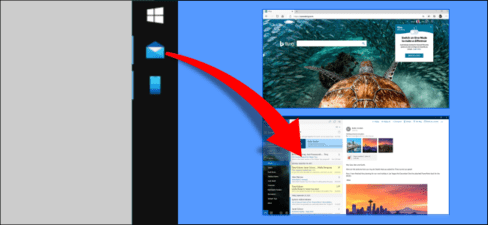
The function of selecting the window opening position is possible with the feature Snap Assist of Windows 10. Sometimes an app will open in the same location as when it was shut down, but this is not always the case. Microsoft’s PowerToys utility does a better job of making sure apps open where they used to be closed.
PowerToys is a feature-packed utility suite that every Windows user should use to add more functionality. In this article, I will use the “FancyZones” feature, which is just one of many features of PowerToys.
FancyZones allows you to divide your screen into as many “zones” as you want. You won’t be limited by Snap Assist’s 2 x 2 arrangement. Areas can also be completely customized in terms of size and spacing.
Choose where to open the window on the screen
First, you need to set up FancyZones to snap windows to custom screen zones. You will need to set this up so windows can open in the same place every time.
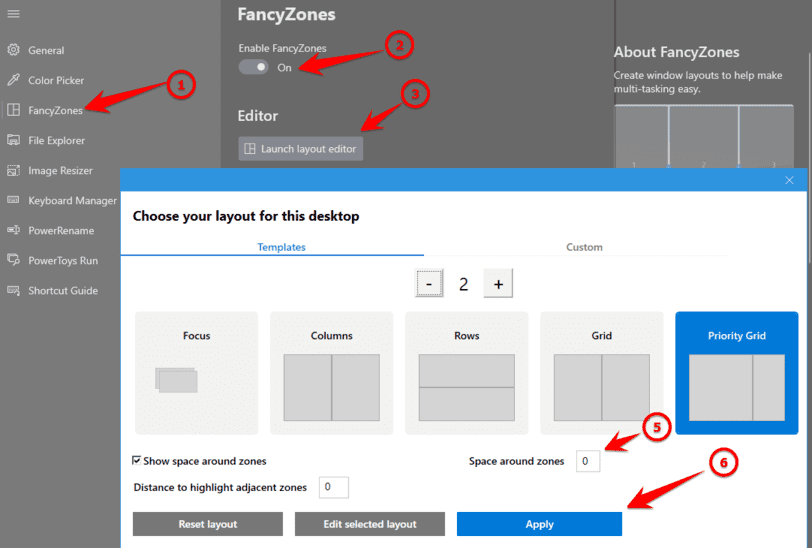
After setting up the layout, you just need to press and hold Shift and drag the window into the set area.
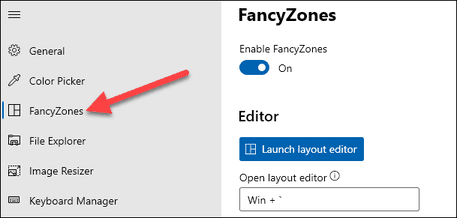
Next, open “PowerToys” and go to the “FancyZones” tab.
Scroll down to the “Window Behavior” section of the “FancyZones” tab.
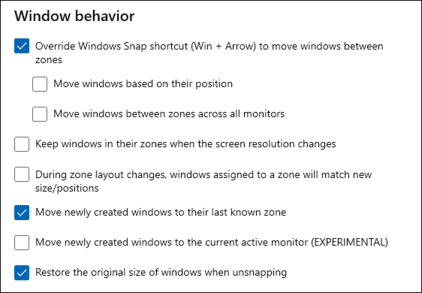
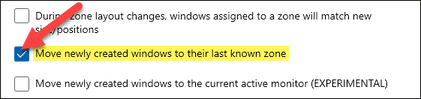
The option you need to enable here is “Move newly created windows to their last known zone”. This means that when you close a window in a certain area, the window will return to that area the next time you open it.
Not only is this convenient for opening apps frequently, but it can also enable some cool automated features. If you have set certain applications to open when your computer starts, they will automatically move to their respective areas.
A small note is that you need to put the window in the pre-set position before you can use this feature. You can too Use PowerToys to set unused key functions again. For example, you can use the CapLock key to open the software.
Frequently asked questions
What features can I use to specify where a window opens on Windows?
You can use the FancyZones feature in Microsoft’s PowerToys. This feature allows you to divide the screen into zones and assign window opening positions for each application.
How to enable the feature to remember closed window positions in FancyZones?
In PowerToys, go to the “FancyZones” tab, navigate to the “Window Behavior” section and enable the “Move newly created windows to their last known zone” option.
If I have never used PowerToys, what do I need to do before using FancyZones?
You need to download and install PowerToys from the official Microsoft website. You can then set up zones in FancyZones and enable the option to remember window positions.