Features Fall detection on Apple Watch is an effective technology “bodyguard”, helping you and your loved ones feel more secure in everyday life. Not just for the elderly, this feature on Apple Watch SE, Series 4 and above, and Ultra can be a lifesaver in unexpected emergency situations. Let’s explore with AnonyViet how to set up and use this useful safety tool in the most detailed way.
| Join the channel Telegram belong to AnonyViet 👉 Link 👈 |
What is the fall detection feature on Apple Watch?
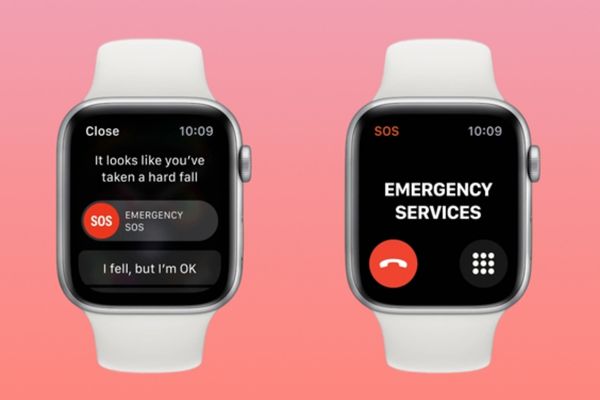
This is not a regular feature, but a built-in smart protective “shield”. By using sophisticated accelerometers and gyroscopes, Apple Watch can accurately identify a hard fall.
When an incident occurs, the watch immediately reacts:
- The device will vibrate, make sound and displays a message on the screen to attract your attention.
- You can slide to immediately call emergency services or tap “I’m okay” to ignore the warning if it’s just a minor collision.
- The most special point is if you there wasn’t any reaction In about a minute, Apple Watch will automatically make a call to the emergency number. At the same time, it will also send a message with your location to the emergency contacts you have set up in your Health ID.
This feature is automatically enabled for users from 55 years old or older (based on the information you provide in the Health app), but anyone over 18 can turn it on manually for added safety.
Steps to enable fall detection
Activating this “bodyguard” is extremely simple and you can do it right on the watch or via iPhone.
1. Activate on Apple Watch
- First, open the application Setting (gear icon) on Apple Watch.
- Next, scroll down and find the item SOS.
- In this menu, you find Fall Detection (Fall detection) and turn the switch to green to turn it on.

- You can customize the feature to always be on or only turn on while exercising to optimize battery life.

2. Activate via iPhone
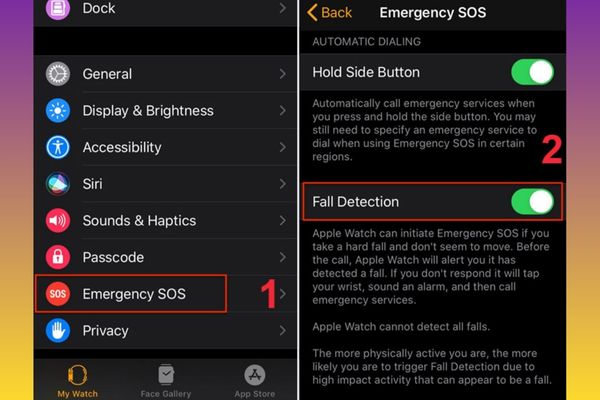
- You need to open the application Watch on your iPhone and make sure you’re on tab My watch.
- Then you scroll down and select the item Emergency SOS.
- Here, you just need to search Fall detection and flip the switch to activate the feature.
Set up a Health ID and emergency contacts
This is an extremely important step for the fall detection feature to maximize its effectiveness. Health ID will provide your health information to medical staff and notify relatives when problems arise.
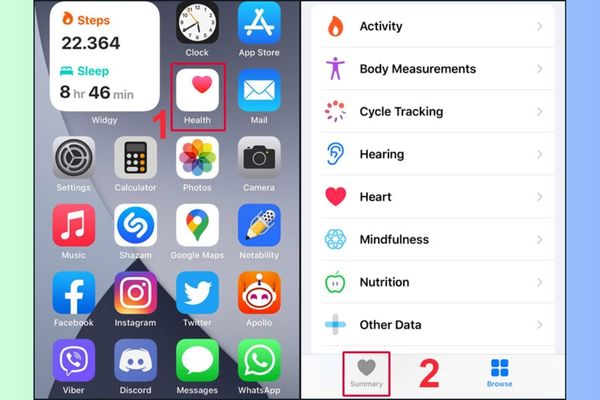
Step 1: Please open the application Health (Health) on iPhone, then select the tab Overview (Summary) and tap your profile picture in the top right corner to access your health profile.
Step 2: Next, find and click on the item Medical ID (Medical ID), then select Set up a Medical ID (Set Up Medical ID) and press Begin (Get Started) to proceed with the installation.
Step 3: Here, you need to fill in your personal medical information, including date of birth, blood type, allergies or any underlying medical conditions.
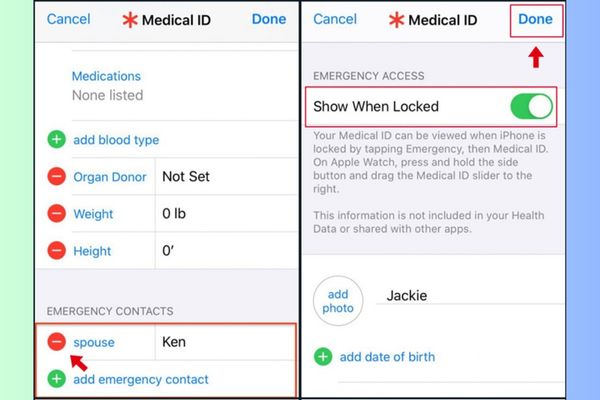
Step 4: You scroll down to the section Emergency contact (Emergency Contacts) and tap the plus icon (+) to add a relative’s phone number from your contacts. Don’t forget to identify your relationship to them (e.g. father, mother, sibling).
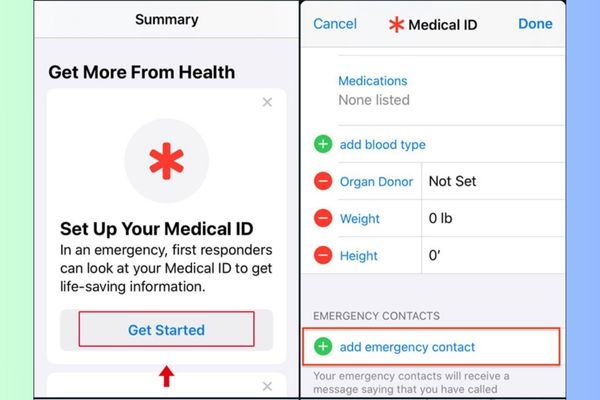
Step 5: In case you want to remove an added contact, you just need to tap on the red minus (-) icon next to their name and select Erase (Delete).
Step 6: An extremely important option is to turn on the switch at the item Displayed when locked (Show When Locked). This allows medical staff to view your health information right on the lock screen without needing a password, helping them access information quickly.
Step 7: Once you have completed all the information, click Finished (Done) in the upper right corner to save.
Important note: Make sure your age is declared correctly, as this will directly affect whether fall detection is automatically activated or not.
How to make an emergency SOS call
Apple Watch gives you two ways to make an emergency SOS call, whether the watch automatically detects a problem or when you need to proactively call for help.
When the watch detects a fall
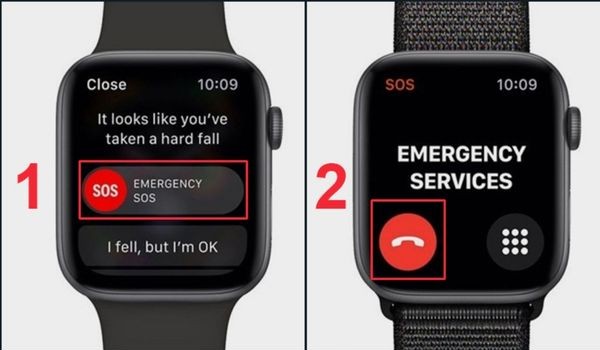
If Apple Watch detects that you have just suffered a hard fall, a warning will immediately appear on the screen. You can drag the slider Emergency call (Emergency SOS) to immediately contact the rescue service. To ignore the warning, you can press Cancel (Cancel) or select I’m OK (I’m OK).
When you need to call manually
Press and hold the side button of your Apple Watch (the flat button below the Digital Crown) until the Emergency SOS slider appears. Then you just need to drag this slider to the right to start the call. A useful piece of advice is that if you accidentally make a call, do not rush to hang up, but wait for the rescue worker to answer and explain that you do not need assistance.
For iPhone 14 and later users, Apple Watch can also use the Emergency SOS feature via satellite even without a Wi-Fi or cellular connection, an invaluable help when you’re in remote areas.
How to review falls history
Apple Watch automatically records all falls it detects in the Health app on iPhone, unless you responded “I’m okay” when the alert appears. To review this history, do the following:
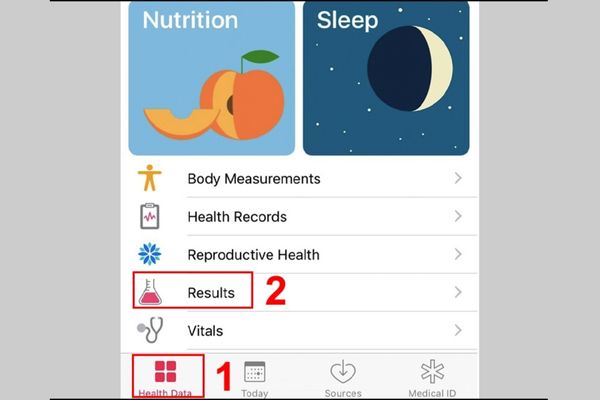
Step 1: Please open the application Health (Health) on your iPhone and select the tab Browse (Browse) in the bottom toolbar.
Step 2: Next, scroll down and find the item Other data (Other Data).
Step 3: Finally, click on the item Number of falls (Falls) to view a detailed history of all recorded falls.
Conclusion
Installation and understanding of features Fall detection on Apple Watch is a practical action to protect the safety of yourself and your loved ones. Don’t hesitate, take a few minutes to set up your “bodyguard” right on your wrist. Careful preparation today can make a big difference in unexpected situations.