How to delete SMS and iMessage in iCloud is an essential trick for anyone using the Apple ecosystem. The iCloud message sync feature is extremely convenient, but it is also the silent reason why your memory runs out without even realizing it. Do not worry, AnonyViet will show you the simplest methods to clean up your message “store” and reclaim valuable storage space.
| Join the channel Telegram belong to AnonyViet 👉 Link 👈 |
How messages work on iCloud
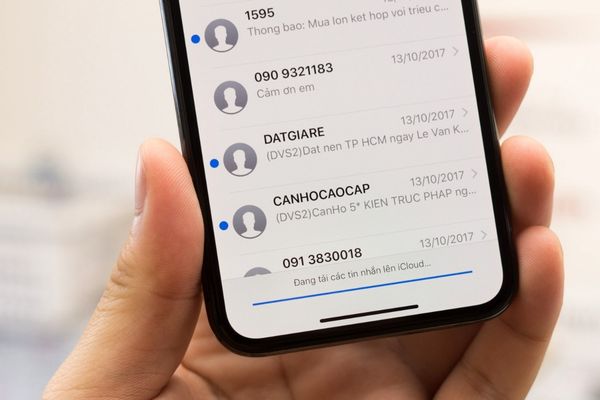
Before you begin, you need to understand an important principle: Message above iCloud is end-to-end encrypted and can only be managed through the Messages app on Apple devices such as iPhone, iPad or Mac.
This means you can’t access or delete them from a web browser like you can with iCloud Photos. Any deletion you do on one device will be synchronized and applied to all other devices logged in with the same Apple ID account.
3 ways to delete SMS and iMessage in iCloud
Method 1: Clean up manually
Step 1: To quickly delete a conversation, simply swipe from right to left on that conversation and select the red trash can icon.
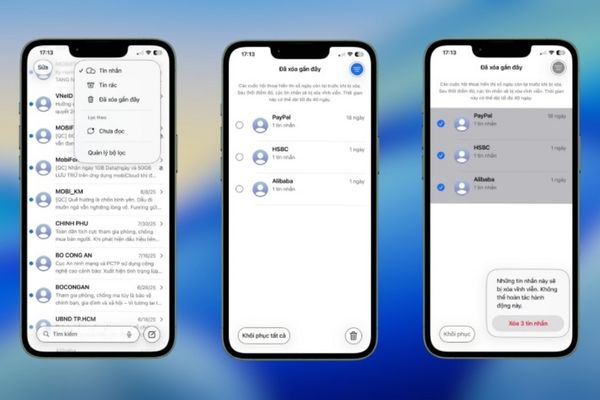
To delete in bulk, click the button Fix in the upper corner, select Select messagesthen tick all the chats to delete and tap Erase.
Step 2: The next step is to empty the trash to immediately free up space. Messages after deletion will be moved to the section Recently deleted and existed there for approx 30-40 days before disappearing on its own.
To permanently delete, go to the application Messageselect the filter in the upper left corner and navigate to the section Recently deleted. Here, you can choose to delete individual messages or tap Delete all for complete cleaning.
Step 3: Finally, you can speed up the synchronization process. Normally, the device will automatically update changes to iCloud. However, if you want the process to happen immediately, you can go in Setting > [Tên của bạn] > iCloud > Message and click Sync now.
Method 2: Delete heavy attachments
The truth is that plain text messages take up very little space. The main culprits that cause memory bloat are images, videos, GIFs, and documents you’ve sent and received.
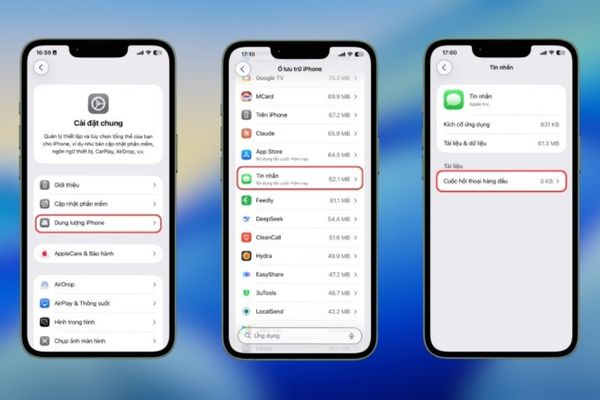
For users iPhone and iPad, you can manage these files easily. Please visit Settings > General > iPhone Storage > Messages. Here, the system will classify attachments by Photos, Videos, GIFs & Stickers, etc. You can review and delete large files without deleting the entire conversation.
For Mac users, the process is similar: You enter System Settings > General Settings > Capacity. Tap the information icon (ⓘ) next to Messages, then select and delete unnecessary attachments.
Method 3: Completely turn off iCloud Messages
If you no longer need to back up and sync messages to iCloud, here’s a way to wipe all data and turn off this feature.
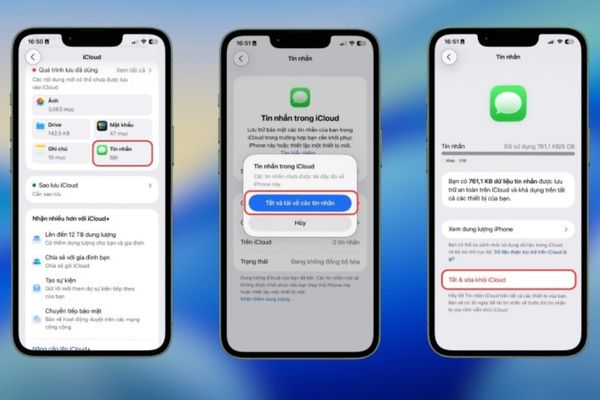
- First, you need to turn off sync on your device. Enter Settings > [Tên của bạn] > iCloud and choose Message.
- Turn off the switch at “Use on this iPhone“. The system may ask if you want to download the message to your device, please select yes.
- You will then delete all message data from iCloud servers. Still in iCloud settings, select Capacity management.
- Find the item Messageselect Turn off & remove from iCloud and confirm your selection.
Note that after doing this, your entire iCloud message archive will be permanently deleted after 30 days and messages will no longer be synced between your devices.
Conclusion
With the detailed instructions above, cleaning up memory is no longer a problem. By applying How to delete SMS and iMessage in iCloud suits your needs, you can quickly reclaim storage space, helping your device operate smoother. Start cleaning today to manage your data effectively!