• Home
  • News
  • Software
  • Knowledge
  • MMO
  • Tips
  • Security
  • Network
  • Office
AnonyViet - English Version
  • Home
  • News
  • Software
  • Knowledge
  • MMO
  • Tips
  • Security
  • Network
  • Office
No Result
View All Result
  • Home
  • News
  • Software
  • Knowledge
  • MMO
  • Tips
  • Security
  • Network
  • Office
No Result
View All Result
AnonyViet - English Version
No Result
View All Result

How to create USB Reset Password Windows 10

AnonyViet by AnonyViet
November 2, 2025
in Tips
0

In this technological age, everyone owns a desktop or laptop computer. To protect privacy and avoid data theft, people often set a password when logging into Windows. However, many of you have “golden fish brain” and sometimes forget what your password is? Microsoft has calculated that situation, so it has integrated the USB Reset Windows password feature for users. Today we will create a USB to retrieve Windows 10 password for protection.

Join the channel Telegram belong to AnonyViet 👉 Link 👈

How to create USB Reset Password Windows 10

In this tutorial, we will create a USB that can reset password for Windows 10 and will use this USB to log in to Windows even if you forget the password. But before we start, make sure you have a USB.

How to create USB Reset Password Windows 10

Note: After creating a USB Reset Password Window to recover the password, the USB will not be used for other purposes. So use unnecessary USB to create. Also, make sure to keep this USB safe because if someone else has it, they will have access to your computer.

Tip: You can use an “SD Card” memory card instead of using USB.

First, plug the USB into your device. Then enter the search section Control Panel and Enter then Control Panel will open

Open Control Panel

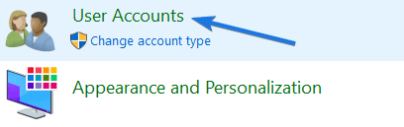
Then you click User Account.

User Account

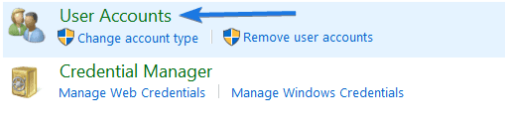
Then click again User Accounts.

User Accounts

Then in the upper left, find and select “Create a password reset disk”.
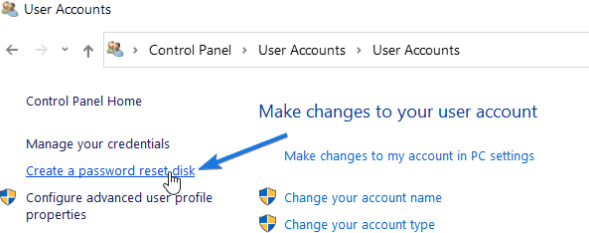
Create a password reset disk

And then the Forgotten Password Wizard will be opened. And you click Next.
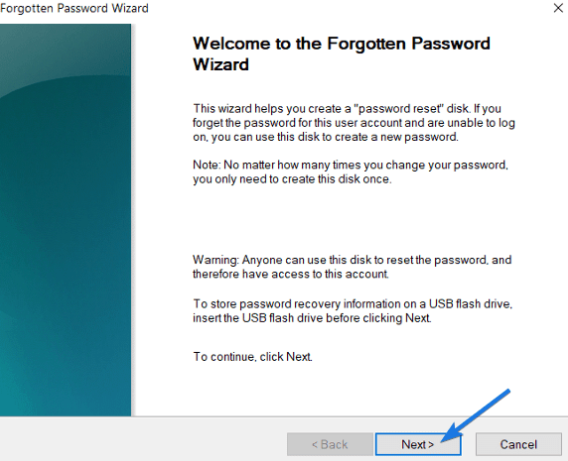
Forgotten Password Wizard

Now select your USB drive, select Next.
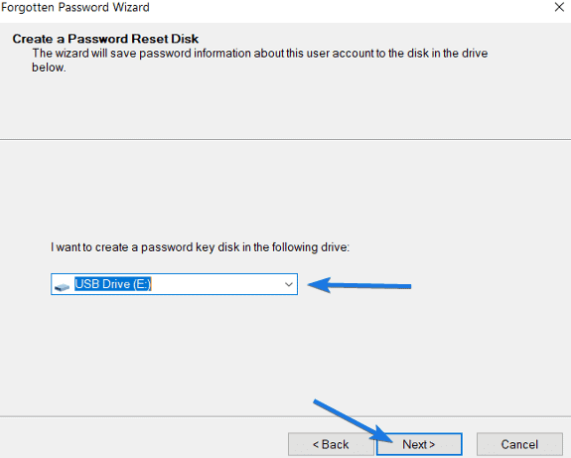
Select the USB drive to reset Windows 10 Password

Next, Windows will ask what your current User’s password is. If your computer account has a password, enter it. If not, leave it blank. And press Next
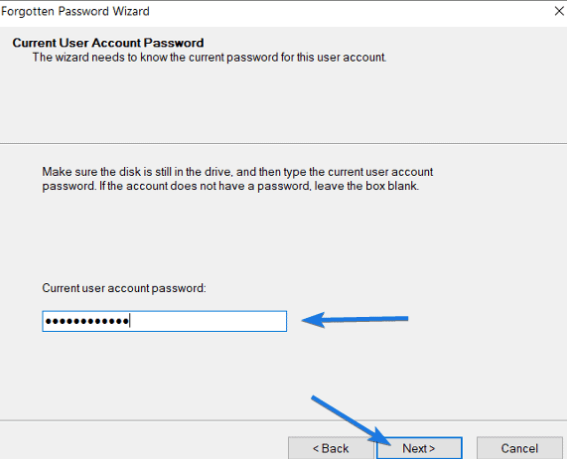
Enter current Password

Wait a moment for the USB Reset Password Windows creation process to complete. Finally press Close to turn it off.

How to create USB Reset Password Windows 10 7

Go to “This PC” and select the USB drive you just created to reset to see if there are files “userkey.psw” Or not, if so, it has been created successfully. If there is no word, start over.
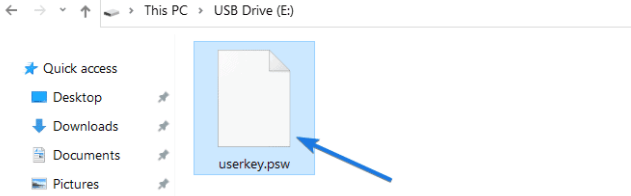
userkey.psw

How to use USB to retrieve Windows password

First, plug the Windows Password Reset USB into the computer.

Press the Power button to start the computer, wait until the Windows login screen appears, enter the wrong password until Windows displays the Reset Password .

After pressing Reset Password then the Password reset wizard will appear. Press Next.

Reset Password Windows 10

Then select the USB that contains the file “userkey.psw” okay.
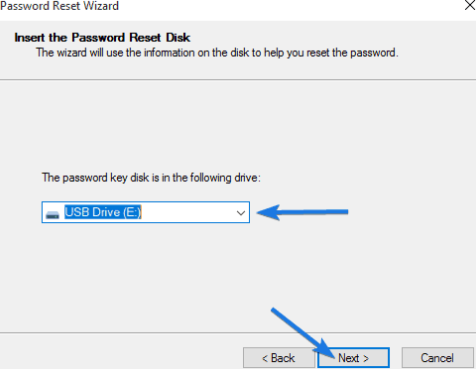
select usb reset pass

And now it will go to the password reset section “Reset the User Account Password”.

Enter new Password in the box Type a new passwordand re-enter the new Password in the box below.

The last box is the password suggestion. If you forget, there will be a password suggestion message for you.

For example, if you set the password to “suez”, then oh Type a new password hint Could it be “which channel is the ship stuck in”?

Then click Next.
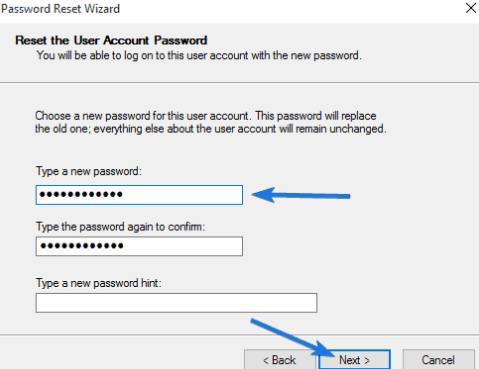
Reset the User Account Password

Wait for the Finish message to complete, now you can log in to Windows with the new Password you just created.
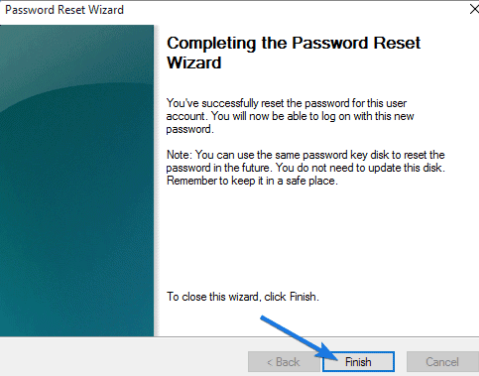
How to create USB Reset Password Windows 10 8

Summary

So I guide you to create USB Reset Password Windows 10. You can still use it Hack Password Tool or Reset the password of rescue USBs like Hirent Boot, but that is not a genuine tool. If you want absolute security, you should use Microsoft products. Hopefully through this article you will have one more method to protect your computer.

Frequently asked questions

What type of USB can I use to create a password reset USB?

You can use any USB or SD memory card with enough capacity to store the userkey.psw file. However, it is not necessary to use a USB because once created, this USB is only used to reset the password and cannot be used for other purposes.

What if I lose my password reset USB?

If you lose the password reset USB, you will need to create a new USB by redoing the entire process instructed in the article. Please keep this USB in a safe place.

Can I use this password reset USB on another computer?

No, USB password reset only works on the computer you created it on. Each computer needs its own password reset USB.


Previous Post

Instructions on how to create a photo of yourself as a child using AI

Next Post

Discover how to use ChatGPT Atlas: The ultimate web browsing experience

AnonyViet

AnonyViet

Related Posts

How to add sliders to Facebook Stories to easily rewind videos
Tips

How to add sliders to Facebook Stories to easily rewind videos

April 21, 2026
How to change the default font on Windows 10
Tips

How to change the default font on Windows 10

April 13, 2026
5 tips for using a Browser to replace an App (helps save RAM, time and money)
Tips

5 tips for using a Browser to replace an App (helps save RAM, time and money)

April 13, 2026
How to make funny MeMe photos without Photoshop within 10 seconds
Tips

How to make funny MeMe photos without Photoshop within 10 seconds

April 11, 2026
How to quickly design your own Logo without Photoshop
Tips

How to quickly design your own Logo without Photoshop

April 10, 2026
How to convert Website into App on Windows
Tips

How to convert Website into App on Windows

April 9, 2026
Next Post
Discover how to use ChatGPT Atlas: The ultimate web browsing experience

Discover how to use ChatGPT Atlas: The ultimate web browsing experience

0 0 votes
Article Rating
Subscribe
Login
Notify of
guest

guest

0 Comments
Oldest
Newest Most Voted
Inline Feedbacks
View all comments

Recent News

Create an avatar to celebrate April 30 with a beautiful red flag shirt with yellow stars

Create an avatar to celebrate April 30 with a beautiful red flag shirt with yellow stars

April 30, 2026
How to get 2 months of Super Duolingo for free worth 300k

How to get 2 months of Super Duolingo for free worth 300k

April 30, 2026
How to create a Face Sticker Collection using ChatGPT

How to create a Face Sticker Collection using ChatGPT

April 29, 2026
How to install the cute Bongo Cat mouse pointer for Windows

How to install the cute Bongo Cat mouse pointer for Windows

April 29, 2026
Create an avatar to celebrate April 30 with a beautiful red flag shirt with yellow stars

Create an avatar to celebrate April 30 with a beautiful red flag shirt with yellow stars

April 30, 2026
How to get 2 months of Super Duolingo for free worth 300k

How to get 2 months of Super Duolingo for free worth 300k

April 30, 2026
How to create a Face Sticker Collection using ChatGPT

How to create a Face Sticker Collection using ChatGPT

April 29, 2026
AnonyViet - English Version

AnonyViet

AnonyViet is a website share knowledge that you have never learned in school!

We are ready to welcome your comments, as well as your articles sent to AnonyViet.

Follow Us

Contact:

Email: anonyviet.com[@]gmail.com

Main Website: https://anonyviet.com

Recent News

Create an avatar to celebrate April 30 with a beautiful red flag shirt with yellow stars

Create an avatar to celebrate April 30 with a beautiful red flag shirt with yellow stars

April 30, 2026
How to get 2 months of Super Duolingo for free worth 300k

How to get 2 months of Super Duolingo for free worth 300k

April 30, 2026
No Result
View All Result
  • Home
  • News
  • Software
  • Knowledge
  • MMO
  • Tips
  • Security
  • Network
  • Office

wpDiscuz
0
0
Would love your thoughts, please comment.x
()
x
| Reply