• Home
  • News
  • Software
  • Knowledge
  • MMO
  • Tips
  • Security
  • Network
  • Office
AnonyViet - English Version
  • Home
  • News
  • Software
  • Knowledge
  • MMO
  • Tips
  • Security
  • Network
  • Office
No Result
View All Result
  • Home
  • News
  • Software
  • Knowledge
  • MMO
  • Tips
  • Security
  • Network
  • Office
No Result
View All Result
AnonyViet - English Version
No Result
View All Result

How to receive 1 year Gemini Advanced free, Bypass verify sheerid

AnonyViet by AnonyViet
September 16, 2025
in Tips
0

How to receive 1 year Gemini Advanced for free It is a great opportunity for you to experience Google’s top -notch AI tools without cost. If you are a student or have a suitable Google account, just a few simple steps you can activate this offer. Let’s explore the detailed process to receive this attractive service package immediately!

Join the channel Telegram belong to Anonyviet 👉 Link 👈

Detailed instructions on how to receive 1 year Gemini Advanced for free

Step 1: Turn on VPN connected to the United States. I am using UrbanVPN It feels ok.

Step 2: Visit the preferential page for students at the address https://gemini.google/students

Step 3: Click the button Get Offer On the website. The system will check if your Google account is eligible. If the current account is not accepted, you should try logging in with another Google account.
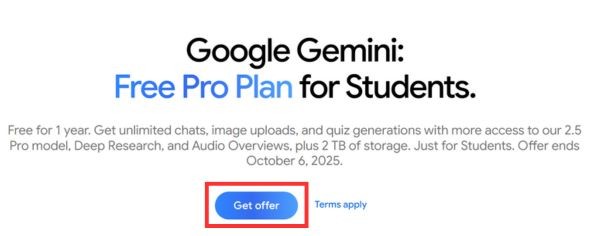
Click the Get Offer button

Then, click the “button”Verification of use conditions“To continue.
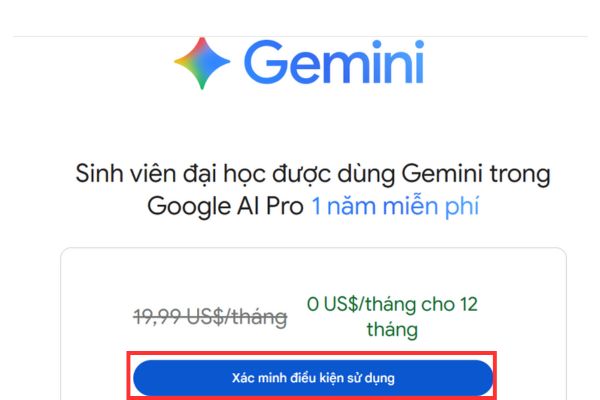
Click the
Click the “Verification of conditions” button

Step 4: The system will redirect you to Sheerid’s verification page. At this time, copy the link on the address bar and open the page https://1key.me/ paste that link and press Start verifying.

This tool will then automatically create and send “virtual” student authentication information but the right syntax (name, email, university, …) is designed to pass the automatic tests of Sheerid.
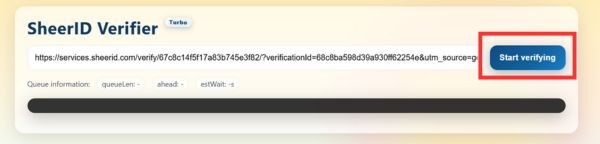
Paste address and press Start Verifying

Step 5: After sending the verification information, you return to the page of the offer and renew (Refresh) page. If there is an error of jumping through another account, then you select the account> in again https://gemini.google/students

Click on the line Get Google Ai pro As shown below.
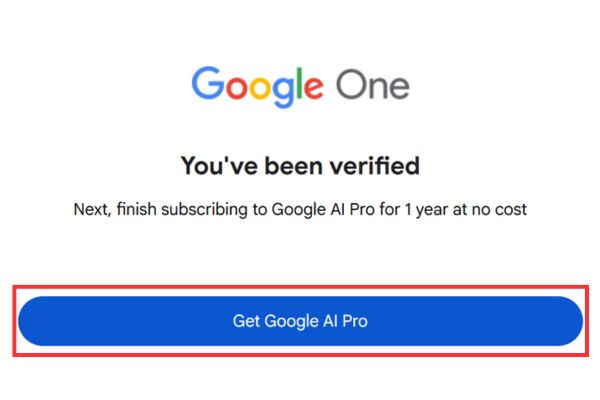
Click on the Get Google Ai pro line

Step 6: When successful verification, you will be transferred to the page more payment method. Please enter the information credit card or valid debit card.
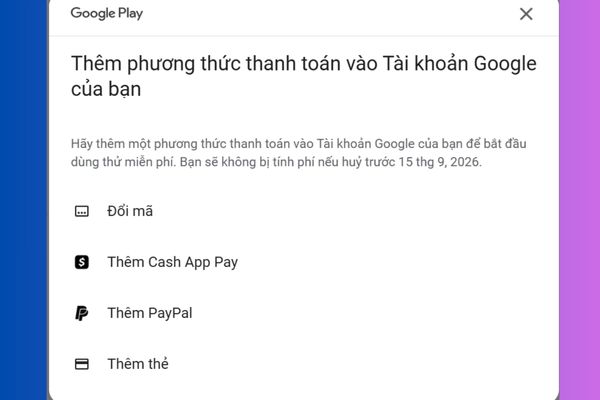
Add payment method
Add payment method

Google may request a 6 -digit verification code sent via the message to confirm the card. After entering the code, press “Continue“To complete this step.
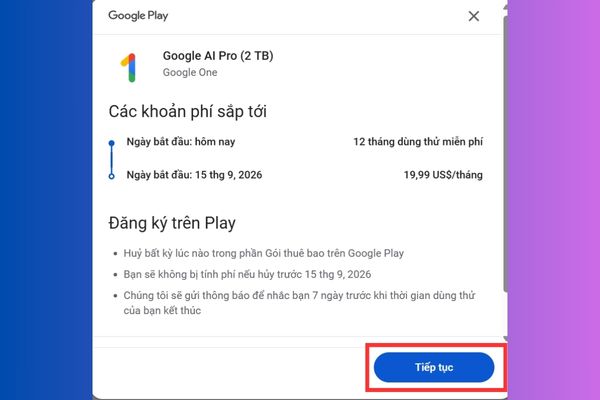
Click
Click “Continue”

Step 7: Press the button Register To complete the registration process. If all steps are done correctly, you will receive a successful registration notice.
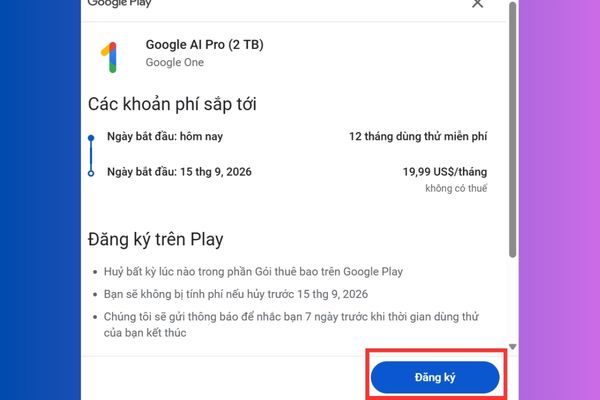
Click the registration button

At this time, you can press Access Gemini To start using Gemini Advanced immediately.
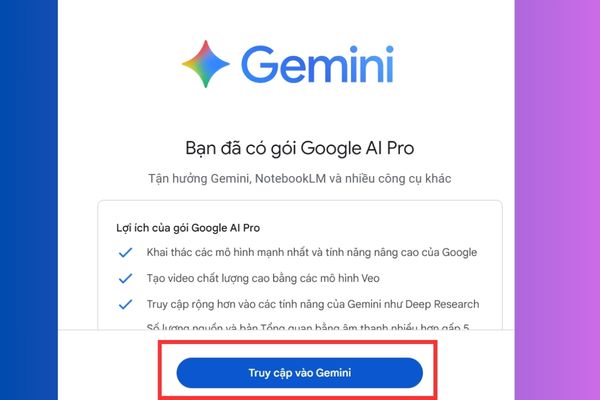
Click to visit Gemini

Step 8: Cancel the package before the next payment period if you do not want to be charged after the free offer ends. You can go to the Google account settings, find the “Subscribes” section and choose to cancel the Gemini Advanced package. Please check carefully to ensure no unintended renewal.
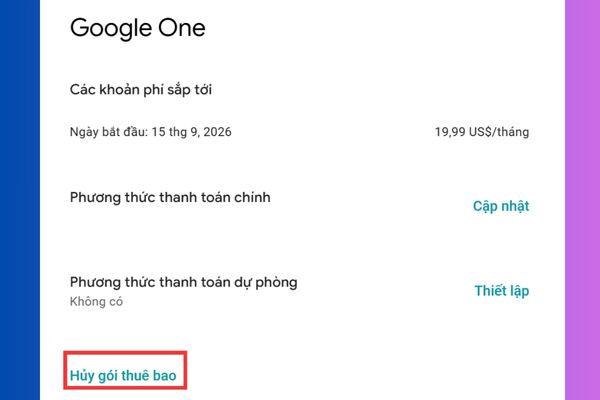
Cancel the package before the next payment period

Conclusion

How to receive 1 year Gemini Advanced for free It is not complicated if you follow the instructions correctly. With this offer, you can explore Google’s advanced AI features without worrying about costs. Start today to experience Gemini Advanced and don’t forget to cancel the package before expiring!


Tags: AdvancedBypassfreeGeminireceivesheeridverifyyear
Previous Post

Instructions on how to automatically delete temporary files on Windows 11

Next Post

How to back up Facebook images to Google Photos

AnonyViet

AnonyViet

Related Posts

How to add sliders to Facebook Stories to easily rewind videos
Tips

How to add sliders to Facebook Stories to easily rewind videos

April 21, 2026
How to change the default font on Windows 10
Tips

How to change the default font on Windows 10

April 13, 2026
5 tips for using a Browser to replace an App (helps save RAM, time and money)
Tips

5 tips for using a Browser to replace an App (helps save RAM, time and money)

April 13, 2026
How to make funny MeMe photos without Photoshop within 10 seconds
Tips

How to make funny MeMe photos without Photoshop within 10 seconds

April 11, 2026
How to quickly design your own Logo without Photoshop
Tips

How to quickly design your own Logo without Photoshop

April 10, 2026
How to convert Website into App on Windows
Tips

How to convert Website into App on Windows

April 9, 2026
Next Post
How to back up Facebook images to Google Photos

How to back up Facebook images to Google Photos

0 0 votes
Article Rating
Subscribe
Login
Notify of
guest

guest

0 Comments
Oldest
Newest Most Voted
Inline Feedbacks
View all comments

Recent News

How to install the cute Bongo Cat mouse pointer for Windows

How to install the cute Bongo Cat mouse pointer for Windows

April 29, 2026
Tips for pinning the step counter to the iPhone screen to monitor your health

Tips for pinning the step counter to the iPhone screen to monitor your health

April 28, 2026
How to turn off password suggestions on iPhone: Prevent Safari from auto-filling passwords

How to turn off password suggestions on iPhone: Prevent Safari from auto-filling passwords

April 27, 2026
Instructions for looking up prescriptions on VNeID instead of paper medical books

Instructions for looking up prescriptions on VNeID instead of paper medical books

April 26, 2026
How to install the cute Bongo Cat mouse pointer for Windows

How to install the cute Bongo Cat mouse pointer for Windows

April 29, 2026
Tips for pinning the step counter to the iPhone screen to monitor your health

Tips for pinning the step counter to the iPhone screen to monitor your health

April 28, 2026
How to turn off password suggestions on iPhone: Prevent Safari from auto-filling passwords

How to turn off password suggestions on iPhone: Prevent Safari from auto-filling passwords

April 27, 2026
AnonyViet - English Version

AnonyViet

AnonyViet is a website share knowledge that you have never learned in school!

We are ready to welcome your comments, as well as your articles sent to AnonyViet.

Follow Us

Contact:

Email: anonyviet.com[@]gmail.com

Main Website: https://anonyviet.com

Recent News

How to install the cute Bongo Cat mouse pointer for Windows

How to install the cute Bongo Cat mouse pointer for Windows

April 29, 2026
Tips for pinning the step counter to the iPhone screen to monitor your health

Tips for pinning the step counter to the iPhone screen to monitor your health

April 28, 2026
No Result
View All Result
  • Home
  • News
  • Software
  • Knowledge
  • MMO
  • Tips
  • Security
  • Network
  • Office

wpDiscuz
0
0
Would love your thoughts, please comment.x
()
x
| Reply