

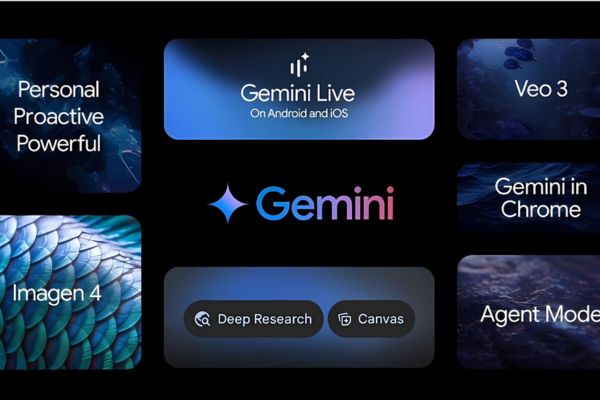
After the impressive revealing screen at the Google I/O 2025 event, Gemini Live’s camera and screen sharing feature has begun to be widely and officially available for all iPhone and iPad users from May 30, 2025. This is not only a simple update, but also a powerful declaration of Google about bringing anyone closer to daily life, variable Gemini Live on iOS into an unprecedented and intuitive interactive tool.
| Join the channel Telegram belong to Anonyviet 👉 Link 👈 |
What is Gemini Live on iOS and why is it important?
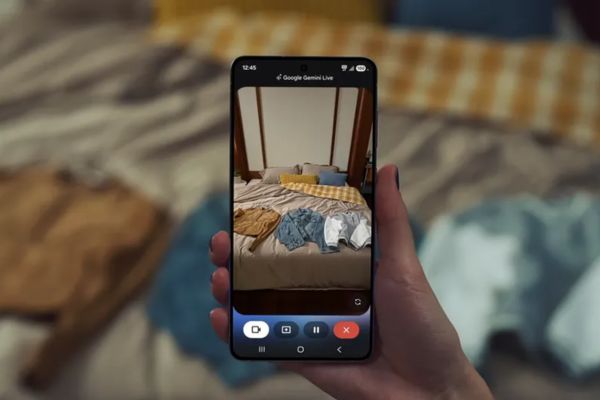
Geminithe most advanced AI brain of Google, now has more “eyes” and the ability to “see” the world through the lens of iOS users. The camera and screen sharing feature on Gemini Live allows you to interact with AI in a completely new way. Instead of just typing or voice commands, you can now show Gemini “see” directly what you are seeing or what is happening on your device screen.
The importance of this update lies in the ability to break interactive barriers. It turned Gemini from a smart assistant into a companion to understand the context, capable of giving more accurate and useful feedback than ever. With Gemini Live on iOS, problem solving, learning new things or simply discovering the world around becomes much more intuitive and vivid.
When can Gemini Live be used?
Imagine you are facing a strange dish in a restaurant and wonder if it is suitable for your diet. With Gemini Live on iOS, you just need:
- Open the Gemini application.
- Choose to share the camera, towards the food plate.
- Ask Gemini: “How many calories this dish is?”
Gemini will analyze the image you provide and give an answer based on your huge database.
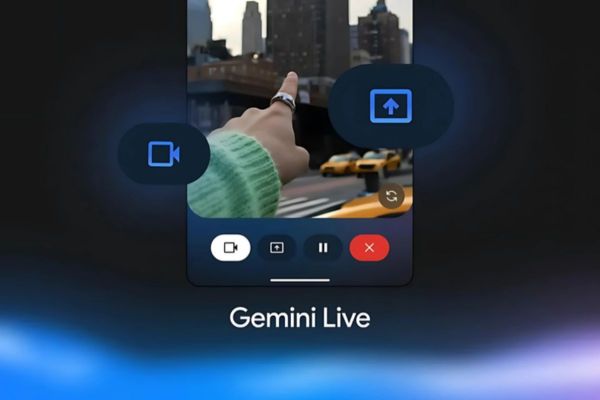
Similarly, when you have difficulty with a new application or a complex text on the screen, the screen sharing feature will be the end. You can share your iPhone or iPad screen with Gemini and ask: “Explain this paragraph to me” or “How to perform X operation in this application?”.
Who will “see” what you see and provide appropriate instructions or explanations. This not only enhances the interaction but also helps anyone to give extremely accurate and suitable feedback for the specific context you are facing.
Journey to Gemini Live’s iOS user
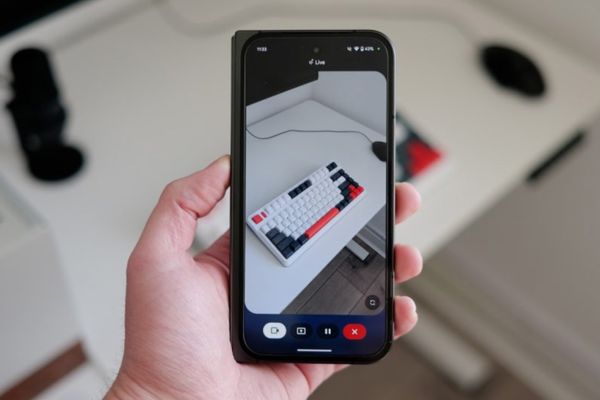
Before docking Apple’s ecosystem, the camera and screen sharing feature on Gemini Live was introduced and deployed for users. Android. Initially, it was limited to some of the top devices as Pixel 9 good Samsung Galaxy S25. Later, Google expanded to Android users who register for paid service packages.
Google decided to provide completely free of charge This feature for all iOS users is a strategic move, showing the continuous efforts of the giant searching for the dissemination of advanced AI technology to more users. This is a great good news, especially when Gemini Live on iOS now brings an equal visual experience, even more favored than a part of Android users before.
How to use Gemini Live on iOS
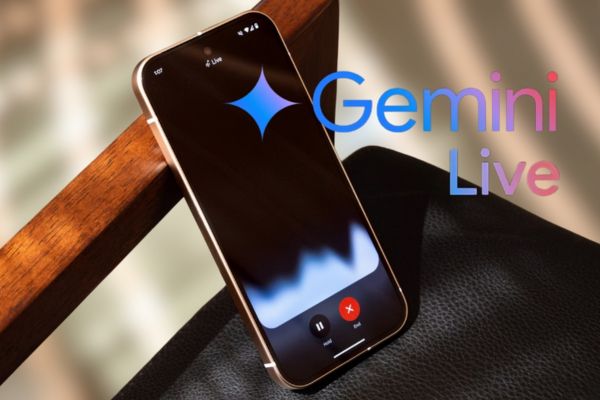
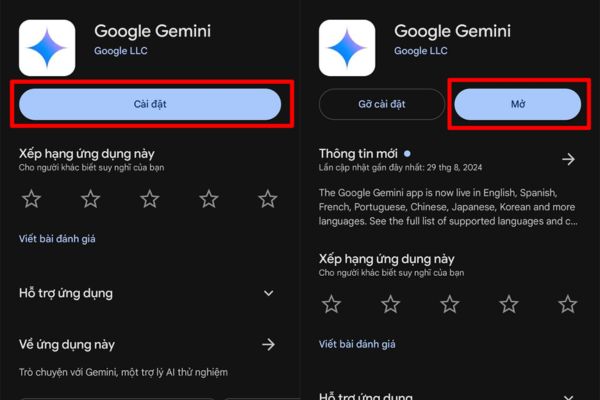
Step 1: Open Gemini applicationmake sure you have installed or updated the application to the latest version from the App Store.
Step 2: Click on the Gemini Live icon, usually there Sound wave shape Located in the bottom right corner of the screen.
Step 3: Click Camera icon. You can flexibly switch between the front and rear camera to “see” what you want.
Or click Screen sharing icon. Gemini will use the content that is displayed on your screen as a context for support.
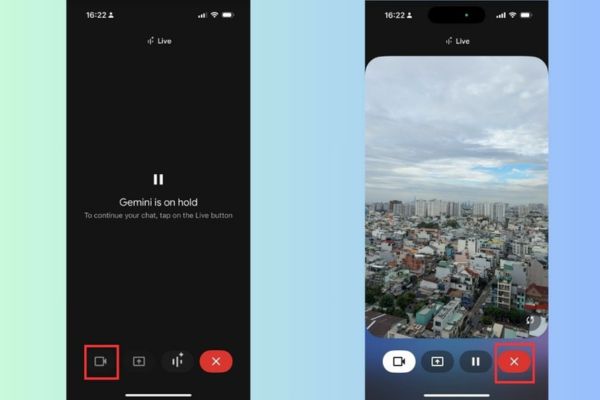
Step 4: After choosing the mode, you can start talking to anyone about what you are seeing or the content on the screen.
Gemini Live and AI race: Google confirms its position
The launch of camera and screen sharing feature for Gemini Live on iOS is not only a product update, but also an important Google chess country in the race that is increasingly fierce. It puts Gemini in a direct competition with rivals like Apple’s Siri, which has an advantage to integrate deeply into the iOS ecosystem, or Chatgpt Ofenai, which is famous for its superior natural language processing.
By equipping this strong visual interaction, Google is proving the ambition to turn Gemini into a comprehensive, versatile and accessible AI assistant on all platforms. This feature priority to iOS users also shows that Google is ready to invest to conquer a large and potential user market.
Conclusion
The future of AI interaction is gradually becoming more intuitive, more context and personalization. With Gemini Live on iOSGoogle has put a solid brick for that future, promising to bring an increasingly smart and useful AI experience for all of us. Please update your Gemini app today and explore yourself!






![[Godot RPG] #2: Character](https://anonyviet.com/wp-content/uploads/2020/08/3-1.jpg "[Godot RPG] #2: Character")

