• Home
  • News
  • Software
  • Knowledge
  • MMO
  • Tips
  • Security
  • Network
  • Office
AnonyViet - English Version
  • Home
  • News
  • Software
  • Knowledge
  • MMO
  • Tips
  • Security
  • Network
  • Office
No Result
View All Result
  • Home
  • News
  • Software
  • Knowledge
  • MMO
  • Tips
  • Security
  • Network
  • Office
No Result
View All Result
AnonyViet - English Version
No Result
View All Result

Instructions for adding COPilot to the right mouse menu on Windows 11

AnonyViet by AnonyViet
March 14, 2025
in Tips
0

You want to access Copilot on Windows 11 more quickly and conveniently? Instead of using shortcuts or taskbar, work Add Copilot to the right mouse menu On the desktop will help you activate AI assistant with just a few clicks. In this article, Anonyviet will guide you step by step to do it easily.


Join the channel Telegram belong to Anonyviet 👉 Link 👈

In addition to using the Copilot button on the Taskbar or shortcut Windows + Cyou can also integrate copilot into the right -click menu on the desktop for faster access. This makes it easy for you to activate COPilot with just one click when needed. Here are the detailed steps you need to do:

Important note:

Because this process requires registry editing – an important part of the system – you should back up the system or at least backup the Registry before implementation. This will ensure safety and help you easily restore the system if an incident occurs.
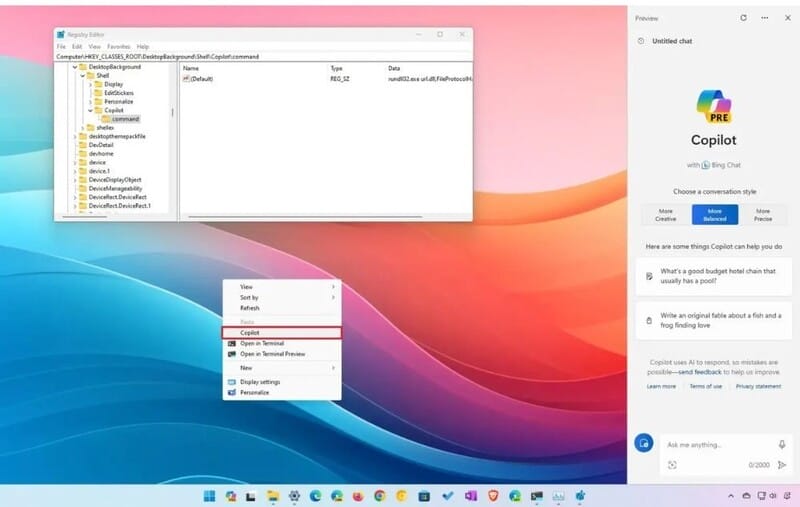
Add COPILOT to the right -click menu on Windows 11

Step 1: Press Start On Windows 11> Search “RegeditAnd select the first result to open the Registry Editor.

Step 2: Please visit the following link:

HKEY_CLASSES_ROOT\DesktopBackground\Shell

Step 3: Right -click on the folder Shellselect Newthen choose Key.
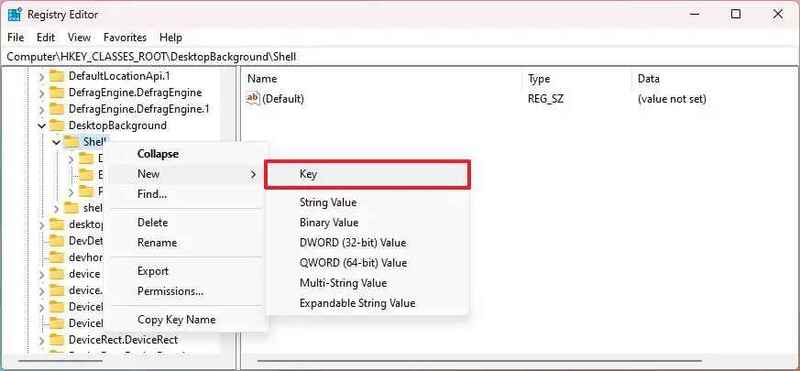
Right -click on the Shell folder, select New, then choose the key

Step 4: Name the new lock Copilot and click Enter.

Step 5: Right -click on the Copilot lock just created, select Newthen choose String Value.
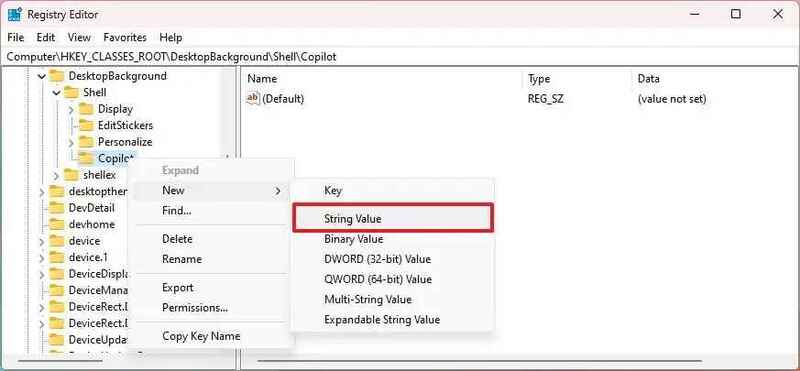
Select String Value
Select String Value

Step 6: Name this value Muiverb and click Enter.

Step 7: Double click on the roofiverb, set the value Copilotthen click OK.

Step 8: Right -click on Copilot lock, select Newthen choose Key. Name the new lock is Command and click Enter.

Step 9: Double click Value (default) In the command key> enter the following value:

rundll32.exe url.dll,FileProtocolHandler "microsoft-edge://?ux=copilot&tcp=1&source=taskbar"
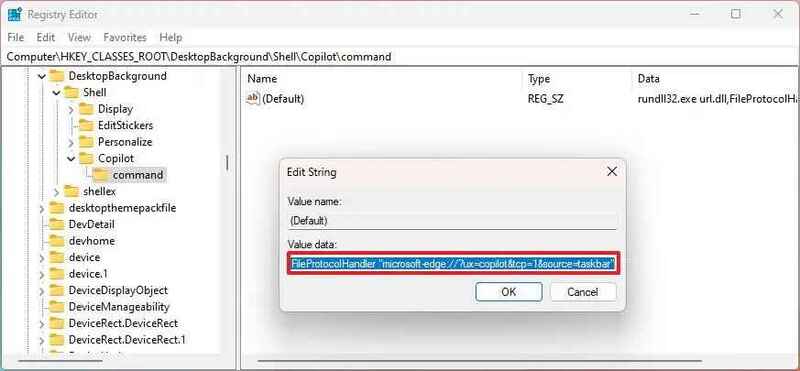
Enter the following value

Step 10: Press OK To save.

After completing the above steps, you can right -click on the Desktop and see the COPilot option in the menu “Show More Options.” For faster access, you can press Shift + Right Mouse To skip the menu expansion step.

See also: How to copy tabs on File Explorer Windows 11

Conclusion

Job Add Copilot to the right mouse menu Not only helps you access faster but also optimizes the support of AI assistant on Windows 11. This is especially useful for those who often use COPilot to perform tasks or search for information. With just a few simple steps through the Registry Editor, you can personalize the right -click menu, turning the experience of using a computer to become more convenient and modern than ever!


Tags: AddingCopilotInstructionsmenumouseWindows
Previous Post

Revealing 5 effective Skype replacement applications

Next Post

Instructions to look up cold penalties on Telegram

AnonyViet

AnonyViet

Related Posts

Windows 7/8.1/10 users will be upgraded to Windows 11 for free
Tips

Windows 7/8.1/10 users will be upgraded to Windows 11 for free

July 30, 2026
Instructions for receiving ChatGPT Plus for 1 month for free in 2026
Tips

Instructions for receiving ChatGPT Plus for 1 month for free in 2026

July 28, 2026
Some reasons I don’t like Windows 11
Tips

Some reasons I don’t like Windows 11

July 27, 2026
Instructions on how to get free Facebook white ticks
Tips

Instructions on how to get free Facebook white ticks

July 27, 2026
Collection of Windows 11 wallpapers for computers and phones
Tips

Collection of Windows 11 wallpapers for computers and phones

July 26, 2026
Don’t install leaked Windows 11
Tips

Don’t install leaked Windows 11

July 25, 2026
Next Post
Instructions to look up cold penalties on Telegram

Instructions to look up cold penalties on Telegram

0 0 votes
Article Rating
Subscribe
Login
Notify of
guest

guest

0 Comments
Oldest
Newest Most Voted

Recent News

Windows 7/8.1/10 users will be upgraded to Windows 11 for free

Windows 7/8.1/10 users will be upgraded to Windows 11 for free

July 30, 2026
Instructions for receiving the free Certified LLM Security Expert certificate

Instructions for receiving the free Certified LLM Security Expert certificate

July 30, 2026
MSI laptops are not just for gamers: Which line is suitable for students, office workers and creative people?

MSI laptops are not just for gamers: Which line is suitable for students, office workers and creative people?

July 29, 2026
What is quantum resistant cryptography? Why must the Internet change?

What is quantum resistant cryptography? Why must the Internet change?

July 29, 2026
Windows 7/8.1/10 users will be upgraded to Windows 11 for free

Windows 7/8.1/10 users will be upgraded to Windows 11 for free

July 30, 2026
Instructions for receiving the free Certified LLM Security Expert certificate

Instructions for receiving the free Certified LLM Security Expert certificate

July 30, 2026
MSI laptops are not just for gamers: Which line is suitable for students, office workers and creative people?

MSI laptops are not just for gamers: Which line is suitable for students, office workers and creative people?

July 29, 2026
AnonyViet - English Version

AnonyViet

AnonyViet is a website share knowledge that you have never learned in school!

We are ready to welcome your comments, as well as your articles sent to AnonyViet.

Follow Us

Contact:

Email: anonyviet.com[@]gmail.com

Main Website: https://anonyviet.com

Recent News

Windows 7/8.1/10 users will be upgraded to Windows 11 for free

Windows 7/8.1/10 users will be upgraded to Windows 11 for free

July 30, 2026
Instructions for receiving the free Certified LLM Security Expert certificate

Instructions for receiving the free Certified LLM Security Expert certificate

July 30, 2026
  • Home
  • Home 2
  • Home 3
  • Home 4
  • Home 5
  • Home 6
  • Next Dest Page
  • Sample Page

say88 tỷ lệ kèo nhà cái kèo nhà cái 5 febet

No Result
View All Result
  • Home
  • News
  • Software
  • Knowledge
  • MMO
  • Tips
  • Security
  • Network
  • Office

say88 tỷ lệ kèo nhà cái kèo nhà cái 5 febet

wpDiscuz
0
0
Would love your thoughts, please comment.x
()
x
| Reply