Windows tends to slow down over time. Your computer became slower or suddenly stopped working a few minutes ago. There are many reasons for this. But don't worry, Anonyviet will bring you 10 solutions to help speed up your Windows.
| Join the channel Telegram belong to AnonyViet 👉 Link 👈 |
For all problems, reinstalling Windows is probably the best solution. It can fix quite a few problems and faster than fixing them yourself. This method is only for those who are diligent and very time consuming. If you absolutely want to reinstall Windows, read this article this article.
Turn off resource-hogging software
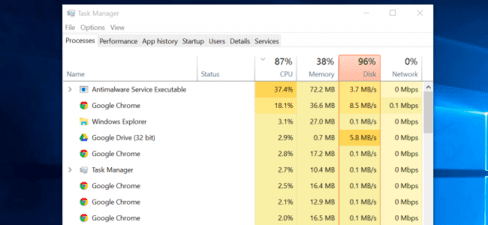
Your PC is running slow because it is using up all its performance. If it suddenly runs slow, for example, a certain program is using 99% of your CPU resources. Or, an application may take up memory and use a large amount of memory, causing your PC to have a fulldisk error. In addition, another application may also use the disk a lot, causing other applications to slow down when they need to load or save data to the disk. These software hinder the acceleration of our Windows, so we need to eliminate them.
To turn them off, open Task Manager. You can right-click on the taskbar and select “Task Manager” or press Ctrl + Shift + Esc. On Windows 8, 8.1 and 10, Task Manager has upgraded interface and colors. Click on the titles “CPU”, “Memory”and “Disk” to organize resource-intensive applications
best. If any application is using too much resources, you can close it normally. If you can't, select it in Task Manager and click “End Task” to force it to close the program.
Turn off the program in the system tray
Many programs tend to run in the system tray, or in the notification area. These software are usually enabled when Windows starts and runs in the background, but they are hidden under the system tray. Click the up arrow icon on the taskbar. Next right-click any apps you don't want running in the background and close them to free up resources. 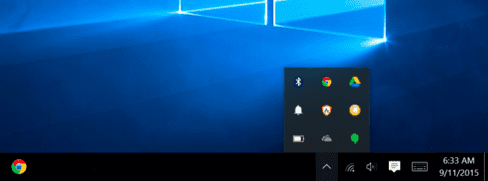
Disable Startup programs
Startup programs are programs that start with Windows. Better yet, disable those apps to save memory and CPU, as well as speed up the login process.
On Windows 8, 8.1, and 10, there is a startup manager in Task Manager that you can use to manage your startup programs. Right-click on the taskbar and select Task Manager or press Ctrl + Shift + Esc. Click through to the Startup tab and disable applications you don't need. Windows will tell you which applications slow down your startup the most.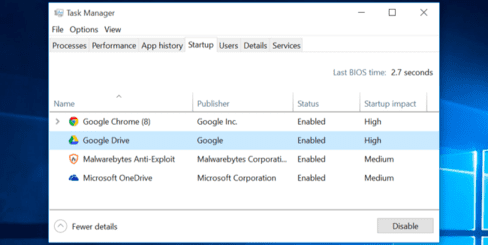
Reduce effects to speed up Windows
Windows uses quite a few effects, and those effects can slow down your PC. For example, Windows can minimize and maximize windows instantly if you turn off associated effects.
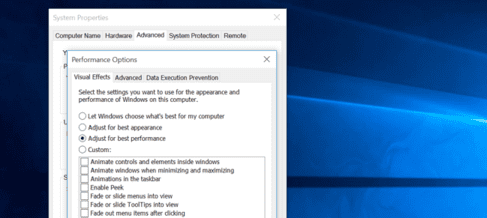
To turn off the effect, press Windows + R, enter control. controlgo to System and Security > System > Advanced System Settings (on the left) > Settings (under Performance). Select “Adjust for best performance”, or choose “Custom” and turn off effects you don't want to see. For example, uncheck “Animate windows when minimizing and maximizing” to turn off the window minimize and maximize effect.
Clean your browser
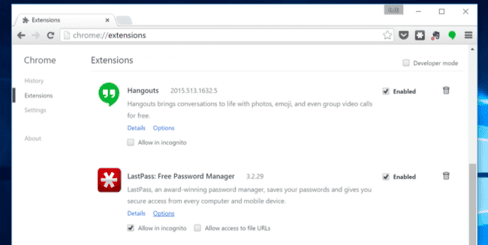
Is your browser getting slower and slower over the years? So use as few gadgets as possible. These extensions slow down the browser and cause it to use more memory. The browser is also one of the causes of slow PC, we need to clean it up to speed up your Windows.
Go to your add-ons manager and delete the add-ons you don't need. You should also consider turning it on click-to-play plug-ins. This feature will not display images on the website, they will only be downloaded and displayed when you click on them. Therefore, the browser will save quite a bit of memory and CPU.
Scan for Malware and Adware
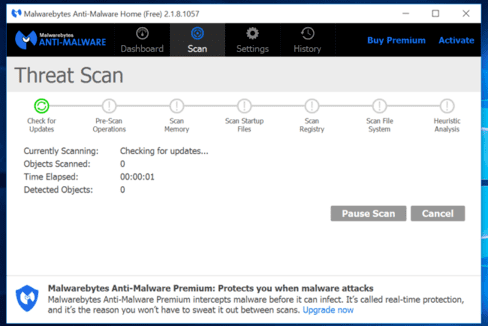
One of the reasons your computer slows down is malware and adware. They run in the background and use your resources, causing your computer to slow down significantly. Sometimes these software interfere with your web browser to track and add advertisements.
To be extra safe, scan your computer with an antivirus program. You can use Malwarebytes. This software blocks many other programs that try to install on your computer through the original program. For example: When you are installing software A, it will suggest you to install software B or not.
Free up the drive
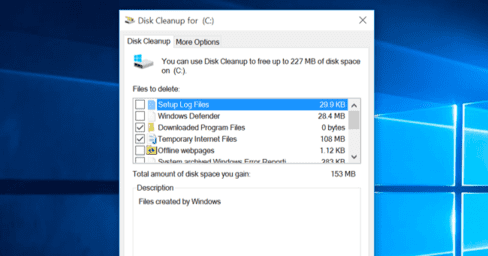
If your hard drive is almost full, your computer may be a lot slower. Follow this guide to free up storage space on your PC. You don't need any third-party software – just running the Disk Cleanup tool included with Windows can help quite a bit. Or you can use it Advanced SystemCare 13 Pro.
Defragment hard drive
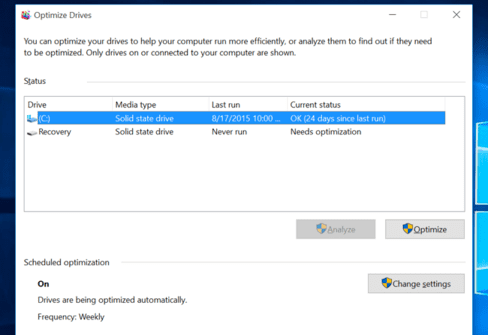
Defragmenting your hard drive is somewhat unnecessary on current versions of Windows. Windows will automatically defragment your hard drive in the background. Windows will automatically optimize them – and that's good.
You shouldn't worry about regular defragmentation. However, if you have saved a lot of files to your hard drive, for example, copying game files up to several gigabytes – those files may be fragmented because Windows cannot handle defragmentation of them. In this situation, you can use hard drive defragmentation tools.
Uninstall software you don't use
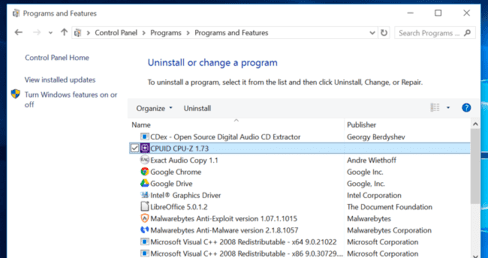
Open Control Panel, find the list of installed programs, uninstall programs that you do not use. This can speed up your PC, because those programs can run in the background, auto-start, system services, etc. which are all things that slow down your PC. It also saves space on your hard drive and improves system security – for example, you definitely shouldn't install Java if you're not using it.
You can use it Uninstall software to completely delete it.
Reinstall Windows
If the above methods do not improve your PC's condition, then we must use the last, drastic and slightly time-consuming measure. But extremely effective in speeding up Windows is reinstalling the operating system.
On Windows 10 it will be easier to do this than ever. You do not need to have devices that support Windows reinstallation. Instead, you can simply use the feature “Reset your PC” built into Windows for a completely clean new system. This is similar to reinstalling Windows, it will wipe out your programs and keep your files.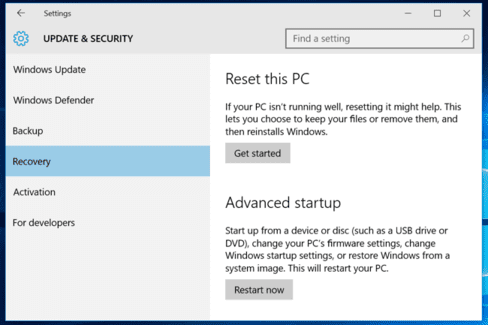
If your PC is still using an HDD, upgrade to an SSD to significantly improve performance. In an era where most people rarely feel the power of CPUs and GPUs, SSDs will deliver the most tangible performance experience.
Collaborator: Kiet Pham