• Home
  • News
  • Software
  • Knowledge
  • MMO
  • Tips
  • Security
  • Network
  • Office
AnonyViet - English Version
  • Home
  • News
  • Software
  • Knowledge
  • MMO
  • Tips
  • Security
  • Network
  • Office
No Result
View All Result
  • Home
  • News
  • Software
  • Knowledge
  • MMO
  • Tips
  • Security
  • Network
  • Office
No Result
View All Result
AnonyViet - English Version
No Result
View All Result

Explore the Paper Tape feature in Calculator on macOS

AnonyViet by AnonyViet
September 23, 2024
in Tips
0

Did you know that the familiar Calculator app on macOS has a useful feature that can help you track and store your calculation history easily? That feature is Paper Tape (Virtual paper tape). In this article, let's learn with AnonyViet how to activate, use and make the most of this feature to improve work efficiency with Calculator!

Join the channel Telegram belong to AnonyViet 👉 Link 👈

How does Paper Tape work?

Paper Tape acts like a scratch pad that shows a history of the calculations you perform on Calculator. Every step of the calculation, from the numbers entered to the calculations applied, is recorded clearly and easily followed.
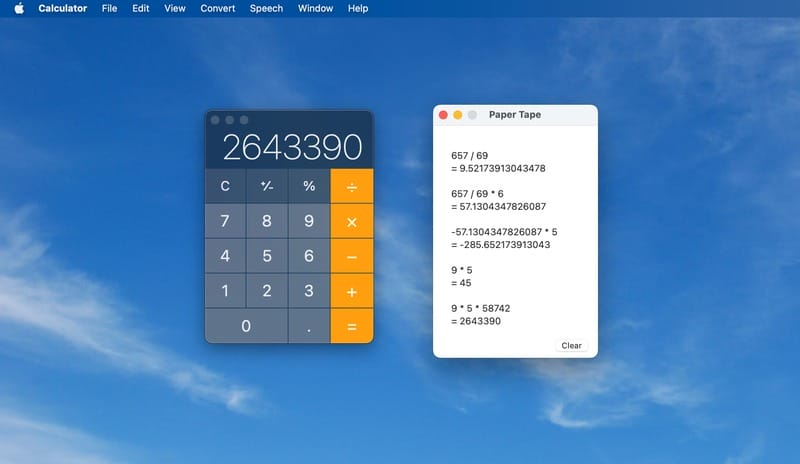
Paper Tape Feature
Paper Tape Feature

See also: Instructions for installing and playing Black Myth: Wukong on Macbook

Instructions for activating Paper Tape

To start using Paper Tape, you just need to follow a few simple steps:

Step 1: First, launch the Calculator app on your Mac. You can find it in your Applications folder or use Spotlight (press Command + Space) and type 'Calculator'.
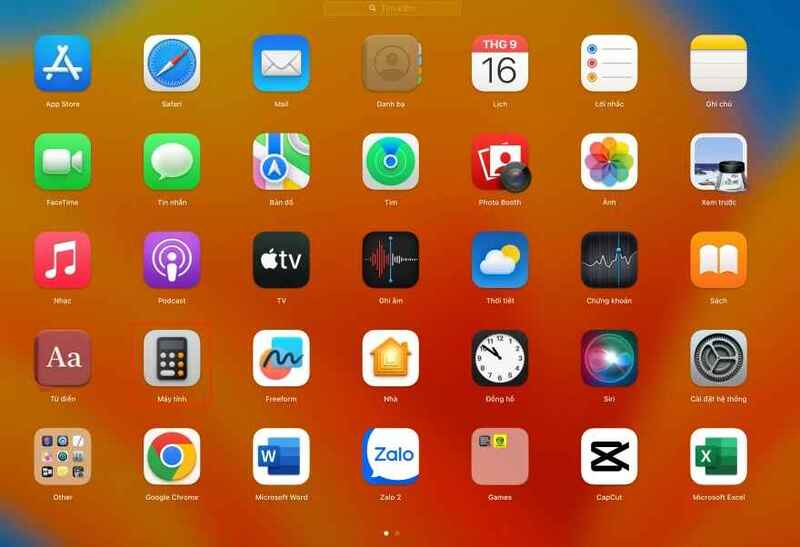
Start the Calculator application

Step 2: On the menu bar at the top of the screen, select 'Window'. From the list that appears, click 'Show Paper Tape' or use the keyboard shortcut Command + T.
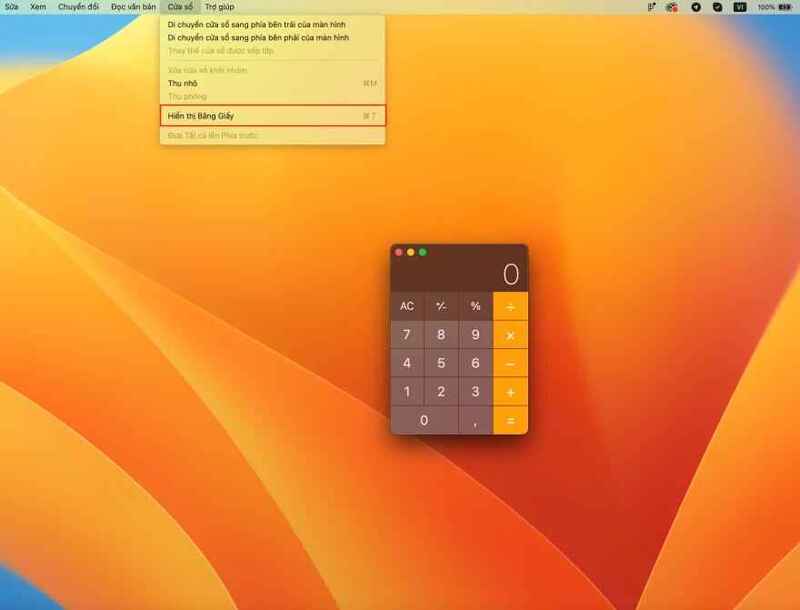
Click 'Show Paper Tape'

Step 3: Immediately, you will see a new window appear next to the main Calculator, displaying your calculation history as a 'virtual paper tape'.
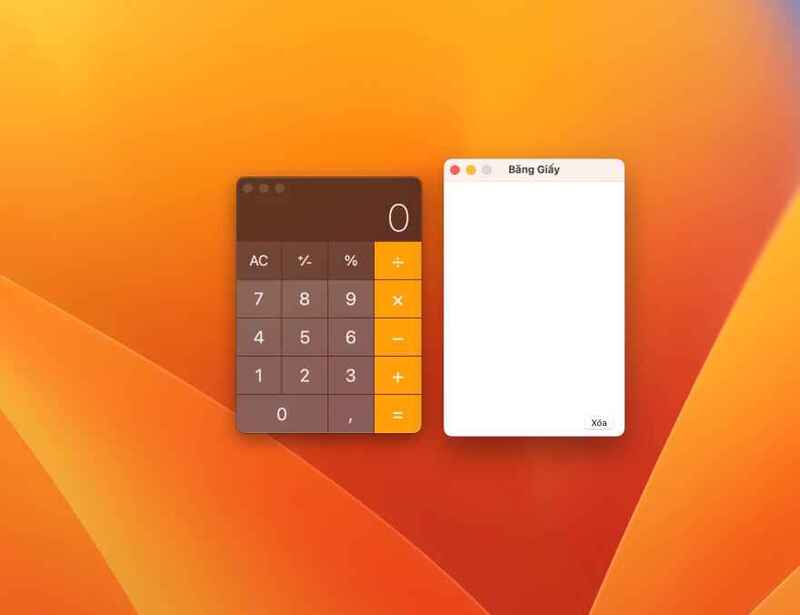
A new window appears next to Calculator

Once activated, Paper Tape will automatically record all calculations you perform on Calculator. Each line in the window represents a calculation step, including the numbers entered and the math operation used.

You can easily follow each calculation step, double-check the results and ensure the accuracy of the calculation.
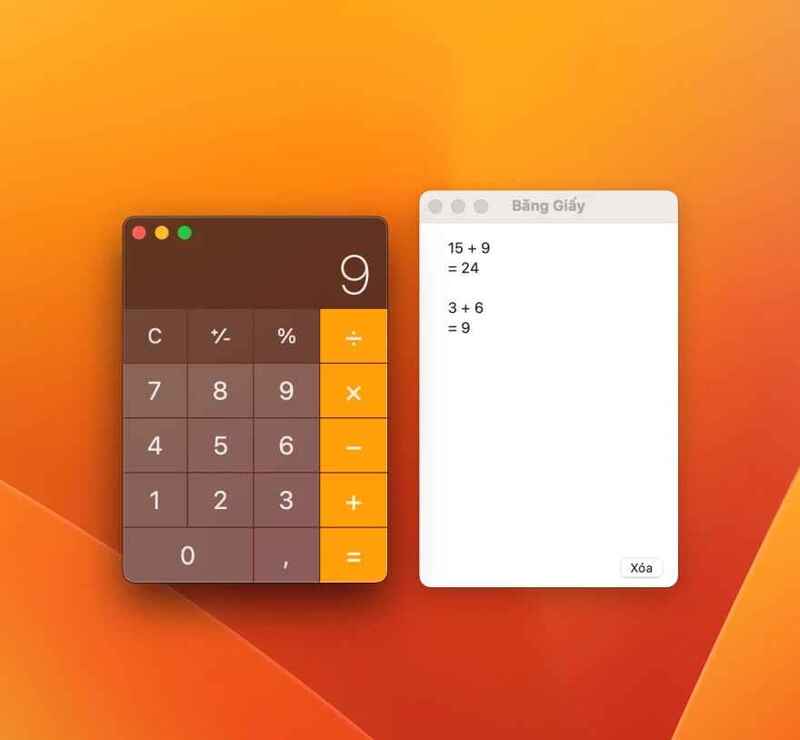
Paper Tape will automatically record all calculations.

How to Customize Paper Tape

The tool also gives you the ability to customize it to suit your needs:

  • Clear history: Click the 'Clear' icon in the lower left corner of the Paper Tape window to clear the entire calculation history.
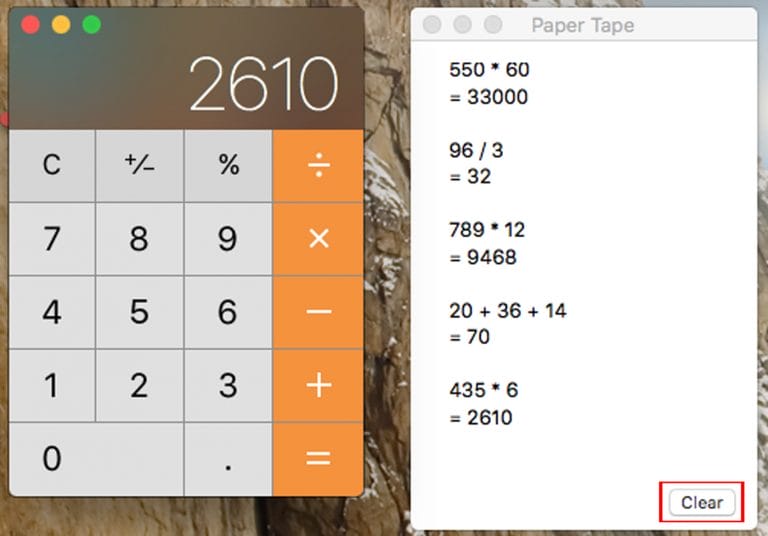
Click on the 'Clear' icon
  • Resize: Drag the corners or edges of the window to resize it as desired.
  • Move location: Drag the Paper Tape window to the desired location on the screen for easy viewing.
  • Copy: Right-click (or Control + click) on the Paper Tape window and select 'Copy' to copy the entire contents to the clipboard.
  • Save file: Select 'Save Tape As' to save the calculation history as a text file.
  • Printing: Select 'Print Tape' to print the calculation history on paper.
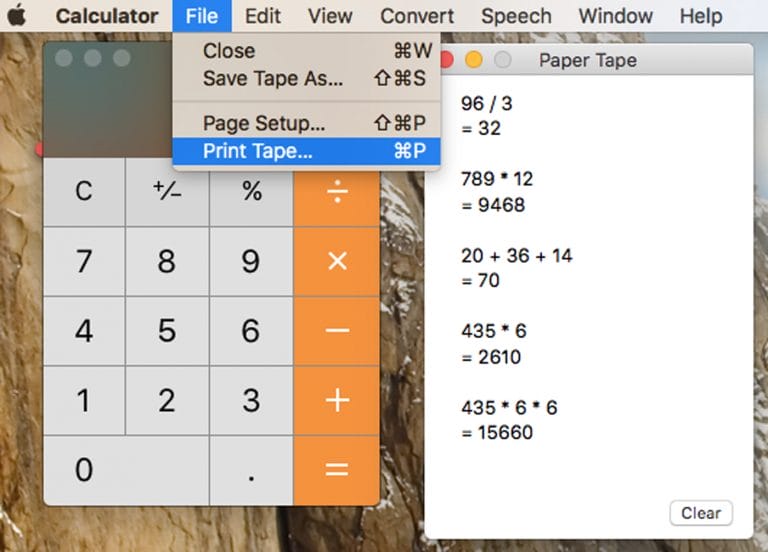
Select 'Print Tape' to print the calculation history on paper

Instructions to turn off Paper Tape feature

When you no longer need to use Paper Tape, you can turn it off by:

  • Click the close icon (X) in the upper left corner of the window.
  • Or, go to the Window menu, select 'Hide Paper Tape' to hide this feature.
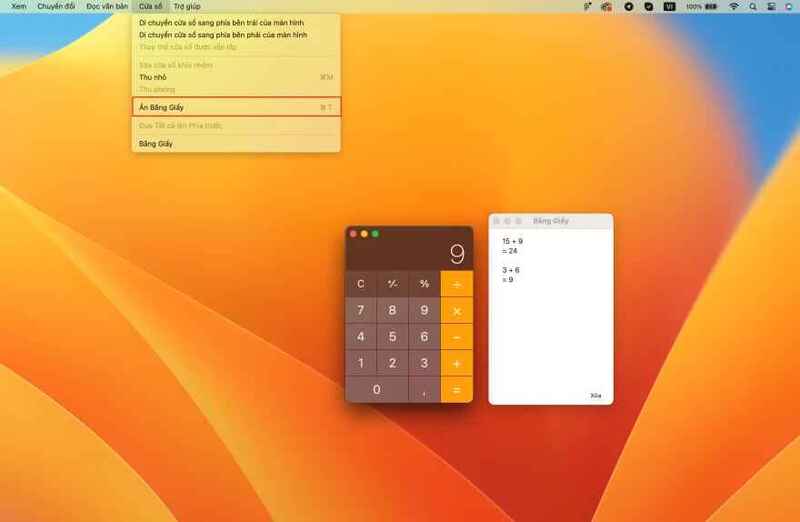
How to turn off the 'Virtual Paper Tape' feature

See also: How to check Macbook battery health

Conclusion

Features Paper Tape on macOS is a useful tool for anyone who regularly uses Calculator to perform complex calculations. It helps you track, review, and store calculation history easily and efficiently. Explore and take advantage of this feature to enhance your Calculator experience!

Tags: calculatorexplorefeatureMACOSPaperTape
Previous Post

Revealing How to Post Photos on Facebook Without Blurring 2024

Next Post

Latest instructions for buying Vietlott lottery tickets online

AnonyViet

AnonyViet

Related Posts

How to add sliders to Facebook Stories to easily rewind videos
Tips

How to add sliders to Facebook Stories to easily rewind videos

April 21, 2026
How to change the default font on Windows 10
Tips

How to change the default font on Windows 10

April 13, 2026
5 tips for using a Browser to replace an App (helps save RAM, time and money)
Tips

5 tips for using a Browser to replace an App (helps save RAM, time and money)

April 13, 2026
How to make funny MeMe photos without Photoshop within 10 seconds
Tips

How to make funny MeMe photos without Photoshop within 10 seconds

April 11, 2026
How to quickly design your own Logo without Photoshop
Tips

How to quickly design your own Logo without Photoshop

April 10, 2026
How to convert Website into App on Windows
Tips

How to convert Website into App on Windows

April 9, 2026
Next Post
Latest instructions for buying Vietlott lottery tickets online

Latest instructions for buying Vietlott lottery tickets online

0 0 votes
Article Rating
Subscribe
Login
Notify of
guest

guest

0 Comments
Oldest
Newest Most Voted
Inline Feedbacks
View all comments

Recent News

Instructions for looking up prescriptions on VNeID instead of paper medical books

Instructions for looking up prescriptions on VNeID instead of paper medical books

April 26, 2026
Tips to completely turn off CAPTCHA codes on iPhone and Mac are super simple

Tips to completely turn off CAPTCHA codes on iPhone and Mac are super simple

April 25, 2026
Compare Poco X8 Pro and Poco X7 Pro: A new step for the “king” of mid-range performance

Compare Poco X8 Pro and Poco X7 Pro: A new step for the “king” of mid-range performance

April 24, 2026
How to compress online videos for free without losing quality

How to compress online videos for free without losing quality

April 24, 2026
Instructions for looking up prescriptions on VNeID instead of paper medical books

Instructions for looking up prescriptions on VNeID instead of paper medical books

April 26, 2026
Tips to completely turn off CAPTCHA codes on iPhone and Mac are super simple

Tips to completely turn off CAPTCHA codes on iPhone and Mac are super simple

April 25, 2026
Compare Poco X8 Pro and Poco X7 Pro: A new step for the “king” of mid-range performance

Compare Poco X8 Pro and Poco X7 Pro: A new step for the “king” of mid-range performance

April 24, 2026
AnonyViet - English Version

AnonyViet

AnonyViet is a website share knowledge that you have never learned in school!

We are ready to welcome your comments, as well as your articles sent to AnonyViet.

Follow Us

Contact:

Email: anonyviet.com[@]gmail.com

Main Website: https://anonyviet.com

Recent News

Instructions for looking up prescriptions on VNeID instead of paper medical books

Instructions for looking up prescriptions on VNeID instead of paper medical books

April 26, 2026
Tips to completely turn off CAPTCHA codes on iPhone and Mac are super simple

Tips to completely turn off CAPTCHA codes on iPhone and Mac are super simple

April 25, 2026
No Result
View All Result
  • Home
  • News
  • Software
  • Knowledge
  • MMO
  • Tips
  • Security
  • Network
  • Office

wpDiscuz
0
0
Would love your thoughts, please comment.x
()
x
| Reply