• Home
  • News
  • Software
  • Knowledge
  • MMO
  • Tips
  • Security
  • Network
  • Office
AnonyViet - English Version
  • Home
  • News
  • Software
  • Knowledge
  • MMO
  • Tips
  • Security
  • Network
  • Office
No Result
View All Result
  • Home
  • News
  • Software
  • Knowledge
  • MMO
  • Tips
  • Security
  • Network
  • Office
No Result
View All Result
AnonyViet - English Version
No Result
View All Result

How to change Desktop icon text color on Windows 11

AnonyViet by AnonyViet
September 13, 2024
in Tips
0

You want to create a highlight for your desktop screen on Windows 11 with how to change text color icon? This article will guide you how to do it simply and safely without using third-party software.

Join the channel Telegram belong to AnonyViet 👉 Link 👈

Currently, Windows 11 does not provide a direct option to change the font color of desktop icons. You have two options: edit the Registry (potentially risky) or create a high contrast theme (safer). Creating a high contrast theme is an easier and safer method than editing the Registry. In addition, you can also enable/disable shadow for the names of icons on the desktop. AnonyViet will guide you through the whole process below.

What is the purpose of changing the desktop icon font color on Windows 11?

Changing the desktop icon text color on Windows 11 has many different benefits and purposes, including:

Increase aesthetics and personalization

Changing the icon text color is a simple way to make your desktop interface unique and suitable for your personal preferences. You can choose your favorite color, combine it with the wallpaper or general theme of the computer to create a highlight for the desktop screen. In addition, changing the text color also contributes to expressing the user's personality and style.

What is the purpose of changing the desktop icon font color on Windows 11?

Improve readability

For people with vision problems or low vision, changing the icon text color to a high-contrast color can make it easier to read and distinguish icons on the desktop.

Choosing the right color for your screen background will help increase contrast, reduce eye strain, and enhance your computer experience.

See also: How to Turn Your iPad into a Second Display for Your Mac

How to change desktop icon text color on Windows 11

To change the color of your desktop icon text on Windows 11, you need to create a high contrast theme. Here are the steps:

Step 1: Click the Windows 11 Start button and select Settings
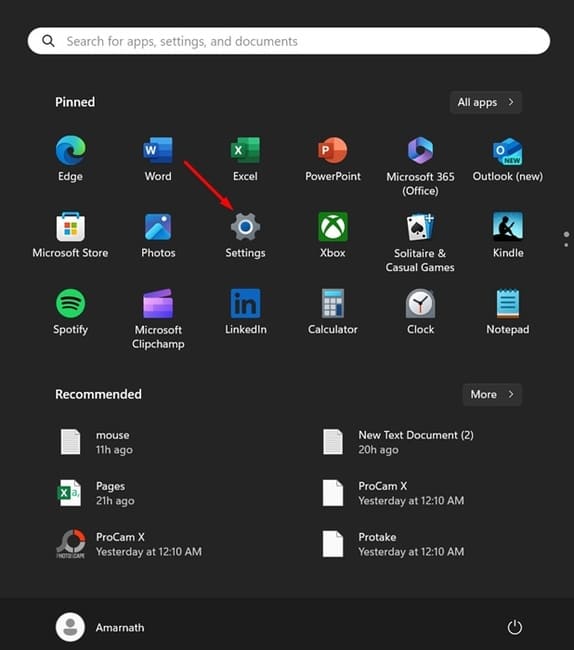
Select Settings
Select Settings

Step 2: In the Settings window, switch to the Accessibility tab
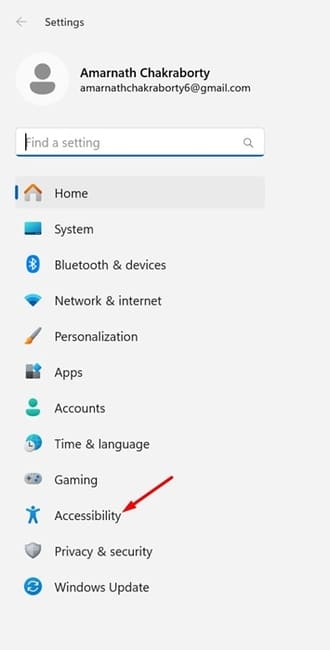
Switch to the Accessibility tab

Step 3: On the right side, click Contrast themes
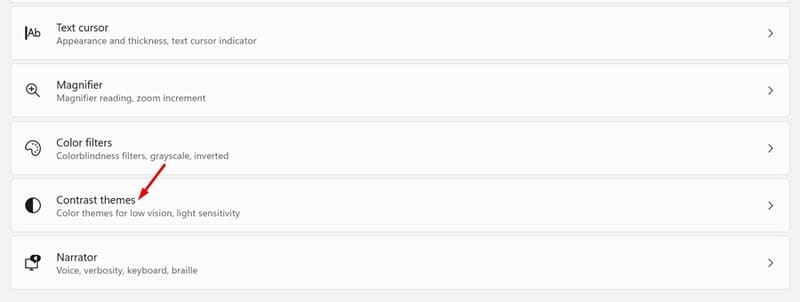
Click on Contrast themes

Step 4: Click the Contrast themes drop-down menu and select any theme from the list (Aquatic, Desert, Dusk, and Night Sky). Then, click the Edit button to change the theme.
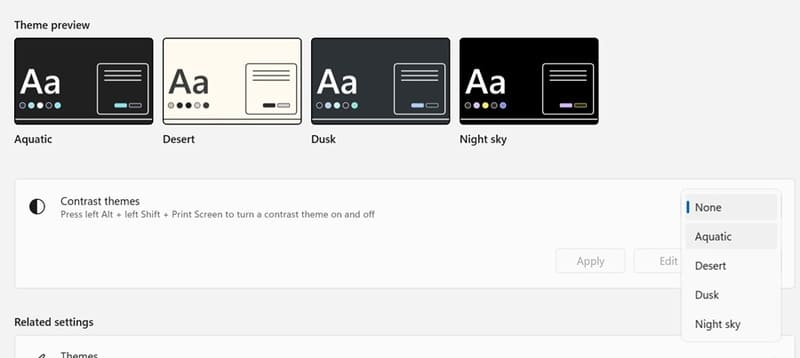
Select any theme from the list

Step 5: Click on the color box to select the color you want
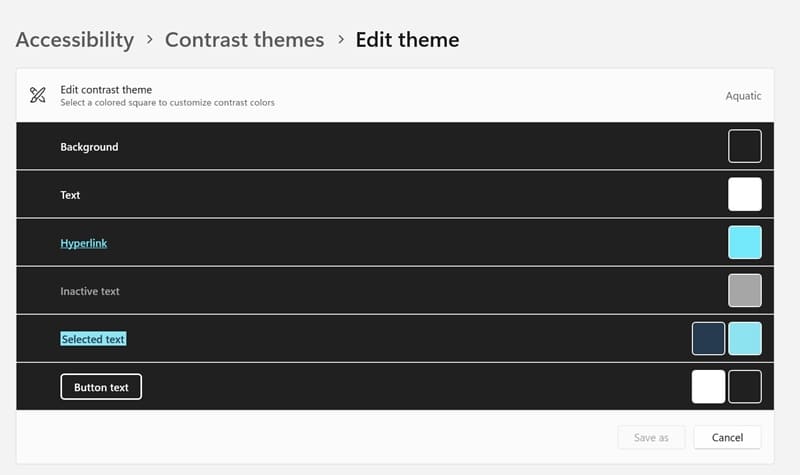
Click on the color box to select a color

Step 6: After making changes, click Save as to save the theme. Give the theme a name and click Save and Apply.
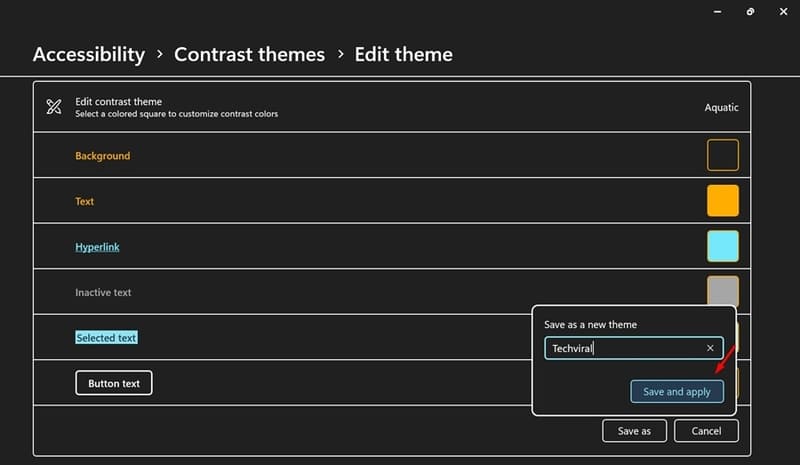
Name your theme and click Save and Apply.

How to enable/disable drop shadow for desktop icon text

If you want to further customize your desktop icon text, you can enable/disable drop shadows. Here's how:

Step 1: Press the Windows Key + R key combination on your keyboard.

Step 2: In the RUN dialog box, paste the following command and click OK:

SystemPropertiesPerformance.exe
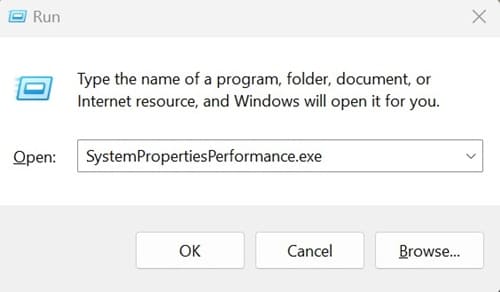
Paste the following command

Step 3: LThis command will open the Performance Options window. Switch to the Visual Effects tab.
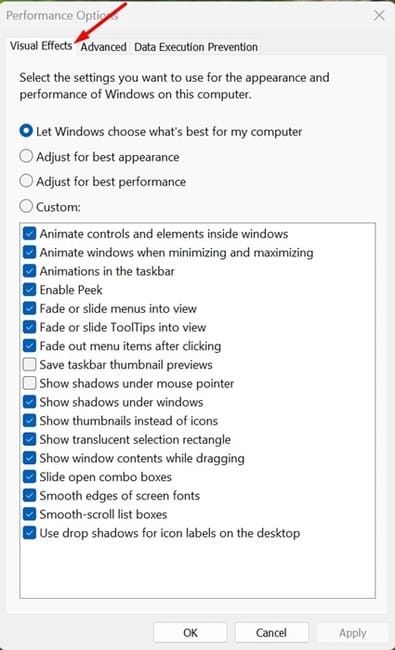
Switch to the Visual Effects tab

Step 4: At the bottom, check the box 'Use drop shadows for icon labels on the desktop' and click OK to enable drop shadows.

Conversely, if you don't like drop shadows, uncheck this box and click OK to turn it off.
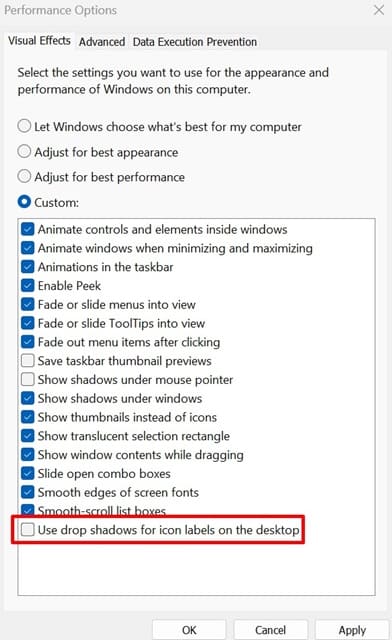
Check the box 'Use drop shadows for icon labels on the desktop'

See also: How to Integrate Gemini into Google Sheets

Conclusion

So we have learned about how to change text color desktop icons on Windows 11. Make the most of these customizations to create a workspace that is your own style. Good luck!


Tags: changecolorDesktopIcontextWindows
Previous Post

Check statement from Vietnam Fatherland Front without downloading

Next Post

Find all Gmail accounts linked to your phone number or email

AnonyViet

AnonyViet

Related Posts

How to add sliders to Facebook Stories to easily rewind videos
Tips

How to add sliders to Facebook Stories to easily rewind videos

April 21, 2026
How to change the default font on Windows 10
Tips

How to change the default font on Windows 10

April 13, 2026
5 tips for using a Browser to replace an App (helps save RAM, time and money)
Tips

5 tips for using a Browser to replace an App (helps save RAM, time and money)

April 13, 2026
How to make funny MeMe photos without Photoshop within 10 seconds
Tips

How to make funny MeMe photos without Photoshop within 10 seconds

April 11, 2026
How to quickly design your own Logo without Photoshop
Tips

How to quickly design your own Logo without Photoshop

April 10, 2026
How to convert Website into App on Windows
Tips

How to convert Website into App on Windows

April 9, 2026
Next Post
Find all Gmail accounts linked to your phone number or email

Find all Gmail accounts linked to your phone number or email

0 0 votes
Article Rating
Subscribe
Login
Notify of
guest

guest

0 Comments
Oldest
Newest Most Voted
Inline Feedbacks
View all comments

Recent News

Instructions for looking up prescriptions on VNeID instead of paper medical books

Instructions for looking up prescriptions on VNeID instead of paper medical books

April 26, 2026
Tips to completely turn off CAPTCHA codes on iPhone and Mac are super simple

Tips to completely turn off CAPTCHA codes on iPhone and Mac are super simple

April 25, 2026
Compare Poco X8 Pro and Poco X7 Pro: A new step for the “king” of mid-range performance

Compare Poco X8 Pro and Poco X7 Pro: A new step for the “king” of mid-range performance

April 24, 2026
How to compress online videos for free without losing quality

How to compress online videos for free without losing quality

April 24, 2026
Instructions for looking up prescriptions on VNeID instead of paper medical books

Instructions for looking up prescriptions on VNeID instead of paper medical books

April 26, 2026
Tips to completely turn off CAPTCHA codes on iPhone and Mac are super simple

Tips to completely turn off CAPTCHA codes on iPhone and Mac are super simple

April 25, 2026
Compare Poco X8 Pro and Poco X7 Pro: A new step for the “king” of mid-range performance

Compare Poco X8 Pro and Poco X7 Pro: A new step for the “king” of mid-range performance

April 24, 2026
AnonyViet - English Version

AnonyViet

AnonyViet is a website share knowledge that you have never learned in school!

We are ready to welcome your comments, as well as your articles sent to AnonyViet.

Follow Us

Contact:

Email: anonyviet.com[@]gmail.com

Main Website: https://anonyviet.com

Recent News

Instructions for looking up prescriptions on VNeID instead of paper medical books

Instructions for looking up prescriptions on VNeID instead of paper medical books

April 26, 2026
Tips to completely turn off CAPTCHA codes on iPhone and Mac are super simple

Tips to completely turn off CAPTCHA codes on iPhone and Mac are super simple

April 25, 2026
No Result
View All Result
  • Home
  • News
  • Software
  • Knowledge
  • MMO
  • Tips
  • Security
  • Network
  • Office

wpDiscuz
0
0
Would love your thoughts, please comment.x
()
x
| Reply