• Home
  • News
  • Software
  • Knowledge
  • MMO
  • Tips
  • Security
  • Network
  • Office
AnonyViet - English Version
  • Home
  • News
  • Software
  • Knowledge
  • MMO
  • Tips
  • Security
  • Network
  • Office
No Result
View All Result
  • Home
  • News
  • Software
  • Knowledge
  • MMO
  • Tips
  • Security
  • Network
  • Office
No Result
View All Result
AnonyViet - English Version
No Result
View All Result

Surf the web ad-free with AdGuard DNS

AnonyViet by AnonyViet
September 1, 2024
in Software
0

Want to protect your personal information and enjoy an uninterrupted browsing experience without ads? AdGuard DNS will help you achieve that easily. AdGuard DNS not only provides an extra layer of security for your data, but also helps eliminate malicious ads and websites, providing a healthier online space.

Join the channel Telegram belong to AnonyViet 👉 Link 👈

How does AdGuard DNS work?

  • When you visit a website or use an application, your browser sends a DNS request to determine the IP address of that web server.
  • This request is routed to AdGuard's DNS server instead of the default DNS server from your internet service provider.
  • AdGuard's DNS server will review the request and decide whether the IP address is blacklisted or not. If the IP address is blacklisted, the server will not provide the real IP address of the website.
  • Depending on the test results, the DNS server will return a fake IP address (0.0.0.0 or 176.103.130.130) for blocked websites, or the real IP address if the website is not blocked.
  • If the website is blocked, the browser will not be able to connect and will display a blocking message or a blank page. If the website is not blocked, the content will be loaded from the real IP address.

How does AdGuard DNS work?

See more: Top Youtube ad blocking apps and plugins still active

AdGuard DNS Setup and Usage Guide

Step 1: Visit AdGuard website HERE and download the application to your device.

Once completed, the AdGuard icon will appear on your desktop.

Step 2: Go to Settings > Select 'Network & Internet'
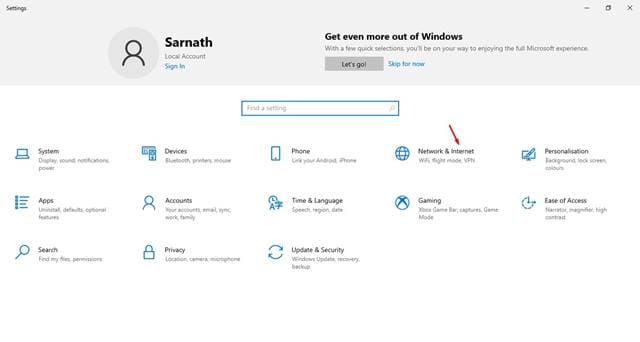
Select 'Network & Internet'

Step 3: Scroll down and select 'Change Adapter Options'
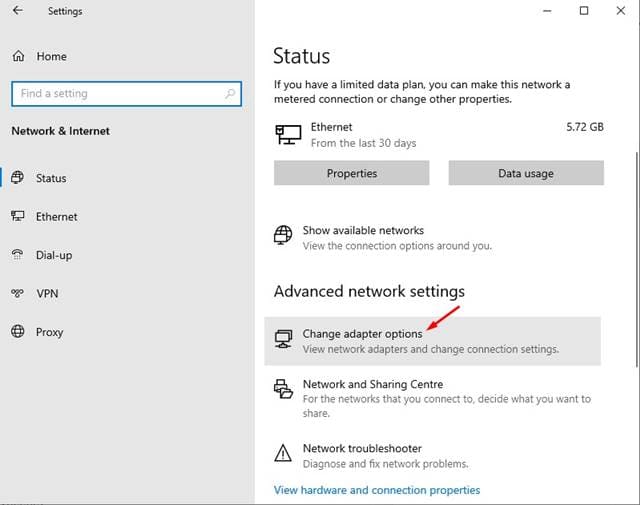
Select 'Change Adapter Options'

Step 4: Right click on the active connection and select 'Properties'
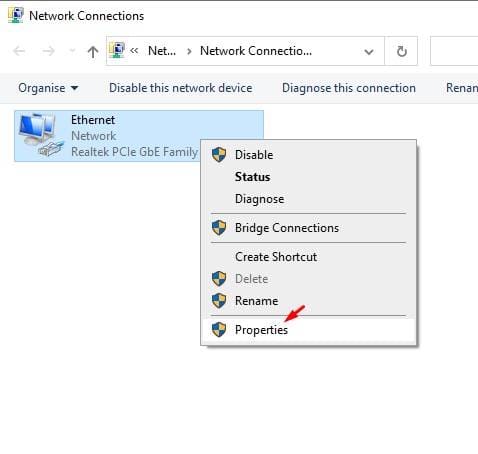
Right click on the active connection and select 'Properties'

Step 5: Select 'Internet Protocol Version 4 (TCP/IPv4)' and click 'Properties'.
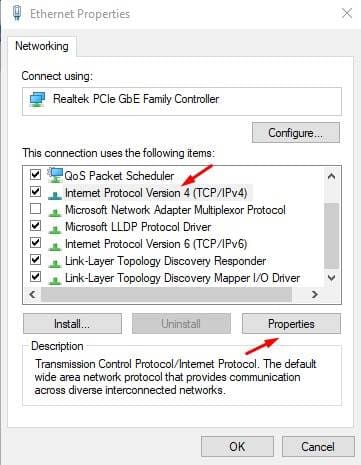
Select 'Internet Protocol Version 4 (TCP/IPv4)' and click 'Properties'.

Step 6: Enter the DNS address as follows to block ads:

94.140.14.14
94.140.15.15
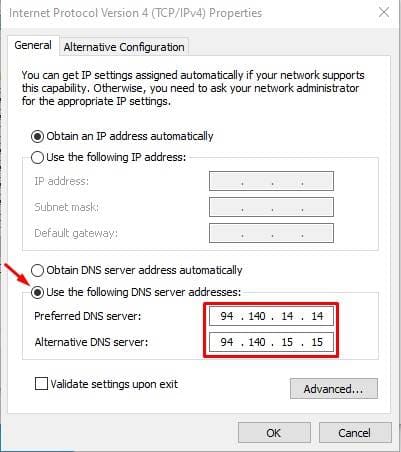
Fill in the DNS address as follows

Step 7: Click OK to save the settings and connect to AdGuard DNS.
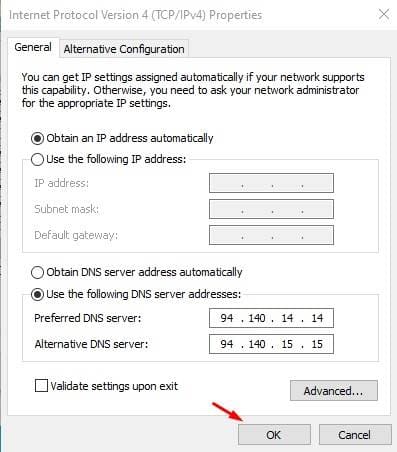
Click OK
Click OK

Some popular servers

Default server

Function: Block ads and trackers.

94.140.14.14
94.140.15.15

Server not filtering

Features: Does not block any ads, trackers, or DNS requests.

94.140.14.140
94.140.14.141

Family protection server

Functions: Blocks ads, trackers, adult content and enables safe search.

94.140.14.15
94.140.15.16

Advantages of AdGuard DNS

  • Free Services: AdGuard DNS offers a free service to enhance your browsing experience.
  • Multi-device compatibility: AdGuard DNS can be applied on a wide range of devices such as phones, laptops, and tablets.
  • Block annoying ads: Eliminate ads and tracking on all connected devices through powerful filtering.
  • Increase web browsing speed: Improve page load speed by removing unnecessary elements.
  • Customizable security mode: Allows users to customize security settings according to their needs.
  • Detailed statistics: Provides detailed statistics on DNS requests, helping users track online activity.
Advantages of AdGuard DNS

Disadvantages of AdGuard DNS

  • Does not block all ads: Although it is capable of blocking the majority of ads, AdGuard DNS cannot block all of them, especially ads that use complex techniques.
  • May slow down web browsing: In some cases, especially with slow internet connections,
  • AdGuard DNS may slow down your browsing speed due to DNS request processing.
  • Sometimes unavailable: Due to global server distribution, AdGuard DNS may be unavailable in some regions.

See also: 3 ways to block ads on Spotify PC without Premium

Conclusion

With simple setup steps, you can enjoy a clean, safe cyberspace with AdGuard DNS. Start today to improve your browsing experience and protect your personal information from potential risks on the internet!


Tags: adfreeAdguardDNSSurfweb
Previous Post

How to Active Key Sublime Text 4 – Download Sublime Text 4 Full Key

Next Post

How to use Sketch2Code to convert hand drawn drawings into HTML files

AnonyViet

AnonyViet

Related Posts

Top 5+ utilities to install for Gmail to speed up work processing
Software

Top 5+ utilities to install for Gmail to speed up work processing

April 22, 2026
Decoding the problem of 4GB RAM and processing performance
Software

Decoding the problem of 4GB RAM and processing performance

April 21, 2026
4K Video Downloader Plus – Tool to download YouTube videos on macOS
Software

4K Video Downloader Plus – Tool to download YouTube videos on macOS

April 20, 2026
How to authenticate the owner’s SIM on VNeID from April 15
Software

How to authenticate the owner’s SIM on VNeID from April 15

April 15, 2026
Review of Galaxy A57 and A37: Some are eight ounces, some are half a pound
Software

Review of Galaxy A57 and A37: Some are eight ounces, some are half a pound

April 14, 2026
JOPDF: Versatile PDF editing software for Windows and Mac
Software

JOPDF: Versatile PDF editing software for Windows and Mac

April 10, 2026
Next Post
How to use Sketch2Code to convert hand drawn drawings into HTML files

How to use Sketch2Code to convert hand drawn drawings into HTML files

0 0 votes
Article Rating
Subscribe
Login
Notify of
guest

guest

0 Comments
Oldest
Newest Most Voted
Inline Feedbacks
View all comments

Recent News

Top 5+ utilities to install for Gmail to speed up work processing

Top 5+ utilities to install for Gmail to speed up work processing

April 22, 2026
Decoding the problem of 4GB RAM and processing performance

Decoding the problem of 4GB RAM and processing performance

April 21, 2026
How to add sliders to Facebook Stories to easily rewind videos

How to add sliders to Facebook Stories to easily rewind videos

April 21, 2026
Reputable LG repair service in Hanoi & Ho Chi Minh City with LGservicecenter

Reputable LG repair service in Hanoi & Ho Chi Minh City with LGservicecenter

April 21, 2026
Top 5+ utilities to install for Gmail to speed up work processing

Top 5+ utilities to install for Gmail to speed up work processing

April 22, 2026
Decoding the problem of 4GB RAM and processing performance

Decoding the problem of 4GB RAM and processing performance

April 21, 2026
How to add sliders to Facebook Stories to easily rewind videos

How to add sliders to Facebook Stories to easily rewind videos

April 21, 2026
AnonyViet - English Version

AnonyViet

AnonyViet is a website share knowledge that you have never learned in school!

We are ready to welcome your comments, as well as your articles sent to AnonyViet.

Follow Us

Contact:

Email: anonyviet.com[@]gmail.com

Main Website: https://anonyviet.com

Recent News

Top 5+ utilities to install for Gmail to speed up work processing

Top 5+ utilities to install for Gmail to speed up work processing

April 22, 2026
Decoding the problem of 4GB RAM and processing performance

Decoding the problem of 4GB RAM and processing performance

April 21, 2026
No Result
View All Result
  • Home
  • News
  • Software
  • Knowledge
  • MMO
  • Tips
  • Security
  • Network
  • Office

wpDiscuz
0
0
Would love your thoughts, please comment.x
()
x
| Reply