• Home
  • News
  • Software
  • Knowledge
  • MMO
  • Tips
  • Security
  • Network
  • Office
AnonyViet - English Version
  • Home
  • News
  • Software
  • Knowledge
  • MMO
  • Tips
  • Security
  • Network
  • Office
No Result
View All Result
  • Home
  • News
  • Software
  • Knowledge
  • MMO
  • Tips
  • Security
  • Network
  • Office
No Result
View All Result
AnonyViet - English Version
No Result
View All Result

How to install Windows 11 on an Intel or M1/M2 Mac

AnonyViet by AnonyViet
January 24, 2023
in Tips
0

Parallels makes it easy to run Windows 11 on an Intel or M1 Mac using a virtual machine. On an Intel Mac, you can easily run your favorite Windows programs alongside your Mac applications.

Join the channel Telegram of the AnonyViet 👉 Link 👈

How to install Windows 11 on an Intel or M1/M2 Mac

Why use Parallels?

Parallels is a virtual machine program, which means it runs a separate operating system in an emulated computer (called a virtual machine) on your Mac. With Parallels, you can run Windows apps side-by-side with Mac apps using a mode called Coherence, or you can easily open the Windows desktop to work with your Mac files in Windows apps.

This is in contrast to Boot Camp, which requires installing Windows on a separate partition on your Mac’s SSD or hard drive. With Boot Camp, you can only use one operating system at a time — Mac or Windows, not both — and you have to reboot to switch between the two. Unlike Boot Camp, Parallels makes switching between Windows and Mac more flexible and fluid.

What you need

Parallels 18 (currently the latest version) supports Windows 11 on macOS Catalina, Big Sur, and Monterey. The main version of the app costs $80, but if you already have an older version, upgrade for $50. Or you can try it for free for a certain period of time. Visit the Parallels website to get the version you need.

You will also need a license for Windows 11, which you can purchase from Microsoft after installing the operating system. In the case of Intel Macs, you can download the Windows 11 ISO file from Microsoft’s homepage.

How to install Windows 11 on an Intel or M1 Mac

First you need Download and install Parallelson your Mac. During the installation process, make sure you allow Parallels Desktop to access your Mac’s Desktop, Documents, and Downloads folders.

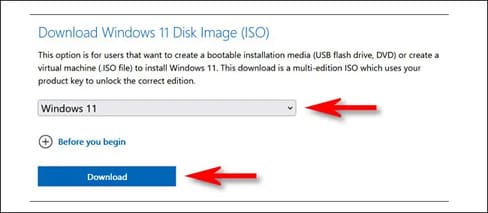
Next, if you’re running an Intel Mac, download Windows 11 ISO from Microsoft website. On the Download page, find the “Download Windows 11 Disk Image (ISO)” section, select “Windows 11”, then click “Download”.
How to install Windows 11 on an Intel Mac or M1/M2 13

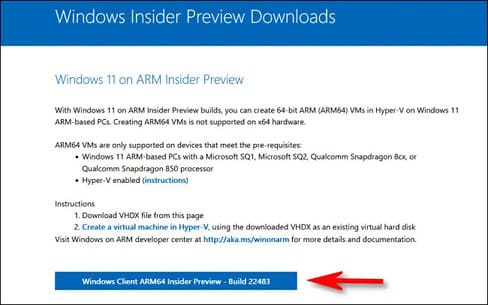
If you’re using an M1/M2 Mac, you can’t use the Intel (x64) version of Windows 11. Instead, you’ll need to sign up for the Windows Insider Program, then Download Windows Client ARM64which will be in the VHDX image file.
How to install Windows 11 on an Intel Mac or M1/M2 14

Once you have the OS ISO file you need, open the Parallels application. For M1/M2 Macs, double-click the VHDX file you just downloaded and follow the on-screen instructions in Parallels to install Windows 11. Some of the steps will be similar to the Mac Intel installation process shown. details below.

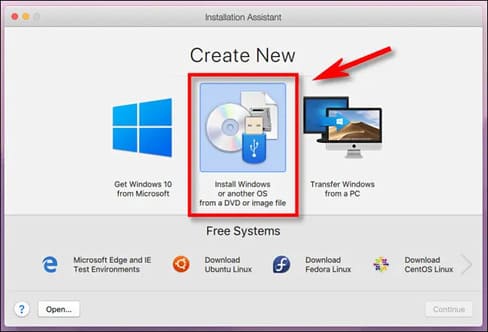
On an Intel Mac, open the Installation Assistant and select “Install Windows or another OS from a DVD or image file” and click “Continue”.
How to install Windows 11 on a Mac Intel or M1/M2 15

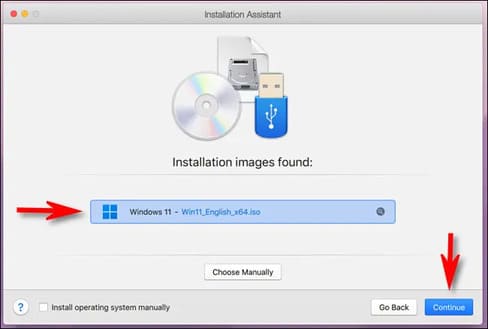
Parallels will automatically locate the Windows 11 ISO on your Mac. Select it from the list and click “Continue”.
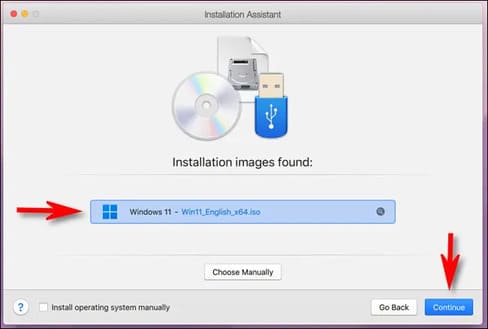
How to install Windows 11 on an Intel or M1/M2 16

Next, Parallels will ask you for a Windows License Key. If you have, you can import it now. Otherwise, uncheck “Enter Windows license key for faster installation” and click “Continue”.
How to install Windows 11 on an Intel or M1/M2 17 . Mac

The Windows 11 ISO file contains installation information for various versions of Windows 11. Select the version you want to install from the menu (Such as “Windows 11 Home” or “Windows 11 Pro”) and click “Continue”. “. Remember that each version has its own price when you later purchase a Windows 11 license.
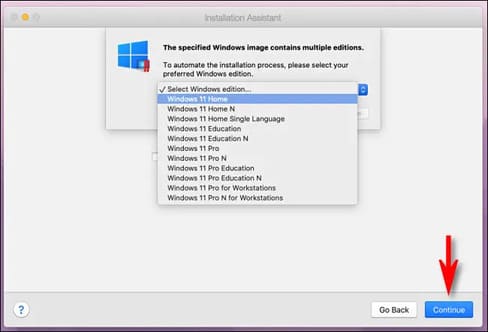
How to install Windows 11 on an Intel Mac or M1/M2 18

Next, Parallels will ask if you plan to use Windows primarily for work or gaming. Choose the one that suits your needs and click “Continue”.
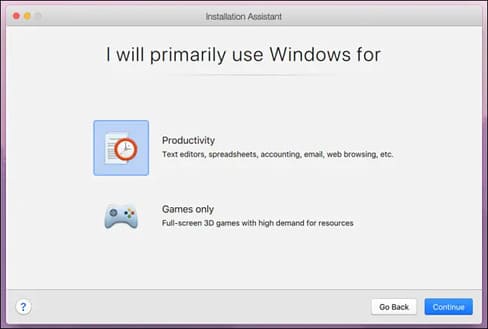
How to install Windows 11 on an Intel Mac or M1/M2 19

The Windows 11 installation will begin. Parallels handles it automatically, and you’ll see the progress in a small virtual machine window on your Mac.
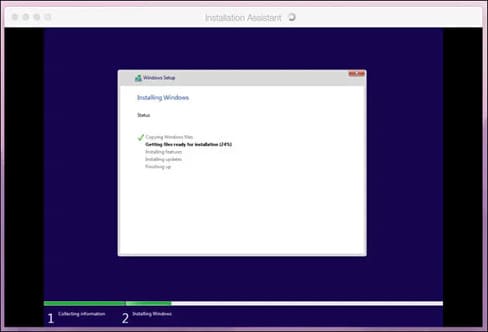
How to install Windows 11 on an Intel Mac or M1/M2 20

When the installation is complete on both the Mac M1 and Intel, you will see the message “Installation Complete”. Click inside the window to continue.
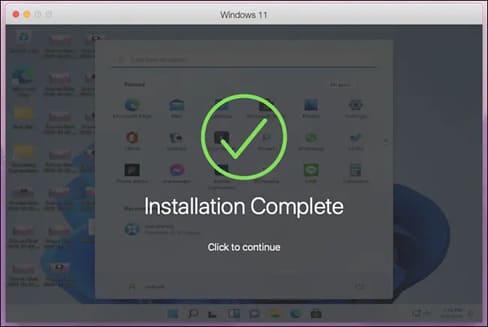
How to install Windows 11 on an Intel or M1/M2 21

At this point, if you’re using the trial version of Parallels, the app will ask you to sign up for a Parallels account. Otherwise, you should see the Windows 11 screen and be ready to go.
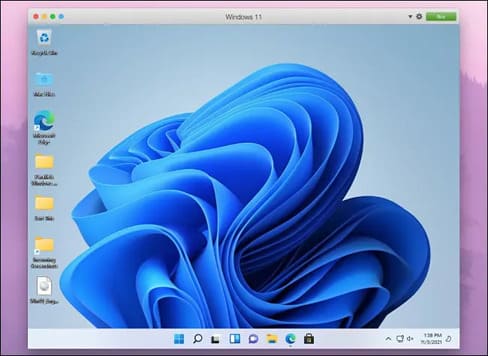
How to install Windows 11 on an Intel Mac or M1/M2 22

To switch to seamless mode where you can use Windows and Mac apps side-by-side, focus on the “Windows 11” window and choose View > Enter Coherence in the menu bar. Or you can press Ctrl + Command + C on your keyboard.

How to install Windows 11 on an Intel Mac or M1/M2 23

To exit Coherence mode, click the Windows logo icon in your Dock and choose View > Exit Coherence in the menu bar. Or you can press Ctrl + Command + C again.

Once you have purchased your Windows 11 license, run the Settings app in Windows 11 and click “System”. Click “Active Now”, then click “Open Store” and you will be able to purchase a Windows license in the Microsoft Store. Alternatively, you can also install Ubuntu alongside Windows here.

The article achieved: 5/5 – (100 votes)

Tags: installIntelM1M2MacWindows
Previous Post

Lesson 197: Circular references in Excel

Next Post

Lesson 198: Formula Auditing Group in Excel

AnonyViet

AnonyViet

Related Posts

Microsoft is preparing to launch Windows 11
Tips

Microsoft is preparing to launch Windows 11

October 9, 2026
How to download all photos from Google Photos to transfer to another service
Tips

How to download all photos from Google Photos to transfer to another service

October 8, 2026
How to use newly updated utilities on Windows 10
Tips

How to use newly updated utilities on Windows 10

October 7, 2026
Stealth Reader – Web story reader with Excel interface without being detected by the boss
Tips

Stealth Reader – Web story reader with Excel interface without being detected by the boss

October 7, 2026
Tips for handling when JPG images cannot be saved in Photoshop
Tips

Tips for handling when JPG images cannot be saved in Photoshop

October 6, 2026
Windows 11 release date and new features
Tips

Windows 11 release date and new features

October 6, 2026
Next Post
Lesson 198: Formula Auditing Group in Excel

Lesson 198: Formula Auditing Group in Excel

0 0 votes
Article Rating
Subscribe
Login
Notify of
guest

guest

0 Comments
Oldest
Newest Most Voted

Recent News

NoteCute – Extension to create super cute sticky notes

NoteCute – Extension to create super cute sticky notes

October 10, 2026
Super virtual way to change the photography angle using AI on iPhone

Super virtual way to change the photography angle using AI on iPhone

October 9, 2026
Instructions for detecting network vulnerabilities: How to check the system for data leaks (IP/DNS)

Instructions for detecting network vulnerabilities: How to check the system for data leaks (IP/DNS)

October 9, 2026
Microsoft is preparing to launch Windows 11

Microsoft is preparing to launch Windows 11

October 9, 2026
NoteCute – Extension to create super cute sticky notes

NoteCute – Extension to create super cute sticky notes

October 10, 2026
Super virtual way to change the photography angle using AI on iPhone

Super virtual way to change the photography angle using AI on iPhone

October 9, 2026
Instructions for detecting network vulnerabilities: How to check the system for data leaks (IP/DNS)

Instructions for detecting network vulnerabilities: How to check the system for data leaks (IP/DNS)

October 9, 2026
AnonyViet - English Version

AnonyViet

AnonyViet is a website share knowledge that you have never learned in school!

We are ready to welcome your comments, as well as your articles sent to AnonyViet.

Follow Us

Contact:

Email: anonyviet.com[@]gmail.com

Main Website: https://anonyviet.com

Recent News

NoteCute – Extension to create super cute sticky notes

NoteCute – Extension to create super cute sticky notes

October 10, 2026
Super virtual way to change the photography angle using AI on iPhone

Super virtual way to change the photography angle using AI on iPhone

October 9, 2026
  • Home
  • Home 2
  • Home 3
  • Home 4
  • Home 5
  • Home 6
  • Next Dest Page
  • Sample Page

say88 tỷ lệ kèo nhà cái kèo nhà cái 5 febet

No Result
View All Result
  • Home
  • News
  • Software
  • Knowledge
  • MMO
  • Tips
  • Security
  • Network
  • Office

say88 tỷ lệ kèo nhà cái kèo nhà cái 5 febet

wpDiscuz
0
0
Would love your thoughts, please comment.x
()
x
| Reply