• Home
  • News
  • Software
  • Knowledge
  • MMO
  • Tips
  • Security
  • Network
  • Office
AnonyViet - English Version
  • Home
  • News
  • Software
  • Knowledge
  • MMO
  • Tips
  • Security
  • Network
  • Office
No Result
View All Result
  • Home
  • News
  • Software
  • Knowledge
  • MMO
  • Tips
  • Security
  • Network
  • Office
No Result
View All Result
AnonyViet - English Version
No Result
View All Result

How to use Top Widgets to create animations on the iPhone screen

AnonyViet by AnonyViet
January 24, 2023
in Software
0

iOS 16 was born, allowing users to tweak the lock screen with different animations. However, to decorate the lock screen you need to add App Top Widgets to have beautiful animations and easily add them to the screen without cumbersome operations.

Join the channel Telegram of the AnonyViet 👉 Link 👈

When iOS 16 Lock Screen customization starts, a personalization app Iphone called Top Widgets has skyrocketed to #1 on the US App Store’s top free apps list, taking the throne from BeReal.
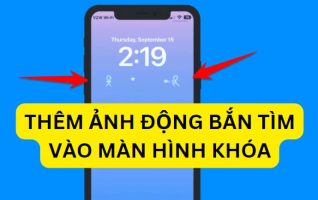
How to use Top Widgets to create animations on the iPhone screen

Like other widget bookmarking tools, Top Widgets tools allow users to choose from a wide range of widgets (widgets) on the Home screen: like photos, clocks, calendars, weather, reminders, etc.

Top Widgets also includes some new features like a collection of transparent widgets that don’t overlap the iPhone’s wallpaper, as well as a variety of widget styles. “Quick launcher” gives you quick access to customize the application.

Additionally, the app includes a cool type of widget it calls an “x-panel” that places various blocks of information – like battery percentage, memory usage, conversions Wi-Fi… to the widget area and can be pinned to your Home screen/lock screen.

This is a list of utilities that Top Widgets Offered

  • Photos, Photos in Albums, Photos with similar frames
  • Time, date and battery
  • Countdown / Anniversary
  • Quick Launcher
  • Daily, hourly & current weather
  • Calendar
  • Clock
  • Quote for today
  • Calendar with events
  • Remind
  • Pedometer & Calorie Count

Create heart shot animation on iPhone screen – iOS16

A new trend when iOS16 began to let users tweak more features in the lock screen. You can decorate your phone lock screen with animations with lots of cute pictures like two people shooting hearts back and forth. To add animations to the iPhone screen, you need to download the App Top Widgets to your phone.
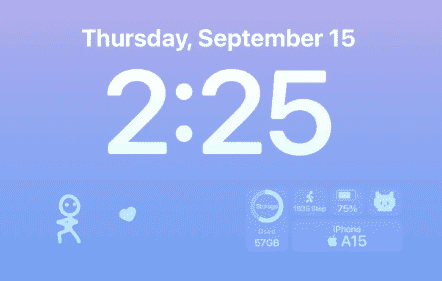
download top widgets utility ios16

Transparent widgets will help you decorate your lock screen without overlapping your wallpaper.. Top WidgetsONLY TWO STEPS takes less than 30 seconds to change default icons:

  1. Choose your favorite icons from a collection
  2. Click the “Install” button and allow the installation.

Download App Top Widgets

After downloading, open App Top Widgets, find Dynamic and:

  • Select the picture on the left and press Save
  • Select the search image on the right and press Save
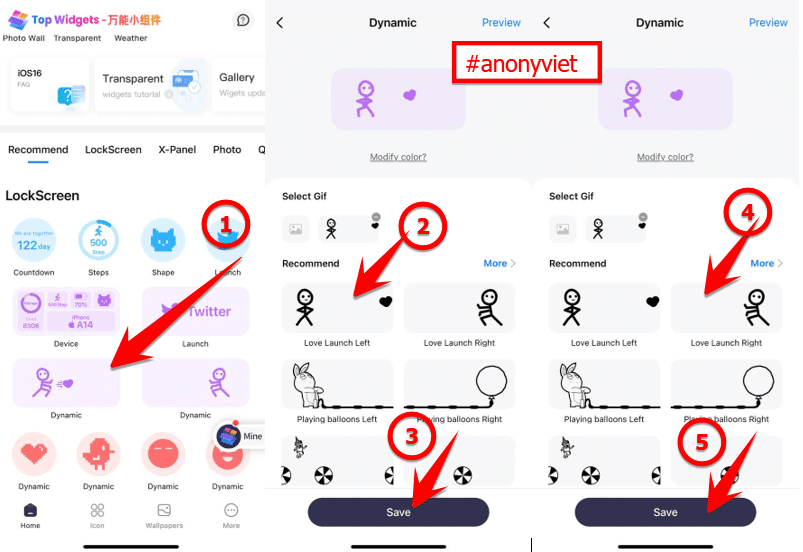
create a heart shot pattern iphone lock screen

Ok, now we will add 2 shooting widgets to the lock screen. Into the Settings -> Wallpaper -> Customizedelete all the Widgets currently on the screen, in the section More widgets scroll down select Top Widgets.

Scroll through to select Rectangular -> choose 2 times in Select Widget

Next, select Select Widget (left) on the screen select Dynamic#1, then select Select Wiget on the right choose Dynamic#2 and you’re done.
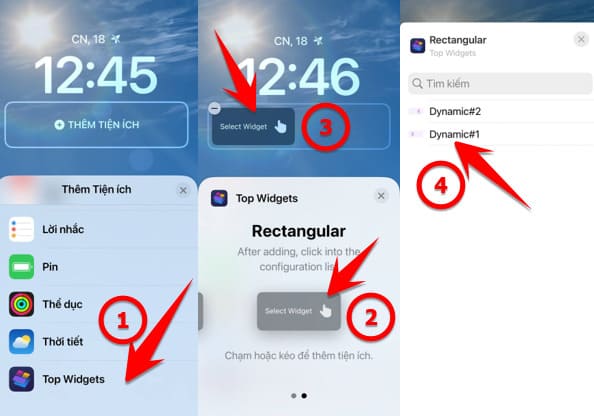
create dynamic widget on ios16

So you have installed the heart shot animation on the iOS screen already, if you don’t like the animation, you can choose the widget block in the X-Panel Menu of Top Widgets which is also very nice.


The article achieved: 5/5 – (100 votes)

Tags: animationscreateiPhonescreenTopWidgets
Previous Post

How to Enable Hyper-V in Windows 11 Home

Next Post

Lesson 146: How to use the SEARCH function in Excel

AnonyViet

AnonyViet

Related Posts

How to create a Face Sticker Collection using ChatGPT
Software

How to create a Face Sticker Collection using ChatGPT

April 29, 2026
How to install the cute Bongo Cat mouse pointer for Windows
Software

How to install the cute Bongo Cat mouse pointer for Windows

April 29, 2026
Instructions for looking up prescriptions on VNeID instead of paper medical books
Software

Instructions for looking up prescriptions on VNeID instead of paper medical books

April 26, 2026
Compare Poco X8 Pro and Poco X7 Pro: A new step for the “king” of mid-range performance
Software

Compare Poco X8 Pro and Poco X7 Pro: A new step for the “king” of mid-range performance

April 24, 2026
Top 5 apps to view good days 2026 for free on iOS and Android
Software

Top 5 apps to view good days 2026 for free on iOS and Android

April 23, 2026
Top 5+ utilities to install for Gmail to speed up work processing
Software

Top 5+ utilities to install for Gmail to speed up work processing

April 22, 2026
Next Post
Lesson 146: How to use the SEARCH function in Excel

Lesson 146: How to use the SEARCH function in Excel

0 0 votes
Article Rating
Subscribe
Login
Notify of
guest

guest

0 Comments
Oldest
Newest Most Voted
Inline Feedbacks
View all comments

Recent News

How to create a Face Sticker Collection using ChatGPT

How to create a Face Sticker Collection using ChatGPT

April 29, 2026
How to install the cute Bongo Cat mouse pointer for Windows

How to install the cute Bongo Cat mouse pointer for Windows

April 29, 2026
Tips for pinning the step counter to the iPhone screen to monitor your health

Tips for pinning the step counter to the iPhone screen to monitor your health

April 28, 2026
How to turn off password suggestions on iPhone: Prevent Safari from auto-filling passwords

How to turn off password suggestions on iPhone: Prevent Safari from auto-filling passwords

April 27, 2026
How to create a Face Sticker Collection using ChatGPT

How to create a Face Sticker Collection using ChatGPT

April 29, 2026
How to install the cute Bongo Cat mouse pointer for Windows

How to install the cute Bongo Cat mouse pointer for Windows

April 29, 2026
Tips for pinning the step counter to the iPhone screen to monitor your health

Tips for pinning the step counter to the iPhone screen to monitor your health

April 28, 2026
AnonyViet - English Version

AnonyViet

AnonyViet is a website share knowledge that you have never learned in school!

We are ready to welcome your comments, as well as your articles sent to AnonyViet.

Follow Us

Contact:

Email: anonyviet.com[@]gmail.com

Main Website: https://anonyviet.com

Recent News

How to create a Face Sticker Collection using ChatGPT

How to create a Face Sticker Collection using ChatGPT

April 29, 2026
How to install the cute Bongo Cat mouse pointer for Windows

How to install the cute Bongo Cat mouse pointer for Windows

April 29, 2026
No Result
View All Result
  • Home
  • News
  • Software
  • Knowledge
  • MMO
  • Tips
  • Security
  • Network
  • Office

wpDiscuz
0
0
Would love your thoughts, please comment.x
()
x
| Reply