Did you know that you can Open files with just 1 mouse click Are not? This is a feature that allows you to simply click a button once to perform an action, such as restarting the computer, shutting down the computer, or changing options. How to do it? Let's explore together!
| Join the channel Telegram belong to AnonyViet 👉 Link 👈 |
Double-clicking is the common way to open applications and windows on Windows computers. However, most modern compact laptops often have touchpads instead of mice, and double-clicking on the touchpad is quite annoying and time-consuming. Therefore, you may like the one-click function in the article below.
Ways to open files with just 1 click on Windows
There are ways to enable single-click functionality to open files, folders, and applications instead of double-clicking on Windows. Here are the commonly used ways:
Method 1: Use Folder Options
Step 1: Open This PC on your Windows computer
Step 2: On the top menu or toolbar, click the three-dot icon.
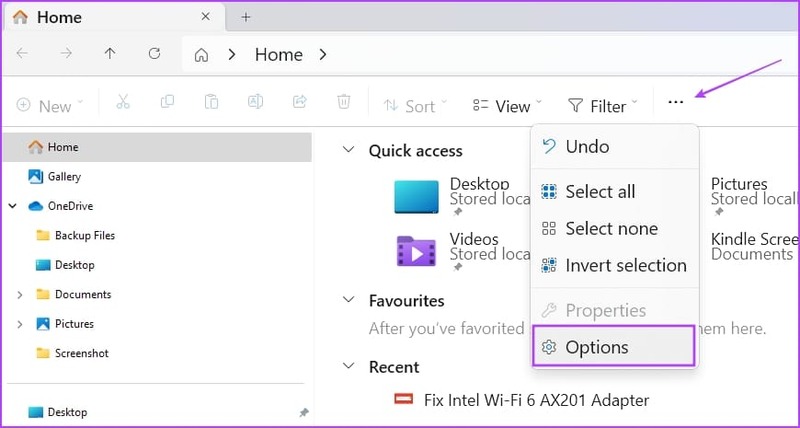
Step 3: Select Options.
Step 4: Under the Click items as follows option, select 'Single-click to open an item' (point to select)
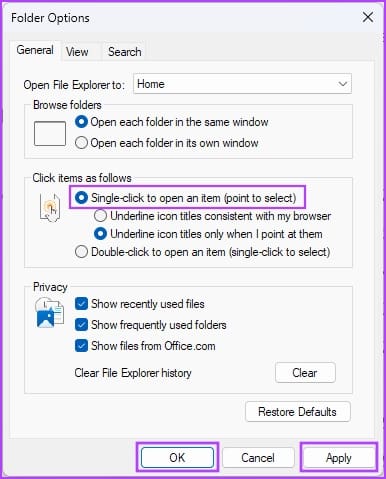
Step 5: Here, you can also choose one of the following options:
- Underline icon titles consistent with my browser: all icons and items will look like a hypertext link on the web browser
- Underline icon titles only when I point at them: only when pointing at an item or icon will it display a hypertext link that you can click to access the application, folder or file
Step 6: Click the Apply and OK buttons to save and apply the changes.
Step 7: When you want to return to the double-click functionality to open files, folders and applications, just go to Folder Options > General and press the Restore Defaults button.
Method 2: Use File Explorer Options
This method is for versions of Windows 10 and earlier.
On Windows 10/8
Step 1: Press Windows key + S together to open the Start menu.
Step 2: Start typing File Explorer, and the File Explorer Options link will appear under the Best Match section of the search results.
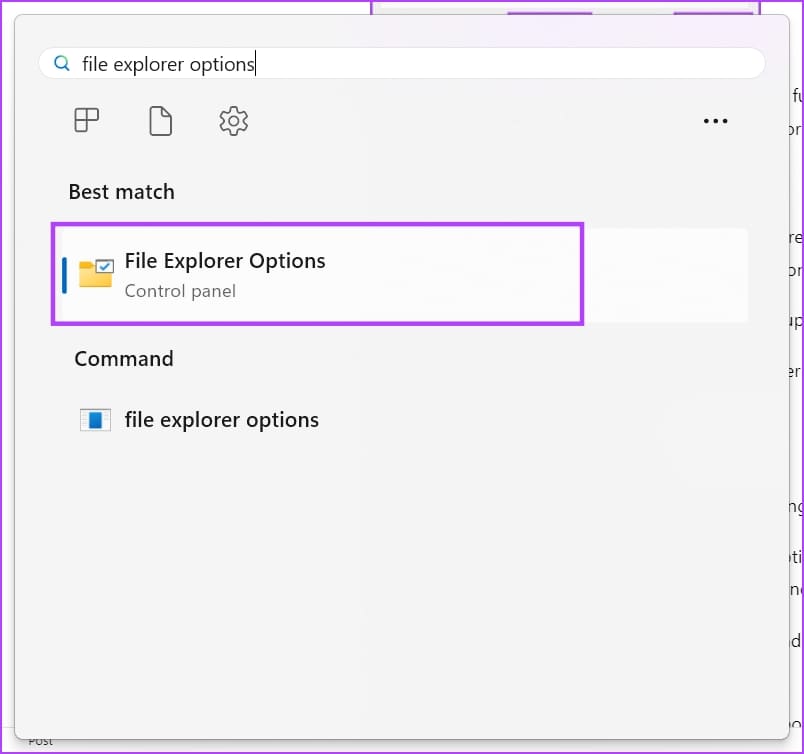
Step 3: Click File Explorer Options. The File Explorer Options dialog box is no different from the Folder Options that I showed in method 1.
On Windows 7/Vista
- Right-click the Start button > Select Control Panel.
- Select 'Appearance and Personalization' on the left navigation panel.
- Click the Specify single- or double-click to open link under Folder Options settings.
Step 4: Here, you can also choose one of the following options:
- Underline icon titles consistent with my browser: all icons and items will look like a hypertext link on the web browser
- Underline icon titles only when I point at them: only when pointing at an item or icon will it display a hypertext link that you can click to access the application, folder or file
Step 5: Click the Apply and OK buttons to save and apply the changes.
Method 3: Modify Registry Editor
When you cannot enable single click to open apps and files on Windows using any of the above methods, modify Windows Registry keys by following these steps. Don't forget to back up Registry entries before performing this method.
Step 1: Open the Run dialog box by pressing Windows key + R.
Step 2: Then, type 'regedit' in the Run box and press Enter.
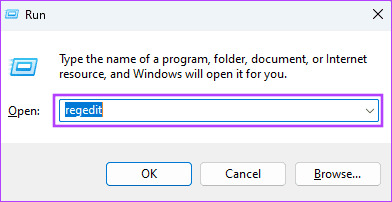
Step 3: The Registry editor will open.
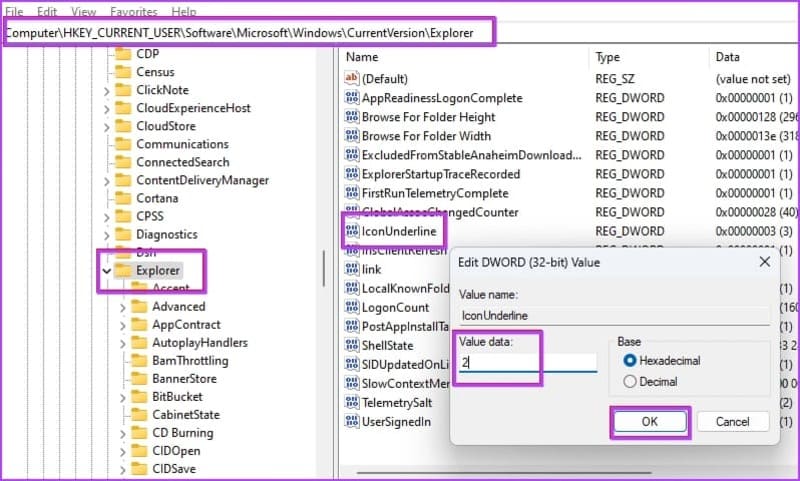
Step 4: Navigate to HKEY_CURRENT_USER -> Software -> Microsoft -> Windows -> CurrentVersion -> Explorer
Step 6: Double click IconUnderline and change the value to 2. (Default value is 3)
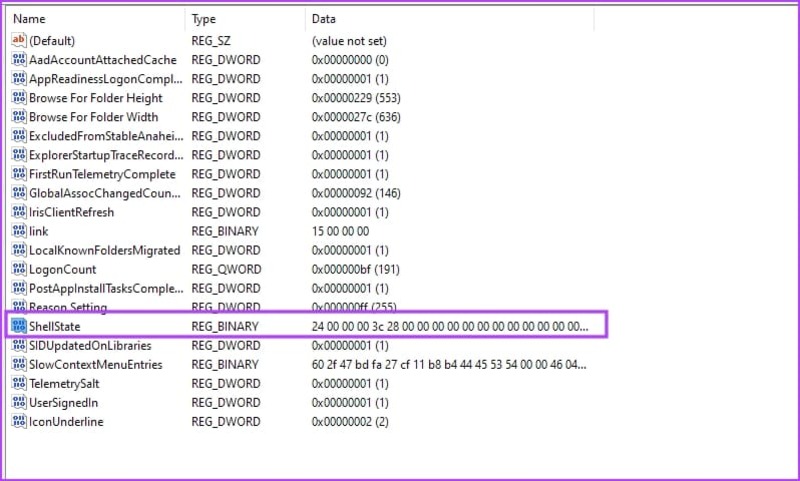
Step 7: Double-click the ShellState entry.
Step 8: Make the necessary changes as shown below and click OK.
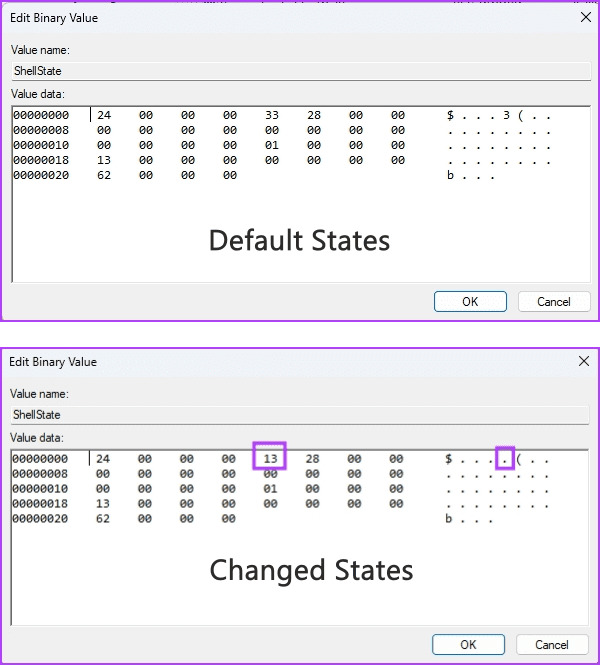
Step 9: After making the above changes, restart your PC.
Method 4: Use Command Prompt
Step 1: Search for Command Prompt in the menu, right click and select 'Run as administrator'
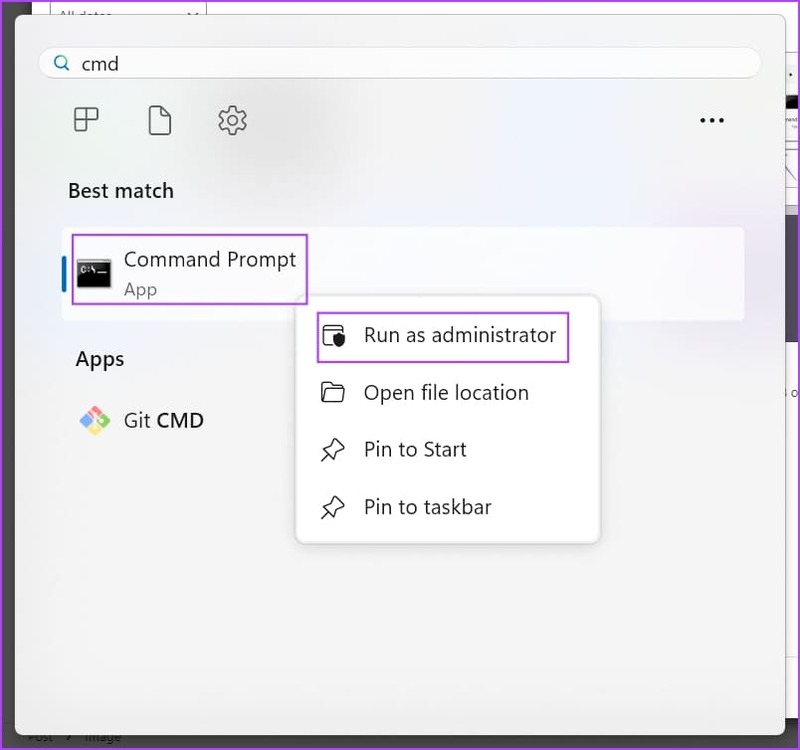
Step 2: Paste the following code and press Enter
REG ADD “HKCU\SOFTWARE\Microsoft\Windows\CurrentVersion\Explorer” /V IconUnderline /T REG_DWORD /D 3 /F
Step 3: Continue pasting the following code > Enter
REG ADD “HKCU\SOFTWARE\Microsoft\Windows\CurrentVersion\Explorer” /V ShellState /T REG_BINARY /D 240000001ea80000000000000000000000000001000000130000000000000062000000 /F
Step 4: Restart your PC
It is done! You have successfully enabled the 1-click function to open elements on your computer.
Epilogue
So you know How to open files with just 1 mouse click on Windows already. This is a very convenient and quick feature, helping you save time and effort when using your computer. Wishing you a successful application!