• Home
  • News
  • Software
  • Knowledge
  • MMO
  • Tips
  • Security
  • Network
  • Office
AnonyViet - English Version
  • Home
  • News
  • Software
  • Knowledge
  • MMO
  • Tips
  • Security
  • Network
  • Office
No Result
View All Result
  • Home
  • News
  • Software
  • Knowledge
  • MMO
  • Tips
  • Security
  • Network
  • Office
No Result
View All Result
AnonyViet - English Version
No Result
View All Result

Control iPhone iPad with head and facial expressions – Interesting and useful feature

AnonyViet by AnonyViet
February 4, 2024
in Software
0

Did you know that it is possible? Control iPhone iPad with your head or facial expressions without touching the screen? This is a very interesting and useful feature that Apple has integrated into the iOS/iPadOS operating system. This feature is called Switch Control, and it allows you to interact with your Apple touch device in a smart and convenient way. Let's learn about this feature and how to use it!

Join the channel Telegram belong to AnonyViet 👉 Link 👈

What is switch control?

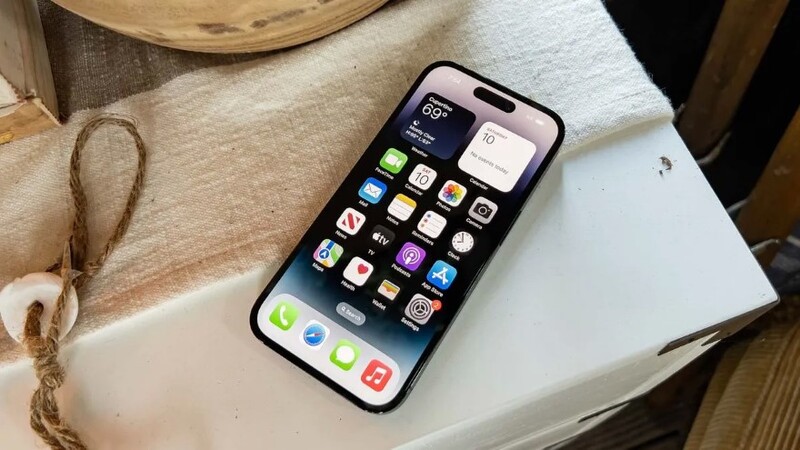
Switch control is an accessibility feature on Iphone/iPad lets you control your device using head gestures and facial expressions. You can set specific actions for each gesture and corresponding expression, such as opening Siri, unlocking the screen, taking photos, playing music, etc.
Control iPhone iPad with your head
Switch control allows you to control the device using head gestures

Just make gestures and facial expressions and your iPhone/iPad will automatically perform pre-installed operations without touching the screen.

iPhone/iPad can be controlled with natural gestures without touching the screen, this brings many benefits to users such as:

  • Helps people who have difficulty using their hands to more easily control iPhone/iPad with head gestures and facial expressions.
  • Create a fun, unique user experience that no other smart device can have.

How to control iPhone iPad with your head

To use Switch Control, you need an iPhone 8 or later or any iPad model with the latest version of iOS/iPadOS. Next, you need to follow the steps as follows:

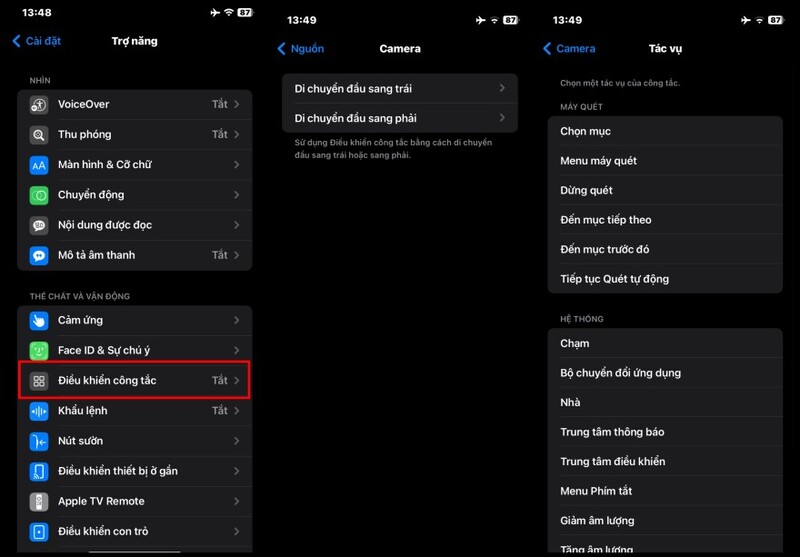
Step 1: Go to Settings > Accessibility > Switch Control and turn on the Switch Control button.
Control iPhone iPad with your head
Turn on the Switch Control button.

Step 2: Tap on 'Switches' option > 'Add new switch', select source as 'Camera'

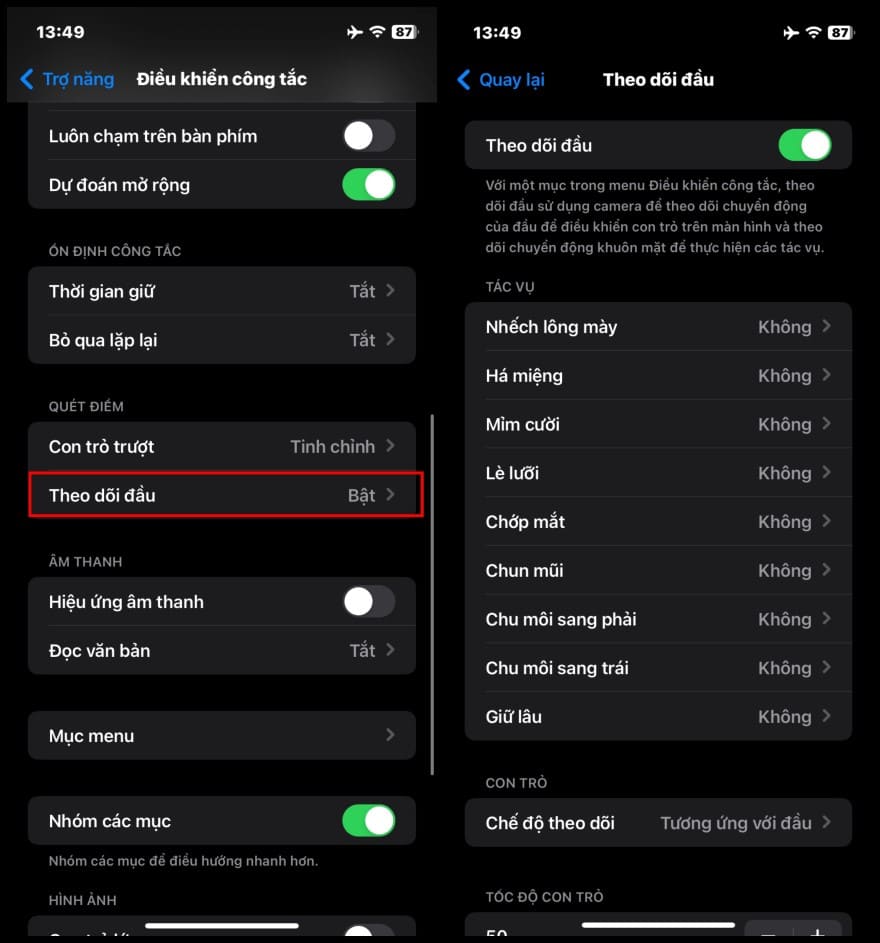
Step 3: Choose specific head gestures like turning left or right to trigger various actions on iPhone/iPad. For example, you can set it so that when you turn your head to the right, you will quickly access Siri, and when you turn your head to the left, the Unlock screen, etc.

Step 4: You can also combine the Face Recognition feature to control your iPhone/iPad with your expressions. Specifically, you can set it up so that when you smile, the Camera opens, when you wrinkle your nose, the music plays, when you raise your eyebrows, the screen unlocks…
Control iPhone iPad with your head
Control iPhone/iPad with facial expressions

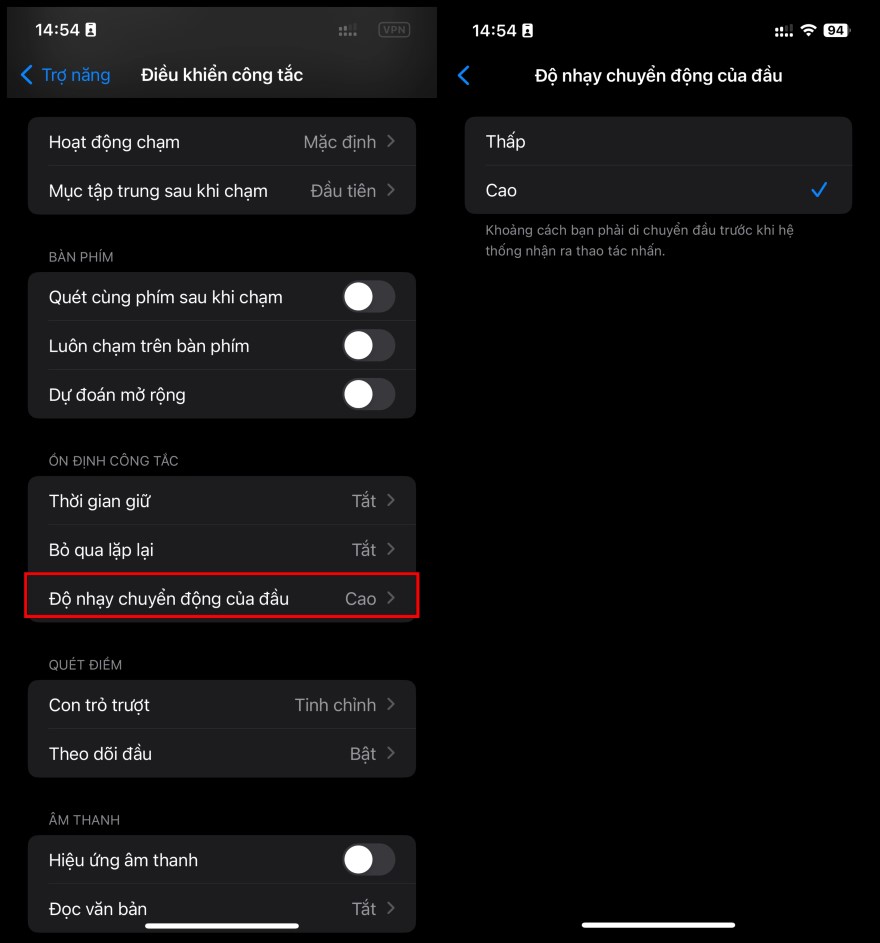
Note: You can also adjust some additional settings to make Switch Control work more efficiently and accurately for you. For example, adjusting head movement sensitivity, face detection time, etc. You can adjust these settings in Settings > Accessibility > Switch control > Head movement sensitivity or Time hold.
Control iPhone iPad with your head
Adjust sensitivity

Epilogue

Control iPhone iPad with your head is a very useful feature that you should experience right on your device. Please explore this feature and feel the appeal and specialness it brings!! Surely you will love it!


The article scored: 5/5 – (100 votes)

Tags: controlexpressionsfacialfeatureinterestingiPadiPhone
Previous Post

How to move the Chrome address bar to the bottom of the iPhone screen

Next Post

Instructions for Fake IP on computer without software

AnonyViet

AnonyViet

Related Posts

How to create a Face Sticker Collection using ChatGPT
Software

How to create a Face Sticker Collection using ChatGPT

April 29, 2026
How to install the cute Bongo Cat mouse pointer for Windows
Software

How to install the cute Bongo Cat mouse pointer for Windows

April 29, 2026
Instructions for looking up prescriptions on VNeID instead of paper medical books
Software

Instructions for looking up prescriptions on VNeID instead of paper medical books

April 26, 2026
Compare Poco X8 Pro and Poco X7 Pro: A new step for the “king” of mid-range performance
Software

Compare Poco X8 Pro and Poco X7 Pro: A new step for the “king” of mid-range performance

April 24, 2026
Top 5 apps to view good days 2026 for free on iOS and Android
Software

Top 5 apps to view good days 2026 for free on iOS and Android

April 23, 2026
Top 5+ utilities to install for Gmail to speed up work processing
Software

Top 5+ utilities to install for Gmail to speed up work processing

April 22, 2026
Next Post
Instructions for Fake IP on computer without software

Instructions for Fake IP on computer without software

0 0 votes
Article Rating
Subscribe
Login
Notify of
guest

guest

0 Comments
Oldest
Newest Most Voted
Inline Feedbacks
View all comments

Recent News

How to create a Face Sticker Collection using ChatGPT

How to create a Face Sticker Collection using ChatGPT

April 29, 2026
How to install the cute Bongo Cat mouse pointer for Windows

How to install the cute Bongo Cat mouse pointer for Windows

April 29, 2026
Tips for pinning the step counter to the iPhone screen to monitor your health

Tips for pinning the step counter to the iPhone screen to monitor your health

April 28, 2026
How to turn off password suggestions on iPhone: Prevent Safari from auto-filling passwords

How to turn off password suggestions on iPhone: Prevent Safari from auto-filling passwords

April 27, 2026
How to create a Face Sticker Collection using ChatGPT

How to create a Face Sticker Collection using ChatGPT

April 29, 2026
How to install the cute Bongo Cat mouse pointer for Windows

How to install the cute Bongo Cat mouse pointer for Windows

April 29, 2026
Tips for pinning the step counter to the iPhone screen to monitor your health

Tips for pinning the step counter to the iPhone screen to monitor your health

April 28, 2026
AnonyViet - English Version

AnonyViet

AnonyViet is a website share knowledge that you have never learned in school!

We are ready to welcome your comments, as well as your articles sent to AnonyViet.

Follow Us

Contact:

Email: anonyviet.com[@]gmail.com

Main Website: https://anonyviet.com

Recent News

How to create a Face Sticker Collection using ChatGPT

How to create a Face Sticker Collection using ChatGPT

April 29, 2026
How to install the cute Bongo Cat mouse pointer for Windows

How to install the cute Bongo Cat mouse pointer for Windows

April 29, 2026
No Result
View All Result
  • Home
  • News
  • Software
  • Knowledge
  • MMO
  • Tips
  • Security
  • Network
  • Office

wpDiscuz
0
0
Would love your thoughts, please comment.x
()
x
| Reply