• Home
  • News
  • Software
  • Knowledge
  • MMO
  • Tips
  • Security
  • Network
  • Office
AnonyViet - English Version
  • Home
  • News
  • Software
  • Knowledge
  • MMO
  • Tips
  • Security
  • Network
  • Office
No Result
View All Result
  • Home
  • News
  • Software
  • Knowledge
  • MMO
  • Tips
  • Security
  • Network
  • Office
No Result
View All Result
AnonyViet - English Version
No Result
View All Result

How to pin messages on Messenger so you don't miss important information

AnonyViet by AnonyViet
January 13, 2024
in Tips
0

How to pin messages on Messenger is a very useful feature that you should know to manage your chats better. When you pin a message, it will always show up at the top of your list of conversations, making it easy to follow up and resume it when needed. AnonyViet will guide you how to pin the above message Messenger with just a few simple steps.

Join the channel Telegram belong to AnonyViet 👉 Link 👈

Benefits of pinning messages on Messenger

Pinning messages on Messenger is a feature that allows you to mark (pin) a specific message in a conversation so it stays at the top of your message list and is easily accessible. You can pin any type of message, from text, image, file, sticker, location, voice, etc. Pinning messages has many benefits, such as:

  • Helps you take notes and save important and necessary information in the conversation, such as passwords, confirmation codes, phone numbers, addresses…
  • Easily find and review pinned messages without having to scroll up and down multiple times.
  • Highlight messages that you want others to notice or respond to.

How to pin messages on Messenger
Benefits of pinning messages on Messenger

Steps to pin messages on Messenger

To pin a message on Messenger, simply follow these steps:

Step 1: Open Messenger on your phone and select the conversation where you want to pin a message. Then, press and hold your finger on that message
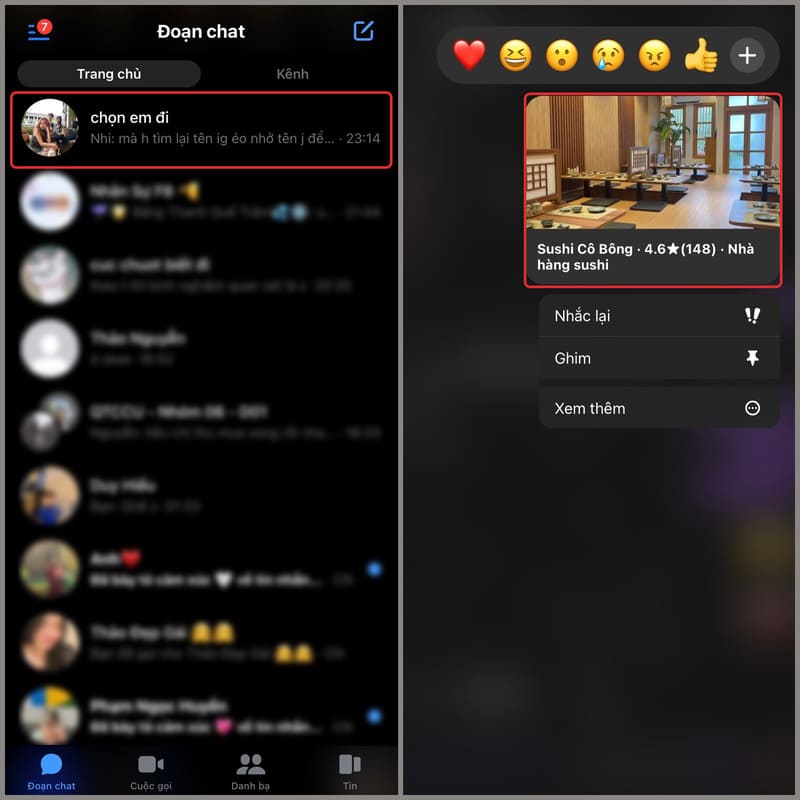
How to pin messages on Messenger
Press and hold your finger on the message you want to pin

Step 2: A menu will appear with various options. You select 'See more', then finally select 'Pin'.
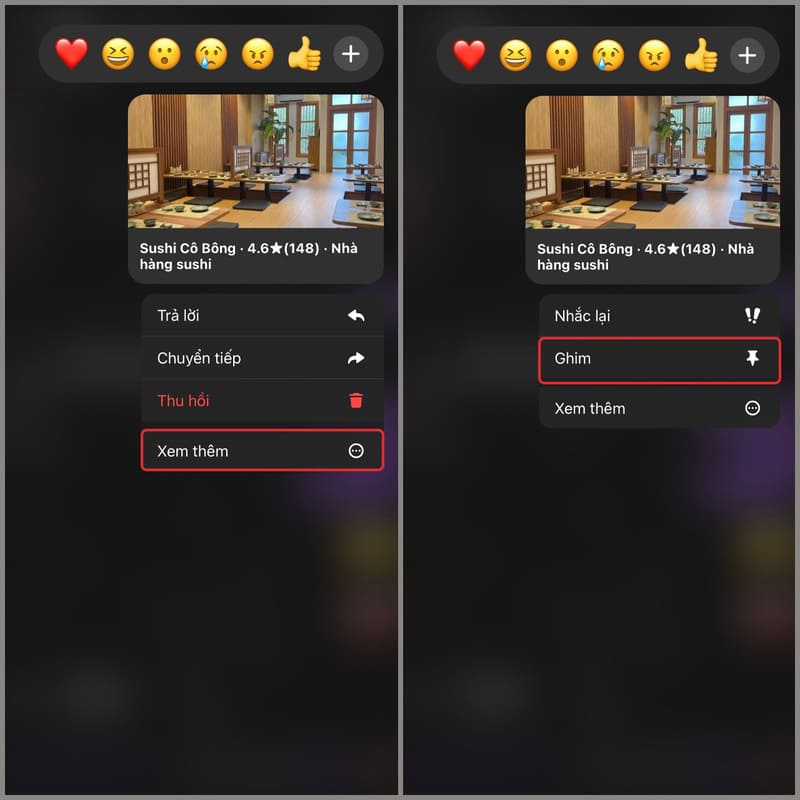
How to pin messages on Messenger
Select 'See more' > 'Pin'.

At this point, your message will be placed at the top of the conversation and will have a pin mark in the right corner.

How to unpin messages on Messenger is extremely simple

If you want to unpin a previously pinned message, do the same as pinning it. You just need to long press on the pinned message, then select 'See more' and tap 'Unpin'. At this point, your message will no longer be pinned and return to its original location.
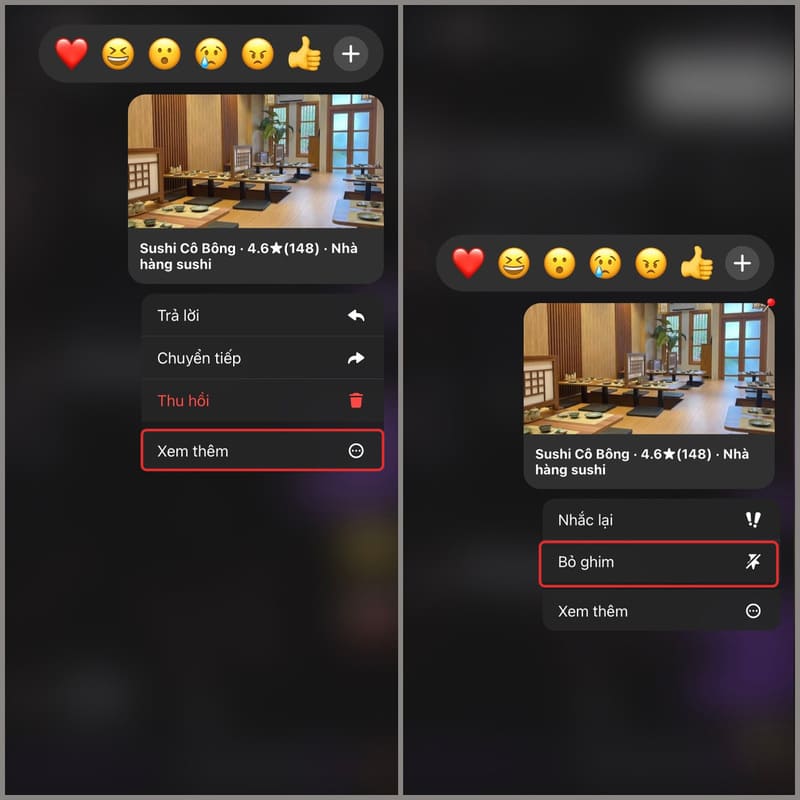
How to pin messages on Messenger
How to unpin messages on Messenger

The difference between pinning messages on Messenger and Zalo

Pinning messages is a function available on many different messaging applications, but there are some differences between this function on Messenger and Zalo. As follows:

Messenger allows you to pin messages directly on your phone screen, meaning you can use other apps while viewing messages on Messenger. However, pinning messages on Zalo only appears in the Zalo application, you must go to the application to view the pinned message.
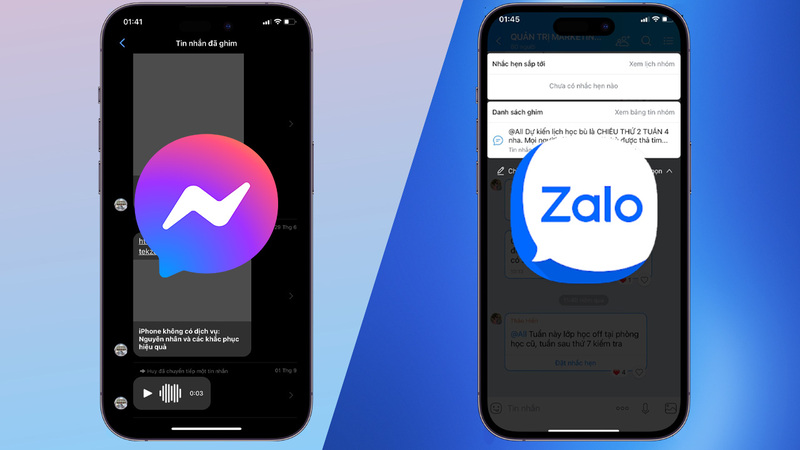
How to pin messages on Messenger
The difference between pinning messages on Messenger and Zalo

Pinning messages on Messenger applies to both individual and group chats, you can pin any message you want. However, pinning messages on Zalo only applies to group conversations and does not apply to personal messages.

How to review pinned messages on Messenger

To review pinned messages on Messenger, you can do the following:

Step 1: Click on the conversation where you pinned the message.

Step 2: Select 'Pinned messages' in the upper right corner of the screen.

You will now see a list of pinned messages in that conversation. You can choose to view or unpin any message.
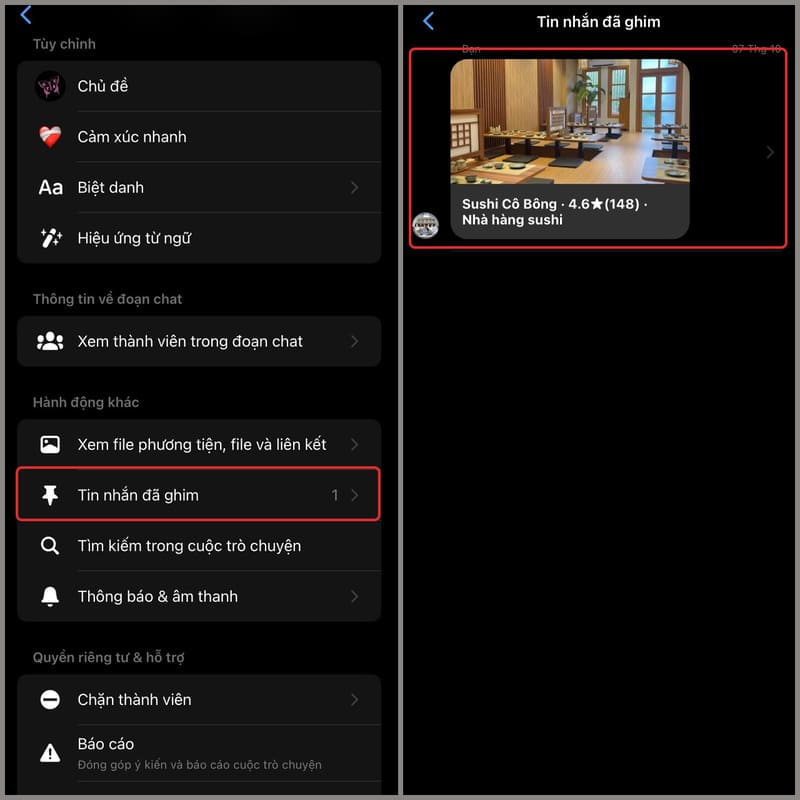
How to pin messages on Messenger
How to review pinned messages on Messenger

Epilogue

So I have finished guiding you How to pin messages on Messenger super simple. Hopefully this article will help you use Messenger more effectively, without missing or forgetting important information in the conversation. Wishing you a successful application!


The article scored: 5/5 – (100 votes)

Tags: don39tImportantInformationmessagesMessengerPIN
Previous Post

Get license to IObit Software Updater 6 – Update & install software automatically

Next Post

How to hunt for 100% Free Coupons for courses on Udemy

AnonyViet

AnonyViet

Related Posts

Instructions for creating Minecraft-style food photos
Tips

Instructions for creating Minecraft-style food photos

June 9, 2026
Get free Cambridge courses to prepare for IELTS, Starters, Movers
Tips

Get free Cambridge courses to prepare for IELTS, Starters, Movers

June 4, 2026
How to record reaction videos with Android phones, no app needed
Tips

How to record reaction videos with Android phones, no app needed

June 1, 2026
Instructions on how to get Google AI Pro 1 year for free for new accounts
Tips

Instructions on how to get Google AI Pro 1 year for free for new accounts

June 1, 2026
Top free AI tools to help write, test and optimize content
Tips

Top free AI tools to help write, test and optimize content

June 1, 2026
Instructions for receiving Lovable Pro 12 months for free
Tips

Instructions for receiving Lovable Pro 12 months for free

May 29, 2026
Next Post
How to hunt for 100% Free Coupons for courses on Udemy

How to hunt for 100% Free Coupons for courses on Udemy

0 0 votes
Article Rating
Subscribe
Login
Notify of
guest

guest

0 Comments
Oldest
Newest Most Voted
Inline Feedbacks
View all comments

Recent News

Cách làm mờ khuôn mặt trên iPhone, không cần tải app

Cách làm mờ khuôn mặt trên iPhone, không cần tải app

June 11, 2026
Website to check the World Cup 2026 match schedule intuitively, with automatic calendar synchronization

Website to check the World Cup 2026 match schedule intuitively, with automatic calendar synchronization

June 11, 2026
PDF editing application on Android worth 199k is free

PDF editing application on Android worth 199k is free

June 10, 2026
Instructions for creating Minecraft-style food photos

Instructions for creating Minecraft-style food photos

June 9, 2026
Cách làm mờ khuôn mặt trên iPhone, không cần tải app

Cách làm mờ khuôn mặt trên iPhone, không cần tải app

June 11, 2026
Website to check the World Cup 2026 match schedule intuitively, with automatic calendar synchronization

Website to check the World Cup 2026 match schedule intuitively, with automatic calendar synchronization

June 11, 2026
PDF editing application on Android worth 199k is free

PDF editing application on Android worth 199k is free

June 10, 2026
AnonyViet - English Version

AnonyViet

AnonyViet is a website share knowledge that you have never learned in school!

We are ready to welcome your comments, as well as your articles sent to AnonyViet.

Follow Us

Contact:

Email: anonyviet.com[@]gmail.com

Main Website: https://anonyviet.com

Recent News

Cách làm mờ khuôn mặt trên iPhone, không cần tải app

Cách làm mờ khuôn mặt trên iPhone, không cần tải app

June 11, 2026
Website to check the World Cup 2026 match schedule intuitively, with automatic calendar synchronization

Website to check the World Cup 2026 match schedule intuitively, with automatic calendar synchronization

June 11, 2026
  • Home
  • Home 2
  • Home 3
  • Home 4
  • Home 5
  • Home 6
  • Next Dest Page
  • Sample Page

6789 kv999

No Result
View All Result
  • Home
  • News
  • Software
  • Knowledge
  • MMO
  • Tips
  • Security
  • Network
  • Office

6789 kv999

wpDiscuz
0
0
Would love your thoughts, please comment.x
()
x
| Reply