• Home
  • News
  • Software
  • Knowledge
  • MMO
  • Tips
  • Security
  • Network
  • Office
AnonyViet - English Version
  • Home
  • News
  • Software
  • Knowledge
  • MMO
  • Tips
  • Security
  • Network
  • Office
No Result
View All Result
  • Home
  • News
  • Software
  • Knowledge
  • MMO
  • Tips
  • Security
  • Network
  • Office
No Result
View All Result
AnonyViet - English Version
No Result
View All Result

Instructions for deleting unread mail in Gmail very quickly

AnonyViet by AnonyViet
January 1, 2024
in Tips
0

Gmail is the largest Email system today with billions of Emails sent every day. Each of us has at least 1 Gmail for ourselves to receive documents when needed. However, our Gmail inbox is always attacked by spam emails, mostly advertisements. I will show you how to delete unread mail in Gmail.

Join the channel Telegram belong to AnonyViet 👉 Link 👈

After a period of not using or checking your Gmail inbox. It will easily be filled with unread advertising messages. With just a few steps below, you can clean up this mailbox. You don't need to waste time deleting each one anymore.

This may not seem necessary, but it's actually very important. When you are at work or in the office, keeping your Gmail inbox clean is a must. The mailbox must be neat so you can easily manage and search when necessary. There are even some cases where too much junk mail clutters up the mailbox, making it very annoying and unprofessional.

Instructions for deleting unread mail in Gmail

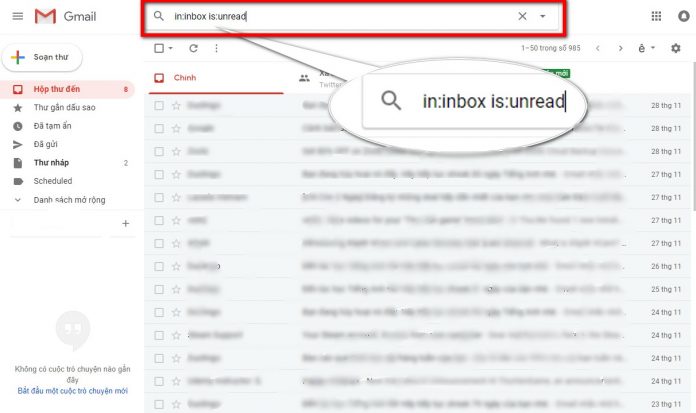
First, you need to log in to where you manage your Gmail mailbox. We will use the search command to find and delete unread mail in the mailbox. In the search box at the top, enter the following command line:

in:inbox is:unread

or

in:unread
Instructions for deleting unread mail in Gmail very quickly 8

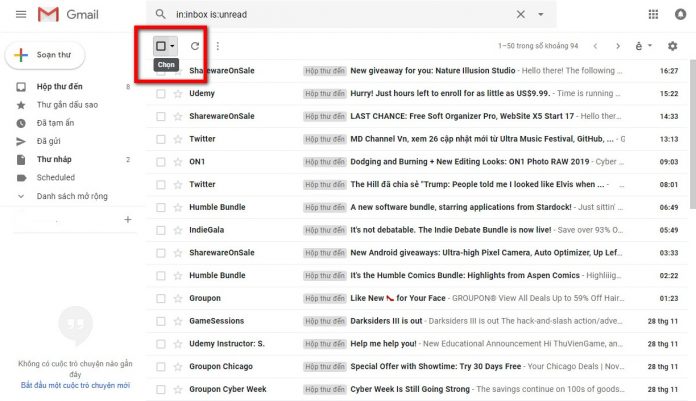
After entering the above command line, press Enter. You will now see a list of unread messages displayed as shown below. Select the icon empty square on the right corner to select all currently displayed mail.
Instructions for deleting unread mail in Gmail very quickly 9

After selecting all messages you will see a message with the following content: “All xx chats on this page are selected”. Next to it there will be a line Select all conversations that match this search.

Please select that line to select all conversations that have not been read so far.
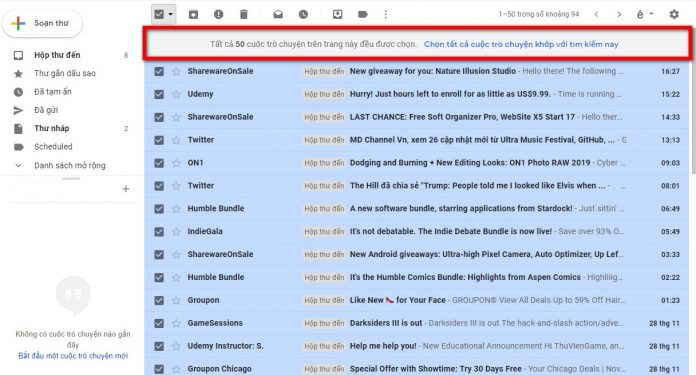
Instructions for deleting unread mail in Gmail very quickly 10

You will then see the message change to All conversations in this search have been selected. Now just click on the icon Trash can on the toolbar to delete it.
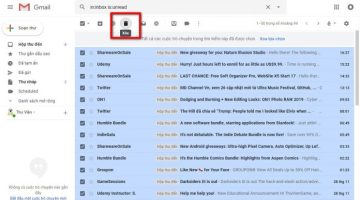
Instructions for deleting unread mail in Gmail very quickly

Confirm the notification and proceed to delete the message.
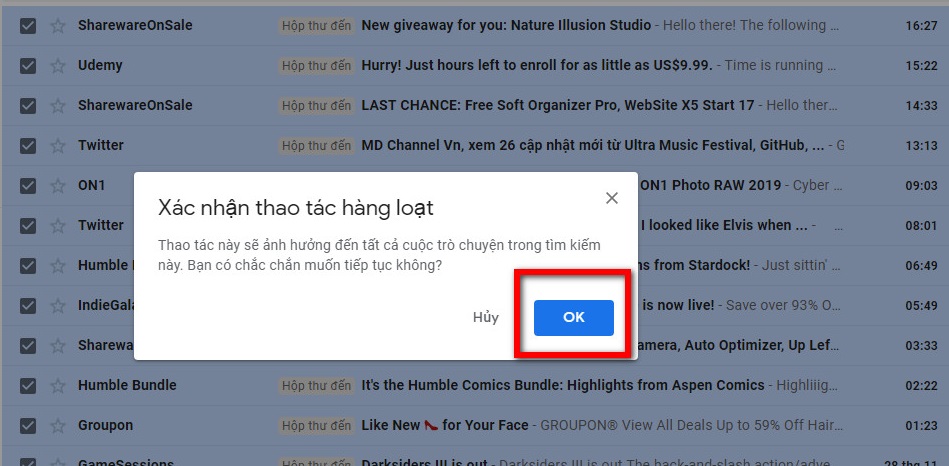
Instructions for deleting unread mail in Gmail very quickly 11

The article scored: 5/5 – (100 votes)

Previous Post

Microsoft launches Copilot application – Smart Chatbot on iOS

Next Post

How to turn off Google's continuous scrolling feature to search more efficiently

AnonyViet

AnonyViet

Related Posts

How to add sliders to Facebook Stories to easily rewind videos
Tips

How to add sliders to Facebook Stories to easily rewind videos

April 21, 2026
How to change the default font on Windows 10
Tips

How to change the default font on Windows 10

April 13, 2026
5 tips for using a Browser to replace an App (helps save RAM, time and money)
Tips

5 tips for using a Browser to replace an App (helps save RAM, time and money)

April 13, 2026
How to make funny MeMe photos without Photoshop within 10 seconds
Tips

How to make funny MeMe photos without Photoshop within 10 seconds

April 11, 2026
How to quickly design your own Logo without Photoshop
Tips

How to quickly design your own Logo without Photoshop

April 10, 2026
How to convert Website into App on Windows
Tips

How to convert Website into App on Windows

April 9, 2026
Next Post
How to turn off Google's continuous scrolling feature to search more efficiently

How to turn off Google's continuous scrolling feature to search more efficiently

0 0 votes
Article Rating
Subscribe
Login
Notify of
guest

guest

0 Comments
Oldest
Newest Most Voted
Inline Feedbacks
View all comments

Recent News

How to turn off password suggestions on iPhone: Prevent Safari from auto-filling passwords

How to turn off password suggestions on iPhone: Prevent Safari from auto-filling passwords

April 27, 2026
Instructions for looking up prescriptions on VNeID instead of paper medical books

Instructions for looking up prescriptions on VNeID instead of paper medical books

April 26, 2026
Tips to completely turn off CAPTCHA codes on iPhone and Mac are super simple

Tips to completely turn off CAPTCHA codes on iPhone and Mac are super simple

April 25, 2026
Compare Poco X8 Pro and Poco X7 Pro: A new step for the “king” of mid-range performance

Compare Poco X8 Pro and Poco X7 Pro: A new step for the “king” of mid-range performance

April 24, 2026
How to turn off password suggestions on iPhone: Prevent Safari from auto-filling passwords

How to turn off password suggestions on iPhone: Prevent Safari from auto-filling passwords

April 27, 2026
Instructions for looking up prescriptions on VNeID instead of paper medical books

Instructions for looking up prescriptions on VNeID instead of paper medical books

April 26, 2026
Tips to completely turn off CAPTCHA codes on iPhone and Mac are super simple

Tips to completely turn off CAPTCHA codes on iPhone and Mac are super simple

April 25, 2026
AnonyViet - English Version

AnonyViet

AnonyViet is a website share knowledge that you have never learned in school!

We are ready to welcome your comments, as well as your articles sent to AnonyViet.

Follow Us

Contact:

Email: anonyviet.com[@]gmail.com

Main Website: https://anonyviet.com

Recent News

How to turn off password suggestions on iPhone: Prevent Safari from auto-filling passwords

How to turn off password suggestions on iPhone: Prevent Safari from auto-filling passwords

April 27, 2026
Instructions for looking up prescriptions on VNeID instead of paper medical books

Instructions for looking up prescriptions on VNeID instead of paper medical books

April 26, 2026
No Result
View All Result
  • Home
  • News
  • Software
  • Knowledge
  • MMO
  • Tips
  • Security
  • Network
  • Office

wpDiscuz
0
0
Would love your thoughts, please comment.x
()
x
| Reply