• Home
  • News
  • Software
  • Knowledge
  • MMO
  • Tips
  • Security
  • Network
  • Office
AnonyViet - English Version
  • Home
  • News
  • Software
  • Knowledge
  • MMO
  • Tips
  • Security
  • Network
  • Office
No Result
View All Result
  • Home
  • News
  • Software
  • Knowledge
  • MMO
  • Tips
  • Security
  • Network
  • Office
No Result
View All Result
AnonyViet - English Version
No Result
View All Result

How to add ChatGPT to Microsoft Edge sidebar in just 3 steps

AnonyViet by AnonyViet
December 17, 2023
in Tips
0

How to add ChatGPT to Microsoft Edge sidebar will show you how to use an extension for the Microsoft Edge browser. By adding ChatGPT to your Microsoft Edge sidebar, you can quickly and easily access this chatbot app without opening a new tab.

Join the channel Telegram belong to AnonyViet 👉 Link 👈

Introducing ChatGPT

ChatGPT is an artificial intelligence-based language processing model, also known as a chatbot. ChatGPT has the ability to write code, create essays, summarize long texts, etc. In just a few months, ChatGPT has become popular and is used in many different cases.

How to add ChatGPT to Microsoft Edge sidebar
ChatGPT application

If you often access ChatGPT at work or study, it can be very annoying and time-consuming to have to visit its website to enter a request.

Luckily, if you also use Microsoft Edge, the default browser for Windows, you can add ChatGPT to your sidebar and call the chatbot whenever and wherever you want. You can also add ChatGPT to the sidebar in Microsoft Edge on Mac, not just Windows.

How to add ChatGPT to Microsoft Edge sidebar

Step 1: To add ChatGPT to Microsoft Edge, simply launch the browser on your Windows/Mac computer and click on the '+' icon located in the sidebar.
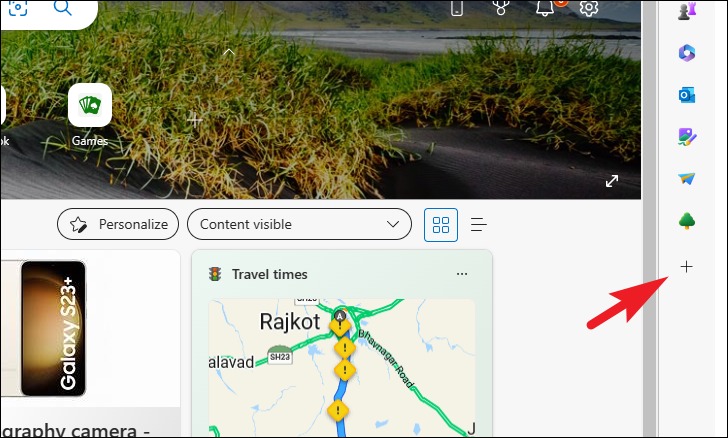
How to add ChatGPT to Microsoft Edge sidebar
Click the '+' icon

Step 2: Then, type chat.openai.com in the search bar and click on the 'ChatGPT' option under the search bar when it appears.
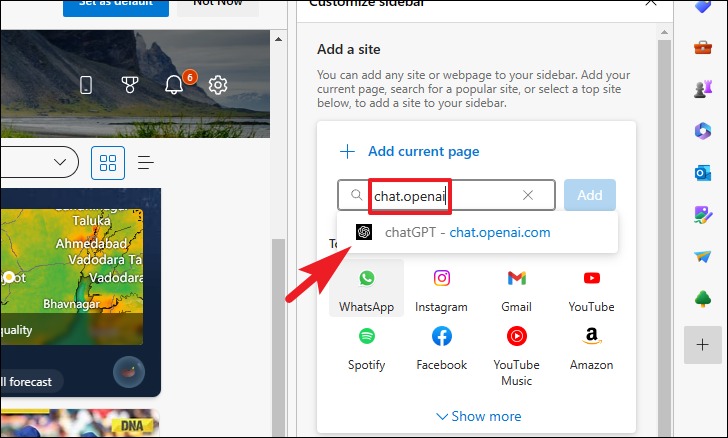
How to add ChatGPT to Microsoft Edge sidebar
Enter chat.openai.com

Step 3: Click the 'Add' button to add.
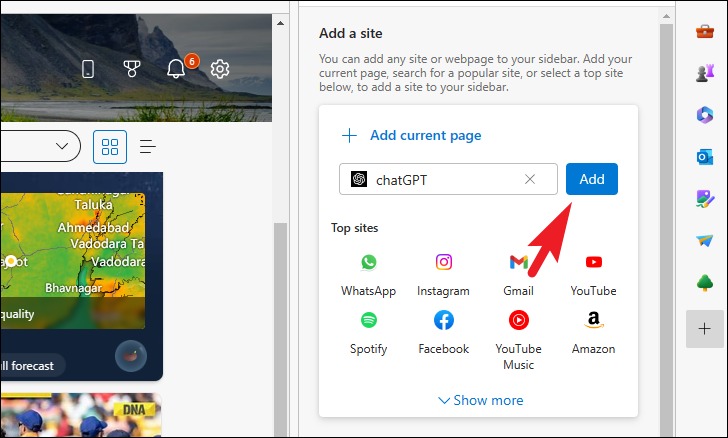
How to add ChatGPT to Microsoft Edge sidebar
Click the 'Add' button

And that's it! ChatGPT will be added to the sidebar and you will be able to call the chatbot with just one click. When you visit it for the first time, you will need to log in or register to use the chatbot.
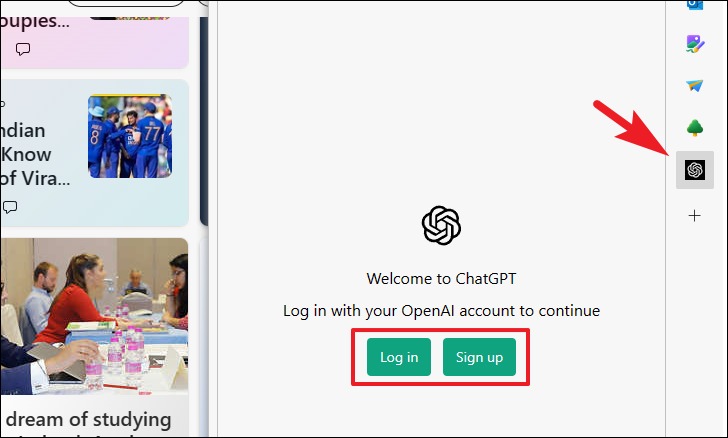
How to add ChatGPT to Microsoft Edge sidebar
Login or register to use the chatbot.

Once you log in, you can easily enter questions/requests and use ChatGPT as usual. It will open in the sidebar right at the tab you are working on, very convenient, right!
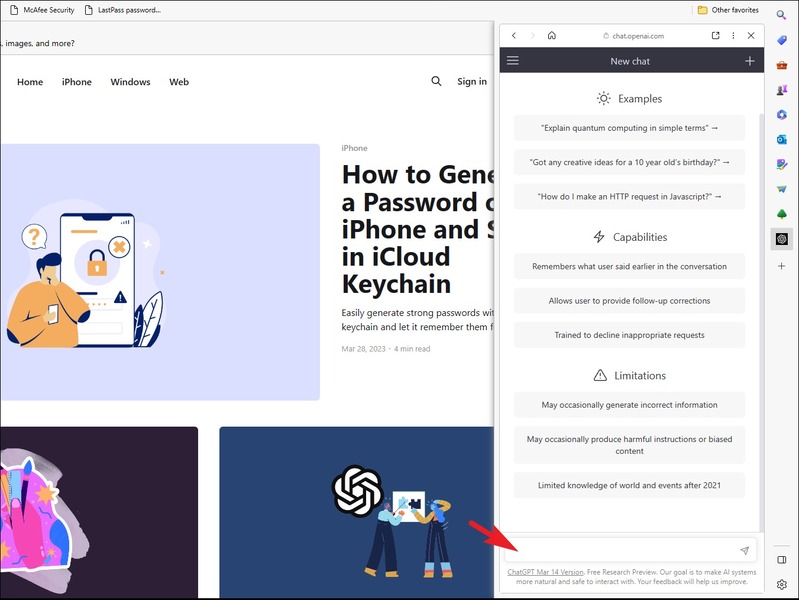
How to add ChatGPT to Microsoft Edge sidebar

Epilogue

And that's all the steps to take how to add ChatGPT to Microsoft Edge sidebar easily and quickly. Now, you can experience interesting and rewarding conversations with ChatGPT anytime, anywhere. Wishing you a successful application!


The article scored: 5/5 – (100 votes)

Tags: AddChatGPTEdgeMicrosoftsidebarsteps
Previous Post

How to turn on Dark Mode on Chrome to protect your eyes

Next Post

Edit videos without software on Windows 10

AnonyViet

AnonyViet

Related Posts

How to add sliders to Facebook Stories to easily rewind videos
Tips

How to add sliders to Facebook Stories to easily rewind videos

April 21, 2026
How to change the default font on Windows 10
Tips

How to change the default font on Windows 10

April 13, 2026
5 tips for using a Browser to replace an App (helps save RAM, time and money)
Tips

5 tips for using a Browser to replace an App (helps save RAM, time and money)

April 13, 2026
How to make funny MeMe photos without Photoshop within 10 seconds
Tips

How to make funny MeMe photos without Photoshop within 10 seconds

April 11, 2026
How to quickly design your own Logo without Photoshop
Tips

How to quickly design your own Logo without Photoshop

April 10, 2026
How to convert Website into App on Windows
Tips

How to convert Website into App on Windows

April 9, 2026
Next Post
Edit videos without software on Windows 10

Edit videos without software on Windows 10

0 0 votes
Article Rating
Subscribe
Login
Notify of
guest

guest

0 Comments
Oldest
Newest Most Voted
Inline Feedbacks
View all comments

Recent News

Create an avatar to celebrate April 30 with a beautiful red flag shirt with yellow stars

Create an avatar to celebrate April 30 with a beautiful red flag shirt with yellow stars

April 30, 2026
How to get 2 months of Super Duolingo for free worth 300k

How to get 2 months of Super Duolingo for free worth 300k

April 30, 2026
How to create a Face Sticker Collection using ChatGPT

How to create a Face Sticker Collection using ChatGPT

April 29, 2026
How to install the cute Bongo Cat mouse pointer for Windows

How to install the cute Bongo Cat mouse pointer for Windows

April 29, 2026
Create an avatar to celebrate April 30 with a beautiful red flag shirt with yellow stars

Create an avatar to celebrate April 30 with a beautiful red flag shirt with yellow stars

April 30, 2026
How to get 2 months of Super Duolingo for free worth 300k

How to get 2 months of Super Duolingo for free worth 300k

April 30, 2026
How to create a Face Sticker Collection using ChatGPT

How to create a Face Sticker Collection using ChatGPT

April 29, 2026
AnonyViet - English Version

AnonyViet

AnonyViet is a website share knowledge that you have never learned in school!

We are ready to welcome your comments, as well as your articles sent to AnonyViet.

Follow Us

Contact:

Email: anonyviet.com[@]gmail.com

Main Website: https://anonyviet.com

Recent News

Create an avatar to celebrate April 30 with a beautiful red flag shirt with yellow stars

Create an avatar to celebrate April 30 with a beautiful red flag shirt with yellow stars

April 30, 2026
How to get 2 months of Super Duolingo for free worth 300k

How to get 2 months of Super Duolingo for free worth 300k

April 30, 2026
No Result
View All Result
  • Home
  • News
  • Software
  • Knowledge
  • MMO
  • Tips
  • Security
  • Network
  • Office

wpDiscuz
0
0
Would love your thoughts, please comment.x
()
x
| Reply