• Home
  • News
  • Software
  • Knowledge
  • MMO
  • Tips
  • Security
  • Network
  • Office
AnonyViet - English Version
  • Home
  • News
  • Software
  • Knowledge
  • MMO
  • Tips
  • Security
  • Network
  • Office
No Result
View All Result
  • Home
  • News
  • Software
  • Knowledge
  • MMO
  • Tips
  • Security
  • Network
  • Office
No Result
View All Result
AnonyViet - English Version
No Result
View All Result

How to turn on Dark Mode on Chrome to protect your eyes

AnonyViet by AnonyViet
December 17, 2023
in Tips
0

If you are nearsighted or have eyestrain from sitting in front of the screen for too long. Strong light from the screen makes the eyes feel uncomfortable. So reducing screen brightness combined with turning on Dark Mode is extremely important. This will help your eyes relax more when working with the computer for long periods of time.

Join the channel Telegram belong to AnonyViet 👉 Link 👈

How to turn on Dark Mode on Chrome to protect your eyes

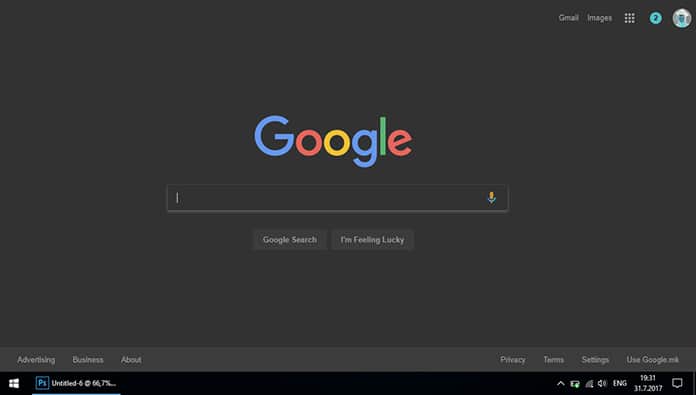
Due to the nature of work, you have to use the browser regularly or simply surf Facebook or read newspapers. The Dark Mode utility on Chrome will help you switch all websites to dark mode. From here, you will no longer have to worry about having to look directly at white light when working or entertaining.

Additionally, you can refer to the article The simplest way to change the Theme for Chrome browser

Activate the Dark Mode utility on Chrome

First, you need to install Extension Dark Mode on Chrome.

Then tap Add to Chrome

Add Dark Mode to Chrome

Confirm by clicking Add amenities.
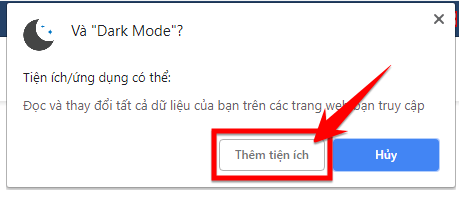
Add amenities

Now, restart Chrome. Go to any website and click the Dark Mode switch icon.
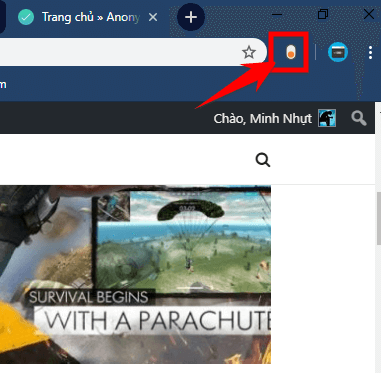
Turn on the Dark Mode utility

Now, the entire website has turned black.

AnonyViet Dark Mode

On the contrary, if you want to turn it off, click on the Dark Mode utility switch again!

Epilogue

Thus, AnonyViet has shown you how to turn on Dark Mode for every website on Chrome browser. If you are someone who often works in low light conditions at night (like me). Then lower the screen brightness to the lowest. Combine with turning on Night Light on Windows 10 and activating Dark Mode to protect your eyes from blue light from the computer screen while working!

N1412.

The article scored: 5/5 – (100 votes)

Previous Post

How to download Casio calculator online – convenient and free math tool

Next Post

How to add ChatGPT to Microsoft Edge sidebar in just 3 steps

AnonyViet

AnonyViet

Related Posts

How to add sliders to Facebook Stories to easily rewind videos
Tips

How to add sliders to Facebook Stories to easily rewind videos

April 21, 2026
How to change the default font on Windows 10
Tips

How to change the default font on Windows 10

April 13, 2026
5 tips for using a Browser to replace an App (helps save RAM, time and money)
Tips

5 tips for using a Browser to replace an App (helps save RAM, time and money)

April 13, 2026
How to make funny MeMe photos without Photoshop within 10 seconds
Tips

How to make funny MeMe photos without Photoshop within 10 seconds

April 11, 2026
How to quickly design your own Logo without Photoshop
Tips

How to quickly design your own Logo without Photoshop

April 10, 2026
How to convert Website into App on Windows
Tips

How to convert Website into App on Windows

April 9, 2026
Next Post
How to add ChatGPT to Microsoft Edge sidebar in just 3 steps

How to add ChatGPT to Microsoft Edge sidebar in just 3 steps

0 0 votes
Article Rating
Subscribe
Login
Notify of
guest

guest

0 Comments
Oldest
Newest Most Voted
Inline Feedbacks
View all comments

Recent News

How to create a Face Sticker Collection using ChatGPT

How to create a Face Sticker Collection using ChatGPT

April 29, 2026
How to install the cute Bongo Cat mouse pointer for Windows

How to install the cute Bongo Cat mouse pointer for Windows

April 29, 2026
Tips for pinning the step counter to the iPhone screen to monitor your health

Tips for pinning the step counter to the iPhone screen to monitor your health

April 28, 2026
How to turn off password suggestions on iPhone: Prevent Safari from auto-filling passwords

How to turn off password suggestions on iPhone: Prevent Safari from auto-filling passwords

April 27, 2026
How to create a Face Sticker Collection using ChatGPT

How to create a Face Sticker Collection using ChatGPT

April 29, 2026
How to install the cute Bongo Cat mouse pointer for Windows

How to install the cute Bongo Cat mouse pointer for Windows

April 29, 2026
Tips for pinning the step counter to the iPhone screen to monitor your health

Tips for pinning the step counter to the iPhone screen to monitor your health

April 28, 2026
AnonyViet - English Version

AnonyViet

AnonyViet is a website share knowledge that you have never learned in school!

We are ready to welcome your comments, as well as your articles sent to AnonyViet.

Follow Us

Contact:

Email: anonyviet.com[@]gmail.com

Main Website: https://anonyviet.com

Recent News

How to create a Face Sticker Collection using ChatGPT

How to create a Face Sticker Collection using ChatGPT

April 29, 2026
How to install the cute Bongo Cat mouse pointer for Windows

How to install the cute Bongo Cat mouse pointer for Windows

April 29, 2026
No Result
View All Result
  • Home
  • News
  • Software
  • Knowledge
  • MMO
  • Tips
  • Security
  • Network
  • Office

wpDiscuz
0
0
Would love your thoughts, please comment.x
()
x
| Reply