• Home
  • News
  • Software
  • Knowledge
  • MMO
  • Tips
  • Security
  • Network
  • Office
AnonyViet - English Version
  • Home
  • News
  • Software
  • Knowledge
  • MMO
  • Tips
  • Security
  • Network
  • Office
No Result
View All Result
  • Home
  • News
  • Software
  • Knowledge
  • MMO
  • Tips
  • Security
  • Network
  • Office
No Result
View All Result
AnonyViet - English Version
No Result
View All Result

How to create a very chill animated Desktop screen

AnonyViet by AnonyViet
November 8, 2023
in Software
0

Do you want to create an extremely chill animated Desktop screen for your computer? Do you want a creative and relaxing working space? If the answer is yes, then this article is for you, AnonyViet will guide you How to create a very chill animated Desktop screen with simple and easy to understand steps. Let’s follow along!

Join the channel Telegram belong to AnonyViet 👉 Link 👈

What are the benefits of owning a beautiful and neat desktop screen?

Having one desktop screen Being beautiful and neat has many benefits for computer users, including:

Increase work productivity

When the desktop is arranged scientifically and logically, you will easily find and access the applications, files, folders or websites you need. You will also focus more on your work when you don’t have to see messy or unrelated icons on your desktop.

Inspire creativity

When you have a beautiful desktop screen that suits your preferences, you will feel happier and more comfortable when working or entertaining on the computer, easily expressing your aesthetic taste through images. background, icon or widget on the screen.

Instructions on how to create a very chill animated Desktop screen

Do you want an extremely cute, neat and clean computer screen like this?

Please follow the steps below!

How to hide all icons on the screen

First, we need to hide all icons on the screen by right-clicking on an empty area on the Desktop > Select “View” > “Show desktop icons”
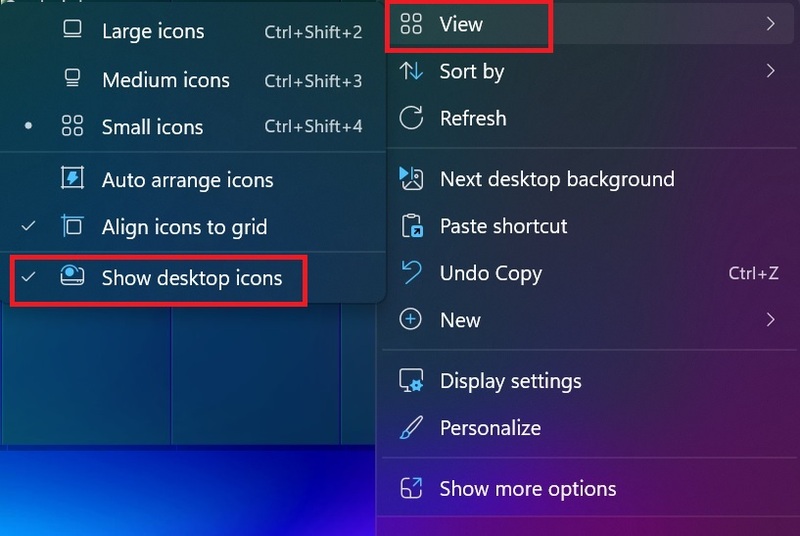
How to create a very chill animated Desktop screen
How to hide all icons on the screen

When you want to use any software, just press the Windows key and search.

How to make the taskbar transparent

Step 1: Download TranslucentTB by visiting this link > Select “Download in Store app” > Click “Get” to download
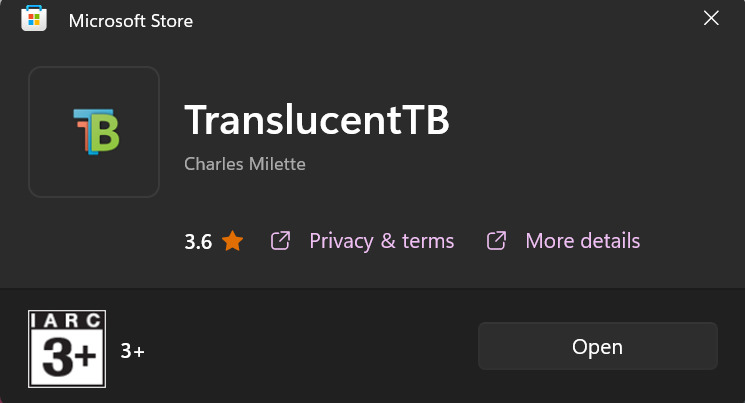
How to create a very chill animated Desktop screen
Download TranslucentTB

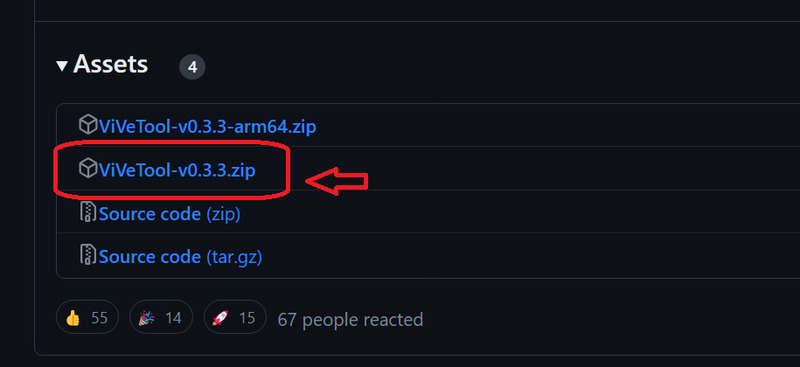
Step 2: Visit the page Vivetool on Gihubclick on the link “ViveTool-v0.3.3.zip” to download (just leave it there, don’t unzip it yet)
How to create a very chill animated Desktop screen
Click on the link “ViveTool-v0.3.3.zip” to download

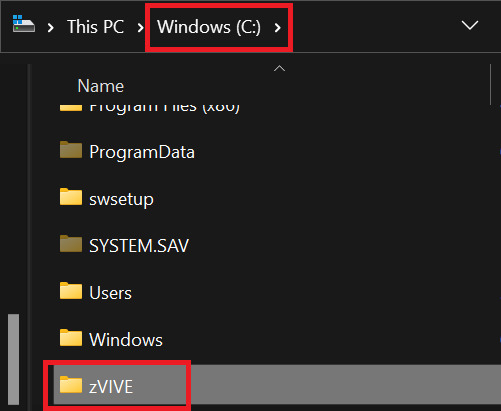
Step 3: Go to drive C, create a new folder named “zVIVE”
How to create a very chill animated Desktop screen
Go to drive C, create a new folder named “zVIVE”

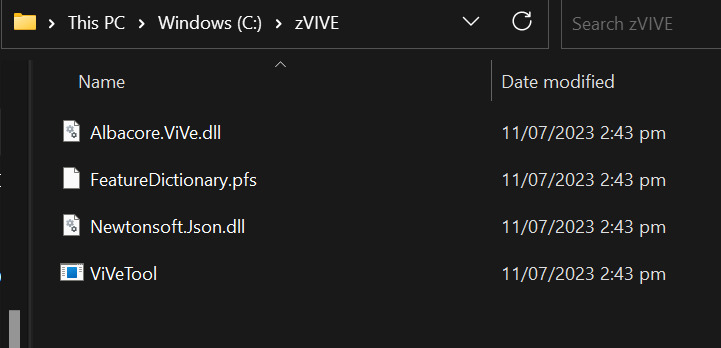
Step 4: Copy all files in the ViveTool folder you downloaded earlier. Then, paste it into the zVIVE folder
How to create a very chill animated Desktop screen
Copy all files in the ViveTool folder and paste it into the zVIVE folder

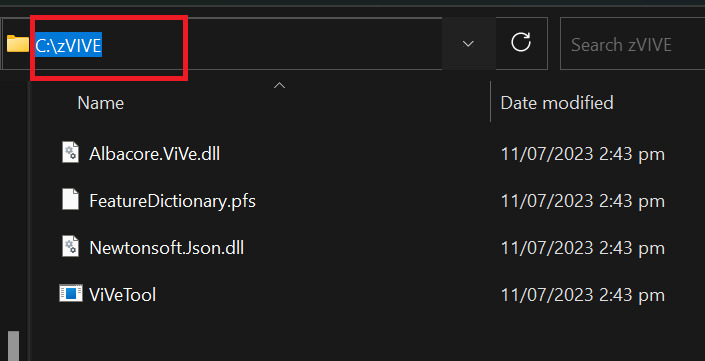
Step 5: Copy this link
How to create a very chill animated Desktop screen
Copy this link

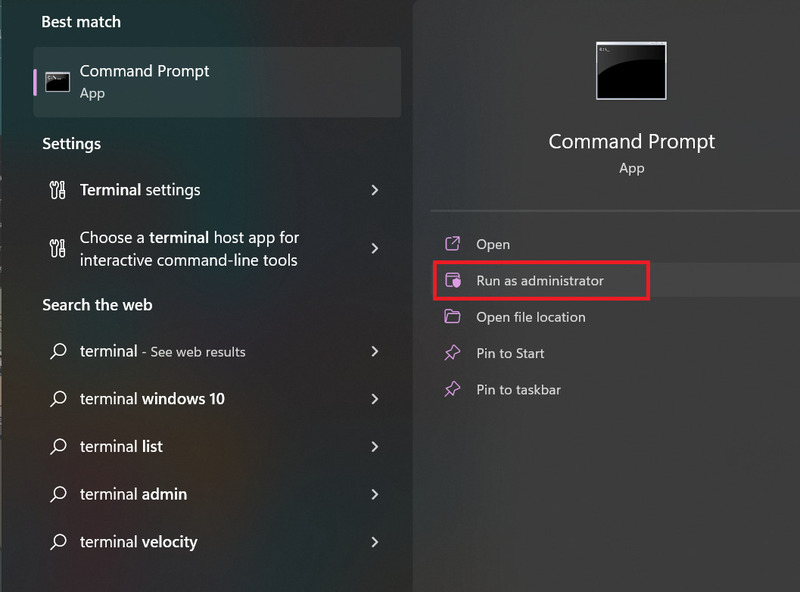
Step 6: Type “terminal” in the search box on the taskbar, select “Run as administrator”
How to create a very chill animated Desktop screen
Type “terminal”, select “Run as administrator”

Step 7: Type “cd” > Press Space > Press “Ctrl +V” to paste that path > Press Enter

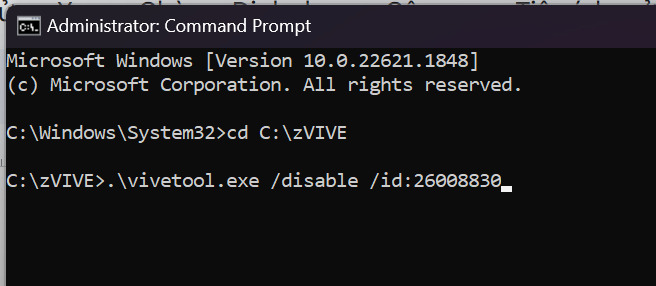
Step 8: Enter the command “.\vivetool.exe /disable /id:26008830” > Press Enter > Restart the computer
How to create a very chill animated Desktop screen
Type the command

This command will help you turn off Microsoft’s new System Tray, bringing a transparent taskbar to Windows 11.

How to make an animated screen

Step 1: Load Lively Wallpaper (You can use Wallpaper Engine on Steam, but it will cost 70k)

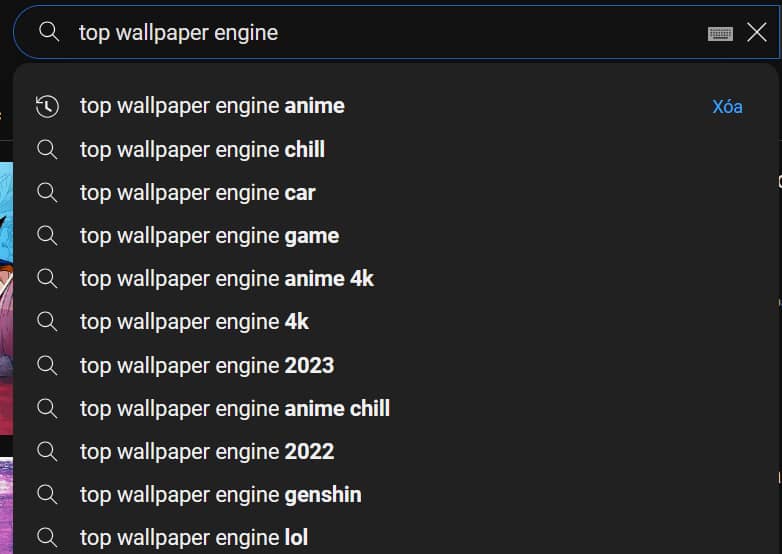
Step 2: Go to Youtube, search “Top wallpaper engine + topic keywords you like”, for example: anime, chill, car, game,…
How to create a very chill animated Desktop screen
Find your favorite Theme

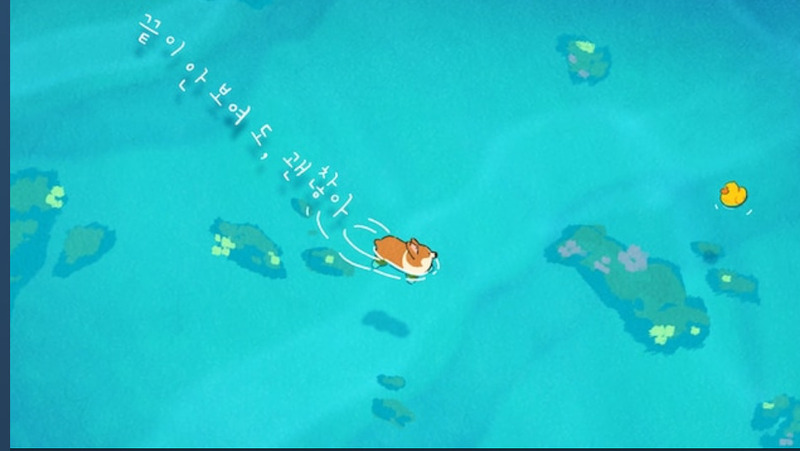
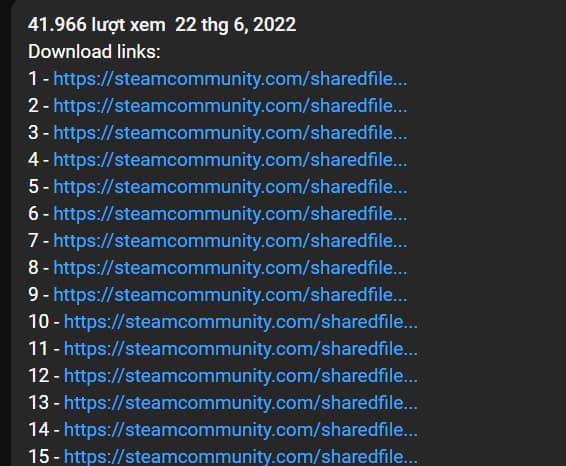
Here I will go to this video to download the swimming Corgi puppy animation > Copy link number 5
How to create a very chill animated Desktop screen
For Corgi animation, copy link number 5 in the video
How to create a very chill animated Desktop screen
Copy link number 5

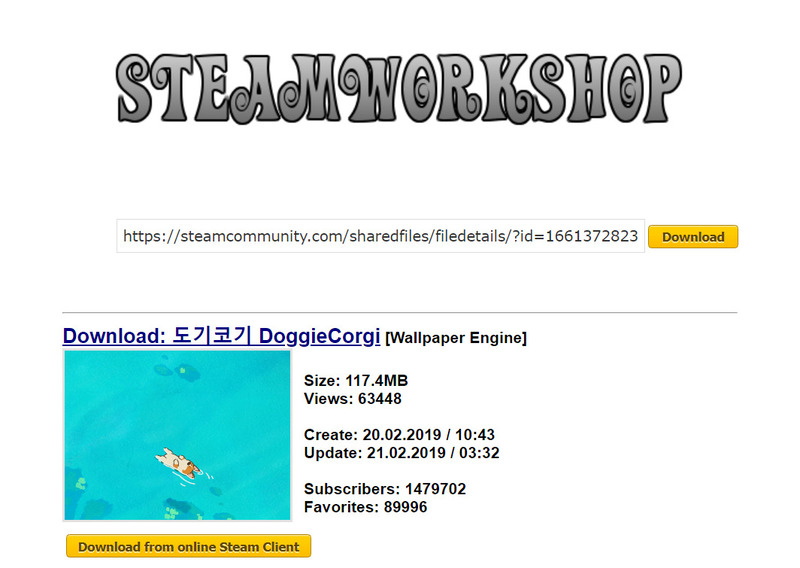
Step 3: Paste that link into the page SteamWorkshop > Select “Download”
How to create a very chill animated Desktop screen
Select “Download”

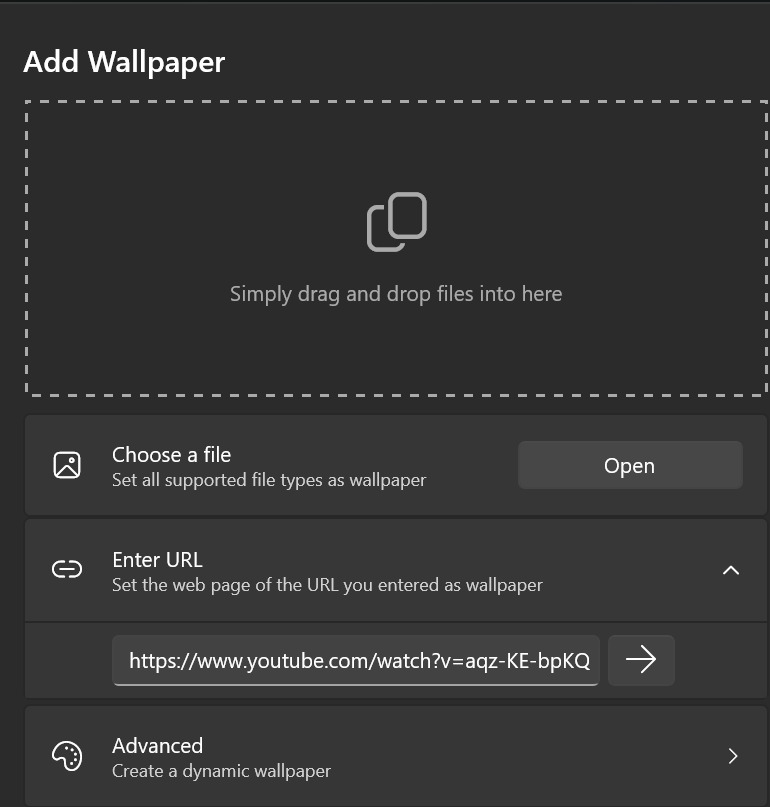
Step 4: Open Lively Wallpaper > Select “Add Wallpaper” > Select the .mp4 animated video file > Select OK
How to create a very chill animated Desktop screen
Add wallpaper on Lively Wallpaper

How to make a clock right in the middle of the screen

Step 1: Download and install Rainmeter
How to create a very chill animated Desktop screen
Download and install Rainmeter

Step 2: Visit the page Visual Skins > Select “Rainmeter Clock” to select the Clock model you like > Click “Download”
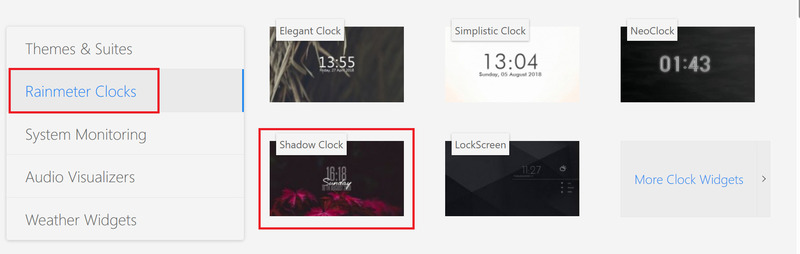
How to create a very chill animated Desktop screen
Select the Clock template

Step 3: Open the downloaded file > Select “Install” to install

As a result, you will have a desktop screen that is both beautiful, compact, and chill like this:
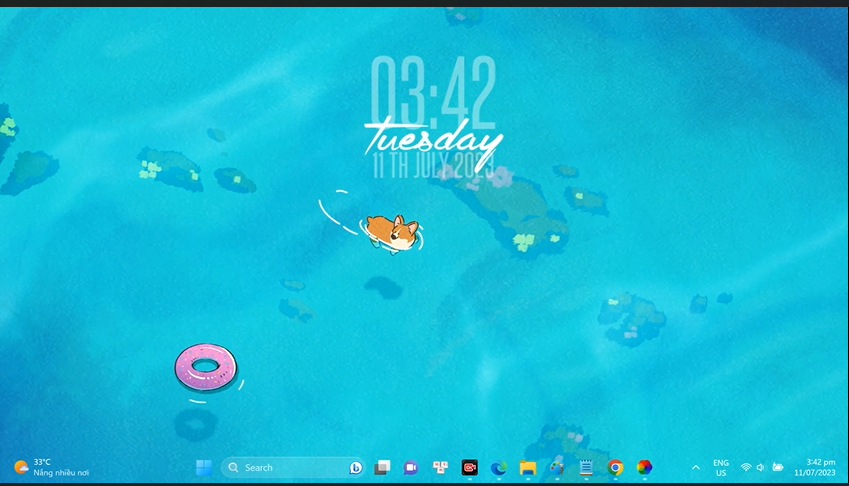
How to create a very chill animated Desktop screen
Dynamic Desktop screen is extremely chill

Epilogue

So you know How to create a very chill animated Desktop screen for my computer, right? You can experiment with different backgrounds and effects to create your own animated screens. Wishing you successful application!


Rate this post

Tags: AnimatedchillcreateDesktopscreen
Previous Post

How to avoid traffic jams on roads using Google Maps

Next Post

Instructions for automatically receiving Honeygain’s Daily Pot without having to hang up the device

AnonyViet

AnonyViet

Related Posts

3 valuable upgrades on Samsung Galaxy A08 compared to its predecessor A07
Software

3 valuable upgrades on Samsung Galaxy A08 compared to its predecessor A07

October 12, 2026
Ambient light for YouTube: Change video background color extremely magically
Software

Ambient light for YouTube: Change video background color extremely magically

October 12, 2026
NoteCute – Extension to create super cute sticky notes
Software

NoteCute – Extension to create super cute sticky notes

October 10, 2026
How to turn off FaceTime on iPhone and iPad to avoid annoyance
Software

How to turn off FaceTime on iPhone and iPad to avoid annoyance

October 8, 2026
The truth about POCO F9 Ultra: Is this device really worth your money?
Software

The truth about POCO F9 Ultra: Is this device really worth your money?

October 5, 2026
iPhone 18 Pro Max camera: when lens aperture, shutter speed and white balance are decided by the photographer
Software

iPhone 18 Pro Max camera: when lens aperture, shutter speed and white balance are decided by the photographer

October 1, 2026
Next Post
Instructions for automatically receiving Honeygain’s Daily Pot without having to hang up the device

Instructions for automatically receiving Honeygain's Daily Pot without having to hang up the device

0 0 votes
Article Rating
Subscribe
Login
Notify of
guest

guest

0 Comments
Oldest
Newest Most Voted

Recent News

15 cách tăng tốc Windows 10 nhanh như gió

15 cách tăng tốc Windows 10 nhanh như gió

October 14, 2026
Which social network accounts must be linked to VNeID before December 31, 2026?

Which social network accounts must be linked to VNeID before December 31, 2026?

October 14, 2026
How to create Guest mode Shortcuts for Chrome and Edge

How to create Guest mode Shortcuts for Chrome and Edge

October 13, 2026
Test what breed of dog you are through 10 multiple choice questions

Test what breed of dog you are through 10 multiple choice questions

October 13, 2026
15 cách tăng tốc Windows 10 nhanh như gió

15 cách tăng tốc Windows 10 nhanh như gió

October 14, 2026
Which social network accounts must be linked to VNeID before December 31, 2026?

Which social network accounts must be linked to VNeID before December 31, 2026?

October 14, 2026
How to create Guest mode Shortcuts for Chrome and Edge

How to create Guest mode Shortcuts for Chrome and Edge

October 13, 2026
AnonyViet - English Version

AnonyViet

AnonyViet is a website share knowledge that you have never learned in school!

We are ready to welcome your comments, as well as your articles sent to AnonyViet.

Follow Us

Contact:

Email: anonyviet.com[@]gmail.com

Main Website: https://anonyviet.com

Recent News

15 cách tăng tốc Windows 10 nhanh như gió

15 cách tăng tốc Windows 10 nhanh như gió

October 14, 2026
Which social network accounts must be linked to VNeID before December 31, 2026?

Which social network accounts must be linked to VNeID before December 31, 2026?

October 14, 2026
  • Home
  • Home 2
  • Home 3
  • Home 4
  • Home 5
  • Home 6
  • Next Dest Page
  • Sample Page

say88 tỷ lệ kèo nhà cái kèo nhà cái 5 febet

No Result
View All Result
  • Home
  • News
  • Software
  • Knowledge
  • MMO
  • Tips
  • Security
  • Network
  • Office

say88 tỷ lệ kèo nhà cái kèo nhà cái 5 febet

wpDiscuz
0
0
Would love your thoughts, please comment.x
()
x
| Reply