• Home
  • News
  • Software
  • Knowledge
  • MMO
  • Tips
  • Security
  • Network
  • Office
AnonyViet - English Version
  • Home
  • News
  • Software
  • Knowledge
  • MMO
  • Tips
  • Security
  • Network
  • Office
No Result
View All Result
  • Home
  • News
  • Software
  • Knowledge
  • MMO
  • Tips
  • Security
  • Network
  • Office
No Result
View All Result
AnonyViet - English Version
No Result
View All Result

Instructions on how to create a signature in Word are super simple

AnonyViet by AnonyViet
October 15, 2023
in Office
0

How to create a signature in Word is an essential skill for anyone working with text. A signature is not only a sign of the writer’s identity, but also shows formality and professionalism. However, not everyone knows how to create a beautiful and impressive signature Word. So how to do this? Please join AnonyViet in following the article below to find out.

Join the channel Telegram belong to AnonyViet 👉 Link 👈

Introduction to Janelotus font

This is a great signature font with style and natural strokes, suitable for many types of projects such as signature creation, logo design, invitations, stationery, weddings, social media posts , advertising, product packaging,…

This font is designed by Dwi Ahidian and published by lemonthe, translated by STYLEno.1 Fonts is free for personal use.

How to create a signature in Word

Step 1: Download fonts SVN Janelotus computerized

Step 2: Proceed to unzip the folder

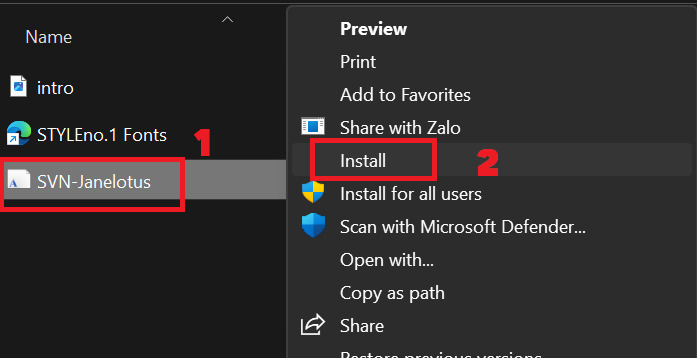
Step 3: Right click on the file “SVN-Janelotus” > Select “Install” to install this font
How to create a signature in Word
Right click on the file “SVN-Janelotus” > Select “Install”

Step 4: You open Word and create a new document or open an existing document.

Step 5: Select the SVN Janelotus font in the Font list > Type the text you want to turn into a signature
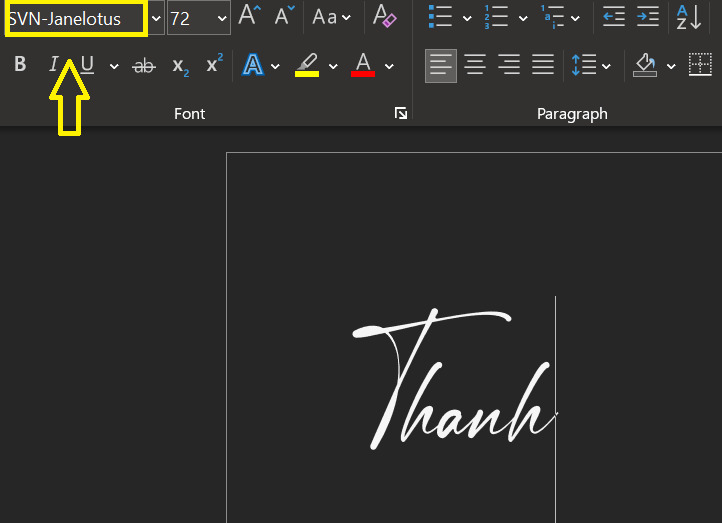
How to create a signature in Word
Select the font SVN Janelotus

Step 6: To make your signature look more elegant, choose Insert > Symbol > More Symbols
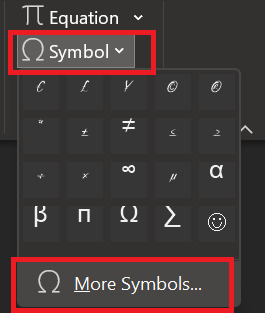
How to create a signature in Word
Select Insert > Symbol > More Symbols

Step 7: Highlight the character you want to change (usually the first and last character will be changed) > Double click to select the corresponding letter symbol in the table.
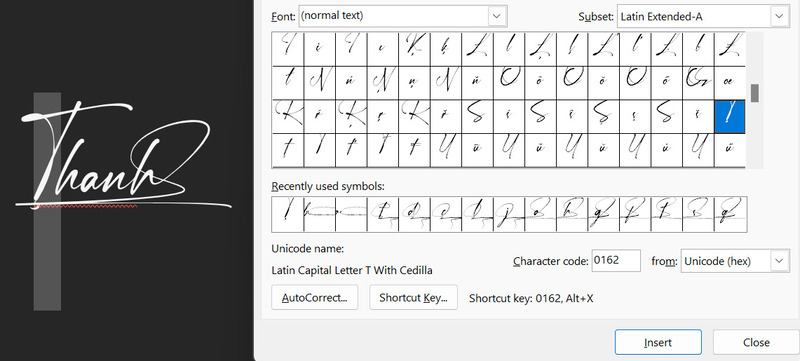
How to create a signature in Word
Double click to select the corresponding letter symbol in the table.

And the result is as shown:

How to create a signature in Word
Create a signature in Word

Epilogue

Through this article, you already know How to create a signature in Word in the SVN Janelotus font. You can use this signature for your documents, or edit it to your liking. Wishing you success and creativity with your signature.

The article scored: 3/5 – (2 votes)

Tags: createInstructionssignaturesimplesuperword
Previous Post

Epic Games Store gives away 3 free games: Hurry and get them before they run out

Next Post

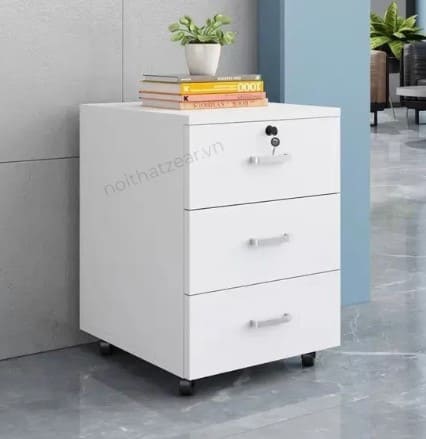
List of Cheap 3-Drawer Cabinet Models Today

AnonyViet

AnonyViet

Related Posts

Instructions on how to convert text into QR codes in Word
Office

Instructions on how to convert text into QR codes in Word

October 5, 2026
Tool to adjust the format of administrative documents according to Decree 30
Office

Tool to adjust the format of administrative documents according to Decree 30

October 1, 2026
How to add Watermark to Google Docs to protect copyright
Office

How to add Watermark to Google Docs to protect copyright

April 19, 2026
Instructions on how to hide formulas in Excel to secure data
Office

Instructions on how to hide formulas in Excel to secure data

February 6, 2026
Top who creates the most beautiful presentation slide today
Office

Top who creates the most beautiful presentation slide today

September 23, 2025
Automatically check and correct spelling errors on Google Docs
Office

Automatically check and correct spelling errors on Google Docs

February 23, 2025
Next Post
List of Cheap 3-Drawer Cabinet Models Today

List of Cheap 3-Drawer Cabinet Models Today

0 0 votes
Article Rating
Subscribe
Login
Notify of
guest

guest

0 Comments
Oldest
Newest Most Voted

Recent News

The website helps you draw beautifully like TikToker Viet My

The website helps you draw beautifully like TikToker Viet My

October 21, 2026
Instructions on how to hard reset iPhone 18 Pro / iPhone 18 Pro Max

Instructions on how to hard reset iPhone 18 Pro / iPhone 18 Pro Max

October 21, 2026
Warning: Serious PHP RCE vulnerability and how to fix it

Warning: Serious PHP RCE vulnerability and how to fix it

October 21, 2026
Anyone can do how to increase Internet speed using CMD

Anyone can do how to increase Internet speed using CMD

October 20, 2026
The website helps you draw beautifully like TikToker Viet My

The website helps you draw beautifully like TikToker Viet My

October 21, 2026
Instructions on how to hard reset iPhone 18 Pro / iPhone 18 Pro Max

Instructions on how to hard reset iPhone 18 Pro / iPhone 18 Pro Max

October 21, 2026
Warning: Serious PHP RCE vulnerability and how to fix it

Warning: Serious PHP RCE vulnerability and how to fix it

October 21, 2026
AnonyViet - English Version

AnonyViet

AnonyViet is a website share knowledge that you have never learned in school!

We are ready to welcome your comments, as well as your articles sent to AnonyViet.

Follow Us

Contact:

Email: anonyviet.com[@]gmail.com

Main Website: https://anonyviet.com

Recent News

The website helps you draw beautifully like TikToker Viet My

The website helps you draw beautifully like TikToker Viet My

October 21, 2026
Instructions on how to hard reset iPhone 18 Pro / iPhone 18 Pro Max

Instructions on how to hard reset iPhone 18 Pro / iPhone 18 Pro Max

October 21, 2026
  • Home
  • Home 2
  • Home 3
  • Home 4
  • Home 5
  • Home 6
  • Next Dest Page
  • Sample Page

say88 tỷ lệ kèo nhà cái kèo nhà cái 5 febet

No Result
View All Result
  • Home
  • News
  • Software
  • Knowledge
  • MMO
  • Tips
  • Security
  • Network
  • Office

say88 tỷ lệ kèo nhà cái kèo nhà cái 5 febet

wpDiscuz
0
0
Would love your thoughts, please comment.x
()
x
| Reply