• Home
  • News
  • Software
  • Knowledge
  • MMO
  • Tips
  • Security
  • Network
  • Office
AnonyViet - English Version
  • Home
  • News
  • Software
  • Knowledge
  • MMO
  • Tips
  • Security
  • Network
  • Office
No Result
View All Result
  • Home
  • News
  • Software
  • Knowledge
  • MMO
  • Tips
  • Security
  • Network
  • Office
No Result
View All Result
AnonyViet - English Version
No Result
View All Result

Instructions on how to get 5TB for free on OneDrive

AnonyViet by AnonyViet
July 2, 2023
in Tips
0

How to get free 5TB on OneDrive is a good tip that you should not ignore if you want more cloud storage space for your files. That’s one of the benefits of joining the Microsoft Developer Program, a free program for developers who want to explore and learn about the Microsoft 365 platform. How do I join? Let’s find out through the article below!

Join the channel Telegram belong to AnonyViet ???? Link ????

What is OneDrive?

OneDrive is a service from Microsoft that helps you store, share, and access your files from any device. You can use OneDrive to back up photos, videos, documents, music, and more.

In addition, you can also work together on Office files with others through this application.

Instructions on how to get 5TB for free on OneDrive

I will show you how to sign up for a Microsoft Developer Program account to get 5TB of free OneDrive storage along with Microsoft 365 apps. Follow the steps below:

How to register for a Microsoft Developer Program account

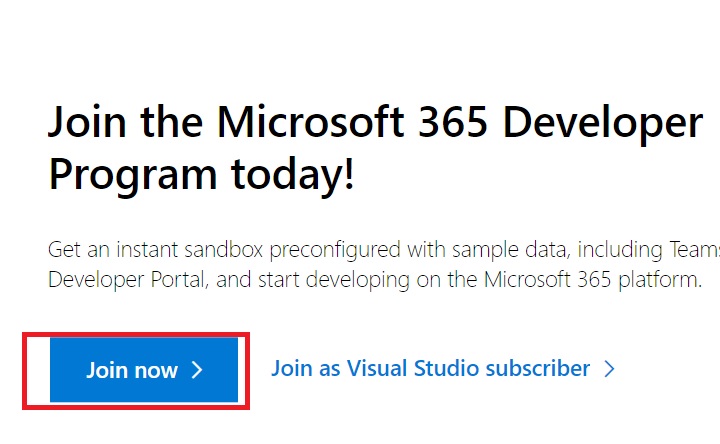
Step 1: Open page Microsoft 365 Developer Program and click “Join now”.
How to get free 5TB on OneDrive
Click “Join now”.

Step 2: Sign in to your Microsoft account

Step 3: Enter the country, company, language and tick to accept the terms > Click “Next”

How to get free 5TB on OneDrive
Enter the country, company, language and tick to accept the terms > Click “Next”

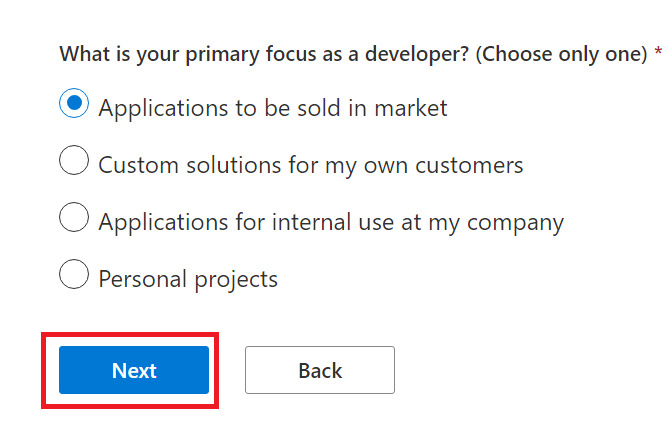
Step 4: Select one of the main objective options > Click “Next”
How to get free 5TB on OneDrive
Select one of the main objective options > Click “Next”

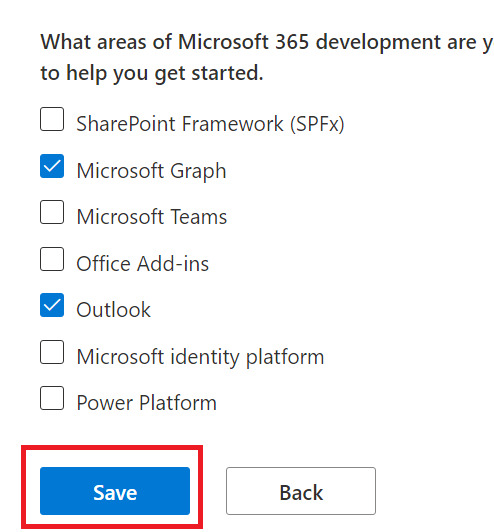
Step 5: Select fields of interest > Click “Save”.
How to get free 5TB on OneDrive
Select fields of interest > Click “Save”.

Step 6: Select “Instant Sandbox” > Next.

How to get free 5TB on OneDrive
Select “Instant Sandbox” > Next.

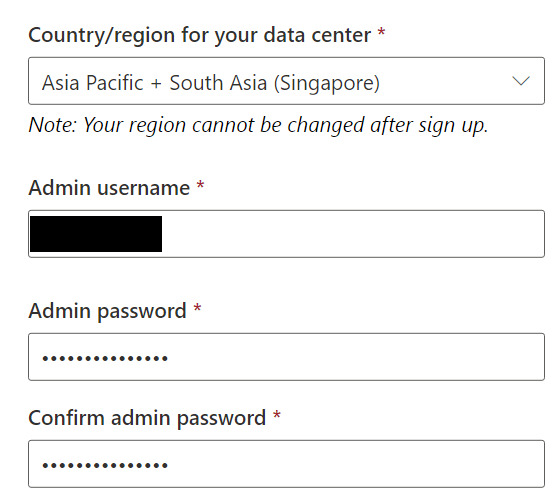
Step 7: Create username and password for Admin account > Continue
How to get free 5TB on OneDrive
Create username and password for Admin account > Continue

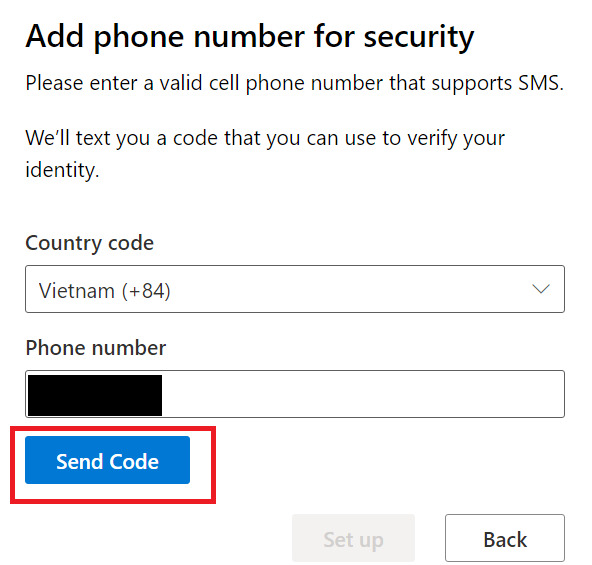
Step 8: Enter phone number > Send code
How to get free 5TB on OneDrive
Enter phone number > Send code

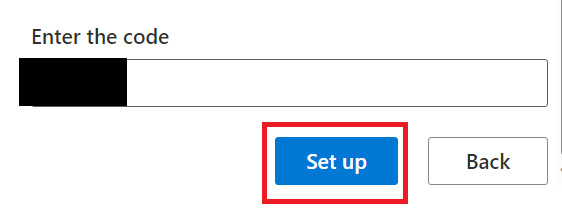
Step 9: Enter the code received from the phone > Set up
How to get free 5TB on OneDrive
Enter the code received from the phone > Set up

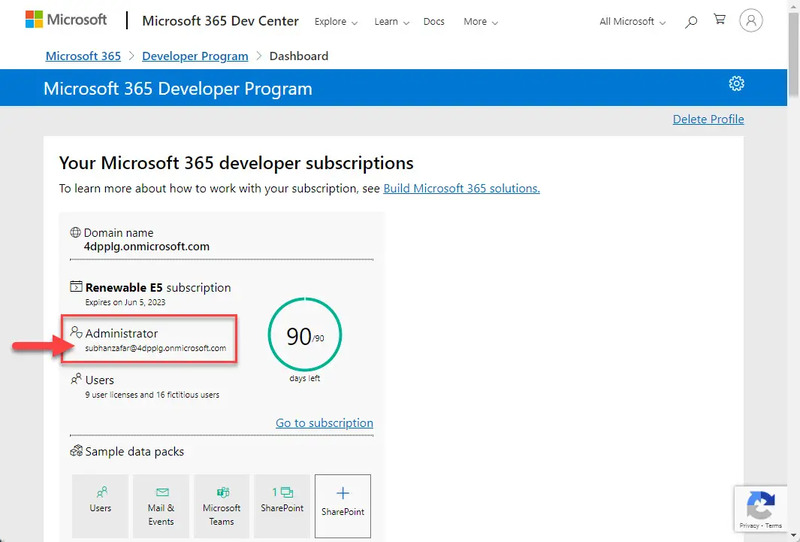
This email is your Admin email
How to get free 5TB on OneDrive
This email is your Admin email

How to get free 5TB on OneDrive

After signing up for a Microsoft Developer Program account, you will have a Microsoft 365 E5 developer subscription with default storage of 1TB on OneDrive. To increase the limit to 5TB, you need to do the following steps:

Step 1: You click on “Go to subscription” > Enter password > Next

Step 2: Install the Microsoft Authenticator app on your phone for 2-step verification, just work on your computer, then go to the step of using your phone to scan the QR code to be able to log in to your account on your phone.

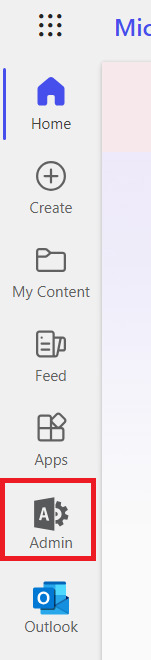
Step 3: When you log in to Microsoft 365, click on the “Admin” item.
How to get free 5TB on OneDrive
Click on “Admin”

This step will take you to the Microsoft 365 admin center page, where you can manage your sandbox settings.

Step 4: Select “Show All”

How to get free 5TB on OneDrive
Select “Show All”

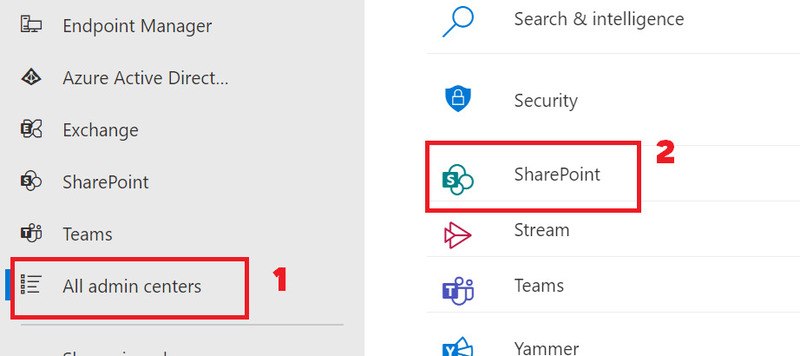
Step 5: Select “All admin centers” > Select “Sharepoint”
How to get free 5TB on OneDrive
Select “All admin centers” > Select “Sharepoint”

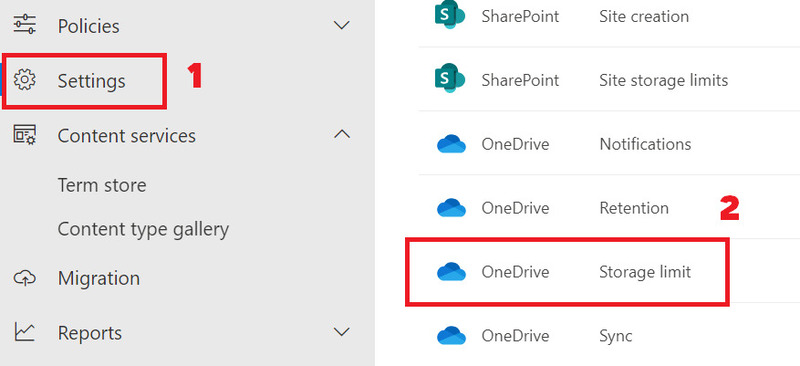
Step 6: Click on “Settings” > OneDrive Storage limit
How to get free 5TB on OneDrive
Click on “Settings” > OneDrive Storage limit

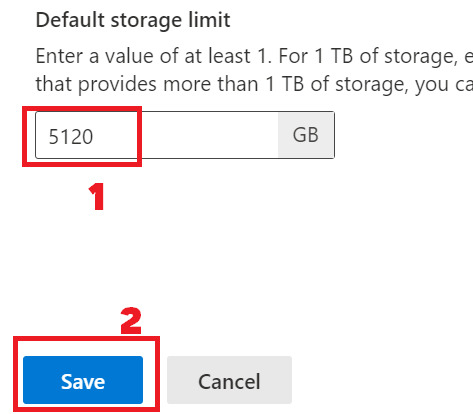
Step 7: Enter “5120” then press “Save” to save
How to get free 5TB on OneDrive
Enter “5120” then click “Save”

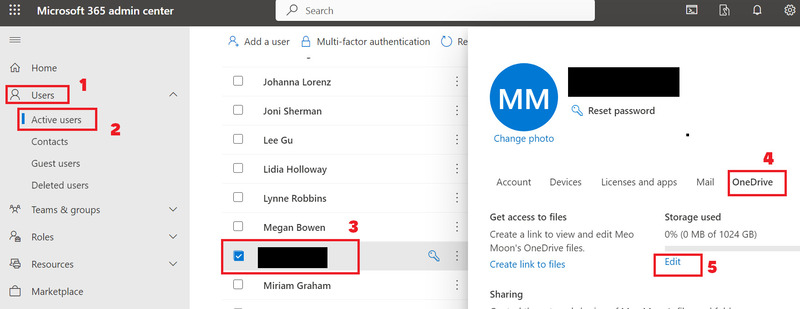
Step 8: Return to the Microsoft 365 admin center page, select the Users tab > “Active users” > Select your account name > Click the “OneDrive” tab > Select “Edit”
How to get free 5TB on OneDrive
Follow the steps as shown

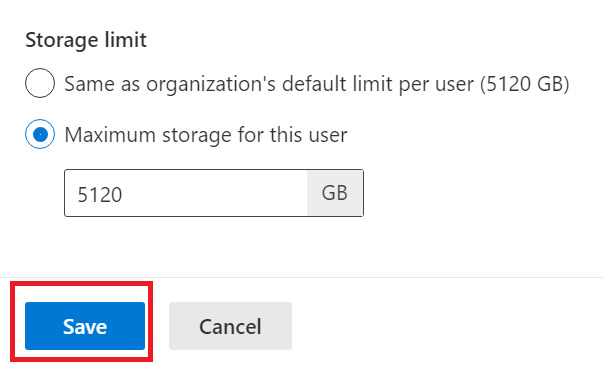
Step 9: Tick ​​“Maximum storage for this user” > Click “Save”
How to get free 5TB on OneDrive
Tick ​​“Maximum storage for this user” > Click “Save”

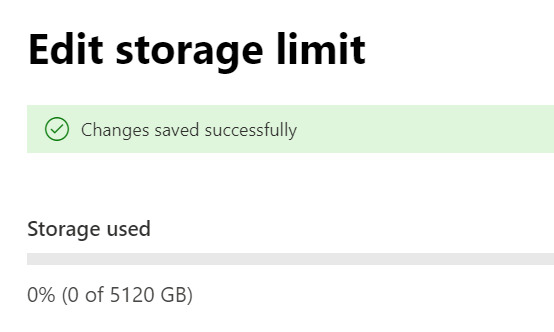
You have now successfully raised your storage limit to 5TB!
How to get free 5TB on OneDrive
You have successfully raised your storage limit to 5TB!

How to check OneDrive storage

To check if the storage space on OneDrive is really 5TB, do the following:

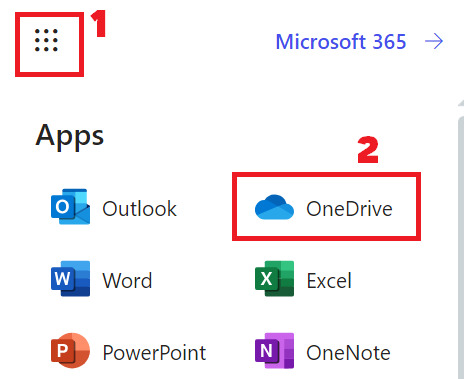
Step 1: Re-enter Office homepage > Click on the 9 dots icon > Select “OneDrive”
How to get free 5TB on OneDrive
Click on the 9-dot icon > Select “OneDrive”

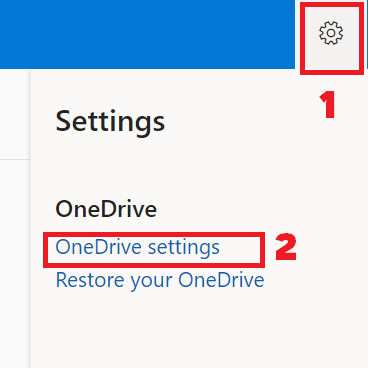
Step 2: Click on the gear icon > Select “OneDrive Settings”
How to get free 5TB on OneDrive
Click on the gear icon > Select “OneDrive Settings”

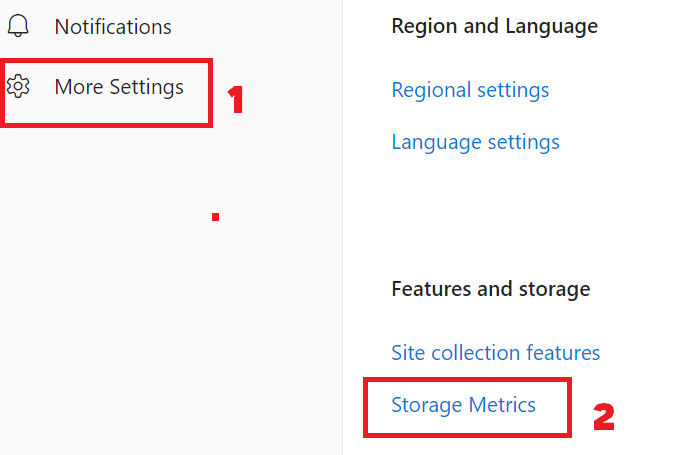
Step 3: Select “More Settings” > “Storage Metrics”
How to get free 5TB on OneDrive
Select “More Settings” > “Storage Metrics”

This step will display the used and free space of OneDrive. You will see a total of 5 TB of full throttle.

How to get free 5TB on OneDrive
Storage capacity 5TB

Tips

A small tip for Microsoft Renew to restore your Dev account is to regularly interact with the account, Upload Code to Github, create new accounts.

Especially Add Domain into your Microsoft 365 Developer Program account, you will be used almost forever.

Epilogue

So you already know how to get free 5TB on OneDrive by signing up for a Microsoft Developer Program account. This is a simple and effective way to have plenty of cloud storage space for your files. Good luck!

Rate this post

Tags: 5TBfreeInstructionsOneDrive
Previous Post

Apple increases the price of iCloud+ storage package in Vietnam

Next Post

How to change the Welcome screen on Windows with Resource Hacker

AnonyViet

AnonyViet

Related Posts

How to rename Columns or Rows in Google Sheets
Tips

How to rename Columns or Rows in Google Sheets

October 5, 2026
How to install the latest Windows 11
Tips

How to install the latest Windows 11

October 4, 2026
Instructions for receiving 3 months of Shopee VIP from Vinaphone for 0 VND
Tips

Instructions for receiving 3 months of Shopee VIP from Vinaphone for 0 VND

October 3, 2026
How to use Stylish to change the interface of Facebook and Youtube to be extremely beautiful
Tips

How to use Stylish to change the interface of Facebook and Youtube to be extremely beautiful

October 3, 2026
Instructions on how to receive 1 billion Muse AI tokens
Tips

Instructions on how to receive 1 billion Muse AI tokens

October 1, 2026
Instructions for getting 12 months of Google AI Plus for free (Indian students)
Tips

Instructions for getting 12 months of Google AI Plus for free (Indian students)

October 1, 2026
Next Post
How to change the Welcome screen on Windows with Resource Hacker

How to change the Welcome screen on Windows with Resource Hacker

0 0 votes
Article Rating
Subscribe
Login
Notify of
guest

guest

0 Comments
Oldest
Newest Most Voted

Recent News

How to rename Columns or Rows in Google Sheets

How to rename Columns or Rows in Google Sheets

October 5, 2026
How to install the latest Windows 11

How to install the latest Windows 11

October 4, 2026
Instructions for receiving 3 months of Shopee VIP from Vinaphone for 0 VND

Instructions for receiving 3 months of Shopee VIP from Vinaphone for 0 VND

October 3, 2026
How to create Safari extension on iOS 27 and macOS 27

How to create Safari extension on iOS 27 and macOS 27

October 3, 2026
How to rename Columns or Rows in Google Sheets

How to rename Columns or Rows in Google Sheets

October 5, 2026
How to install the latest Windows 11

How to install the latest Windows 11

October 4, 2026
Instructions for receiving 3 months of Shopee VIP from Vinaphone for 0 VND

Instructions for receiving 3 months of Shopee VIP from Vinaphone for 0 VND

October 3, 2026
AnonyViet - English Version

AnonyViet

AnonyViet is a website share knowledge that you have never learned in school!

We are ready to welcome your comments, as well as your articles sent to AnonyViet.

Follow Us

Contact:

Email: anonyviet.com[@]gmail.com

Main Website: https://anonyviet.com

Recent News

How to rename Columns or Rows in Google Sheets

How to rename Columns or Rows in Google Sheets

October 5, 2026
How to install the latest Windows 11

How to install the latest Windows 11

October 4, 2026
  • Home
  • Home 2
  • Home 3
  • Home 4
  • Home 5
  • Home 6
  • Next Dest Page
  • Sample Page

say88 tỷ lệ kèo nhà cái kèo nhà cái 5 febet

No Result
View All Result
  • Home
  • News
  • Software
  • Knowledge
  • MMO
  • Tips
  • Security
  • Network
  • Office

say88 tỷ lệ kèo nhà cái kèo nhà cái 5 febet

wpDiscuz
0
0
Would love your thoughts, please comment.x
()
x
| Reply