• Home
  • News
  • Software
  • Knowledge
  • MMO
  • Tips
  • Security
  • Network
  • Office
AnonyViet - English Version
  • Home
  • News
  • Software
  • Knowledge
  • MMO
  • Tips
  • Security
  • Network
  • Office
No Result
View All Result
  • Home
  • News
  • Software
  • Knowledge
  • MMO
  • Tips
  • Security
  • Network
  • Office
No Result
View All Result
AnonyViet - English Version
No Result
View All Result

3 ways to save chat history with ChatGPT

AnonyViet by AnonyViet
May 27, 2023
in Knowledge
0

Sometimes, you may want to save a chat with ChatGPT and export it to various formats like PNG, JPG, Text, Html , PDF, etc. for your computer to refer to or analyze later. In today’s article, AnonyViet will guide you 3 how to save chat history with ChatGPT extremely simple.

Join the channel Telegram belong to AnonyViet ???? Link ????

General introduction about ChatGPT

ChatGPT is a large language model trained to provide user feedback. It is used to do research, learn new information or simply have interesting conversations.

How to save chat history with ChatGPT using the app

ChatGPT is a powerful natural language processing platform that can answer a wide range of questions. If you had an interesting conversation with it and want to save it for reference, follow these steps:

Step 1: To save your ChatGPT chat as a PDF, PNG or HTML file, you need to download the ChatGPT app from GitHub. (Applicable to Windows, Mac and Linux operating systems)
Link HERE

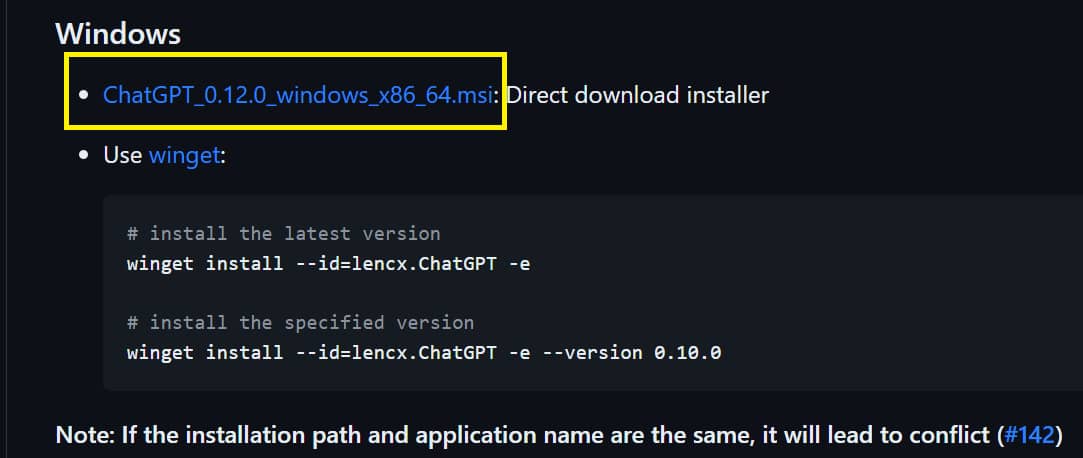
Step 2: Scroll down and click on the link to download the appropriate application for the operating system
How to save chat history with ChatGPT
Click on the link to download the appropriate application for your operating system

Step 3: After downloading the application, you proceed to install then log in to your ChatGPT account

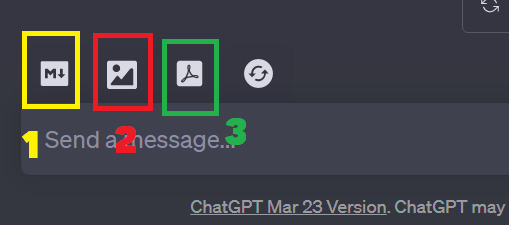
Step 4: Scroll down to the bottom of the chat frame, you will see the following icons:
How to save chat history with ChatGPT
icons under the chat box
  • 1: Save chat as MD File, you can open this file with any text editor
  • 2: Save chat as PNG image
  • 3: Save chat in PDF file format

By following the steps outlined above, you can save chats for later reference or easily share them with friends.

How to save chat history with ChatGPT using Chrome extension

If you do not want to download the ChatGPT application as above, you can use a Chrome extension (Chrome extension) to save your chat history with ChatGPT. Here’s how to do it:

Step 1: Log in to your account ChatGPT . website

Step 2: Download the extension “Save ChatGPT“

How to save chat history with ChatGPT
Download the extension “Save ChatGPT”

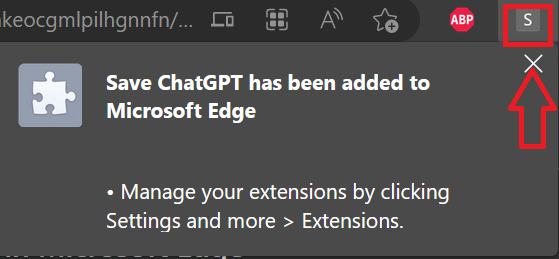
Step 3: Click “Add extension” to install this extension, you will see its icon appear in the toolbar
How to save chat history with ChatGPT
Logo of the gadget

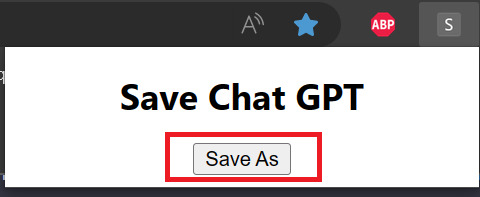
Step 4: Go to the chat window where you want to download the chat, click on the utility icon, select “Save As”, then you just need to name the file and select the location where the file is located.
How to save chat history with ChatGPT
Select Save As

How to save chat history with ChatGPT to Notion

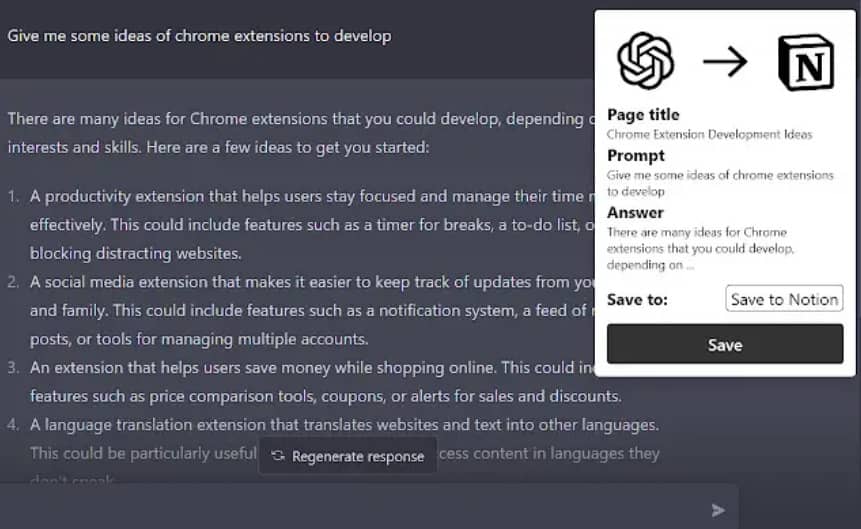
You install a Chrome extension called “ChatGPT to Notion” – which allows you to save chats through the Notion platform extremely conveniently.
How to save chat history with ChatGPT
How to save chat history with ChatGPT to Notion

Download link HERE

Epilogue

Above is 3 how to save chat history with ChatGPT extremely fast, simple that you can do, helping information to be stored and easy to refer to and share with others. Do you have a better way? Share it in the comments below


Rate this post

Tags: chatChatGPThistorysaveways
Previous Post

The dangers of the .git . directory

Next Post

Why is the screen frozen on iPhone 13, how to fix it?

AnonyViet

AnonyViet

Related Posts

Tips for pinning the step counter to the iPhone screen to monitor your health
Knowledge

Tips for pinning the step counter to the iPhone screen to monitor your health

April 28, 2026
How to turn off password suggestions on iPhone: Prevent Safari from auto-filling passwords
Knowledge

How to turn off password suggestions on iPhone: Prevent Safari from auto-filling passwords

April 27, 2026
Tips to completely turn off CAPTCHA codes on iPhone and Mac are super simple
Knowledge

Tips to completely turn off CAPTCHA codes on iPhone and Mac are super simple

April 25, 2026
How to compress online videos for free without losing quality
Knowledge

How to compress online videos for free without losing quality

April 24, 2026
Common errors when using Bosch products and how to fix them
Knowledge

Common errors when using Bosch products and how to fix them

April 22, 2026
How to avoid Adblock detection on Youtube with 4 good tips
Knowledge

How to avoid Adblock detection on Youtube with 4 good tips

April 17, 2026
Next Post
Why is the screen frozen on iPhone 13, how to fix it?

Why is the screen frozen on iPhone 13, how to fix it?

0 0 votes
Article Rating
Subscribe
Login
Notify of
guest

guest

0 Comments
Oldest
Newest Most Voted
Inline Feedbacks
View all comments

Recent News

Tips for pinning the step counter to the iPhone screen to monitor your health

Tips for pinning the step counter to the iPhone screen to monitor your health

April 28, 2026
How to turn off password suggestions on iPhone: Prevent Safari from auto-filling passwords

How to turn off password suggestions on iPhone: Prevent Safari from auto-filling passwords

April 27, 2026
Instructions for looking up prescriptions on VNeID instead of paper medical books

Instructions for looking up prescriptions on VNeID instead of paper medical books

April 26, 2026
Tips to completely turn off CAPTCHA codes on iPhone and Mac are super simple

Tips to completely turn off CAPTCHA codes on iPhone and Mac are super simple

April 25, 2026
Tips for pinning the step counter to the iPhone screen to monitor your health

Tips for pinning the step counter to the iPhone screen to monitor your health

April 28, 2026
How to turn off password suggestions on iPhone: Prevent Safari from auto-filling passwords

How to turn off password suggestions on iPhone: Prevent Safari from auto-filling passwords

April 27, 2026
Instructions for looking up prescriptions on VNeID instead of paper medical books

Instructions for looking up prescriptions on VNeID instead of paper medical books

April 26, 2026
AnonyViet - English Version

AnonyViet

AnonyViet is a website share knowledge that you have never learned in school!

We are ready to welcome your comments, as well as your articles sent to AnonyViet.

Follow Us

Contact:

Email: anonyviet.com[@]gmail.com

Main Website: https://anonyviet.com

Recent News

Tips for pinning the step counter to the iPhone screen to monitor your health

Tips for pinning the step counter to the iPhone screen to monitor your health

April 28, 2026
How to turn off password suggestions on iPhone: Prevent Safari from auto-filling passwords

How to turn off password suggestions on iPhone: Prevent Safari from auto-filling passwords

April 27, 2026
No Result
View All Result
  • Home
  • News
  • Software
  • Knowledge
  • MMO
  • Tips
  • Security
  • Network
  • Office

wpDiscuz
0
0
Would love your thoughts, please comment.x
()
x
| Reply