• Home
  • News
  • Software
  • Knowledge
  • MMO
  • Tips
  • Security
  • Network
  • Office
AnonyViet - English Version
  • Home
  • News
  • Software
  • Knowledge
  • MMO
  • Tips
  • Security
  • Network
  • Office
No Result
View All Result
  • Home
  • News
  • Software
  • Knowledge
  • MMO
  • Tips
  • Security
  • Network
  • Office
No Result
View All Result
AnonyViet - English Version
No Result
View All Result

Use Nearby Share to transfer files from your phone to your computer

AnonyViet by AnonyViet
April 6, 2023
in Tips
0

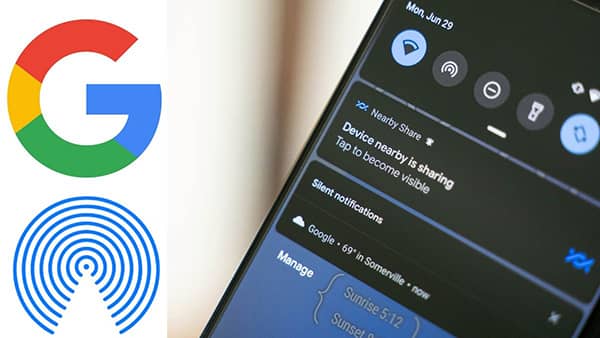
Feature Nearby Share is a remarkable improvement on Android and Windows operating systems, helping users to share data between devices quickly and easily. With this tool, you can share files, photos, videos, and more without using traditional means such as USB cables or email.

Join the channel Telegram belong to AnonyViet ???? Link ????

What is Nearby Share?

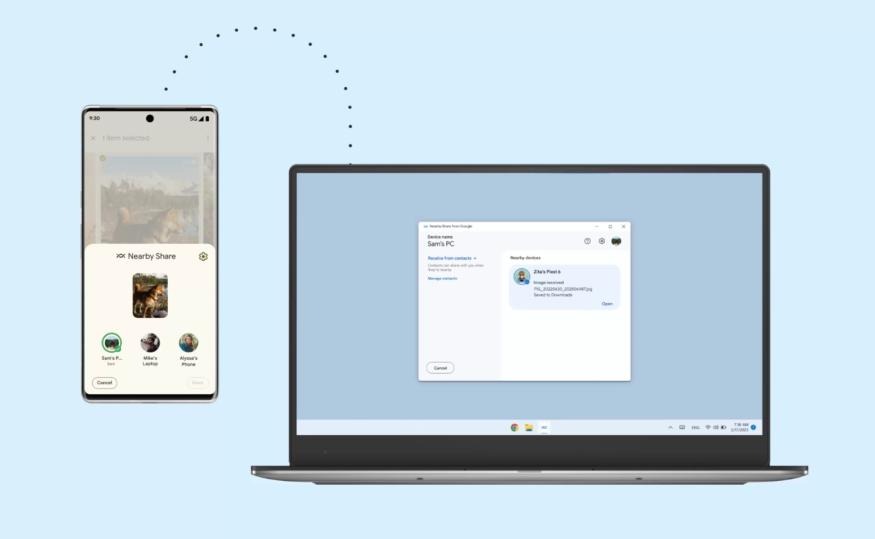
The Nearby Share tool is a new feature introduced on Android operating system in version 11, making it easy for Android users to share files and content with Windows computers easily and quickly.
How to use Nearby Share
Nearby Share feature

With Nearby Share, users can transfer files such as photos, videos, text documents and audio with other devices. This application uses Bluetooth and Wi-Fi connections to transfer data.

If before, users could only transfer files between Android phones, or transfer files between Windows computers, now, you can transfer files from phone to computer and vice versa. , in a very convenient way.

How Nearby Share works

  • Use Bluetooth to detect and identify devices
  • Use WiFi Direct to transfer data, so the file transfer speed will be many times faster than Bluetooth file transfer.

Necessary requirements when using Nearby Share

Before you start using Nearby Share, you need to make sure that your devices meet the following requirements:

  • For Windows computers, the application only works on 64-bit x86 platforms (most modern processors from Intel and AMD),
  • For phones, you must use the operating system Android from version 6.0 and up.
  • Both the Android phone and the computer need to be connected to the same Wi-Fi or Bluetooth network and be no more than 5m apart
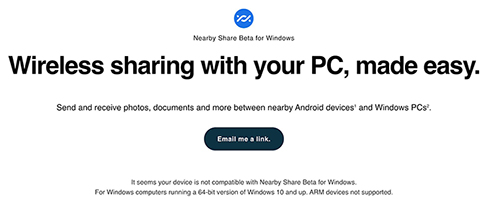
  • The Nearby Share function needs to be enabled on both your Android phone and your computer, if you don’t have the app installed on your computer, you can download it. HERE
How to use Nearby Share
Install Nearby Share on your computer

How to use Nearby Share

Step 1: Click to select the file you want to share on your computer

Step 2: Click “Share”

Step 3: Select “Share Nearby”. Wait for your phone to search for nearby devices.
How to use Nearby Share

Step 4: When your computer is found, click it to start sharing files. On your computer, you will receive a notification from Action Center about the sharing request, you can click “Accept” to receive the file or “Decline” to decline.

Note: If two devices are signed in to the same Google account, no confirmation is required.

After selecting “Accept”, the file will be sent from your phone to your computer.

Conversely, you can also send files from your computer to your Android phone by dragging and dropping the file to the icon in the taskbar, or choosing the share command from the right-click menu.

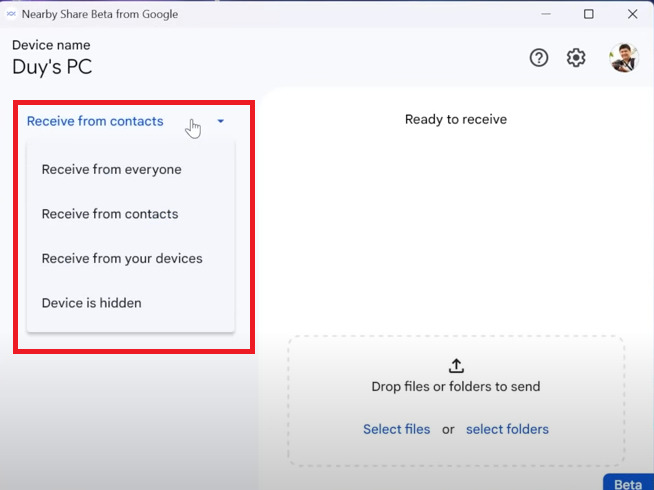
You can customize the file transfer object, which can be:

  • Receive from everyone: Everyone
  • Receive from contacts: Only receive files from people in your contacts
  • Receive from your devices: Receive only from your device
How to use Nearby Share
Customize file recipients

Epilogue

So I just showed you how to use it Nearby Share to transfer files from Android phone to Windows computer extremely easily and quickly. This file transfer is very useful for those of you who love to record videos, take photos with your mobile phone and want to edit your products on your computer without spending too much time connecting cumbersome. Good luck with your application!

Rate this post

Tags: computerfilesNearbyphoneShareTransfer
Previous Post

How to delete Facebook account permanently

Next Post

Find the Wi-Fi password in the computer

AnonyViet

AnonyViet

Related Posts

How to change the default font on Windows 10
Tips

How to change the default font on Windows 10

April 13, 2026
5 tips for using a Browser to replace an App (helps save RAM, time and money)
Tips

5 tips for using a Browser to replace an App (helps save RAM, time and money)

April 13, 2026
How to make funny MeMe photos without Photoshop within 10 seconds
Tips

How to make funny MeMe photos without Photoshop within 10 seconds

April 11, 2026
How to quickly design your own Logo without Photoshop
Tips

How to quickly design your own Logo without Photoshop

April 10, 2026
How to convert Website into App on Windows
Tips

How to convert Website into App on Windows

April 9, 2026
Instructions for getting 3 months of Adobe Express Pro for free
Tips

Instructions for getting 3 months of Adobe Express Pro for free

April 9, 2026
Next Post
Find the Wi-Fi password in the computer

Find the Wi-Fi password in the computer

0 0 votes
Article Rating
Subscribe
Login
Notify of
guest

guest

0 Comments
Oldest
Newest Most Voted
Inline Feedbacks
View all comments

Recent News

Japanese Watch Week: Choose the color that suits your destiny, start the new year well at Mobile World

Japanese Watch Week: Choose the color that suits your destiny, start the new year well at Mobile World

April 20, 2026
4K Video Downloader Plus – Tool to download YouTube videos on macOS

4K Video Downloader Plus – Tool to download YouTube videos on macOS

April 20, 2026
How to add Watermark to Google Docs to protect copyright

How to add Watermark to Google Docs to protect copyright

April 19, 2026
How to intercept traffic using Burp Suite to analyze HTTP/HTTPS

How to intercept traffic using Burp Suite to analyze HTTP/HTTPS

April 18, 2026
Japanese Watch Week: Choose the color that suits your destiny, start the new year well at Mobile World

Japanese Watch Week: Choose the color that suits your destiny, start the new year well at Mobile World

April 20, 2026
4K Video Downloader Plus – Tool to download YouTube videos on macOS

4K Video Downloader Plus – Tool to download YouTube videos on macOS

April 20, 2026
How to add Watermark to Google Docs to protect copyright

How to add Watermark to Google Docs to protect copyright

April 19, 2026
AnonyViet - English Version

AnonyViet

AnonyViet is a website share knowledge that you have never learned in school!

We are ready to welcome your comments, as well as your articles sent to AnonyViet.

Follow Us

Contact:

Email: anonyviet.com[@]gmail.com

Main Website: https://anonyviet.com

Recent News

Japanese Watch Week: Choose the color that suits your destiny, start the new year well at Mobile World

Japanese Watch Week: Choose the color that suits your destiny, start the new year well at Mobile World

April 20, 2026
4K Video Downloader Plus – Tool to download YouTube videos on macOS

4K Video Downloader Plus – Tool to download YouTube videos on macOS

April 20, 2026
No Result
View All Result
  • Home
  • News
  • Software
  • Knowledge
  • MMO
  • Tips
  • Security
  • Network
  • Office

wpDiscuz
0
0
Would love your thoughts, please comment.x
()
x
| Reply