• Home
  • News
  • Software
  • Knowledge
  • MMO
  • Tips
  • Security
  • Network
  • Office
AnonyViet - English Version
  • Home
  • News
  • Software
  • Knowledge
  • MMO
  • Tips
  • Security
  • Network
  • Office
No Result
View All Result
  • Home
  • News
  • Software
  • Knowledge
  • MMO
  • Tips
  • Security
  • Network
  • Office
No Result
View All Result
AnonyViet - English Version
No Result
View All Result

How to use PlaygroundAI to edit photos without Photoshop

AnonyViet by AnonyViet
February 24, 2023
in Tips
0

You want to edit photos but Photoshop is too “difficult”? Don’t worry, today AnonyViet will guide you a website with the feature of creating images as you like, editing images with text is extremely simple and convenient. That is PlaygroundAI.

Join the channel Telegram belong to AnonyViet 👉 Link 👈

What is PlaygroundAI?

PlaygroundAI is a website that helps you create the images and color styles you want.

Right on the homepage is a display of works created by AI (artificial intelligence).
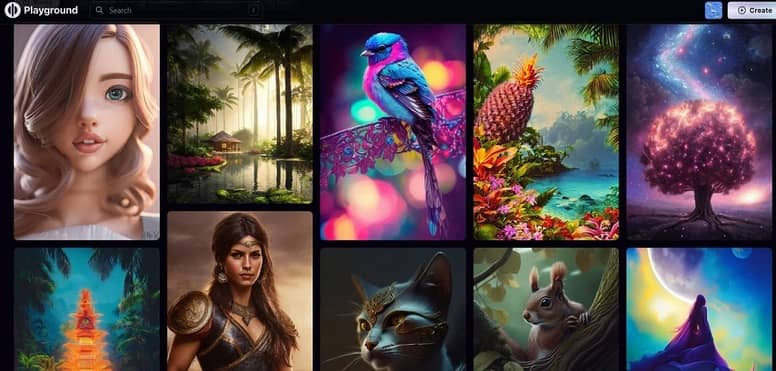
How to use PlaygroundAI to edit photos

Home page interface

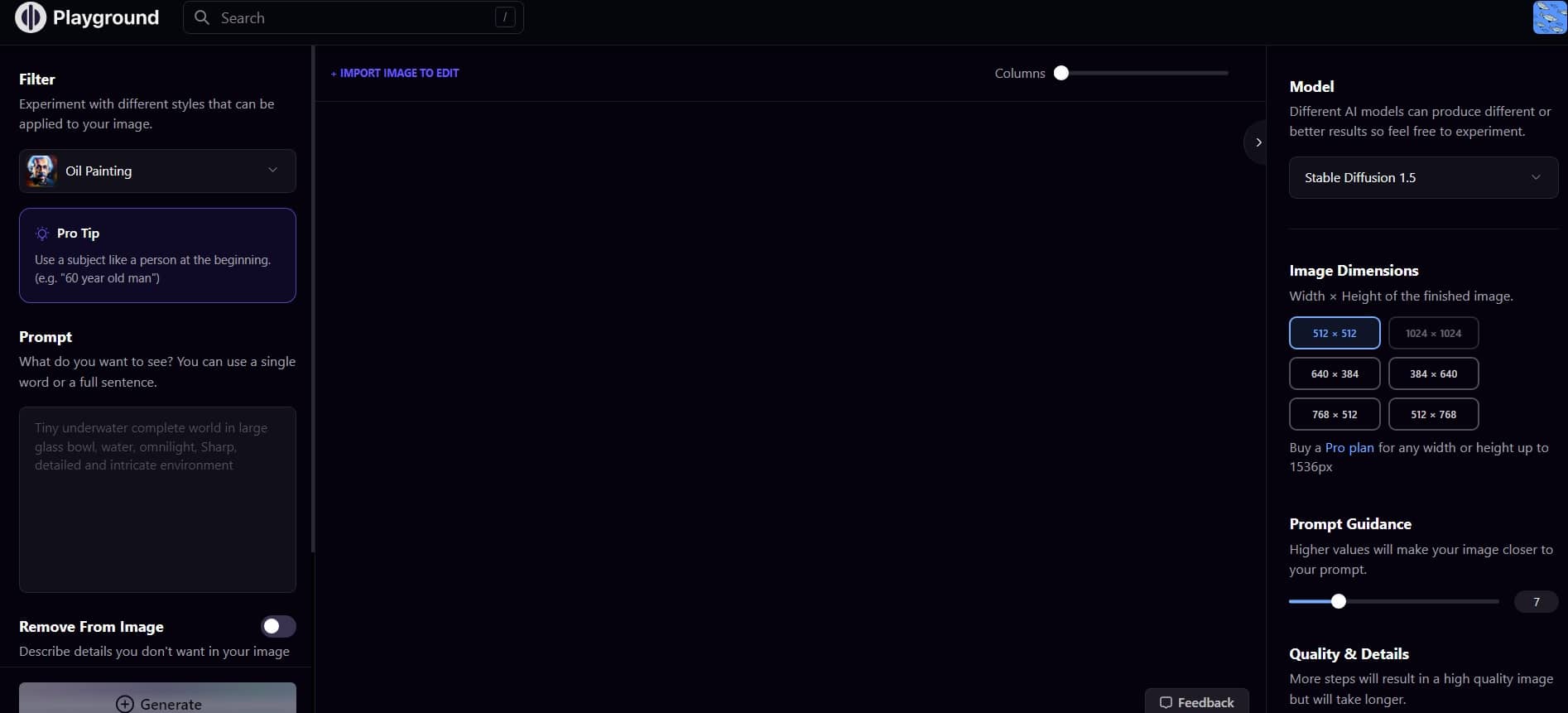
Use PlaygroundAI to convert text to images.

To start experiencing the features of PlaygroundAI first you need to log in with your email account.

Next, press the “Create” button at the top right corner of the screen to start creating photos with AI
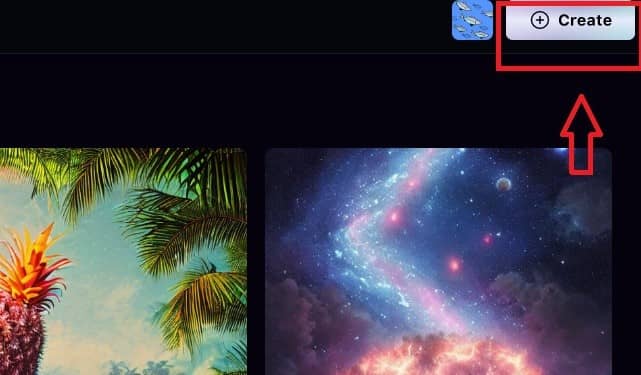
How to use PlaygroundAI to edit photos
Click “Create” to create an image

Interface after clicking “Create”:

How to use PlaygroundAI to edit photos
Interface after clicking “Create”

In the “Prompt” area, this is where you enter a description of the image you want to find. For accurate results, you should type in English!
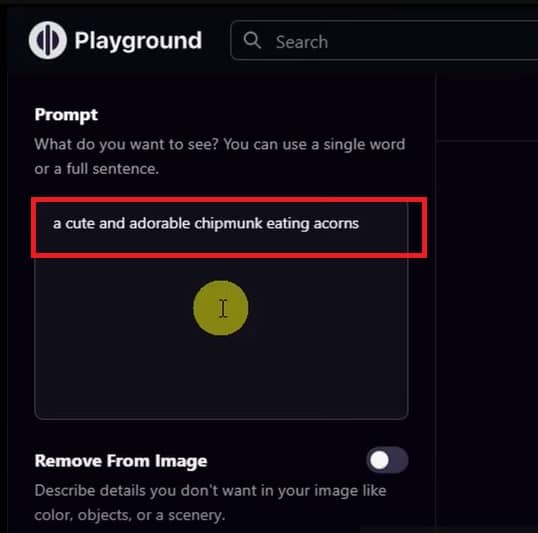
How to use PlaygroundAI to edit photos
Fill in image description here

For example, if you want an image of a cute chipmunk eating corn, type in “a cute and adorable chipmunk eating corn”.

Below are also the following customizations:

Remove From Image: Details you don’t want to appear in the picture

Image to Image: Flip an existing image or draw a sketch, from which the AI ​​will create a new shape from those sketches
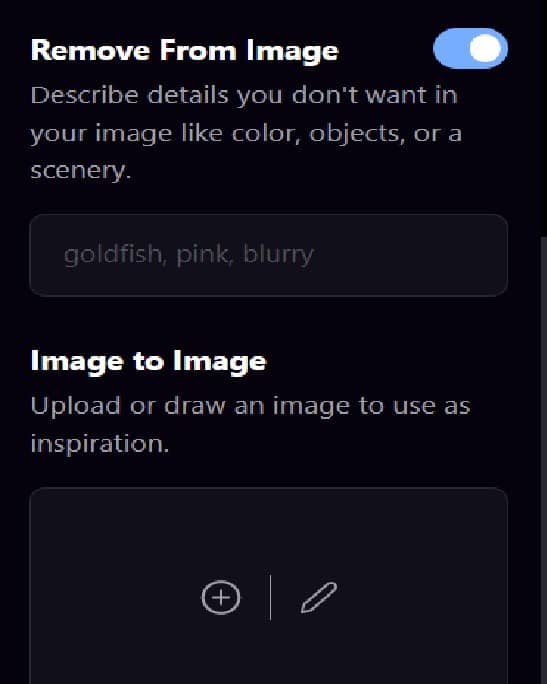
How to use PlaygroundAI to edit photos
PlaygroundAI customizations

On the right side of the screen, at the “Model”, you can choose a stable diffraction – a basic “rib” to create an image. Note: if you choose DALL – E 2, there will be a fee.
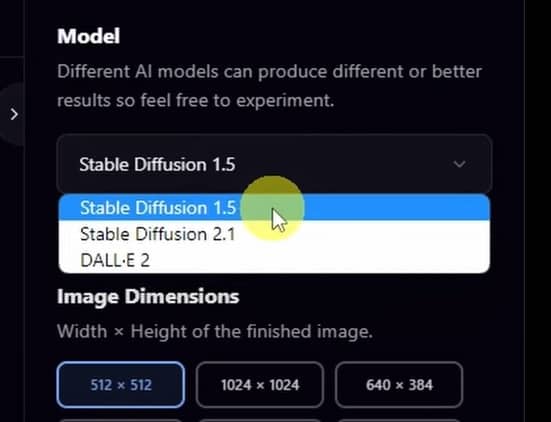
How to use PlaygroundAI to edit photos
PlaygroundAI customizations

Below are the following options:

How to use PlaygroundAI to edit photos
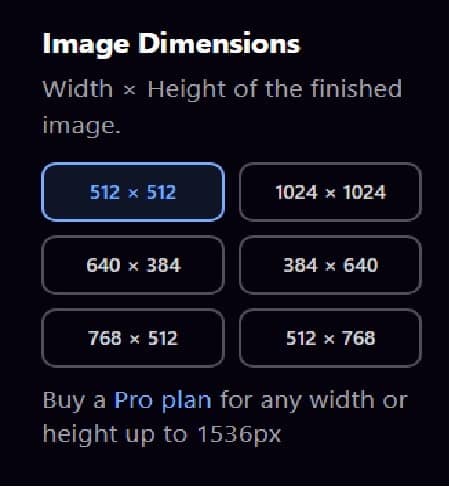
Choose image size

Image Dimensions: Select image size

Number of Images: Number of shapes you want to create (maximum 4 images).
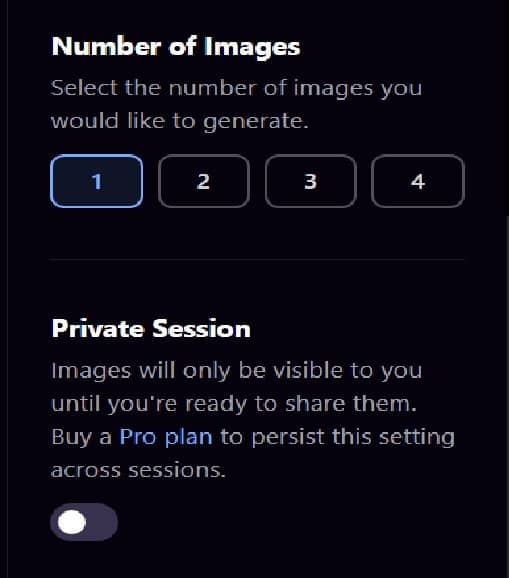
How to use PlaygroundAI to edit photos
PlaygroundAI customizations

Prompt Guidance: The higher the parameter adjustment, the more detailed the image will be, the closer it will be to your description

Quality & Details: Choose the number of steps to proceed, the higher this number, the better the image quality, at the same time, the waiting time for the image will also be longer.

Private Session: If you enable this mode, the image will be private, only you can see it.
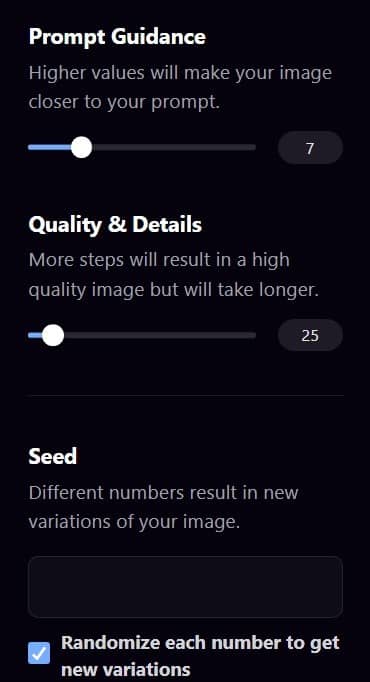
How to use PlaygroundAI to edit photos
PlaygroundAI customizations

After setting the necessary parameters, click “Generate”. Wait a few minutes for the website to proceed to create the image.

And the result looks like this:
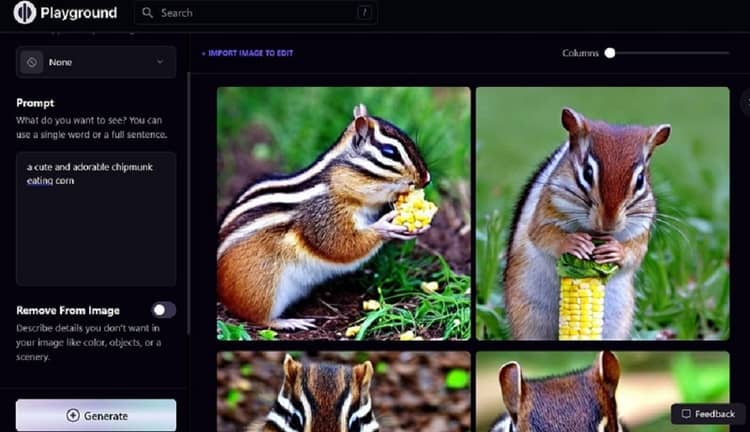
How to use PlaygroundAI to edit photos
Results after filling in the description and parameters

Can you see the picture is quite realistic and close to the description, right? But if you want it to be different and more interesting, you can use the “Filter” on the left side of the screen, select the style you like and then press “Generate“.
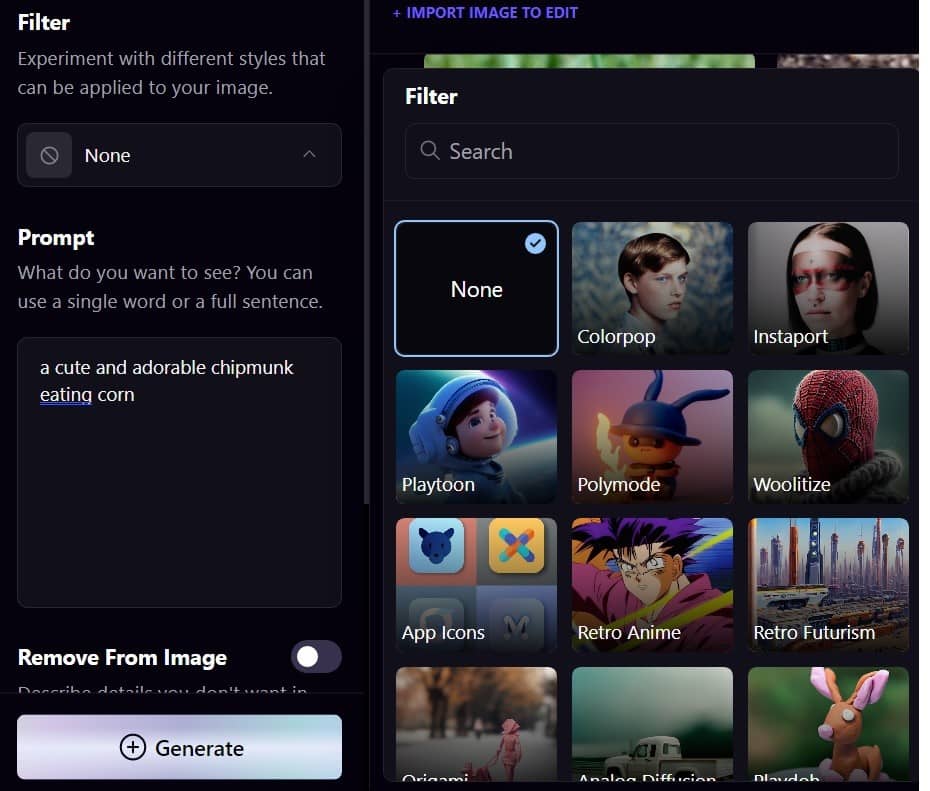
How to use PlaygroundAI to edit photos
Filter feature in PlaygroundAI

For example, I choose the filter “Retro Anime”, and the result is as shown:
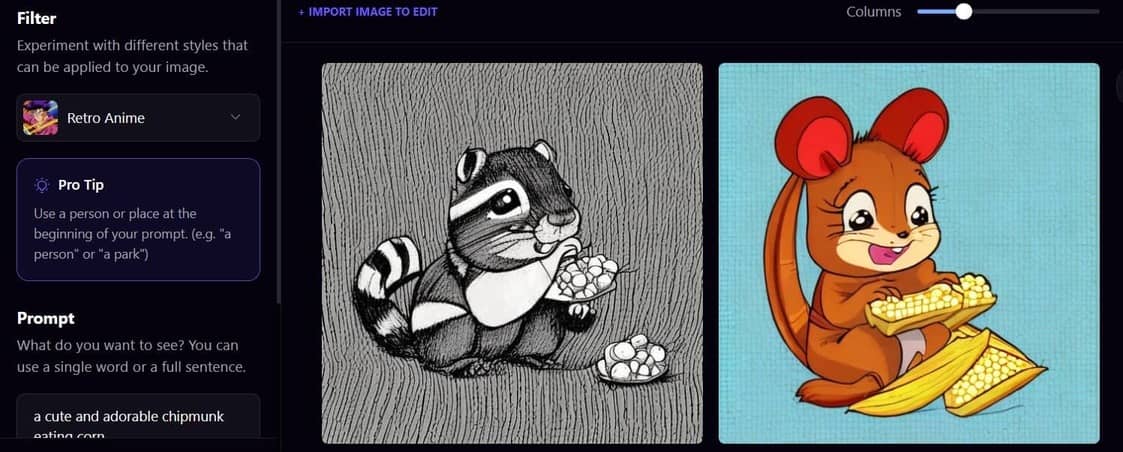
How to use PlaygroundAI to edit photos
Results when using Retro Anime

In addition, you can hover at “Columns” to adjust the number of shapes in each row. This makes it easier to observe.
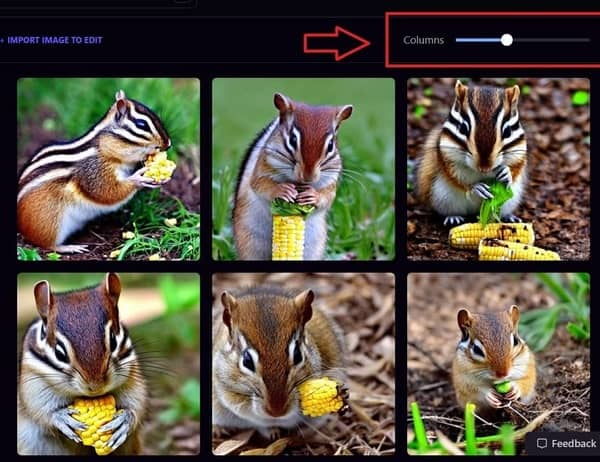
How to use PlaygroundAI to edit photos
Adjust the number of shapes in each row

When you like any shape and want to create many similar shapes, choose “create variations” with the + symbol.
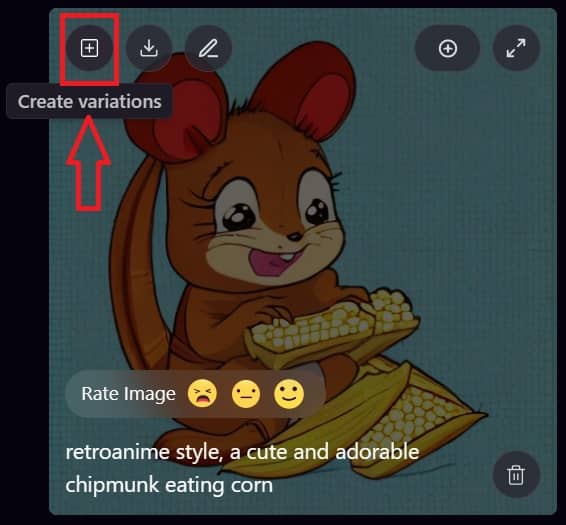
How to use PlaygroundAI to edit photos
To create many similar shapes, choose “create variations”

Immediately the system will generate images with the same style.

How to use PlaygroundAI to edit photos
Similar style pictures

Use PlaygroundAI to edit photos as you like

PlaygroundAI can also be used to change colors or even some details in an image – something people think must be done through Photoshop. To do this, follow these steps:

Step 1: Select the image you want to edit, select “Actions”, select “Use in image to image”
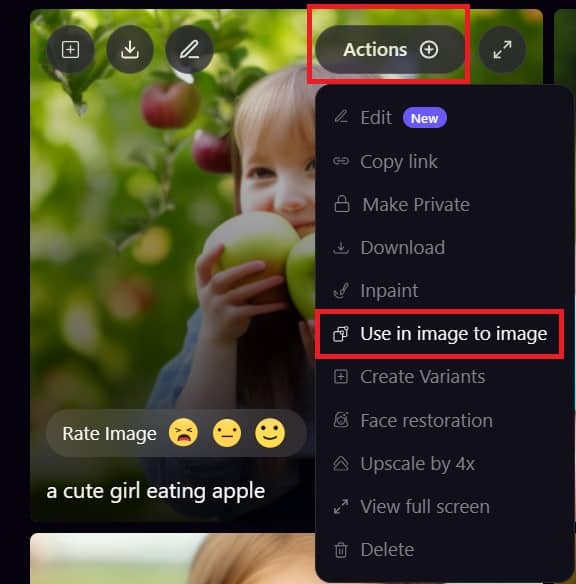
How to use PlaygroundAI to edit photos

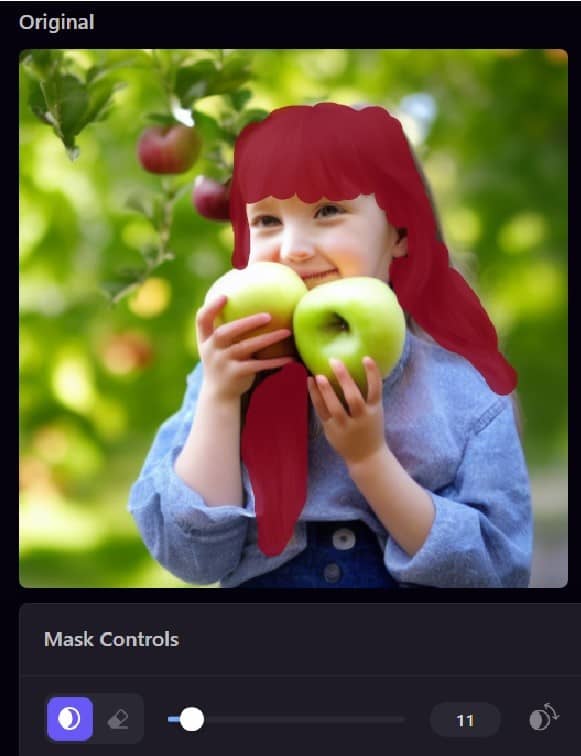
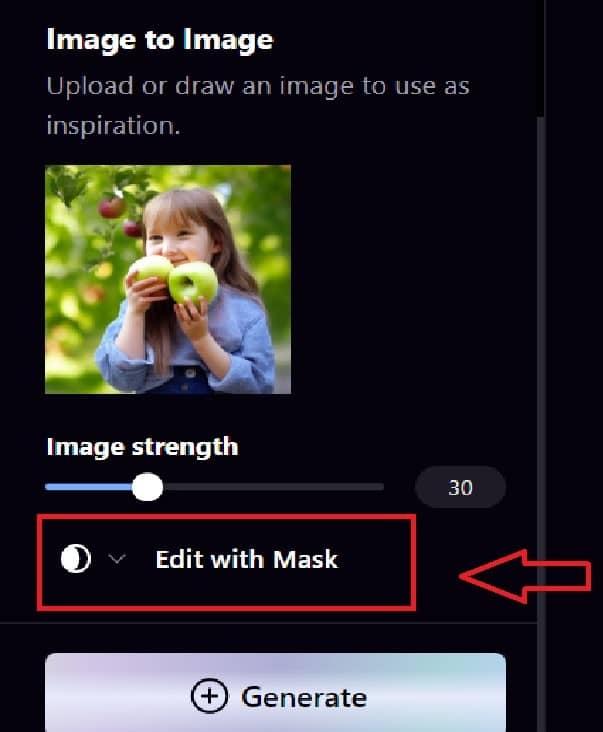
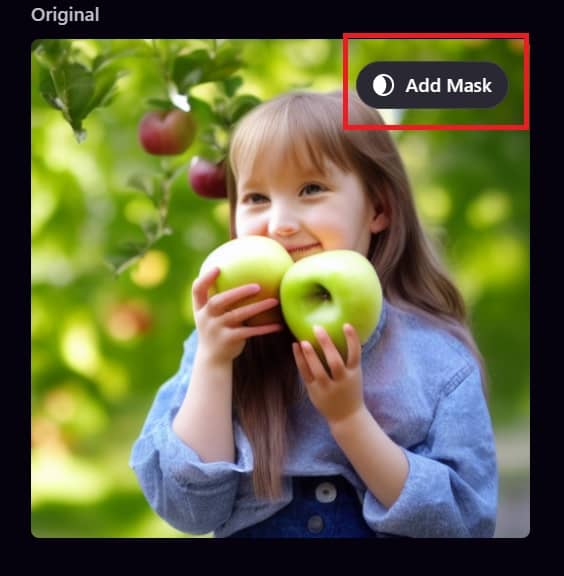
Step 2: Right under the Image to Image section, select “Edit with Mask”, select “Add Mask” and then fill in the details you want to edit. Here I will change the hair color of the girl in the picture.
How to use PlaygroundAI to edit photos
you choose “Edit with Mask”
How to use PlaygroundAI to edit photos
Select Add Mask
How to use PlaygroundAI to edit photos
Fill in the area you want to change

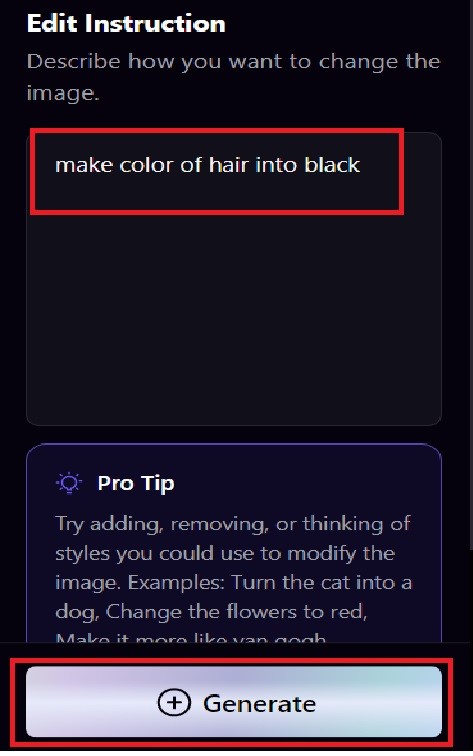
Step 3: In the “Edit Instruction” section, give instructions on how the system should be corrected.
How to use PlaygroundAI to edit photos
Describe what you want to edit

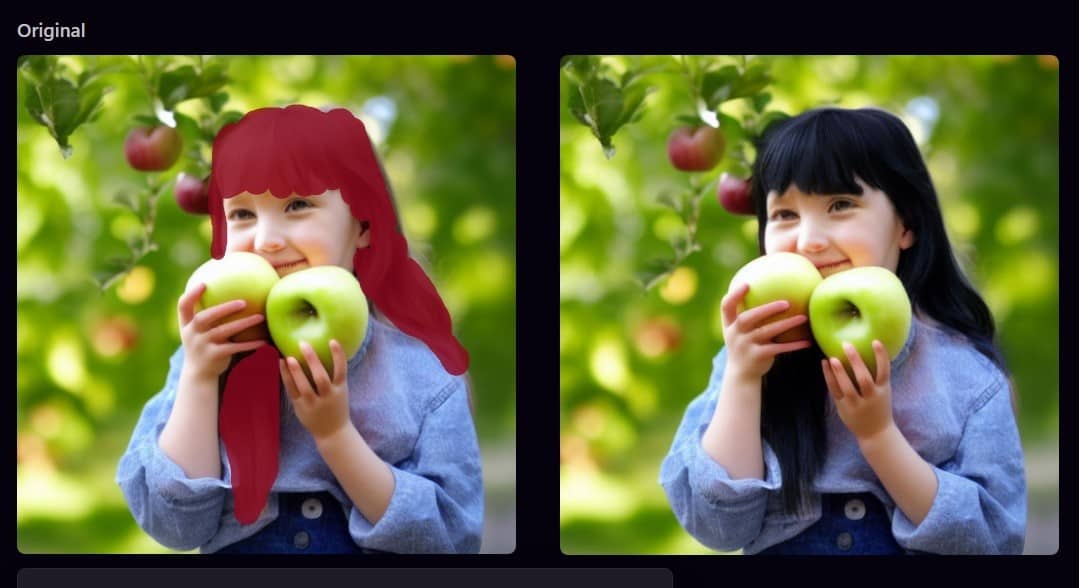
To change the hair color to black, I type “make color of hair into black” and then press “Generate”. And the result looks like this:
How to use PlaygroundAI to edit photos
Results when changing hair color

Besides, you can add details to the image, for example, I want to add some butterfly wings, and the result is as follows:
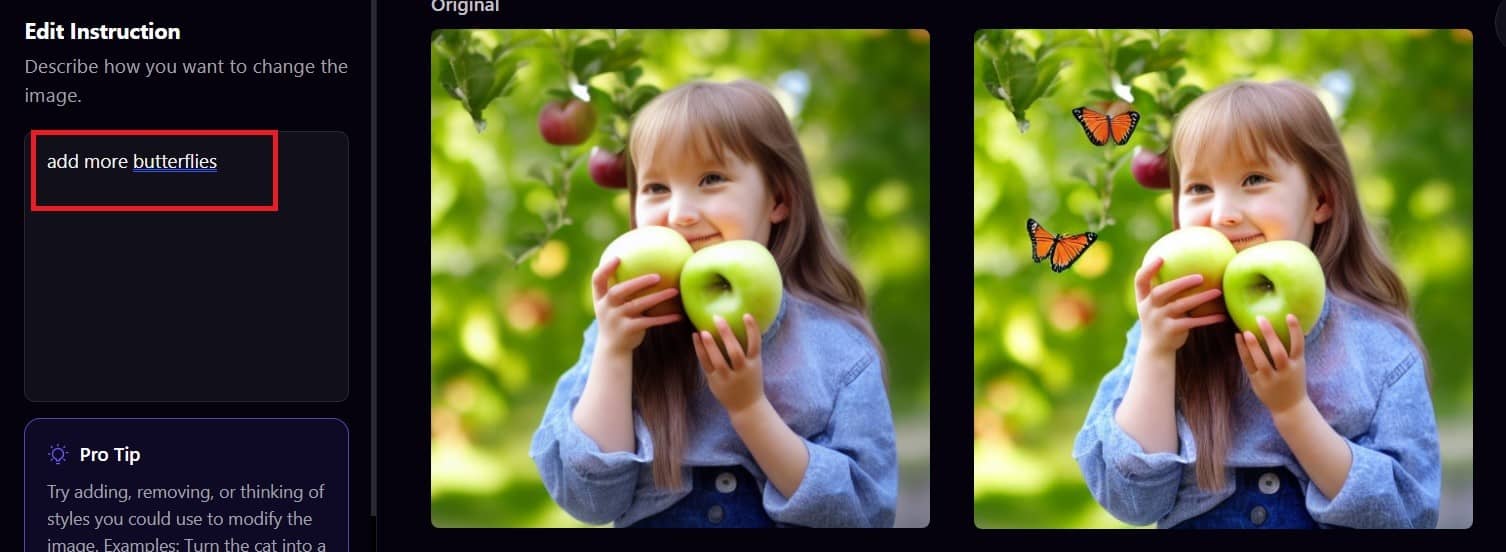
How to use PlaygroundAI to edit photos
Add more details to the image

Epilogue

With PlaygroundAI, photo editing has never been simpler. You can create or edit images as you like with just a few simple steps. Wish you success in applying and remember to share this useful tool with everyone!

Rate this post

Tags: editphotosPhotoshopPlaygroundAI
Previous Post

Code Create a widget on Facebook – Multi-Function Synthesis

Next Post

Instructions to install Windows 7/8/10 with USB

AnonyViet

AnonyViet

Related Posts

How to record reaction videos with Android phones, no app needed
Tips

How to record reaction videos with Android phones, no app needed

June 1, 2026
Instructions on how to get Google AI Pro 1 year for free for new accounts
Tips

Instructions on how to get Google AI Pro 1 year for free for new accounts

June 1, 2026
Top free AI tools to help write, test and optimize content
Tips

Top free AI tools to help write, test and optimize content

June 1, 2026
Instructions for receiving Lovable Pro 12 months for free
Tips

Instructions for receiving Lovable Pro 12 months for free

May 29, 2026
Instructions for receiving 1 month of ElevenLabs Creator for free worth
Tips

Instructions for receiving 1 month of ElevenLabs Creator for free worth $22

May 25, 2026
How to create beautiful studio-like preschool graduation photos for your child
Tips

How to create beautiful studio-like preschool graduation photos for your child

May 21, 2026
Next Post
Instructions to install Windows 7/8/10 with USB

Instructions to install Windows 7/8/10 with USB

0 0 votes
Article Rating
Subscribe
Login
Notify of
guest

guest

0 Comments
Oldest
Newest Most Voted
Inline Feedbacks
View all comments

Recent News

How to check network speed on Apple TV when the image is jerky or lagging

How to check network speed on Apple TV when the image is jerky or lagging

June 3, 2026
Instructions on how to prevent acquaintances from seeing your Tiktok

Instructions on how to prevent acquaintances from seeing your Tiktok

June 2, 2026
How to record reaction videos with Android phones, no app needed

How to record reaction videos with Android phones, no app needed

June 1, 2026
Instructions on how to get Google AI Pro 1 year for free for new accounts

Instructions on how to get Google AI Pro 1 year for free for new accounts

June 1, 2026
How to check network speed on Apple TV when the image is jerky or lagging

How to check network speed on Apple TV when the image is jerky or lagging

June 3, 2026
Instructions on how to prevent acquaintances from seeing your Tiktok

Instructions on how to prevent acquaintances from seeing your Tiktok

June 2, 2026
How to record reaction videos with Android phones, no app needed

How to record reaction videos with Android phones, no app needed

June 1, 2026
AnonyViet - English Version

AnonyViet

AnonyViet is a website share knowledge that you have never learned in school!

We are ready to welcome your comments, as well as your articles sent to AnonyViet.

Follow Us

Contact:

Email: anonyviet.com[@]gmail.com

Main Website: https://anonyviet.com

Recent News

How to check network speed on Apple TV when the image is jerky or lagging

How to check network speed on Apple TV when the image is jerky or lagging

June 3, 2026
Instructions on how to prevent acquaintances from seeing your Tiktok

Instructions on how to prevent acquaintances from seeing your Tiktok

June 2, 2026
No Result
View All Result
  • Home
  • News
  • Software
  • Knowledge
  • MMO
  • Tips
  • Security
  • Network
  • Office

wpDiscuz
0
0
Would love your thoughts, please comment.x
()
x
| Reply