• Home
  • News
  • Software
  • Knowledge
  • MMO
  • Tips
  • Security
  • Network
  • Office
AnonyViet - English Version
  • Home
  • News
  • Software
  • Knowledge
  • MMO
  • Tips
  • Security
  • Network
  • Office
No Result
View All Result
  • Home
  • News
  • Software
  • Knowledge
  • MMO
  • Tips
  • Security
  • Network
  • Office
No Result
View All Result
AnonyViet - English Version
No Result
View All Result

Reset Windows password with CMD

AnonyViet by AnonyViet
February 19, 2023
in Tips
0

OLDThere are times when you forget your Windows password. You can reset your Windows password using a password reset disc. But what if you don’t have? You can use this simple method to change your Windows password the same way you would use a Windows repair disc.

Join the channel Telegram belong to AnonyViet 👉 Link 👈

REMOVEvirtual guard Your Windows computer with a password is a must. It’s a layer of security that neutralizes unauthorized strangers from using your computer. But there are times when your own layer of security restricts you from using your Windows operating system. You did not enter the correct password because you were absent-minded when you last changed your password. Or you can’t remember your password because you haven’t used your computer for months.

You may not have the help of the password hint on the login screen. But if it doesn’t help you. An effective solution to reset Windows password is to use a password reset disk. And like me, you didn’t create the disk in the first place. Now, you have to reinstall Windows on your computer again. Well, you can do so if you don’t have any important data stored on your computer.

Request

  • My Windows drive is usually OLD
  • Windows installation disc or Windows repair disc
  • The most important thing, you should not reset the previous password for your Windows.

How to Reset Windows Password Using CMD?

  1. Use the Windows repair disc to start your computer.
  2. Choose the language you prefer to use. Note: This method has been tested on Windows 10. The repair disk option may be different for other versions of Windows.
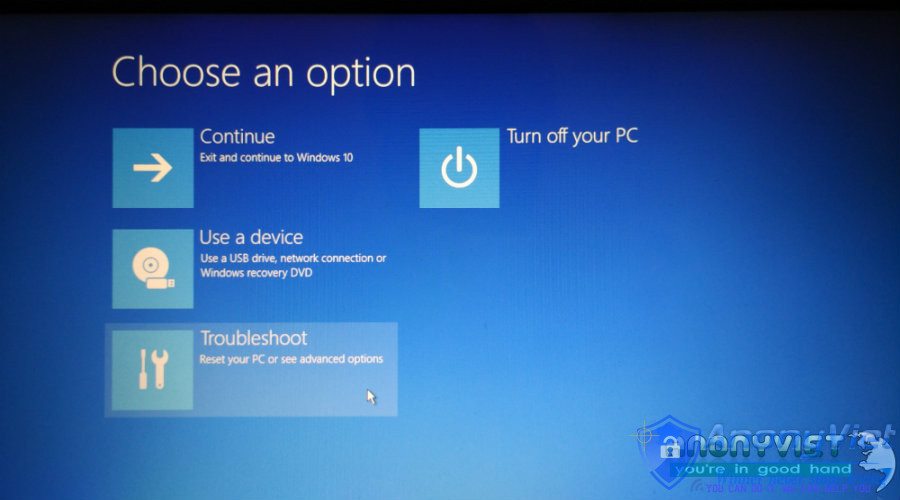
  3. Click Troubleshoot .
    reset-windows-password-1
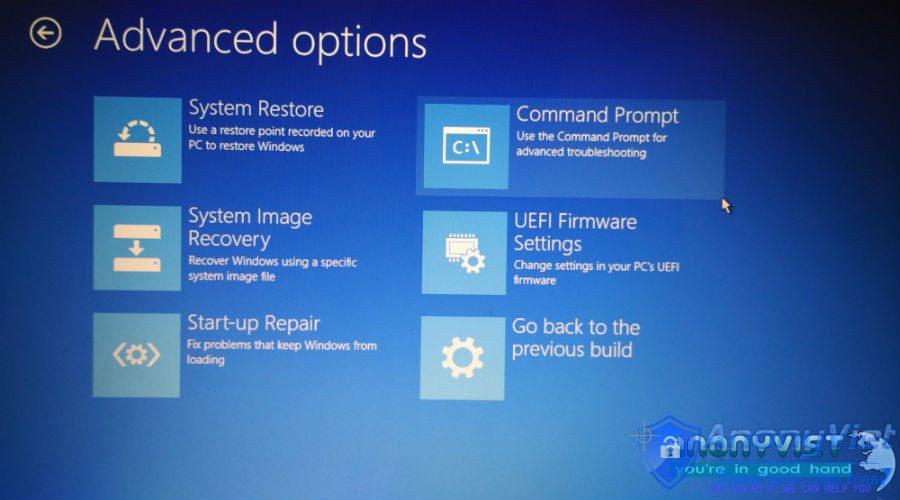
  4. Click Command Prompt .
    reset-windows-password-2
  5. In the CMD window, type the following command and press Enter:

    copy C:\Windows\system32\sethc.exe C:\

  6. Now, type the following command and press Enter:

    copy /y C:\Windows\system32\cmd.exe C:\windows\system32\sethc.exe

    Note: You will see the Overwrite c: sethc.exe confirm if you have done this method in the past. In this case, type all and press Enter .
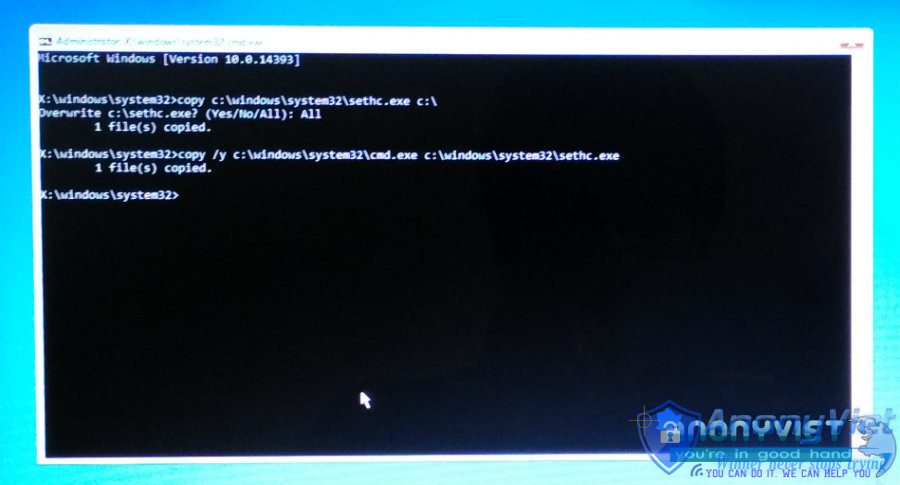
    reset-windows-password-3

  7. To exit CMD, type exit and press Enter . Restart your computer.
  8. At the login screen where you enter your password, press the Shift key five times. A CMD window will display.
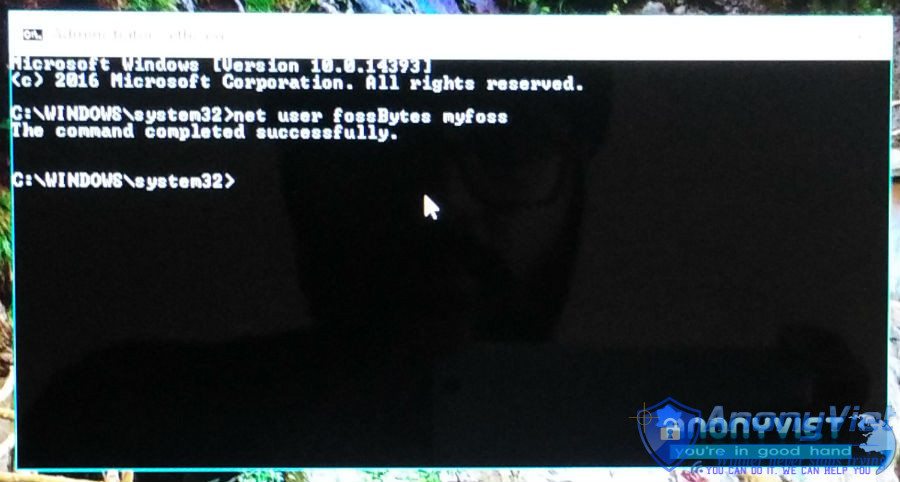
  9. Type the following command and press Enter:

    net user username password

    Important: Here, username is the user account name and password is the new password you want to set up. If your name is Ironman and the new password is Jarvis, the command will be: net user ironman Jarvis

  10. Now, press Enter.
    reset-windows-password-4
  11. Exit the command prompt.
  12. You can log in to your Windows computer using the new password.

So in this process, what you basically did was to exchange the SETHC.exe with Cmd.exe. The SETHC.exe is used to enable important accessibility features in Windows. Replace it with cmd.exe which starts the command prompt which can be used to change the administrator password.

Important: In our case, this method only works for local accounts. We are unable to reset the Windows password for the Microsoft account we use on our computer. We tested the above method on Windows 10.

How to return to what you did?

Now, you have successfully changed the password, but you do not want some other person to do the same. You can easily roll back the changes you’ve made:

  1. Follow the procedures as described above until step 4.
  2. In the command prompt window, type the following command:

    copy /y c:\sethc.exe c:\windows\system32\sethc.exe
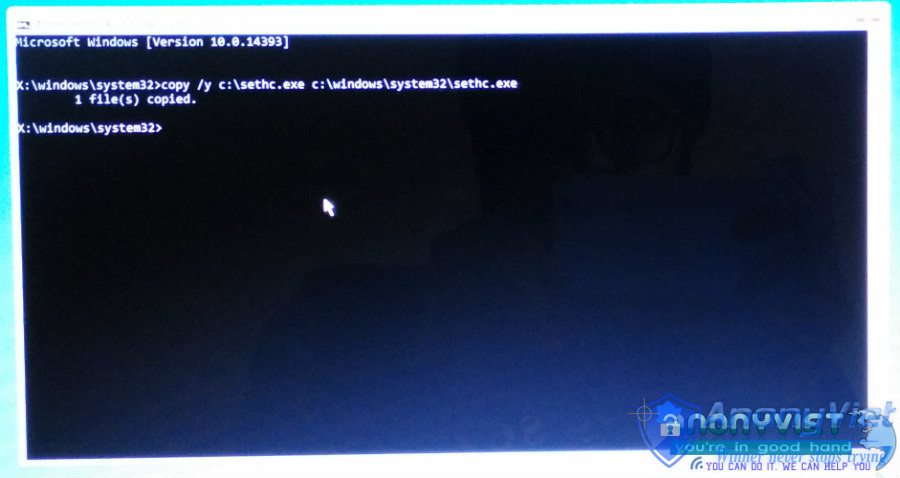
    reset-windows-password-5

  3. Press Enter and restart your computer.
  4. Now, at the login screen, if you press the Shift key 5 times the option key will appear instead of the command line.
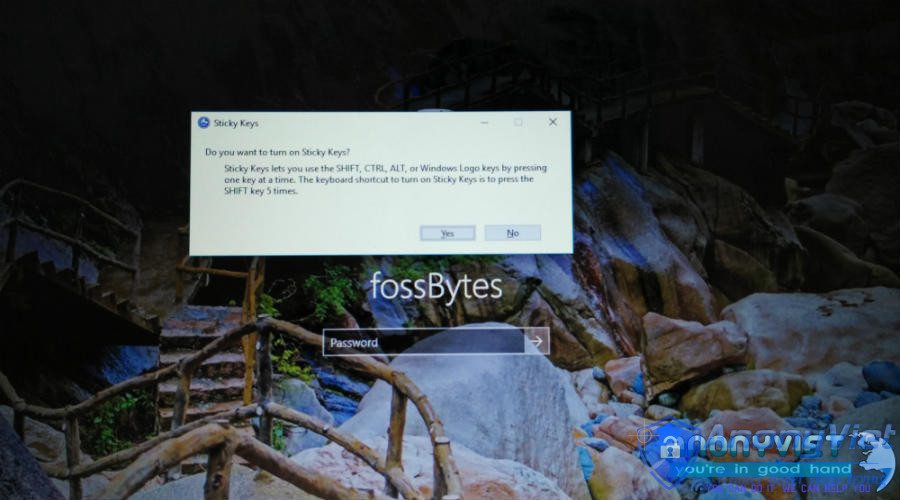
    reset-windows-password-5

This way you can reset Windows password and have a sense of relief. If you are concerned that someone can type commands and gain access to your computer, you disable the USB ports on your computer.

Good luck!

The article achieved: 5/5 – (100 votes)

Previous Post

Code phá há»§y MBR ổ cứng – Tấn công và phòng chống

Next Post

15 Quick Ways to Speed ​​Up Your Computer 2016

AnonyViet

AnonyViet

Related Posts

How to record reaction videos with Android phones, no app needed
Tips

How to record reaction videos with Android phones, no app needed

June 1, 2026
Instructions on how to get Google AI Pro 1 year for free for new accounts
Tips

Instructions on how to get Google AI Pro 1 year for free for new accounts

June 1, 2026
Top free AI tools to help write, test and optimize content
Tips

Top free AI tools to help write, test and optimize content

June 1, 2026
Instructions for receiving Lovable Pro 12 months for free
Tips

Instructions for receiving Lovable Pro 12 months for free

May 29, 2026
Instructions for receiving 1 month of ElevenLabs Creator for free worth
Tips

Instructions for receiving 1 month of ElevenLabs Creator for free worth $22

May 25, 2026
How to create beautiful studio-like preschool graduation photos for your child
Tips

How to create beautiful studio-like preschool graduation photos for your child

May 21, 2026
Next Post
15 Quick Ways to Speed ​​Up Your Computer 2016

15 Quick Ways to Speed ​​Up Your Computer 2016

0 0 votes
Article Rating
Subscribe
Login
Notify of
guest

guest

0 Comments
Oldest
Newest Most Voted
Inline Feedbacks
View all comments

Recent News

How to check network speed on Apple TV when the image is jerky or lagging

How to check network speed on Apple TV when the image is jerky or lagging

June 3, 2026
Instructions on how to prevent acquaintances from seeing your Tiktok

Instructions on how to prevent acquaintances from seeing your Tiktok

June 2, 2026
How to record reaction videos with Android phones, no app needed

How to record reaction videos with Android phones, no app needed

June 1, 2026
Instructions on how to get Google AI Pro 1 year for free for new accounts

Instructions on how to get Google AI Pro 1 year for free for new accounts

June 1, 2026
How to check network speed on Apple TV when the image is jerky or lagging

How to check network speed on Apple TV when the image is jerky or lagging

June 3, 2026
Instructions on how to prevent acquaintances from seeing your Tiktok

Instructions on how to prevent acquaintances from seeing your Tiktok

June 2, 2026
How to record reaction videos with Android phones, no app needed

How to record reaction videos with Android phones, no app needed

June 1, 2026
AnonyViet - English Version

AnonyViet

AnonyViet is a website share knowledge that you have never learned in school!

We are ready to welcome your comments, as well as your articles sent to AnonyViet.

Follow Us

Contact:

Email: anonyviet.com[@]gmail.com

Main Website: https://anonyviet.com

Recent News

How to check network speed on Apple TV when the image is jerky or lagging

How to check network speed on Apple TV when the image is jerky or lagging

June 3, 2026
Instructions on how to prevent acquaintances from seeing your Tiktok

Instructions on how to prevent acquaintances from seeing your Tiktok

June 2, 2026
No Result
View All Result
  • Home
  • News
  • Software
  • Knowledge
  • MMO
  • Tips
  • Security
  • Network
  • Office

wpDiscuz
0
0
Would love your thoughts, please comment.x
()
x
| Reply