• Home
  • News
  • Software
  • Knowledge
  • MMO
  • Tips
  • Security
  • Network
  • Office
AnonyViet - English Version
  • Home
  • News
  • Software
  • Knowledge
  • MMO
  • Tips
  • Security
  • Network
  • Office
No Result
View All Result
  • Home
  • News
  • Software
  • Knowledge
  • MMO
  • Tips
  • Security
  • Network
  • Office
No Result
View All Result
AnonyViet - English Version
No Result
View All Result

Instructions to hide Drives with CMD

AnonyViet by AnonyViet
February 18, 2023
in Tips
0

The Command Prompt in Windows is a powerful tool for performing tasks that would normally not be possible unless you have a third-party software. Today, we will share another interesting way of Command Line.Command Prompt can be used to hide one or more drives in My Computer.

Join the channel Telegram belong to AnonyViet 👉 Link 👈

Of course, you can use a free tool like DriveHide to do so. However, if you can remember a few commands, you can easily hide a drive in seconds without using third-party software.

Concealing the drive, will help you somewhat secure the necessary files, without wanting others to find out. Only when you need to use it, show the drive. Please do trywaist AnonyViet below steps

Instructions to hide Drives with CMD

Instructions to hide Drives with CMD

Step 1: You open CMD by pressing the Windows R key, type cmd

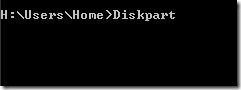
Step 2: In Command Prompt, type Diskpart and press Enter key.
Instructions to hide Drives with CMD 10

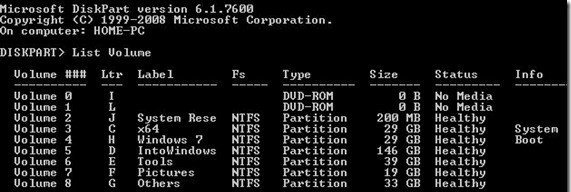
Step 3: Type command List Volume and press Enter to see a list of all drives
Instructions to hide Drives with CMD 11

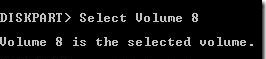
Step 4: Select the drive you want to hide. To do this, type select Volume WOOD (here, G is the drive letter) or Select Volume 8 (equivalent to drive WOOD)
Instructions to hide Drives with CMD 12

Step 5: To hide the drive, type Remove Letter WOOD. Here, WOOD is the drive letter you want to hide.

Instructions to hide Drives with CMD 13

Step 6: You are done. Close Command Prompt. Go to My Computer to check

Instructions to Show Hidden Drives with CMD

Step 1: Follow the Step 1,2,3 as on the instructions Hide drive

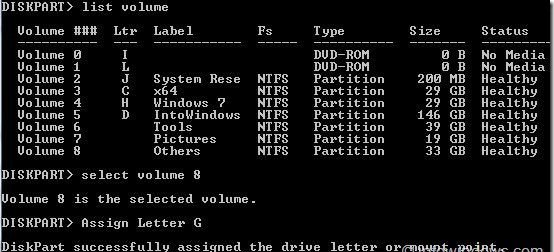
Step 2: Select number Volume to which you want to assign a drive letter.

As in the example above, I hid the Volume 8 drive, now I want to show the Volume 8 drive letter, then type the command Select Volume 8 and press Enter key

Step 3: Once selected, type Assign Letter WOOD and press Enter key to see the drive in My Computer (replace G with the drive letter you deleted earlier).

Instructions to hide Drives with CMD 14

The article achieved: 5/5 – (100 votes)

Previous Post

How to create a FANPAGE link with GROUP Facebok

Next Post

The most detailed guide on how to prevent WannaCry Ransomware

AnonyViet

AnonyViet

Related Posts

Quét lỗ hổng bảo mật cho Vide Coding bằng Security Audit Skill
Tips

Quét lỗ hổng bảo mật cho Vide Coding bằng Security Audit Skill

October 27, 2026
Instructions for registering for OxionAI Pro for 1 year with many powerful AI models
Tips

Instructions for registering for OxionAI Pro for 1 year with many powerful AI models

October 24, 2026
How are Windows 11 Pro and Windows 10 Pro different?
Tips

How are Windows 11 Pro and Windows 10 Pro different?

October 23, 2026
Instructions for using CleanYourTV: Remove ads on Android TV, Google TV
Tips

Instructions for using CleanYourTV: Remove ads on Android TV, Google TV

October 23, 2026
How to use Messenger without a Facebook account
Tips

How to use Messenger without a Facebook account

October 22, 2026
The website helps you draw beautifully like TikToker Viet My
Tips

The website helps you draw beautifully like TikToker Viet My

October 21, 2026
Next Post
The most detailed guide on how to prevent WannaCry Ransomware

The most detailed guide on how to prevent WannaCry Ransomware

0 0 votes
Article Rating
Subscribe
Login
Notify of
guest

guest

0 Comments
Oldest
Newest Most Voted

Recent News

Quét lỗ hổng bảo mật cho Vide Coding bằng Security Audit Skill

Quét lỗ hổng bảo mật cho Vide Coding bằng Security Audit Skill

October 27, 2026
Postpaid for new employees: Should you start using it?

Postpaid for new employees: Should you start using it?

October 26, 2026
How to create a UFO Game that calls students to return their homework

How to create a UFO Game that calls students to return their homework

October 26, 2026
Instructions for registering for OxionAI Pro for 1 year with many powerful AI models

Instructions for registering for OxionAI Pro for 1 year with many powerful AI models

October 24, 2026
Quét lỗ hổng bảo mật cho Vide Coding bằng Security Audit Skill

Quét lỗ hổng bảo mật cho Vide Coding bằng Security Audit Skill

October 27, 2026
Postpaid for new employees: Should you start using it?

Postpaid for new employees: Should you start using it?

October 26, 2026
How to create a UFO Game that calls students to return their homework

How to create a UFO Game that calls students to return their homework

October 26, 2026
AnonyViet - English Version

AnonyViet

AnonyViet is a website share knowledge that you have never learned in school!

We are ready to welcome your comments, as well as your articles sent to AnonyViet.

Follow Us

Contact:

Email: anonyviet.com[@]gmail.com

Main Website: https://anonyviet.com

Recent News

Quét lỗ hổng bảo mật cho Vide Coding bằng Security Audit Skill

Quét lỗ hổng bảo mật cho Vide Coding bằng Security Audit Skill

October 27, 2026
Postpaid for new employees: Should you start using it?

Postpaid for new employees: Should you start using it?

October 26, 2026
  • Home
  • Home 2
  • Home 3
  • Home 4
  • Home 5
  • Home 6
  • Next Dest Page
  • Sample Page

say88 tỷ lệ kèo nhà cái kèo nhà cái 5 febet

No Result
View All Result
  • Home
  • News
  • Software
  • Knowledge
  • MMO
  • Tips
  • Security
  • Network
  • Office

say88 tỷ lệ kèo nhà cái kèo nhà cái 5 febet

wpDiscuz
0
0
Would love your thoughts, please comment.x
()
x
| Reply