• Home
  • News
  • Software
  • Knowledge
  • MMO
  • Tips
  • Security
  • Network
  • Office
AnonyViet - English Version
  • Home
  • News
  • Software
  • Knowledge
  • MMO
  • Tips
  • Security
  • Network
  • Office
No Result
View All Result
  • Home
  • News
  • Software
  • Knowledge
  • MMO
  • Tips
  • Security
  • Network
  • Office
No Result
View All Result
AnonyViet - English Version
No Result
View All Result

Instructions to change the Windows interface to MacOS

AnonyViet by AnonyViet
February 17, 2023
in Tips
0

Today AnonyViet will guide you to change the interface Windows to MACOS Very beautiful and guaranteed not to lag the device !! Detailed step-by-step instructions with pictures for everyone to follow easily.

Join the channel Telegram belong to AnonyViet 👉 Link 👈

Installation Instructions

  • First, you access the download link at the end of the article and then download the file to your computer.
  • The file will have a name and be compressed as shown in the image below.

Instructions to change the Windows interface to MacOS 11

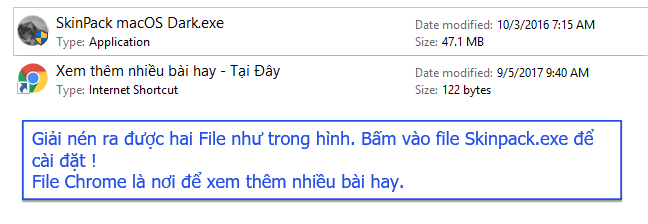
You unzip it, you will get a folder ( Folder ) contains two files as shown in the image below. You open the exe file under administrator to install
Instructions to change the Windows interface to MacOS 12

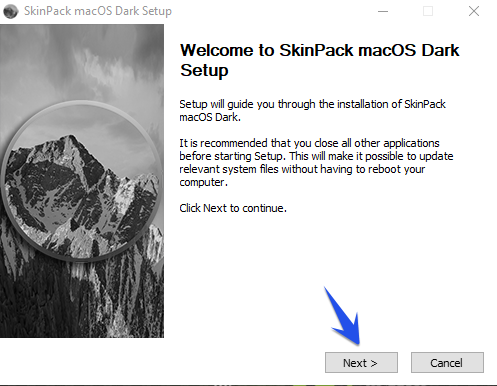
The installation interface will appear as shown below. You continue to press next to proceed
Instructions to change the Windows interface to MacOS 13

Check the box I Accept… then press next
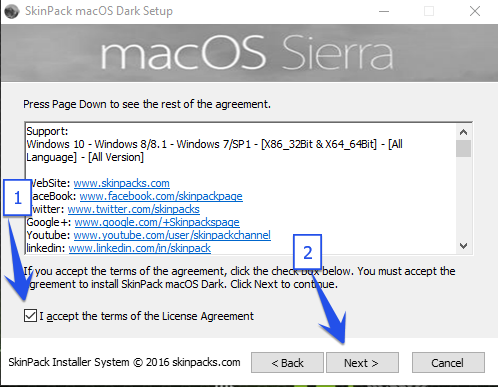
Instructions to change the Windows interface to MacOS 14

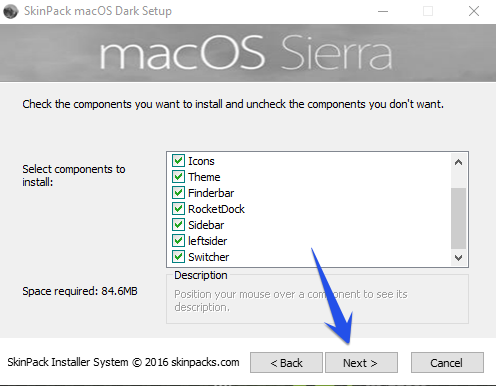
Continue pressing next

Instructions to change the Windows interface to MacOS 15

This step guys no need to check and press next always. Because if you check it, it will install an additional program Search Yahoo!I think this finder is a virus because it will show ads in your Chrome.
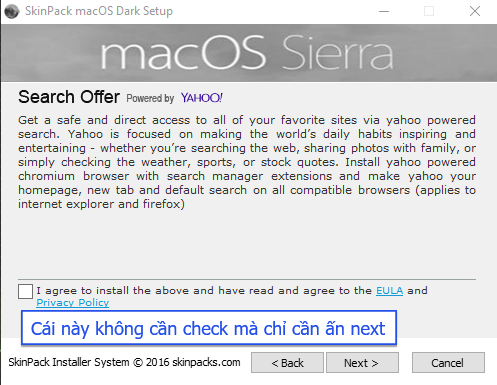
Instructions to change the Windows interface to MacOS 16

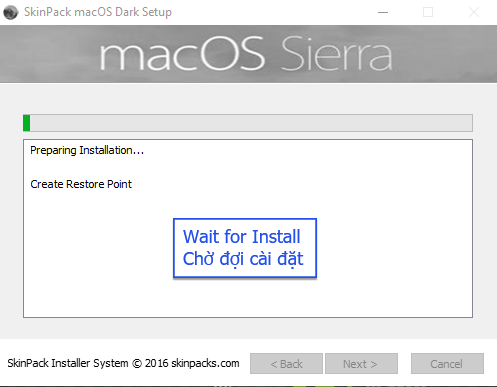
Waiting is happiness =)

Instructions to change the Windows interface to MacOS 17

After installation is complete then windows will be brought to MACOS interface as shown below Very cool and no lag !!
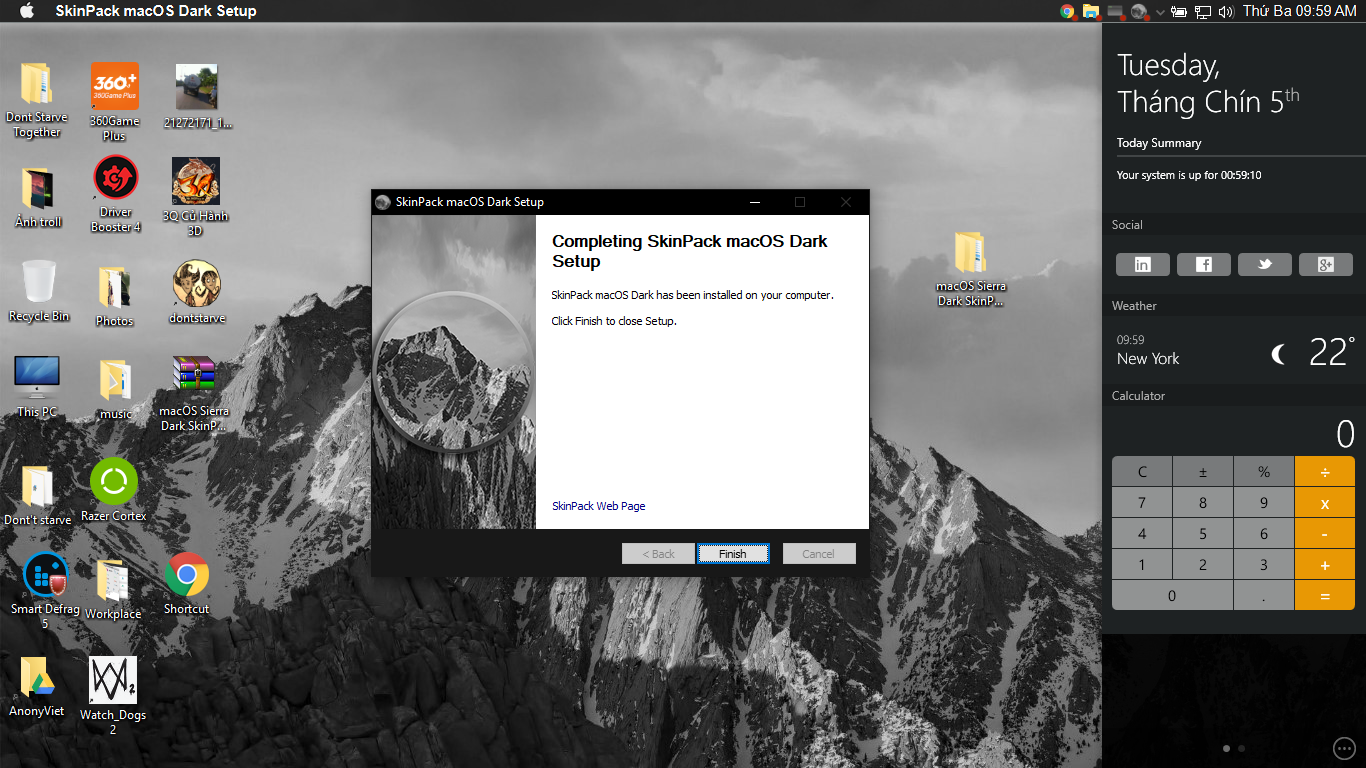
Instructions to change the Windows interface to MacOS 18

The folders and interface are exactly the same MacOS so feel free to enjoy
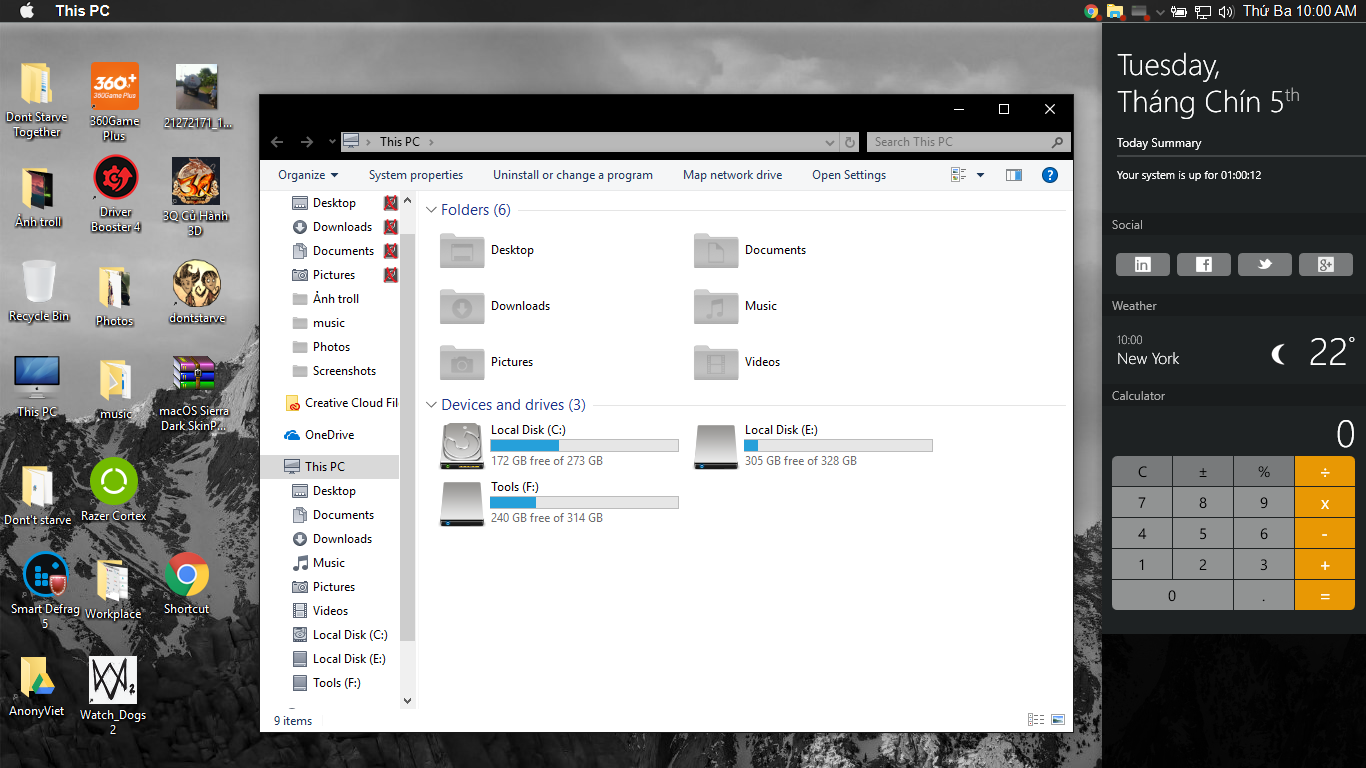
Instructions to change the Windows interface to MacOS

It is done

Download
Google Drive link does not worry about food

Decompression pass: concac

Download the installer – Google Drive | Download Fshare

Good luck

AnonyViet – Better and better.

The article achieved: 5/5 – (100 votes)

Previous Post

Instructions to identify applications that are secretly using webcams

Next Post

How to create a golden background when chatting in Facebook Messenger

AnonyViet

AnonyViet

Related Posts

How to add sliders to Facebook Stories to easily rewind videos
Tips

How to add sliders to Facebook Stories to easily rewind videos

April 21, 2026
How to change the default font on Windows 10
Tips

How to change the default font on Windows 10

April 13, 2026
5 tips for using a Browser to replace an App (helps save RAM, time and money)
Tips

5 tips for using a Browser to replace an App (helps save RAM, time and money)

April 13, 2026
How to make funny MeMe photos without Photoshop within 10 seconds
Tips

How to make funny MeMe photos without Photoshop within 10 seconds

April 11, 2026
How to quickly design your own Logo without Photoshop
Tips

How to quickly design your own Logo without Photoshop

April 10, 2026
How to convert Website into App on Windows
Tips

How to convert Website into App on Windows

April 9, 2026
Next Post
How to create a golden background when chatting in Facebook Messenger

How to create a golden background when chatting in Facebook Messenger

0 0 votes
Article Rating
Subscribe
Login
Notify of
guest

guest

0 Comments
Oldest
Newest Most Voted
Inline Feedbacks
View all comments

Recent News

How to create a Face Sticker Collection using ChatGPT

How to create a Face Sticker Collection using ChatGPT

April 29, 2026
How to install the cute Bongo Cat mouse pointer for Windows

How to install the cute Bongo Cat mouse pointer for Windows

April 29, 2026
Tips for pinning the step counter to the iPhone screen to monitor your health

Tips for pinning the step counter to the iPhone screen to monitor your health

April 28, 2026
How to turn off password suggestions on iPhone: Prevent Safari from auto-filling passwords

How to turn off password suggestions on iPhone: Prevent Safari from auto-filling passwords

April 27, 2026
How to create a Face Sticker Collection using ChatGPT

How to create a Face Sticker Collection using ChatGPT

April 29, 2026
How to install the cute Bongo Cat mouse pointer for Windows

How to install the cute Bongo Cat mouse pointer for Windows

April 29, 2026
Tips for pinning the step counter to the iPhone screen to monitor your health

Tips for pinning the step counter to the iPhone screen to monitor your health

April 28, 2026
AnonyViet - English Version

AnonyViet

AnonyViet is a website share knowledge that you have never learned in school!

We are ready to welcome your comments, as well as your articles sent to AnonyViet.

Follow Us

Contact:

Email: anonyviet.com[@]gmail.com

Main Website: https://anonyviet.com

Recent News

How to create a Face Sticker Collection using ChatGPT

How to create a Face Sticker Collection using ChatGPT

April 29, 2026
How to install the cute Bongo Cat mouse pointer for Windows

How to install the cute Bongo Cat mouse pointer for Windows

April 29, 2026
No Result
View All Result
  • Home
  • News
  • Software
  • Knowledge
  • MMO
  • Tips
  • Security
  • Network
  • Office

wpDiscuz
0
0
Would love your thoughts, please comment.x
()
x
| Reply