• Home
  • News
  • Software
  • Knowledge
  • MMO
  • Tips
  • Security
  • Network
  • Office
AnonyViet - English Version
  • Home
  • News
  • Software
  • Knowledge
  • MMO
  • Tips
  • Security
  • Network
  • Office
No Result
View All Result
  • Home
  • News
  • Software
  • Knowledge
  • MMO
  • Tips
  • Security
  • Network
  • Office
No Result
View All Result
AnonyViet - English Version
No Result
View All Result

Instructions for making a flipping game in Powerpoint

AnonyViet by AnonyViet
February 16, 2023
in Tips
0

Powerpoint is the best and most popular presentation software today. Use to create vivid and unique effects for your presentation files. Today I will show you how to create a flipping game to answer questions in Powerpoint.

Join the channel Telegram belong to AnonyViet 👉 Link 👈

Download and install PowerPoint

Download

Remember to skip the ad to support me.

Download and install as usual. This is software developed by Microsoft itself, so there is no need to discuss the quality. After the installation is complete, open the software and you will see the interface as follows:
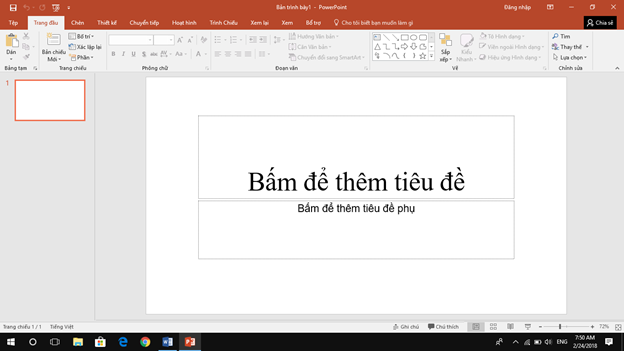
Instructions for making a flipping game in Powerpoint 9

Need to prepare some images to make a flip game. Depending on the content that will be shown, choose photos to match the theme. You need to present and arrange the images so that they are beautiful and easy to see. I will try with 4 photos as shown in the picture below.
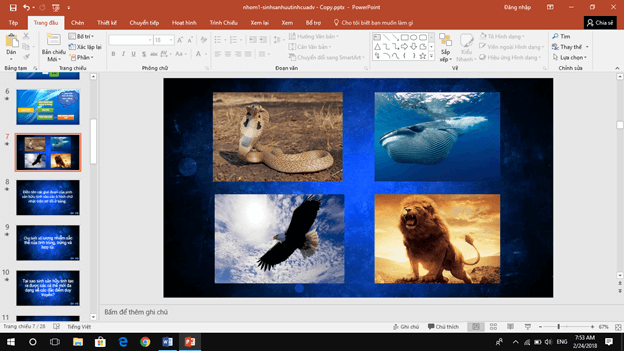
Instructions for making a flipping game in Powerpoint 10

In this slide show, I’m working on wildlife theme. Therefore, I have already downloaded 4 photos and inserted them in the places I want in the slide show. I arranged it into a square for symmetry and easy viewing.

Next, I create questions on the next pages. I think it’s best to keep the slides containing the questions close together for easier management. There will be no confusion and clutter, so it will be easier to work with.
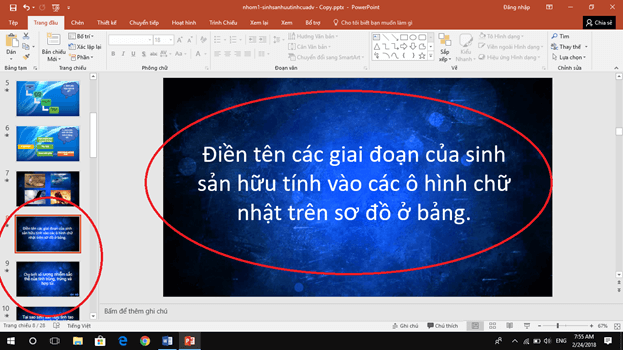
Instructions for making a flipping game in Powerpoint 11

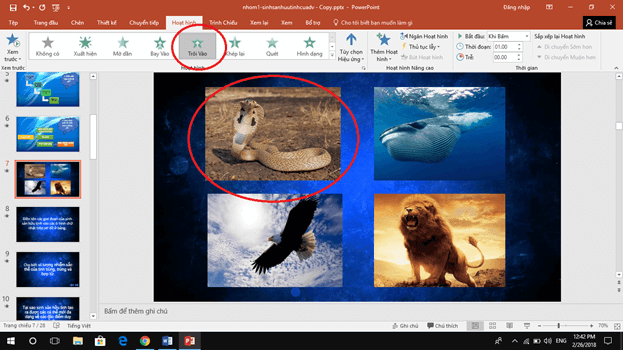
The question and the picture are ready, now I will link them together to create a flip game. By assigning to the image you want to flip a start effect and an end effect.

Distinguishing effects

PowerPoint divides the effect with different colors so that we don’t get confused.

  • Green: The effect begins.
  • Yellow: Emphasis effect.
  • Red: Effect ends.

Instructions for making a flipping game in Powerpoint 12

Select menu Animation (Animation) and press select More Animation (Add Animation) and choose the ending effect for your image. The end effect will be red. Do not mistake the effect because when running will not be reasonable.
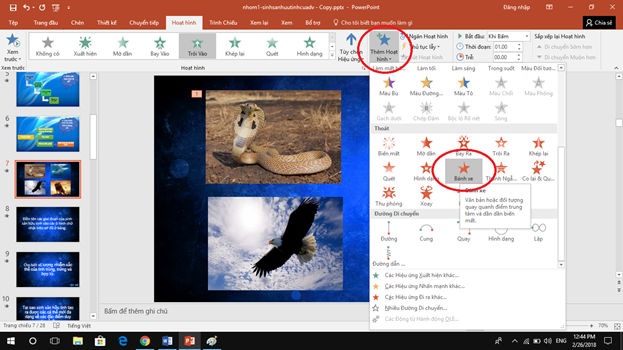
Instructions for making a flipping game in Powerpoint 13

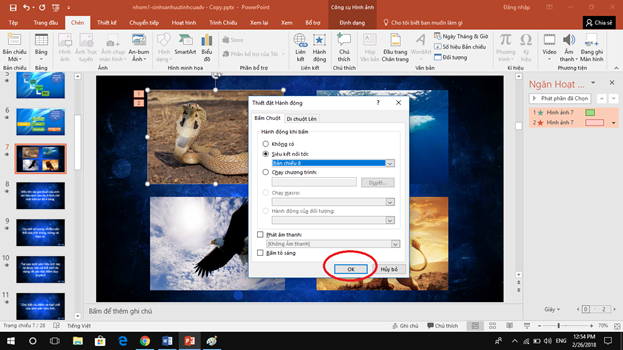
Select menu Insert (Insert) and select item Action(Action). You will see a window pop up, select tab Mouse Click.

Please check the box Hyperlink to: (HypperLink to:) and choose Slide… (Slide…) then choose page containing the question you want the link for that photo.
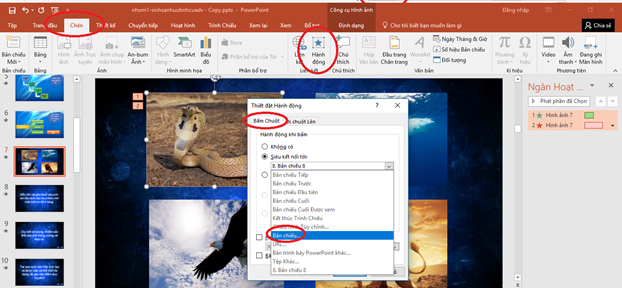
Instructions for making a flip game in Powerpoint 14

Then go to the slide containing the question you want the image to lead to when you click it. For example, here I choose Slide 8 contains the question I want to ask when I click on the photo and press Ok:
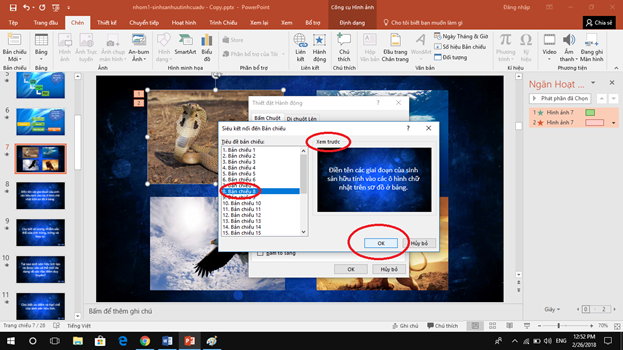
Instructions for making a flipping game in Powerpoint 15

You continue to press Ok:

Instructions for making a flip game in Powerpoint 16

Thus, creating an image link to the page containing the question has been completed, please run it to enjoy the results, other images you link as above.

Note

Please create an additional page to contain the answer and on the page containing the question you should put a link (an image, maybe an arrow icon containing the link) to the page containing the answer. You should also create an image, icon containing a link to the original flip page to continue the game.

Like Fanpage or follow website for quick updates of good articles.

Good luck
Lmint.

The article achieved: 5/5 – (100 votes)

Previous Post

How to create an “immortal” folder on windows

Next Post

Instructions for writing strange fonts Facebook 2018

AnonyViet

AnonyViet

Related Posts

How to add sliders to Facebook Stories to easily rewind videos
Tips

How to add sliders to Facebook Stories to easily rewind videos

April 21, 2026
How to change the default font on Windows 10
Tips

How to change the default font on Windows 10

April 13, 2026
5 tips for using a Browser to replace an App (helps save RAM, time and money)
Tips

5 tips for using a Browser to replace an App (helps save RAM, time and money)

April 13, 2026
How to make funny MeMe photos without Photoshop within 10 seconds
Tips

How to make funny MeMe photos without Photoshop within 10 seconds

April 11, 2026
How to quickly design your own Logo without Photoshop
Tips

How to quickly design your own Logo without Photoshop

April 10, 2026
How to convert Website into App on Windows
Tips

How to convert Website into App on Windows

April 9, 2026
Next Post
Instructions for writing strange fonts Facebook 2018

Instructions for writing strange fonts Facebook 2018

0 0 votes
Article Rating
Subscribe
Login
Notify of
guest

guest

0 Comments
Oldest
Newest Most Voted
Inline Feedbacks
View all comments

Recent News

Instructions for looking up prescriptions on VNeID instead of paper medical books

Instructions for looking up prescriptions on VNeID instead of paper medical books

April 26, 2026
Tips to completely turn off CAPTCHA codes on iPhone and Mac are super simple

Tips to completely turn off CAPTCHA codes on iPhone and Mac are super simple

April 25, 2026
Compare Poco X8 Pro and Poco X7 Pro: A new step for the “king” of mid-range performance

Compare Poco X8 Pro and Poco X7 Pro: A new step for the “king” of mid-range performance

April 24, 2026
How to compress online videos for free without losing quality

How to compress online videos for free without losing quality

April 24, 2026
Instructions for looking up prescriptions on VNeID instead of paper medical books

Instructions for looking up prescriptions on VNeID instead of paper medical books

April 26, 2026
Tips to completely turn off CAPTCHA codes on iPhone and Mac are super simple

Tips to completely turn off CAPTCHA codes on iPhone and Mac are super simple

April 25, 2026
Compare Poco X8 Pro and Poco X7 Pro: A new step for the “king” of mid-range performance

Compare Poco X8 Pro and Poco X7 Pro: A new step for the “king” of mid-range performance

April 24, 2026
AnonyViet - English Version

AnonyViet

AnonyViet is a website share knowledge that you have never learned in school!

We are ready to welcome your comments, as well as your articles sent to AnonyViet.

Follow Us

Contact:

Email: anonyviet.com[@]gmail.com

Main Website: https://anonyviet.com

Recent News

Instructions for looking up prescriptions on VNeID instead of paper medical books

Instructions for looking up prescriptions on VNeID instead of paper medical books

April 26, 2026
Tips to completely turn off CAPTCHA codes on iPhone and Mac are super simple

Tips to completely turn off CAPTCHA codes on iPhone and Mac are super simple

April 25, 2026
No Result
View All Result
  • Home
  • News
  • Software
  • Knowledge
  • MMO
  • Tips
  • Security
  • Network
  • Office

wpDiscuz
0
0
Would love your thoughts, please comment.x
()
x
| Reply