Microsoft Excel is a spreadsheet software commonly used in statistical calculations, with many hidden functions. It’s easy to understand why beginners would find it difficult to learn Microsoft Excel. You are not the only one, so in this article, I will guide you through 8 tips to learn Microsoft Excel quickly.
📢 Join the channel Telegram belong to AnonyViet
Update new articles, cool tools and IT tips fastest

Is Microsoft Excel difficult to learn?
The trick to learning Excel quickly is to break the learning process into manageable parts. You cannot learn Excel in a day or a week, but if you learn and master each individual part, it will be easier to control your knowledge and learn easier.
Basic knowledge
Here are some of the first Excel learning tips you need to master if you want to better understand Microsoft Excel. They’re mostly pretty simple, but it’s important to get familiar with them before starting on more complex tasks.
1. Simple calculation
Let’s start with the most basic math operations you’ll need to solve in Microsoft Excel. Every calculation you make in Excel begins with an equal sign “=”.
Enter =10+10 into a cell in your spreadsheet and press Enter, the cell will display the number 20.
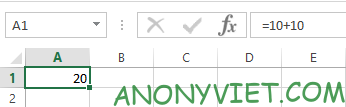
Note: you need to use the asterisk “*” instead of the multiplication sign and the slash “/” instead of the division sign.
2. Use AutoSum
If you’re just starting to learn Microsoft Excel, this is a great way to get familiar with the function. First, enter any two numbers in the cells next to each other. Next, select the empty cell next to those 2 cells and go to section Home > AutoSum.
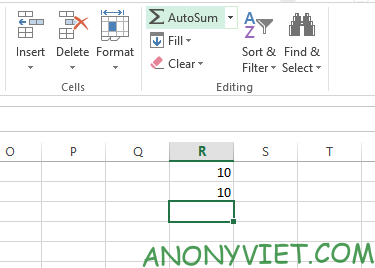
This will automatically fill the selected cell with the SUM formula. Excel will add the two numbers together and give the result in the specified cell — using the AutoSum menu, you can also choose different functions.
3. Apply Number format
As your spreadsheets start to get a little more complex, they can contain different types of data like currency, dates, percentages, and more. To make sure you can work with this data, you should format it.
Select the cells you want to format. Find the part Number at the top of the screen and find the menu General.
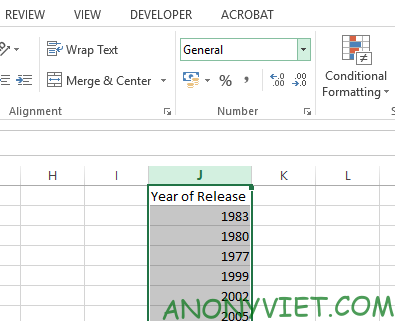
From there, you can choose different data formats. If you want more formatting, select More number formats at the bottom of the menu and you’ll be able to specify details like decimal places or currency.
4. Create a table
Presenting your data as a table allows you to more easily manage and organize your data. Select the entire dataset you want to convert to a table and click the shortcut Quick Analysis in the bottom right corner as shown below.
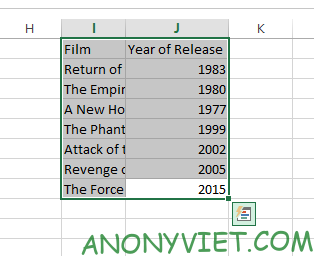
Navigate to tab Tables and choose Table. If the Quick Analysis shortcut doesn’t appear, just select your data and enter Insert and choose Table.
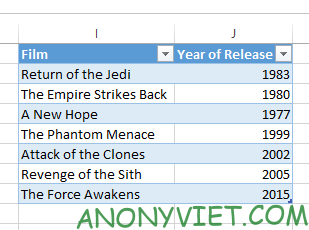
Use the arrow buttons in the table header cell to filter out specific data points or sort them however you like.
5. Create a chart
You can create a chart or graph the same way you create a table.
Excel provides you with many different chart types. First, select all your data.
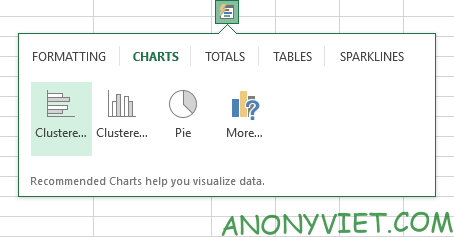
Then select the Quick Analysis shortcut and go to the tab CHARTS.
If Quick Analysis does not appear, select your data and press Insert. Then navigate to the section Charts. Here you can choose suggested charts or choose your own.
Advanced knowledge
Sooner or later, you’ll want to improve your Excel skills. And what you need to do that is to use functions and formulas in Excel.
6. Use manual functions
Once you’ve mastered basic math in Microsoft Excel, you’ll discover a lot of interesting functions.
Let’s start by using one of the most basic functions available in Excel SUM. We can use this function to sum the currently selected cells.
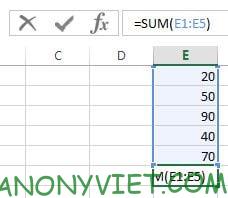
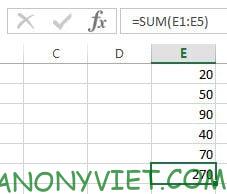
As shown in the image above, I had five numbers and wanted to add them together, so I used the SUM function to calculate the total from cell E1 to cell E5 by entering =SUM(E1: E5).
Additionally, you can also enter individual cells separated by commas if the cells are not consecutive.
7. Integrate conditional formatting
In recent years, Microsoft Excel has evolved into a powerful tool for creating dashboards as well as regular spreadsheets. Creating dashboards in Microsoft Excel can achieve many benefits, depending on your needs. One of the tips to learn Excel quickly is to use the features available on the toolbar.
Conditional formatting is a way for you to create differences in data when different conditions exist. For example: Color red for cells with even numbers, black for people under 18 years old.
For these reasons, I will use conditional formatting to quickly filter some data. Select data and enter Home > Conditional Formatting.
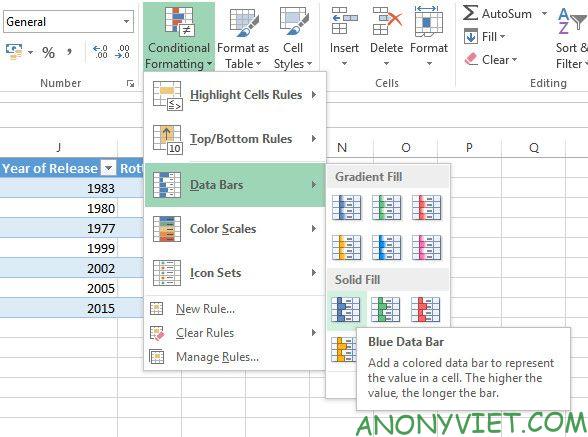
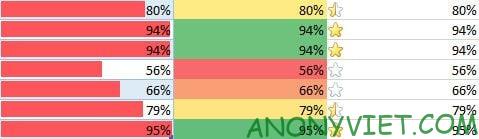
You’ll find tons of different formatting options. I chose percentage, your spreadsheet has become more intuitive, and you can also use colors as you like.
8. Add a trendline to the chart
The key to Become a Microsoft Excel expert is to use all the tools the software offers to create the perfect chart for your needs. Trend line (trendline) is one of many ingredients that you should consider.
Click the chart and then click Chart Elements there is a plus icon.
You can quickly add a trendline by clicking the arrow on the right to access more detailed options.
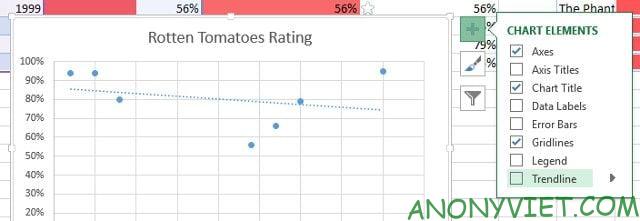
Trend lines aren’t always helpful, so think carefully about the data you’re presenting. Also, consider whether the trendline contributes to your chart or just makes things more confusing.
Frequently asked questions
Can I learn Microsoft Excel quickly?
Sure! Breaking the learning process into small, manageable parts will help you learn more effectively. Focus on each basic function before moving on to advanced features.
What good resources are there to learn Excel?
This article provides 8 useful Excel learning tips. Additionally, you can find many tutorials, online courses, and other reference materials on the internet.
How do I apply what I’ve learned into practice?
Start by practicing simple calculations, using AutoSum, formatting numbers, and creating simple tables. Then experiment with functions, conditional formatting, and creating charts to improve your skills.