
• Home
  • News
  • Software
  • Knowledge
  • MMO
  • Tips
  • Security
  • Network
  • Office
AnonyViet - English Version
  • Home
  • News
  • Software
  • Knowledge
  • MMO
  • Tips
  • Security
  • Network
  • Office
No Result
View All Result
  • Home
  • News
  • Software
  • Knowledge
  • MMO
  • Tips
  • Security
  • Network
  • Office
No Result
View All Result
AnonyViet - English Version
No Result
View All Result

4 ways to turn off Hyper-V on Windows 11/10 that you may need

AnonyViet by AnonyViet
June 7, 2024
in Tips
0

You are looking for a solution to disable Hyper-V and improve your computer's performance? Let's see 4 ways to turn off Hyper-V on Windows 11/10 through the article below!

Join the channel Telegram belong to AnonyViet 👉 Link 👈

Overview of Hyper-V

Hyper-V is a level one hypervisor available in Windows Pro, Education, and Enterprise editions. It allows you to create virtual machines and install any Windows operating system in them.

Hyper-V also supports Linux and FreeBSD, helping you experiment and learn how to use both old and new operating systems as well as install discontinued software.
Hyper-V
Overview of Hyper-V

In spite of Hyper-V There are many great applications, users often do not need a hypervisor for daily use. In addition, it can also cause conflicts with third-party applications if you are using another virtualization tool, causing you to encounter errors while using the computer.

4 ways to turn off Hyper-V on Windows 11/10

Method 1: Use Control Panel

This is the simplest method to disable Hyper-V.

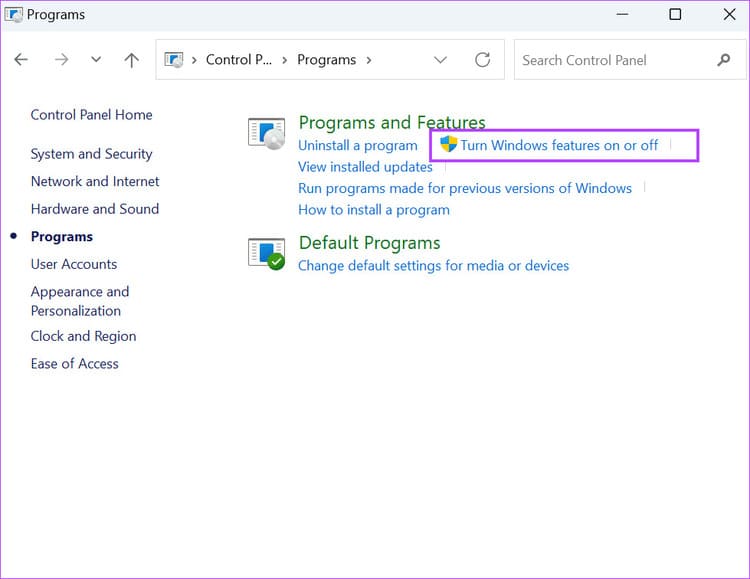
Step 1: Just open Control Panel > Select 'Programs' > Go to Programs and Features and select 'Turn Windows features on or off'.
Hyper-V
Select 'Turn Windows features on or off'.

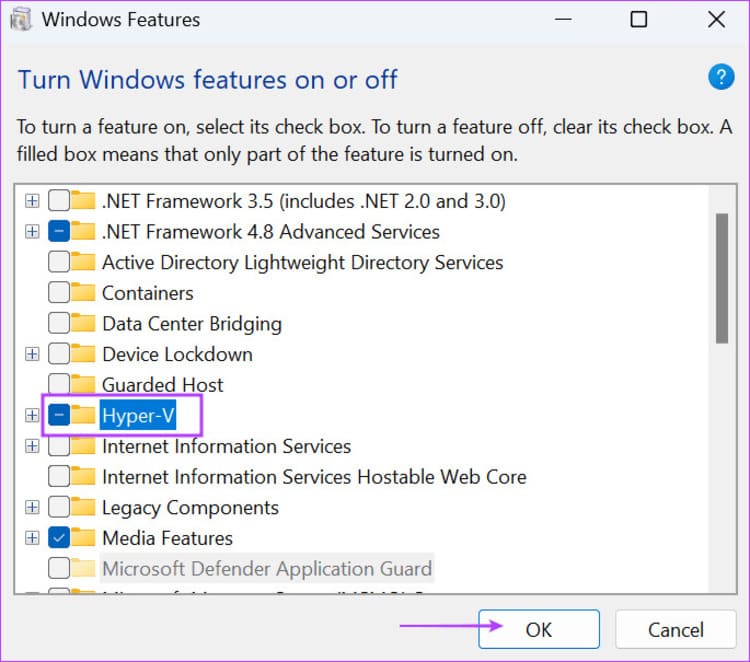
Step 2: Find Hyper-V and uncheck it.
Hyper-V
Uncheck Hyper-V

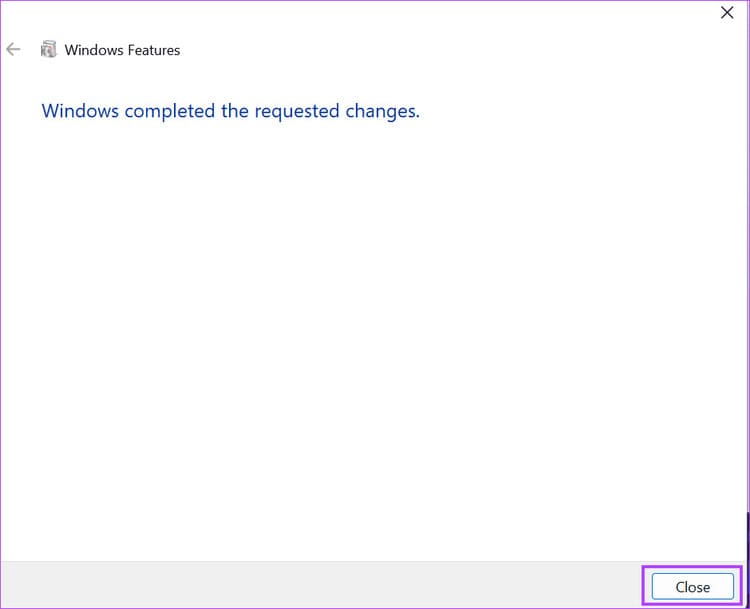
Step 3: Wait for Windows to remove Hyper-V from your PC. Then click the 'Close' button.
Hyper-V
Click on the 'Close' button.

Step 4: Restart your PC.

Method 2: Use BCDEdit command

In addition to the above, you can use the BCDEdit command line tool to manage the hypervisor launch mode.

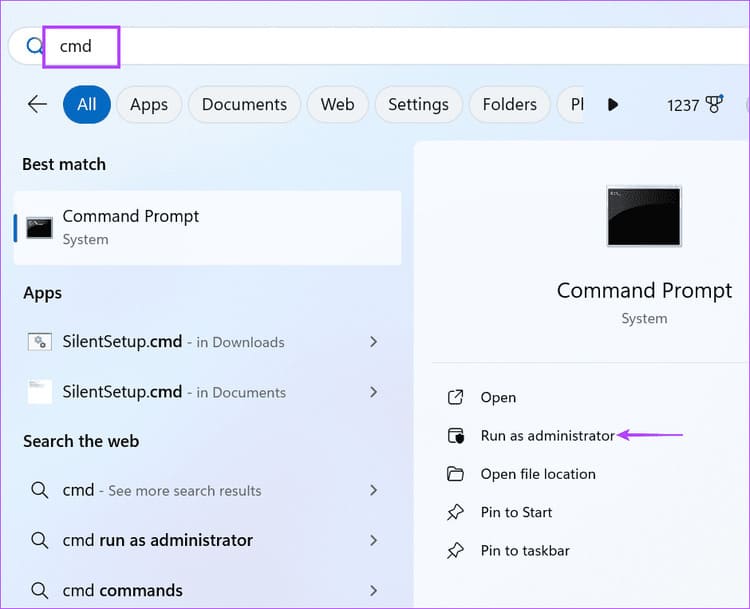
Step 1: Press the Windows key to open the Menu > Enter 'cmd' in the search box > Select 'Run as administrator' > Click 'Yes'
Hyper-V
Type 'cmd' in the search box

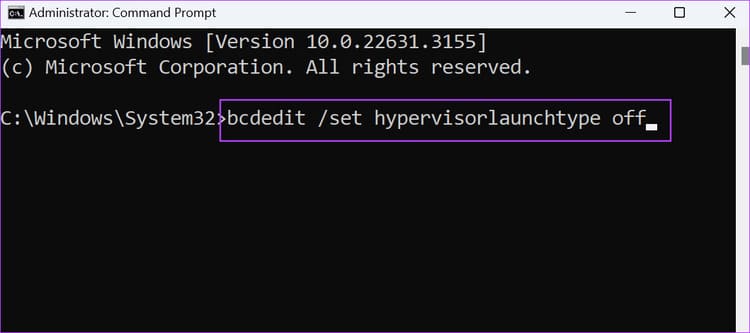
Step 2: Paste the following command line into the Command Prompt window > Press Enter:

bcdedit /set hypervisorlaunchtype off
Hyper-V
Paste the command line into the Command Prompt window

Step 3: Close the Command Prompt window > Restart your PC to apply the changes.

Method 3: Use DISM command

DISM is a command line tool that helps repair component repositories Windows, but can also be used to manage Hyper-V. Remember that you must be connected to the Internet to use the DISM tool. Here's how:

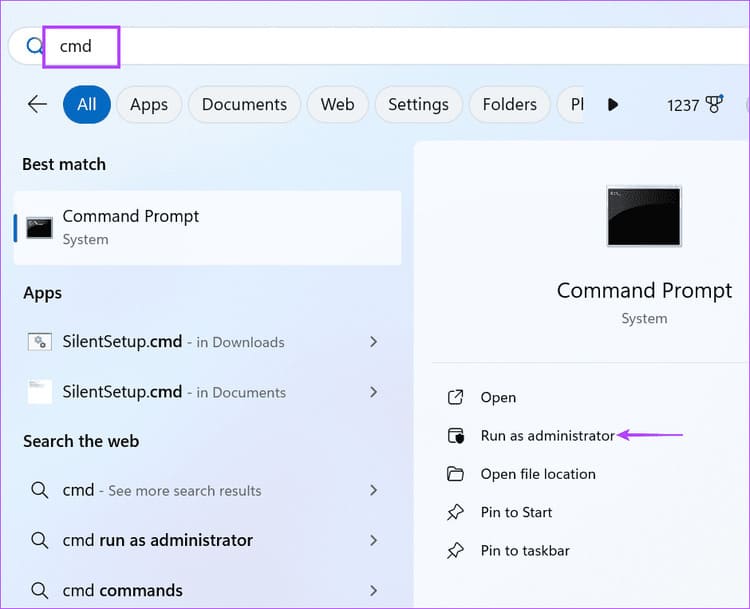
Step 1: Type 'cmd' in the search box > Select 'Run as administrator' > Select 'Yes'
Hyper-V
Type 'cmd' in the search box

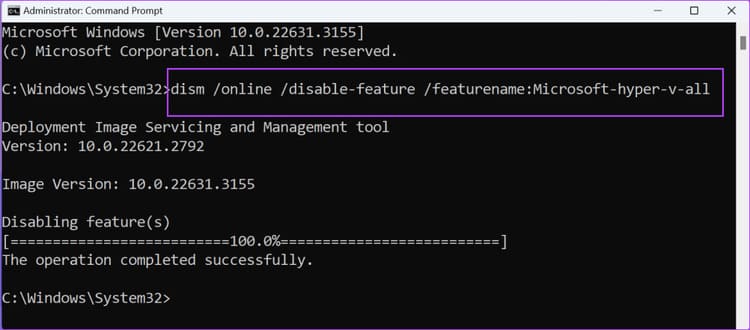
Step 2: Enter the following command and press Enter to execute it:

dism /online /disable-feature /featurename:Microsoft-hyper-v-all
Hyper-V
Type the following command and press Enter

Step 3: Close the window and restart your computer.

Method 4: Use PowerShell

If Command Prompt doesn't work, you can use a cmdlet in PowerShell to disable Hyper-V. Proceed as follows:

Step 1: Press the Windows key to open the Start Menu > Type 'PowerShell' in the search box and click on the 'Run as administrator' option > Press 'Yes'
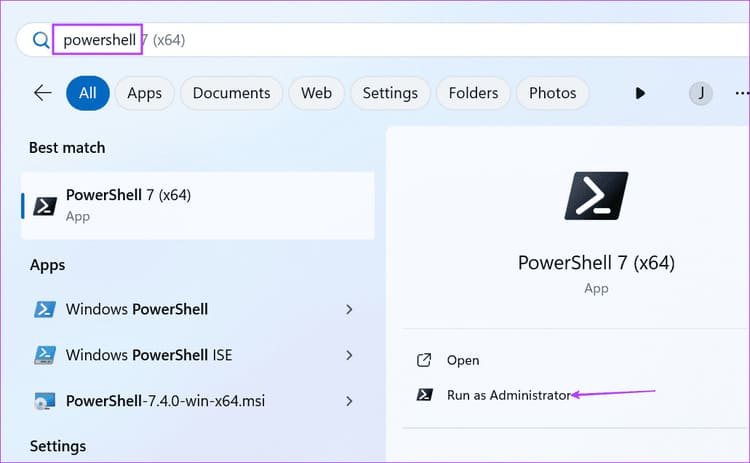
Hyper-V
Type 'PowerShell' in the search box

Step 2: Enter the following command in the PowerShell window > Enter:

Disable-WindowsOptionalFeature -Online -FeatureName Microsoft-Hyper-V-All
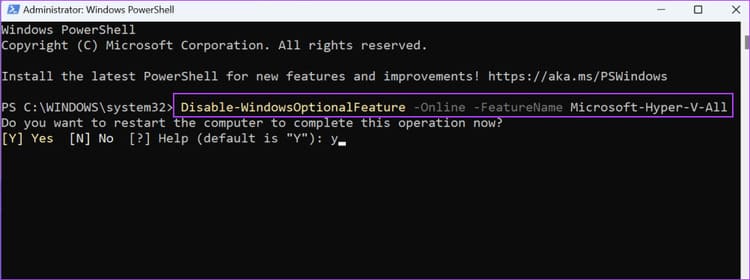
Hyper-V
Enter the following command

Step 3: Type Y and press Enter to restart your PC
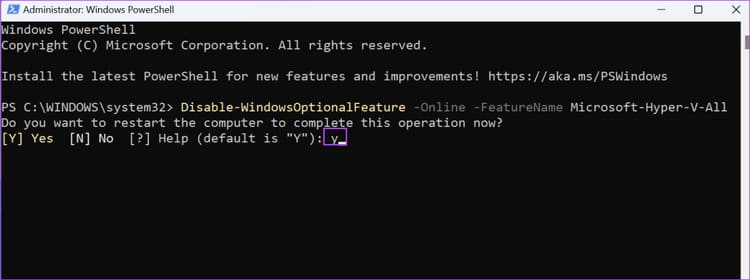
Hyper-V
Type Y and press Enter

Frequently asked questions

Is it okay if Hyper-V is disabled?

No problem! You can turn off Hyper-V if you no longer need it. This is also useful if you want to use other virtualization software like VirtualBox.

What happens if I delete Hyper-V?

Since this is an optional feature, nothing will happen after you remove it from your Windows PC. Don't worry because you can reinstall it later.

Epilogue

Hyper-V is a native virtualization feature that works very well. However, it can become an obstacle if you want to use VirtualBox or another virtualization application. Now you know 4 ways to disable Hyper-V in Windows. Please share your favorite method in the comments!


Tags: HyperVturnwaysWindows
Previous Post

Instructions for emulating Windows 10X on Windows 10 to try it out

Next Post

Instructions for uploading files to Google Drive using extension

AnonyViet

AnonyViet

Related Posts

How to see your email account creation date
Tips

How to see your email account creation date

November 11, 2025
Microsoft’s ranking of the 10 best Windows versions
Tips

Microsoft’s ranking of the 10 best Windows versions

November 11, 2025
Recover deleted data on Windows 10 with Windows File Recovery
Tips

Recover deleted data on Windows 10 with Windows File Recovery

November 10, 2025
Tips

Why hasn’t your computer been updated to Windows 10 2004?

November 9, 2025
3 OCR Tools Extract Text from Images without Retyping
Tips

3 OCR Tools Extract Text from Images without Retyping

November 8, 2025
Ways hackers use to hack your Facebook and how to fix it
Tips

Ways hackers use to hack your Facebook and how to fix it

November 7, 2025
Next Post
Instructions for uploading files to Google Drive using extension

Instructions for uploading files to Google Drive using extension

0 0 votes
Article Rating
Subscribe
Login
Notify of
guest

guest

0 Comments
Oldest
Newest Most Voted
Inline Feedbacks
View all comments

Recent News

How to create an order on Shopee to send items to relatives

How to create an order on Shopee to send items to relatives

November 12, 2025
How to install Anh Hai’s Pho Shop on MacBook is super easy

How to install Anh Hai’s Pho Shop on MacBook is super easy

November 11, 2025
How to turn off ads on Yoosee app in just 1 minute

How to turn off ads on Yoosee app in just 1 minute

November 11, 2025
Windows 11 and MS Office 2021 lifetime license, genuine from  during Keysoff’s 11.11 sale

Windows 11 and MS Office 2021 lifetime license, genuine from $14 during Keysoff’s 11.11 sale

November 11, 2025
How to create an order on Shopee to send items to relatives

How to create an order on Shopee to send items to relatives

November 12, 2025
How to install Anh Hai’s Pho Shop on MacBook is super easy

How to install Anh Hai’s Pho Shop on MacBook is super easy

November 11, 2025
How to turn off ads on Yoosee app in just 1 minute

How to turn off ads on Yoosee app in just 1 minute

November 11, 2025
AnonyViet - English Version

AnonyViet

AnonyViet is a website share knowledge that you have never learned in school!

We are ready to welcome your comments, as well as your articles sent to AnonyViet.

Follow Us

Contact:

Email: anonyviet.com[@]gmail.com

Main Website: https://anonyviet.com

Recent News

How to create an order on Shopee to send items to relatives

How to create an order on Shopee to send items to relatives

November 12, 2025
How to install Anh Hai’s Pho Shop on MacBook is super easy

How to install Anh Hai’s Pho Shop on MacBook is super easy

November 11, 2025
  • Home
  • Home 2
  • Home 3
  • Home 4
  • Home 5
  • Home 6
  • Next Dest Page
  • Sample Page

new88 trang chủ shbet trang chủ f168 trang chủ qq88 nhà cái 78win

No Result
View All Result
  • Home
  • News
  • Software
  • Knowledge
  • MMO
  • Tips
  • Security
  • Network
  • Office

new88 trang chủ shbet trang chủ f168 trang chủ qq88 nhà cái 78win

wpDiscuz
0
0
Would love your thoughts, please comment.x
()
x
| Reply





