Windows 11 has integrated Microsoft’s AI Copilot assistant, including the “Ask Copilot” option to appear in the right -click menu. This feature will automatically download the file to Copilot to interact with AI, but not everyone needs or want to use it. Anonyviet will show you how Remove Ask Copilot from the right mouse menu In detail, easy to understand, with methods suitable for all users.
| Join the channel Telegram belong to Anonyviet 👉 Link 👈 |
The “Ask Copilot” option may be convenient for those who often use AI to handle files, but it also brings some inconveniences:
- Right -click menu longer, spending time searching for the necessary options.
- The wrong click can lead to downloading files to Copilot, causing privacy concerns.
- On some low -configuration machines, the right mouse menu can respond slower.
If you want Right -click menu Neat, fast and without this feature, the removal of “Ask Copilot” is a worthy choice. Here are effective methods to do that.
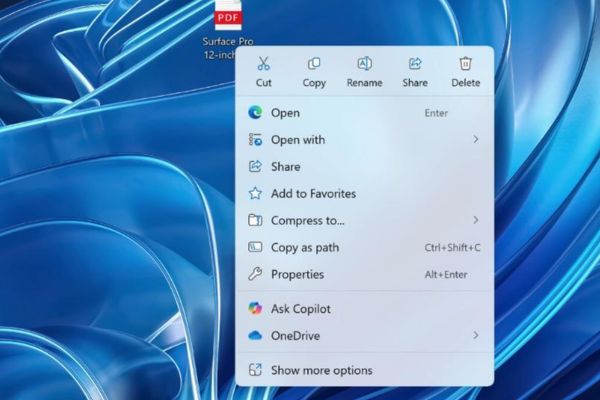
Method 1: Remove Ask Copilot with Registry Editor
Modify Windows Registry is the fastest and most effective way to remove Ask Copilot from the right -click menu without completely uninstalling Copilot application. This method is suitable for individual users and allows easy recovery if necessary.
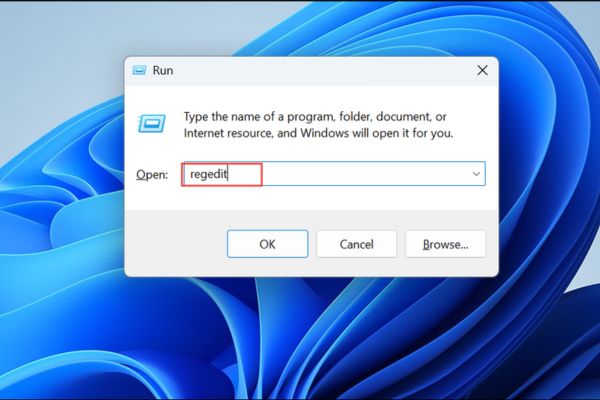
Step 1: Press the key combination Windows + R To open the dialog box> type Regedit and click Enter.
If the usice of User Account Control (UAC) appears, select Yes To continue.
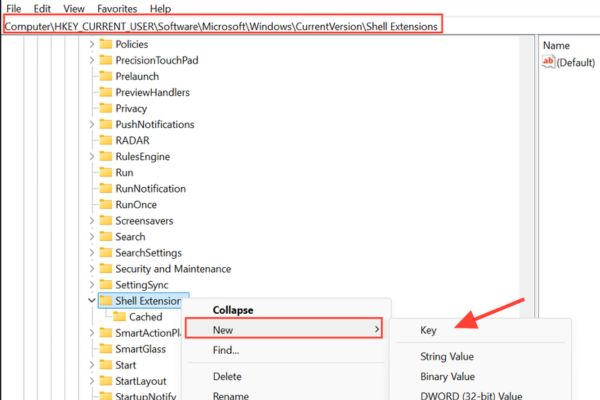
Step 2: In the Registry Editor, move to the following link:
HKEY_CURRENT_USER\Software\Microsoft\Windows\CurrentVersion\Shell Extensions\Blocked
If the Blocked lock does not exist: right -click on Shell Extensionsselect New> Key > Name the new lock Blocked.
Step 3: Right -click on the empty area on the right of the Blocked lock, select New> String Value.
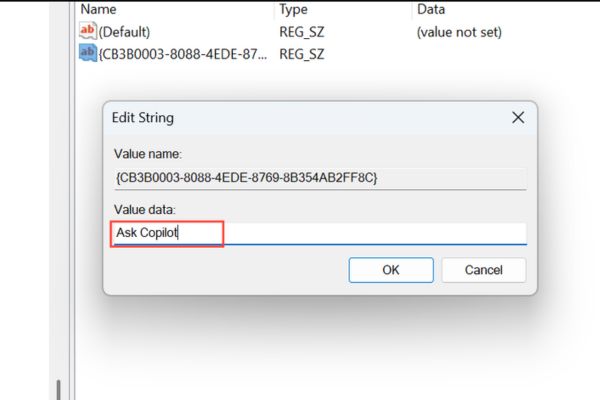
Name the new value is: {CB3B0003-8088-4EDE-8769-8B354AB2FF8C}
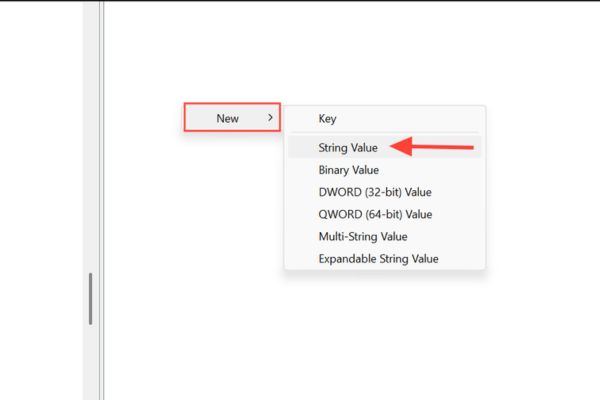 Choose New> String Value
Step 4: Double click on the newly created value, enter the Value Data name is: Ask Copilot
Press OK To save.
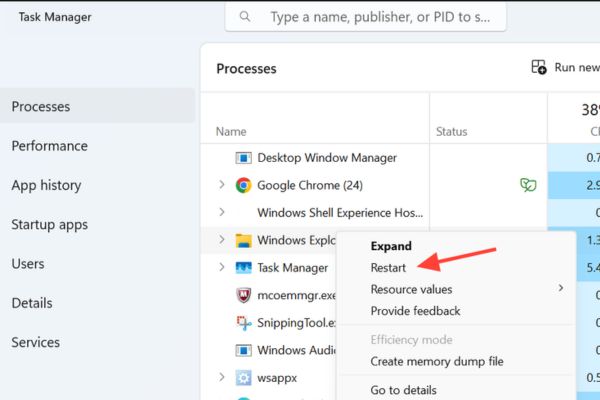
Step 5: Press Ctrl + Shift + Esc To open Task Manager> Find Windows Explorer in the list, right click and select Restart.
In addition, you can restart the computer to apply changes.
Once completed, the “Ask Copilot” option will disappear from the right -click menu when you click on the file in the Explorer file or on the desktop.
Method 2: Remove Ask Copilot for all user accounts on the computer
If you want to remove Ask Copilot from the right -click menu for all user accounts on the computer (suitable for shared computers), do the following:
Step 1: Press Windows + R, knock Regeditclick Enter> confirm Yes If UAC appears.
Step 2: Navigate to the Registry lock
HKEY_LOCAL_MACHINE\SOFTWARE\Microsoft\Windows\CurrentVersion\Shell Extensions\Blocked
If the Blocked lock is not available, creating it as new as possible.
Step 3: Create a new string value with the name: {CB3B0003-8088-4EDE-8769-8B354AB2FF8C}
Put Value Data: Ask Copilot
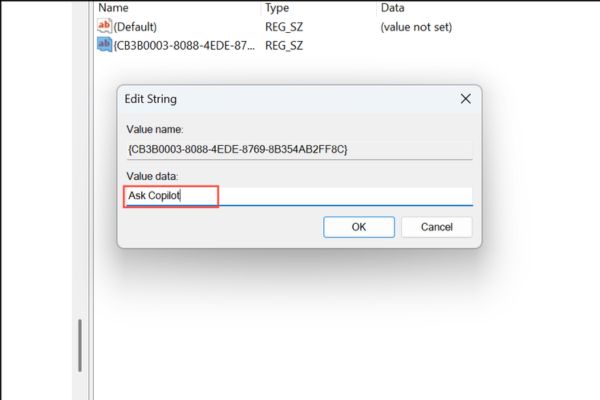
Step 4: Close Registry Editor> Restart Windows Explorer or computer to apply changes.
This method ensures “Ask Copilot” does not appear in the right -click menu of any user on the system.
Method 3: Uninstall the Copilot application
If you do not need any Copilot feature, remove the application is a thorough way to remove Ask Copilot from the right -click menu and eliminate all its integration on Windows.
Step 1: Press Windows + I in Settings> Select Apps> Installed Apps.
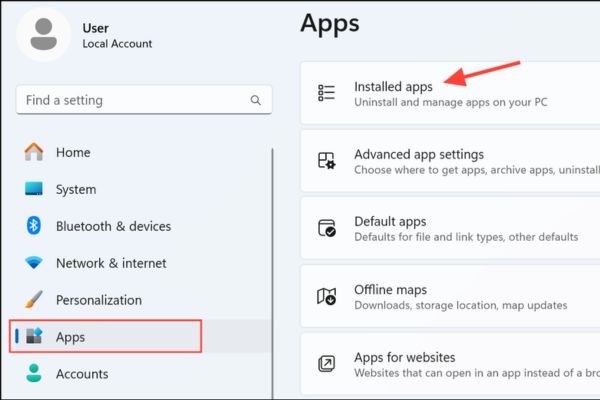
Step 2: Roll or use the search bar to find Copilot.
Step 3: Click the three -dot icon next to Copilot, select Uninstall. Confirm the reminders to complete the installation process.
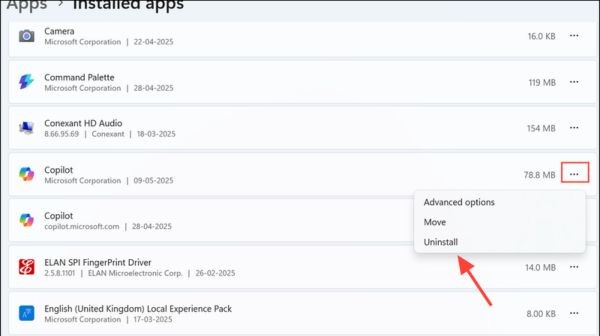
Step 4: Restart the PC to ensure that all changes are applied and the background processes of the Copilot are deleted.
Note: Uninstalling Copilot will delete all its features, not only the option in the right -click menu. If you still want to keep Copilot but just make the menu neat, select the Registry method.
Method 4: disable Copilot through Group Policy
For versions of Windows Pro, Enterprise or Education, you can disable the entire system COPilot with Group Policy Editor, and remove Ask Copilot from the right mouse menu.
Step 1: Press Windows + Rtype GPEDIT.MSCclick Enter.
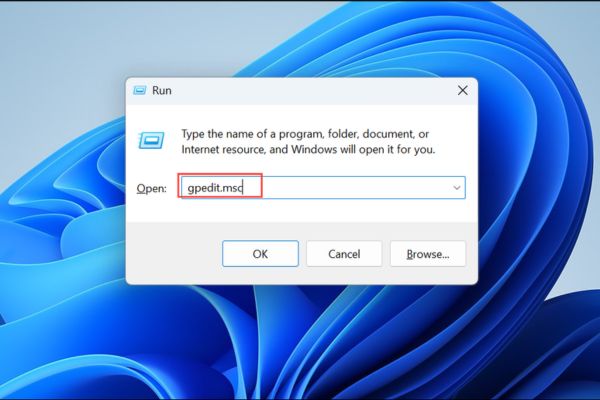
Step 2: Move to: User Configuration> Administrative Templates> Windows Components> Windows Copilot
Step 3: Double click Turn off Windows Copilot > Select Enabledthen press Apply and OK.
Step 4: Restart the computer to apply.
Note: This method is not available on Windows Home, unless you install the third -party group editing process.
Conclude
Job Remove Ask Copilot from the right mouse menu is a simple way to optimize the experience of using Windows 11. The registry editing method is the fastest, most flexible choice for most users, while uninstalling Copilot or using Group Policy suitable for those who want to disable application completely. Depending on your needs, you can choose the right method!