• Home
  • News
  • Software
  • Knowledge
  • MMO
  • Tips
  • Security
  • Network
  • Office
AnonyViet - English Version
  • Home
  • News
  • Software
  • Knowledge
  • MMO
  • Tips
  • Security
  • Network
  • Office
No Result
View All Result
  • Home
  • News
  • Software
  • Knowledge
  • MMO
  • Tips
  • Security
  • Network
  • Office
No Result
View All Result
AnonyViet - English Version
No Result
View All Result

3 ways to keep Always on Top software on Windows 10

AnonyViet by AnonyViet
November 17, 2024
in Tips
0

When you're working on Windows with limited screen space, it's helpful to have some windows always on top of other windows. It's called Always on Top. Some programs in Windows have this feature built-in. But most of the remaining programs don't have it, and Windows doesn't include this feature either.

Join the channel Telegram belong to AnonyViet 👉 Link 👈

In this article, I will show you three ways to make the software always display on the screen. The software you specify will always be displayed on the screen and overlay other screens.

3 ways to keep Always on Top software on Windows 10

1. Use AutoHotkey

AutoHotkey is a free program that allows you to create scripts to perform multiple tasks with a single keyboard shortcut. It's lightweight when running in the background and stays in the system tray so you can easily turn it off when needed.

I will use it AutoHotkey to create a script that keeps the selected window in the Always on Top state when you click Ctrl + spacebar. You can also download the pre-coded AutoHotkey file.

Download and install AutoHotkey.

Download files AlwaysOnTop.zipunzip the downloaded file, and place it on your hard drive, remember not to move or delete it.

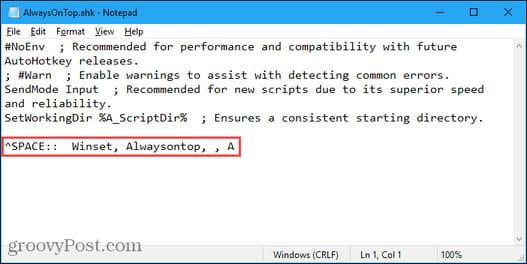
Please pay attention to the command line below:

^SPACE::  Winset, Alwaysontop, , A

This command will set the currently active window to always be on top when you press it Ctrl + Spacebar. If you use a different key combination, you can change the first part of the command to “^SPACE“. The character “^” represents the key Ctrl. You'll find symbols to use for your keystrokes on the home page of AutoHotkey.How to make the software always display on the screen
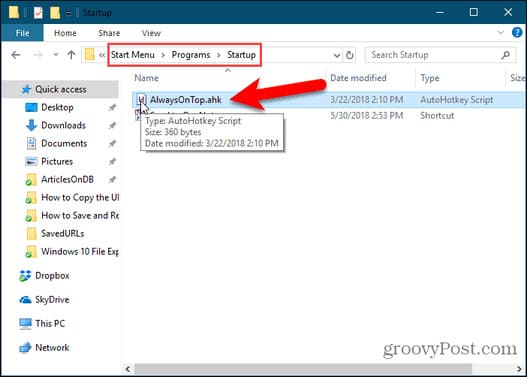
You can put this file in Windows startup folder (%AppData%\Microsoft\Windows\Start Menu\Programs\Startup), it will automatically open when Windows starts.3 ways to keep Always on Top software on Windows 10
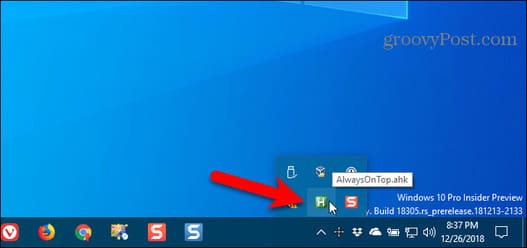
AutoHotkey will be in the system tray.

To make the current window always on top, press Ctrl + Spacebar (or the keyboard shortcut you assigned). Press the shortcut again to disable the Always on Top feature for the active window.3 ways to keep Always on Top software on Windows 10
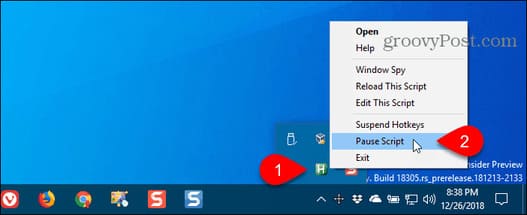
Right-click the AutoHotkey icon to see more options.3 ways to keep Always on Top software on Windows 10
2. Use mouse with DeskPins

DeskPins provides pin icons for you that you can grab and use to keep any window that activates the Always on Top status. The program sits in the system tray and uses very few resources.

Download and install DeskPins. Run the program, right click on the DeskPins icon in the system tray and select Options to change Pins, Autopin, and Hotkeys settings.

3 ways to keep Always on Top software on Windows 10

On tabs Pins, You can change the pins. Tracking rates check the position and status of pinned windows. When you set a lower value then it will check more in seconds. If it checks that the pinned window is below another window, it pushes the pinned window up. You can enter from 10 to 1000msec (milliseconds).

If you are using an old PC, you can increase Tracking rates to avoid slowing down your computer.

You can also choose Single click or Double click below section Tray Icon Activation to pin the window. Default is Single click.3 ways to keep Always on Top software on Windows 10
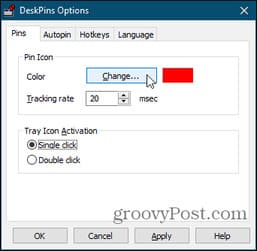
You can use DeskPins to automatically pin certain types of windows using rules on the Autopin tab.

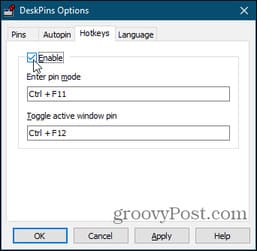
Select Enable and press Add to add new rules. Check each box (dialog box) to enable and disable rules.

Click Help for more information about auto-pinning windows.3 ways to keep Always on Top software on Windows 10

DeskPins provides default keyboard shortcuts for entering pin mode and switching pinned windows. You can change these shortcuts on the Hotkeys tab.3 ways to keep Always on Top software on Windows 10
To pin the current window, click (or double-click, depending on settings) on the DeskPins icon in the system tray.
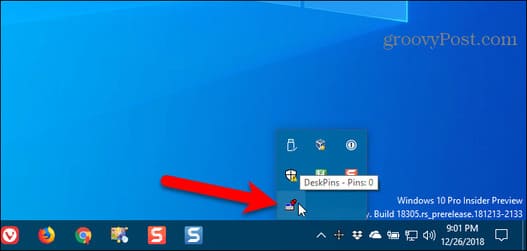
3 ways to keep Always on Top software on Windows 10

Then, click on the title bar of the software you want to pin.3 ways to keep Always on Top software on Windows 10
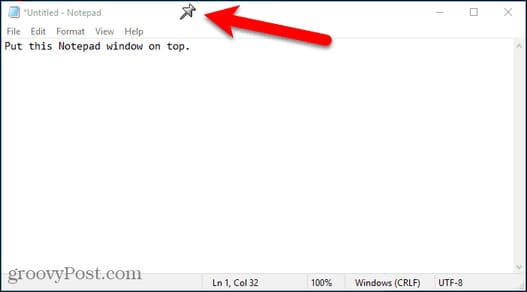
The pin icon will display on the software's title bar, by default it will be red.

Click the battery icon again to disable Always on Top status.3 ways to keep Always on Top software on Windows 10

3. Use Turbo Top

TurboTop also resides in your system tray just like DeskPins. But it works differently from DeskPins.

Download and install TurboTop. After installation is complete, open the software.

To keep the window Always on Top, click the TurboTop icon in the system tray. You will see a list of all open windows. Select the window you want.3 ways to keep Always on Top software on Windows 10
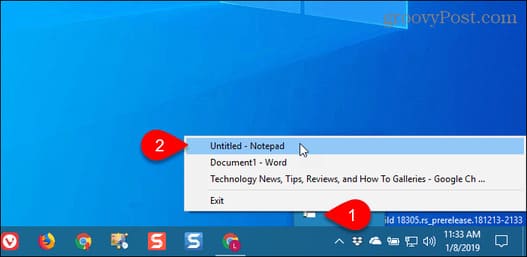
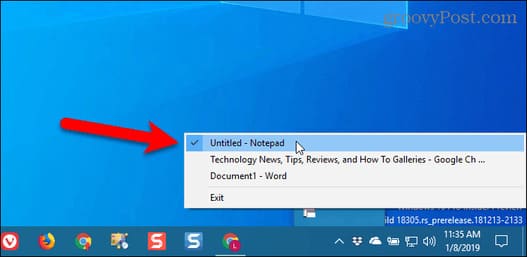
Any window you select will have a check mark on TurboTop's menu.

To stop keeping that window on top, click the TurboTop icon in the system tray and select the window again.Always on Top
You can see more tips here: 10 Great Tips on Desktop Windows 10 that you may not know.

Previous Post

Pulsedive: Tool to enhance computer network security

Next Post

How to use Gemini AI on iOS: Vietnamese voice chat, create photos,…

AnonyViet

AnonyViet

Related Posts

How to write Shell Script in Linux/Unix
Tips

How to write Shell Script in Linux/Unix

December 6, 2025
How to completely uninstall WSL on Windows 11?
Tips

How to completely uninstall WSL on Windows 11?

December 6, 2025
Kinh nghiệm mua Laptop cho sinh viên nhóm ngành kế toán, kinh tế, xã hội…
Tips

Kinh nghiệm mua Laptop cho sinh viên nhóm ngành kế toán, kinh tế, xã hội…

December 5, 2025
8 tips for more successful PowerPoint presentations
Tips

8 tips for more successful PowerPoint presentations

December 4, 2025
Chrome extensions to improve productivity in 2021
Tips

Chrome extensions to improve productivity in 2021

December 2, 2025
How to create photos that run KPIs while crying using Gemini for the 12 zodiac animals
Tips

How to create photos that run KPIs while crying using Gemini for the 12 zodiac animals

December 1, 2025
Next Post
How to use Gemini AI on iOS: Vietnamese voice chat, create photos,…

How to use Gemini AI on iOS: Vietnamese voice chat, create photos,...

0 0 votes
Article Rating
Subscribe
Login
Notify of
guest

guest

0 Comments
Oldest
Newest Most Voted
Inline Feedbacks
View all comments

Recent News

How to transfer music from other services to Apple Music, no app required

How to transfer music from other services to Apple Music, no app required

December 8, 2025
How to create Mind Map and Flowchart using ChatGPT is super simple

How to create Mind Map and Flowchart using ChatGPT is super simple

December 7, 2025
Free Gemini Google certification exam guide and Answers

Free Gemini Google certification exam guide and Answers

December 6, 2025
How to write Shell Script in Linux/Unix

How to write Shell Script in Linux/Unix

December 6, 2025
How to transfer music from other services to Apple Music, no app required

How to transfer music from other services to Apple Music, no app required

December 8, 2025
How to create Mind Map and Flowchart using ChatGPT is super simple

How to create Mind Map and Flowchart using ChatGPT is super simple

December 7, 2025
Free Gemini Google certification exam guide and Answers

Free Gemini Google certification exam guide and Answers

December 6, 2025
AnonyViet - English Version

AnonyViet

AnonyViet is a website share knowledge that you have never learned in school!

We are ready to welcome your comments, as well as your articles sent to AnonyViet.

Follow Us

Contact:

Email: anonyviet.com[@]gmail.com

Main Website: https://anonyviet.com

Recent News

How to transfer music from other services to Apple Music, no app required

How to transfer music from other services to Apple Music, no app required

December 8, 2025
How to create Mind Map and Flowchart using ChatGPT is super simple

How to create Mind Map and Flowchart using ChatGPT is super simple

December 7, 2025
  • Home
  • Home 2
  • Home 3
  • Home 4
  • Home 5
  • Home 6
  • Next Dest Page
  • Sample Page

trang chủ f168 nhà cái 78win https://www.qq8827.com/

No Result
View All Result
  • Home
  • News
  • Software
  • Knowledge
  • MMO
  • Tips
  • Security
  • Network
  • Office

trang chủ f168 nhà cái 78win https://www.qq8827.com/

wpDiscuz
0
0
Would love your thoughts, please comment.x
()
x
| Reply