Today, I will join you to learn 27 interesting tricks on CMD that you may not know. For example, how to stop a command or watch Star Wars on the Command Prompt. Windows Command Prompt can seem like a completely foreign world to GUI users. But users who have used Command Prompt will know its power and use interesting tricks and hacks.
| Join the channel Telegram of the AnonyViet 👉 Link 👈 |
Let’s start with the fun stuff first!
How to use CMD on Windows 10?
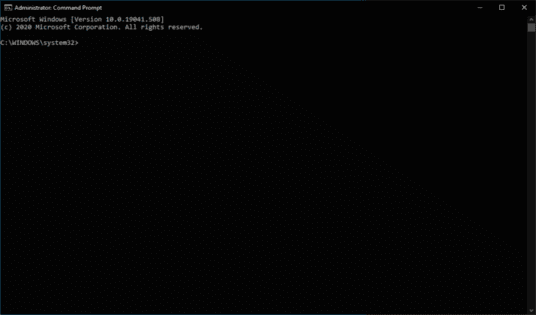
You probably think everyone knows how to use Command Prompt, but there are still some people who don’t know how to open and use Command Prompt. So if you already know, skip this part, you can activate Command Prompt by typing CMD in Windows Search. Right click on CMD and select Run as administrator let it run with admin rights.
Alternatively, you can also open a dialog box Run (Windows + R)> type cmd and press enter. It doesn’t matter whether you are using Windows 10 or earlier versions, the method is the same.
27 interesting things on Command Prompt
1. View command history
Using below command you can track your command history. This will come in handy when you’re trying to find some commands that you’ve used in the past but can’t remember.
doskey /history
2. Run multiple commands
If you need to run 2 commands at the same time, you can try this way. You just need to put “&&” between each command to save more time. For example, here’s how to run ipconfig and paint.
ipconfig && mspaint
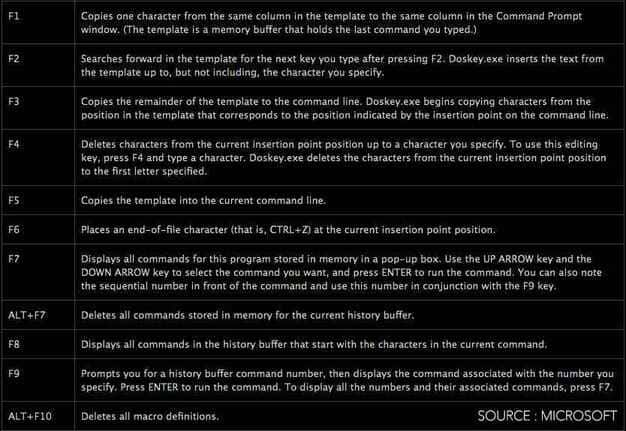
3. Using the Function keys
One of the very useful Command Prompt tricks is using function keys. These keys can do a lot of things on CMD.
4. View the list of PC drivers
Using a simple command, you can view all the drivers installed on your computer. All you need to do is run the driver query command and you will see a list of all the drivers along with their name, type and other information.
driverquery
5. Send the results to the clipboard
Are you someone who often needs to save the results of a command? Usually, people use copy and paste. However, with a simple command, you can send the results of the command to the Windows clipboard. Here’s how to send ipconfig information to the clipboard:
ipconfig | clip
6. Cancel the order
This handy trick has the potential to come to your rescue when you run a command and need to stop it right away? To do that, you just need to press Ctrl + C. It is to stop the command, not to complete the command.
7. Decorate Command Prompt
You can change the color of Windows Command Prompt to make it more eye-catching. To do this, right-click the top corners of the Command Prompt window and select Properties. There, find the Colors tab and find options to change the background and text colors.
8. Create a Wi-Fi Hotspot
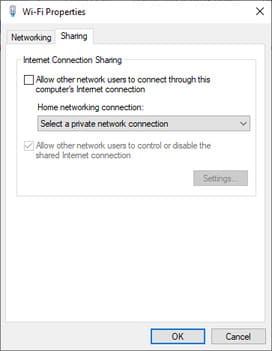
Before opening Command Prompt to execute the necessary commands for this, you need to open Control Panel and find Change adapter settings in options Network and Sharing. There, click on the connection you are using and click Properties. Now look for the tab sharing and select “Allow other network users to connect through this computer’s internet connection.”
Now open Command Prompt with admin rights and enter the following command:
netsh wlan set hostednetwork mode=allow ssid=Yourhotspotname key=yourpassword
Then, enter the following command to start creating a Wi-Fi hotspot:
netsh wlan start hostednetwork
To stop the access point, simply enter the following command:
netsh wlan stop hostednetwork
9. Scan system files for problems
The sfc /scannow command will run the system file checker tool to scan Windows system files and look for problems. If some files are missing or damaged, this command will fix them.
sfc /scannow
10. Start using batch files
If you want to use command prompt commands more than once and don’t want to use each command every time, you can create scripts to help you automate the work. You can learn more about this here.
11. Troubleshooting with DNS resolver cache
You probably know that DNS (Domain Name System) is an extremely important thing that you cannot ignore when connecting to the internet. To access web pages faster, your computer usually maintains a local DNS resolver cache. But sometimes, the cache can get corrupted and you can’t access your favorite websites.
In that case, you can try this command to save time. You can use the Ipconfig utility to clear the DNS cache.
ipconfig /flushdns
You can read more tips Command prompt and learn how to do it in the article Some cool tricks you can do on CMD. Includes the following techniques:
12. Stop command running on CMD
13. Command Prompt settings menu
14. Shortcuts in Command Prompt
15. Enter multiple commands at once
16. View running tasks and display network connection information
17. List all device drivers on your PC (Driver)
18. Delete temporary files in the drive
19. Open the virtual keyboard
20. Computer shutdown timer
21. Create Wifi Hotspot and View Wifi Password
22. Command to quickly fix network connection problems
23. Quick fix for startup problems
24. Quick fix errors on Windows
25. Encrypt, Compress or Back Up Files
26. Generate reports about your system
27. Watch Star Wars Episode 4 ASCII Version
Replace CMD: Powershell and Windows Terminal
Over the years, Microsoft has begun to move from the old Command Prompt to the modern Powershell successor. If you can spot, the places where you might have seen CMD before will show the Powershell option because that’s the default shell in Windows 10. For example, in the context menu of the Start button.
You can use it because commands for CMD also work on Powershell.
Furthermore, Microsoft has developed a brand new command line experience in the form of a new application called Windows Terminal. It combines things like Command Prompt, Powershell and Windows Subsystem for Linux.
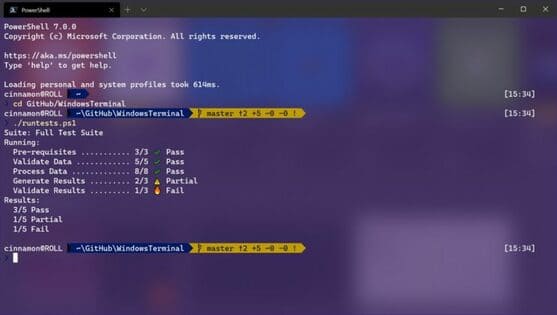
Unlike CMD and Powershell, Windows Terminal is not pre-loaded on Windows 10 and you can download it from the Microsoft Store. One thing to note is that Windows Terminal is not available for older versions of Windows.