Do you know different ways to exit the Windows Desktop? You may get used to accessing the screen by minimizing all your active applications and programs. However, it is not the most optimal way if you have many windows open.
| Join the channel Telegram of the AnonyViet 👉 Link 👈 |
So, in this article, I will guide you 10 ways to see the Desktop screen fastest.
10 fastest ways to exit the Windows Desktop screen
1. Click on the bottom right corner of the Taskbar
Have you ever noticed the little vertical stripe at the bottom right of the taskbar? You can access the Desktop just by left clicking on it. To restore your active windows, simply click the vertical stripe again. This is the easiest way to switch between active windows and the desktop.
If you can’t left-click on that vertical stripe, here’s what you can do:
1. Right click on the vertical stripe.
2. Select Show desktop.
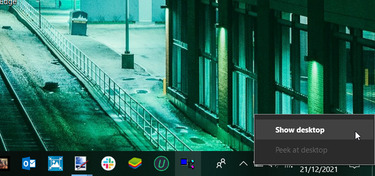
To restore your active windows, right click on the vertical stripe and select it again Show desktop.
2. Use keyboard shortcuts
There are many keyboard shortcuts that you can use on your Windows device. Did you know that there is also a shortcut that helps you quickly access the screen?
All you need to do is press Win + D. This will instantly minimize all windows and bring you straight to the Desktop. To restore your windows, just press this shortcut again.
3. Right click on taskbar
There is another way to access the desktop through the Taskbar. All you have to do is right click on an empty space on the Taskbar and then click Show the desktop.
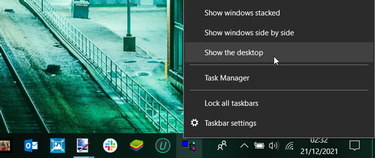
To restore your windows, right click on the Taskbar again and select Show open windows.
Note: you need to click on an empty space on the Taskbar. If you right-click the application on the taskbar, other options will be displayed.
You can use the Quick Access menu to access various system tools such as Event Viewer, Device Manager, and Task Manager. But did you know that this feature can also give you quick access to the Desktop?
Here’s how you can open the Windows Desktop through the Quick Access Menu:
1. Press Win + X or right-click the Windows icon on the taskbar to open the Quick Access Menu.
2. Select Desktop.
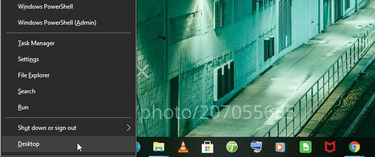
5. Using the Run window
The Run window can also help you access the Windows desktop. Here’s how to do it:
1. Press Win + R to open the Run window.
2. Type the following command and press Enter to access the screen:
%windir%\explorer.exe shell:::{3080F90D-D7AD-11D9-BD98-0000947B0257}
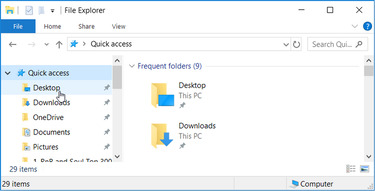
6. Use File Explorer
File Explorer is an important tool that makes it easy to deal with files and folders on a PC. However, this tool can also help you access files on your Desktop.
1. Press Win + E or click the File Explorer icon on the taskbar.
2. Select Desktop in the menu on the left.
7. Use File Explorer’s Address Bar
Have you ever tried accessing Windows system tools using File Explorer’s address bar? This feature can help you to open system settings, Device ManagerTask Manager,…
Here’s how you can use File Explorer’s address bar to access the Desktop:
1. Press Win + E to open File Explorer.
2. Type the following command in the address bar and press Enter to access the screen:
%windir%\explorer.exe shell:::{3080F90D-D7AD-11D9-BD98-0000947B0257}
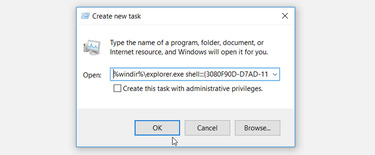
8. Use Task Manager
Task Manager is one of the important tools of Windows. This useful tool will analyze system performance or close problematic applications. But that’s not all — the tool also gives you easy access to some Windows software programs.
Here’s how you can access the desktop through the Task Manager:
1. Press Ctrl + Shift + Esc to open Task Manager.
2. Click the tab File in the upper left corner and select Run new task.
3. Enter the following command and press OK to access the screen:
%windir%\explorer.exe shell:::{3080F90D-D7AD-11D9-BD98-0000947B0257}
9. Use Command Prompt or Powershell
Command Prompt and PowerShell are often used to fix some system problems. But you can also use these tools to open different software programs.
Here’s how you can use the Command Prompt to access the desktop:
1. Press Win + R to open the Run command dialog box.
2. Type CMD and press Ctrl + Shift + Enter to open Command Prompt.
3. Type the following command and press Enter to access the screen:
%windir%\explorer.exe shell:::{3080F90D-D7AD-11D9-BD98-0000947B0257}
In the meantime, here’s how you can use PowerShell to access the desktop:
1. Press Win + R to open the Run command dialog box.
2. Type Powershell and press Ctrl + Shift + Enter to open PowerShell.
3. Type the following command and press Enter to access the screen:
%windir%\explorer.exe shell:::{3080F90D-D7AD-11D9-BD98-0000947B0257}
10. Create shortcuts
Do you enjoy creating and using your own shortcuts? If so, follow these steps.
1. Right-click an empty space on the Desktop and select New > Shortcuts.
2. In the next window, enter the following command and then press next:
%windir%\explorer.exe shell:::{3080F90D-D7AD-11D9-BD98-0000947B0257}
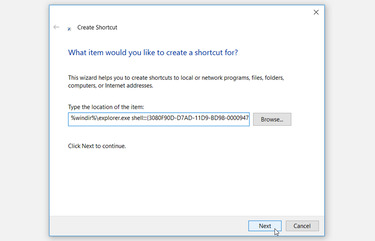
Name the shortcut Show Desktop or something similar. Click finish to complete the process.
You will see the icon Show Desktop similar to the icon of File Explorer. You can customize the shortcut’s icon by
1. Right click on the shortcut and select Properties
2. Navigate to tab Shortcut and click the button Change icon. Select your favorite icon and press OK.
3. Click Apply and then click OK to apply these changes.
Done, now you just need to click on this Shortcut on the Desktop to access the Desktop only. That’s a joke :v, you right click on the shortcut and select Pin to taskbar to paste this shortcut on the taskbar.
In addition, you can also change the folder color on Windows 10 and 11 here.