• Home
  • News
  • Software
  • Knowledge
  • MMO
  • Tips
  • Security
  • Network
  • Office
AnonyViet - English Version
  • Home
  • News
  • Software
  • Knowledge
  • MMO
  • Tips
  • Security
  • Network
  • Office
No Result
View All Result
  • Home
  • News
  • Software
  • Knowledge
  • MMO
  • Tips
  • Security
  • Network
  • Office
No Result
View All Result
AnonyViet - English Version
No Result
View All Result

What is happening when the computer is in Sleep mode

AnonyViet by AnonyViet
January 24, 2023
in Tips
0

When you select “Sleep” (Sleep mode) in the Shutdown, Restart section of Windows, how will the computer work? We will learn about the Sleep function on Windows and whether the computer will really go to sleep.

Join the channel Telegram of the AnonyViet 👉 Link 👈

What is happening when the computer is in Sleep mode

Sleep is a low power consumption mode

Sleep mode is different from shutting down the computer. When you shut down your computer, it takes longer to restart, and you must first close all open programs and data.

In contrast, Sleep mode is a power-saving state that allows the computer to quickly resume operation (usually within seconds) when you want to turn the computer back on. When you enter Sleep mode in Windows, your PC does the following:

  • The screen is off.
  • The PC saves its current state in memory.
  • The PC stops providing power to most hardware devices.
  • The PC goes into a low power state.

As long as some power continues to flow to your PC (e.g. your desktop PC remains plugged into a power outlet or your Laptop still has battery power), you won’t lose any data or state of your device. machine. When you wake up your computer, you’ll be able to resume right where you left off.

The magic of ACPI power modes

When you use Sleep mode in Windows, you simply select an option on the screen or press a button. But have you ever wondered how they work?

Sleep mode is regulated by ACPI Sleep States. ACPI (Advanced Configuration and Power Interface) is a power management technique that operating systems use to control the power state of hardware. There are six main ACPI power states, often referred to by abbreviations:

  • S0: Working
  • S1: Sleep
  • S2: Sleep
  • S3: Sleep
  • S4: Hibernation
  • S5: Soft off

S0 is your PC’s power on and running state normally. S1, S2 and S3 are descending power states. S1 and S2 are not used very often. In S1, the CPU stops executing processes, but it doesn’t lose power. In S2, your PC CPU also loses power. In S3 (commonly known as Standby or Pause to RAM), most of the PC’s components lose power except for the memory that is refreshed with minimal power. S3 is the most commonly used mode (as determined by your PC’s hardware manufacturer) when you put your PC to Sleep.

S4 is hibernation – Hibernate. In this state, your PC saves the contents of the memory to a hibernation file on the hard drive and then powers off. When you wake your PC from hibernation, it reads the hibernation file and restores your open programs and files from the hard drive. S5 is the “soft off” state. In this state, your PC is completely powered off. It’s like when you press the power button to turn off the PC.

How to put a PC into Sleep mode
What is happening when the computer is in Sleep mode 2

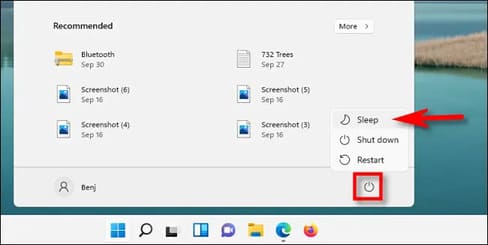
Now you know what happens when you put your PC to sleep. By default on many machines, you just need to press the power button once and your PC will automatically go into Sleep mode. If that doesn’t work, open the Start Menu, click the power icon, then select “Sleep.” Or you can press Windows + X on your keyboard, then press “U” and then press “S.” Your PC will go into Sleep mode immediately.

In addition, if you are using MAC but do not know shutdown or sleep, you can read this paragraph.


The article achieved: 5/5 – (100 votes)

Tags: computerhappeningModeSleep
Previous Post

What is a Linux distribution (Distro)?

Next Post

Lesson 124: How to make external references in Excel

AnonyViet

AnonyViet

Related Posts

How to see your email account creation date
Tips

How to see your email account creation date

November 11, 2025
Microsoft’s ranking of the 10 best Windows versions
Tips

Microsoft’s ranking of the 10 best Windows versions

November 11, 2025
Recover deleted data on Windows 10 with Windows File Recovery
Tips

Recover deleted data on Windows 10 with Windows File Recovery

November 10, 2025
Tips

Why hasn’t your computer been updated to Windows 10 2004?

November 9, 2025
3 OCR Tools Extract Text from Images without Retyping
Tips

3 OCR Tools Extract Text from Images without Retyping

November 8, 2025
Ways hackers use to hack your Facebook and how to fix it
Tips

Ways hackers use to hack your Facebook and how to fix it

November 7, 2025
Next Post
Lesson 124: How to make external references in Excel

Lesson 124: How to make external references in Excel

0 0 votes
Article Rating
Subscribe
Login
Notify of
guest

guest

0 Comments
Oldest
Newest Most Voted
Inline Feedbacks
View all comments

Recent News

How to install Anh Hai’s Pho Shop on MacBook is super easy

How to install Anh Hai’s Pho Shop on MacBook is super easy

November 11, 2025
How to turn off ads on Yoosee app in just 1 minute

How to turn off ads on Yoosee app in just 1 minute

November 11, 2025
Windows 11 and MS Office 2021 lifetime license, genuine from  during Keysoff’s 11.11 sale

Windows 11 and MS Office 2021 lifetime license, genuine from $14 during Keysoff’s 11.11 sale

November 11, 2025
How to see your email account creation date

How to see your email account creation date

November 11, 2025
How to install Anh Hai’s Pho Shop on MacBook is super easy

How to install Anh Hai’s Pho Shop on MacBook is super easy

November 11, 2025
How to turn off ads on Yoosee app in just 1 minute

How to turn off ads on Yoosee app in just 1 minute

November 11, 2025
Windows 11 and MS Office 2021 lifetime license, genuine from  during Keysoff’s 11.11 sale

Windows 11 and MS Office 2021 lifetime license, genuine from $14 during Keysoff’s 11.11 sale

November 11, 2025
AnonyViet - English Version

AnonyViet

AnonyViet is a website share knowledge that you have never learned in school!

We are ready to welcome your comments, as well as your articles sent to AnonyViet.

Follow Us

Contact:

Email: anonyviet.com[@]gmail.com

Main Website: https://anonyviet.com

Recent News

How to install Anh Hai’s Pho Shop on MacBook is super easy

How to install Anh Hai’s Pho Shop on MacBook is super easy

November 11, 2025
How to turn off ads on Yoosee app in just 1 minute

How to turn off ads on Yoosee app in just 1 minute

November 11, 2025
  • Home
  • Home 2
  • Home 3
  • Home 4
  • Home 5
  • Home 6
  • Next Dest Page
  • Sample Page

new88 trang chủ shbet trang chủ f168 trang chủ qq88 nhà cái 78win

No Result
View All Result
  • Home
  • News
  • Software
  • Knowledge
  • MMO
  • Tips
  • Security
  • Network
  • Office

new88 trang chủ shbet trang chủ f168 trang chủ qq88 nhà cái 78win

wpDiscuz
0
0
Would love your thoughts, please comment.x
()
x
| Reply