• Home
  • News
  • Software
  • Knowledge
  • MMO
  • Tips
  • Security
  • Network
  • Office
AnonyViet - English Version
  • Home
  • News
  • Software
  • Knowledge
  • MMO
  • Tips
  • Security
  • Network
  • Office
No Result
View All Result
  • Home
  • News
  • Software
  • Knowledge
  • MMO
  • Tips
  • Security
  • Network
  • Office
No Result
View All Result
AnonyViet - English Version
No Result
View All Result

Tips to speed up your computer without software

AnonyViet by AnonyViet
February 5, 2023
in Tips
0

Today, computers are an indispensable tool in our daily life. Especially for those who often have to use computers such as offices, designers, etc., it is necessary to have a machine with a relative processing speed. However, currently, the situation of slow computers due to software is quite common. Some people choose to reinstall windows as the best solution. But for many people, this will cause the loss of important data stored on the machine and cost time and costs to the mechanic. Today, AnonyViet will guide you with simple but effective tips to speed up your computer without much effort and expense.

Join the channel Telegram belong to AnonyViet 👉 Link 👈

Tips to speed up your computer without software

1. Delete junk files in Temp and Recycle

During the run, the software will automatically create many files to save temporary data packages (Undo in Photoshop for example). These files will be created in the Temp folder of Windows. Deleting them means you have freed up some space on the hard drive. And increase the processing speed of the machine already.

Step 1: Press combination Windows + CHEAP and type %temp% => OK
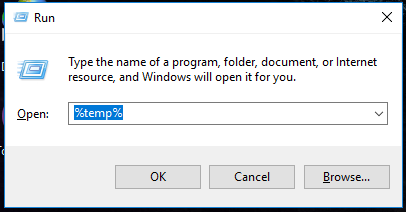
open temp

Step 2: Press Ctrl + A and Delete to delete all junk files in temp.
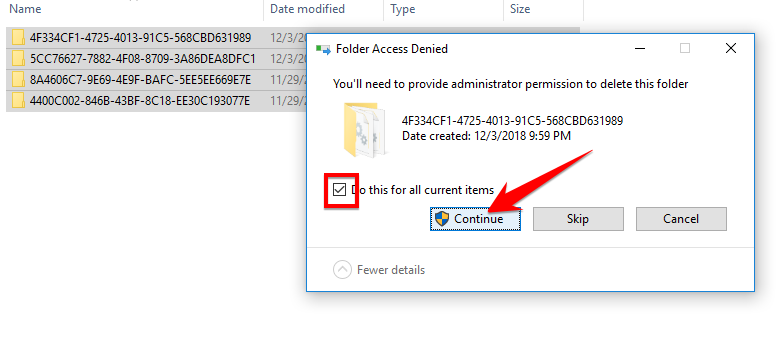
delete temp

In addition, you should also regularly check trash can and delete them all.
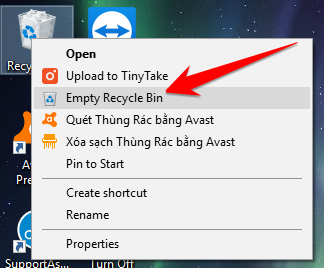
delete trash

2. Turn off programs that start with Windows

Letting unnecessary programs start with windows is one of the direct causes of slow startup and lag due to the program running in the background at the same time.

Step 1: Press Ctrl + Shift + Esc to launch Task Manager. Now you switch to the Startup section.
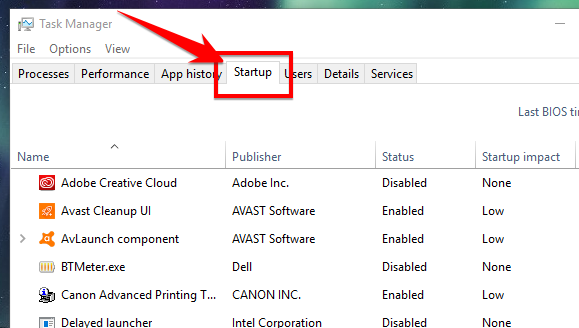
task manager

Step 2: Right click on unnecessary software and select Disabled
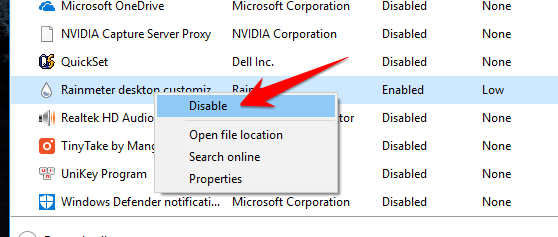
disable startup

3. Turn off the effect of Windows

Windows’ Aero effect, although beautiful, consumes resources. You should turn off this function, because the window transition effects, closing the window are not necessary for the computer. You can speed up your computer by doing the following:

Step 1: Press Windows + CHEAP and type sysdm.cpl

Window System Properties appears, please select the tab Advanced => Settings…
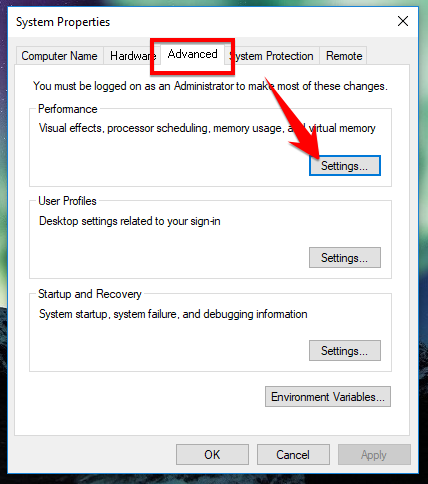
Advanced , Settings

Step 2: Select Adjust for best performance for maximum performance, but you can still tweak it to your liking.
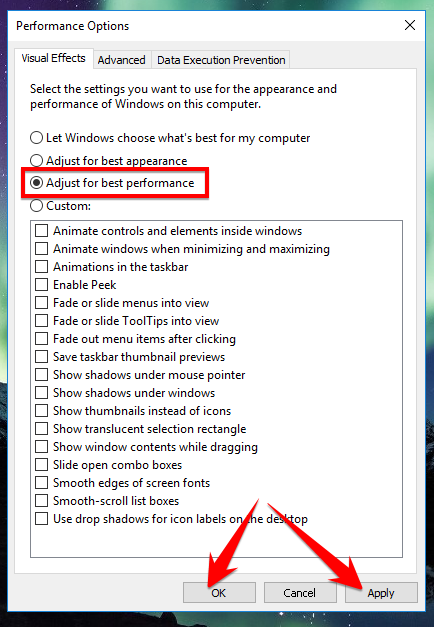
Adjust for best performance

4. Use Ram Freeing Software

This is the most useful way that can help speed up your computer faster by freeing up some ram, which gives your computer more virtual memory for other software.

Step 1: Please download the software Memory Cleaner and install it on your computer. The software has the function to free up excess RAM to increase processing speed.

Step 2: Choose options according to your needs
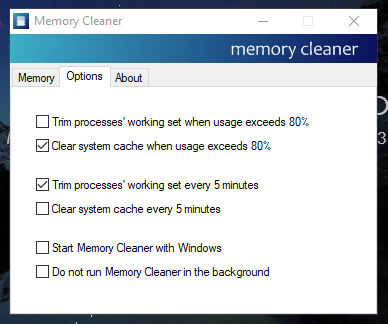
Memory Cleaner

Epilogue

This article has shown you simple steps to help speed up your computer to run smoother. But the software impact will not be equal to the hardware upgrade, so if you have the conditions, buy an ssd and ram to plug into the machine to serve your work well.

N1412.

The article achieved: 5/5 – (100 votes)

Tags: computersoftwareSpeedtips
Previous Post

Get a 180-day license for Bitdefender Internet Security 2016 ($30)

Next Post

Free Download Kaspersky Anti Ransomware Tool

AnonyViet

AnonyViet

Related Posts

How to change the default font on Windows 10
Tips

How to change the default font on Windows 10

April 13, 2026
5 tips for using a Browser to replace an App (helps save RAM, time and money)
Tips

5 tips for using a Browser to replace an App (helps save RAM, time and money)

April 13, 2026
How to make funny MeMe photos without Photoshop within 10 seconds
Tips

How to make funny MeMe photos without Photoshop within 10 seconds

April 11, 2026
How to quickly design your own Logo without Photoshop
Tips

How to quickly design your own Logo without Photoshop

April 10, 2026
How to convert Website into App on Windows
Tips

How to convert Website into App on Windows

April 9, 2026
Instructions for getting 3 months of Adobe Express Pro for free
Tips

Instructions for getting 3 months of Adobe Express Pro for free

April 9, 2026
Next Post
Free Download Kaspersky Anti Ransomware Tool

Free Download Kaspersky Anti Ransomware Tool

0 0 votes
Article Rating
Subscribe
Login
Notify of
guest

guest

0 Comments
Oldest
Newest Most Voted
Inline Feedbacks
View all comments

Recent News

How to add Watermark to Google Docs to protect copyright

How to add Watermark to Google Docs to protect copyright

April 19, 2026
How to intercept traffic using Burp Suite to analyze HTTP/HTTPS

How to intercept traffic using Burp Suite to analyze HTTP/HTTPS

April 18, 2026
How to avoid Adblock detection on Youtube with 4 good tips

How to avoid Adblock detection on Youtube with 4 good tips

April 17, 2026
How to transfer ChatGPT data to Claude is extremely simple

How to transfer ChatGPT data to Claude is extremely simple

April 16, 2026
How to add Watermark to Google Docs to protect copyright

How to add Watermark to Google Docs to protect copyright

April 19, 2026
How to intercept traffic using Burp Suite to analyze HTTP/HTTPS

How to intercept traffic using Burp Suite to analyze HTTP/HTTPS

April 18, 2026
How to avoid Adblock detection on Youtube with 4 good tips

How to avoid Adblock detection on Youtube with 4 good tips

April 17, 2026
AnonyViet - English Version

AnonyViet

AnonyViet is a website share knowledge that you have never learned in school!

We are ready to welcome your comments, as well as your articles sent to AnonyViet.

Follow Us

Contact:

Email: anonyviet.com[@]gmail.com

Main Website: https://anonyviet.com

Recent News

How to add Watermark to Google Docs to protect copyright

How to add Watermark to Google Docs to protect copyright

April 19, 2026
How to intercept traffic using Burp Suite to analyze HTTP/HTTPS

How to intercept traffic using Burp Suite to analyze HTTP/HTTPS

April 18, 2026
No Result
View All Result
  • Home
  • News
  • Software
  • Knowledge
  • MMO
  • Tips
  • Security
  • Network
  • Office

wpDiscuz
0
0
Would love your thoughts, please comment.x
()
x
| Reply