Mastering basic Excel formulas is important for everyone. Below are tips for using Excel that anyone must master. Microsoft Excel considered the standard software in data processing. This Microsoft program has also become one of the software used by investment bankers and financial analysts when processing data, financial modeling and presentation. This article will provide you with indispensable tips if you want to master Excel.
📢 Join the channel Telegram belong to AnonyViet
Update new articles, cool tools and IT tips fastest

Basic terms in Excel
There are two basic ways to perform calculations in Excel: Formulas and Functions.
1. Formula
In Excel, a formula is an expression that operates on the values of a group of cells or a single cell. For example: = A1 + A2 + A3, find the total value from cell A1 to cell A3.
2. Jaw
Functions are predefined formulas in Excel. Excel uses these functions instead of manual formulas. For example: =SUM(A1:A3). The function sums all values from A1 to A3.
5 tips for using Excel you need to know
When dealing with data, there are five most common ways to insert basic Excel formulas. Each way has its own advantages. Therefore, before going deeper into the main formulas, I will guide you through those methods.
1. Simple Insert: Enter the formula in the cell
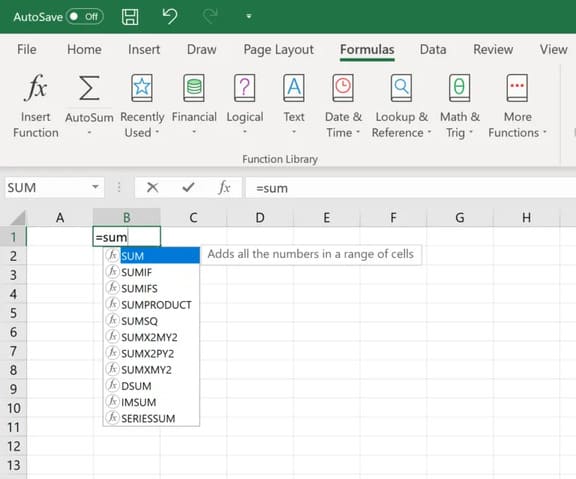
Entering a formula into a cell or formula bar is the simplest method for inserting basic Excel formulas. Start by entering a mark =followed by the name of an Excel function.
Excel will suggest the function as you enter the first characters. From this list of suggestions, you will choose the function you want. However, Don’t press the Enter key. Instead, press the key Tab so you can continue inserting other options. Otherwise, you may get an invalid name error, usually ‘#NAME?’. To fix it, just re-select that cell and edit the formula.
2. Insert Function from Formulas Tab
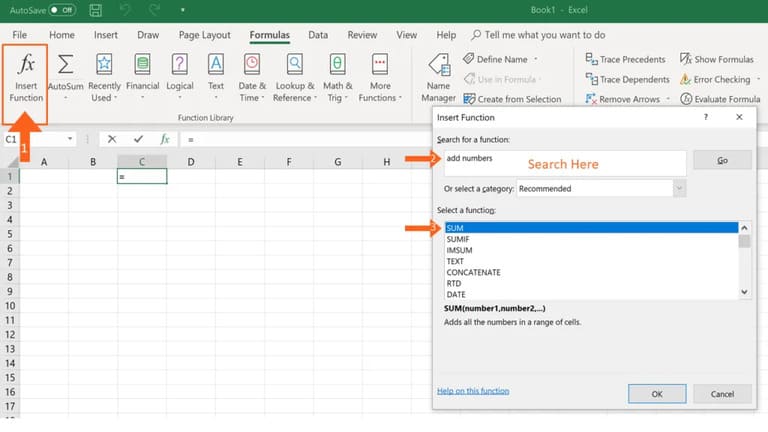
If you want full control over your function insertion, use a dialog box Insert Function in Excel is all you need. To do this, go to the tab Formulas and choose Insert Function. The dialog box will contain all the functions you need.
3. Select formulas by group in the Formula tab
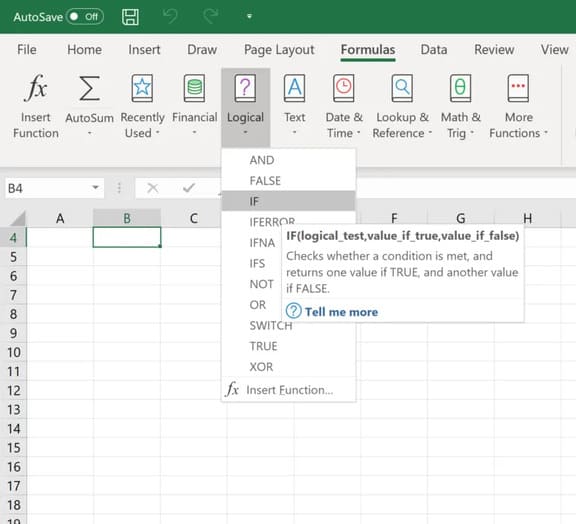
This option is for those who want to dive into the functions quickly. To find this menu, go to Formulas tab and choose your preferred function. Click on that group to display a menu filled with related functions. From there, you can choose your recipe. However, if you see that the function you use often isn’t on the tab, click the option More Functions – maybe that group is just hidden.
4. Use the AutoSum option
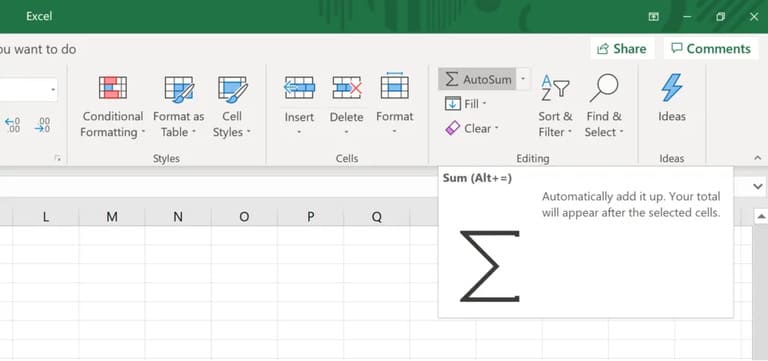
For everyday tasks, AutoSum is the option you should try. Go to tab Homein the far right corner, and click the AutoSum option. Then click the arrow mark to reveal other hidden formulas. This option is also available in the Formulas tab.
5. Quick insert: Use recently used functions
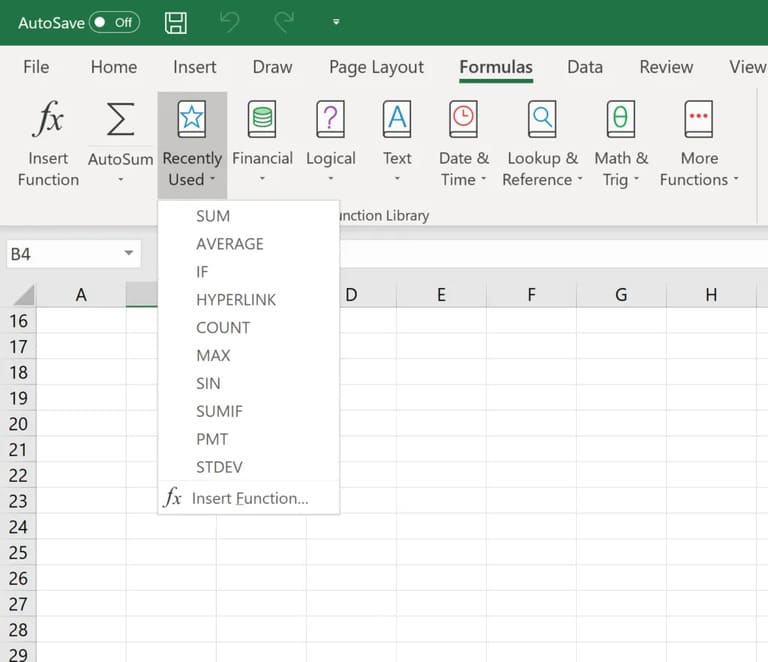
If you frequently use functions, then use menus Recently Used. It’s on the tab Formulasoption right next to it AutoSum.
7 basic Excel formulas you need to remember
1. SUM
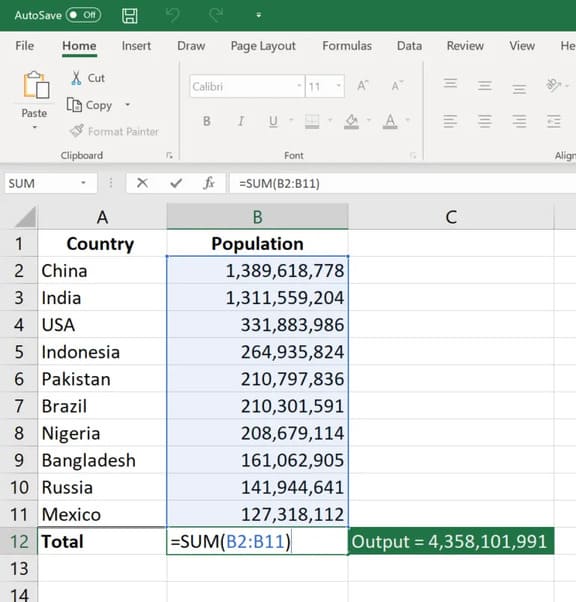
The SUM function is the first must-know formula in Excel. It sums the values in the range you selected.
=SUM(number1, [number2],…)
For example:
=SUM(B2:G2) – Calculate the total values from cell B2 to cell G2 (row).
=SUM(A2:A8) – Calculate the total values from cell A2 to cell A8 (column).
=SUM(A2:A7, A9, A12:A15) – Sum the values from cells A2 to A7, skip A8, add A9, skip A10 and A11, then finally add A12 to A15.
=SUM(A2:A8)/20 – Calculate the sum from cells A2 to A8 then divide by 20.
2. AVERAGE
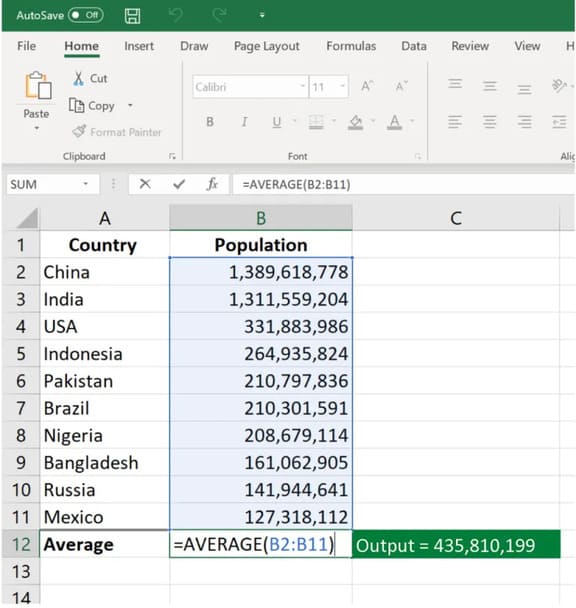
The AVERAGE function is used to calculate an average, such as the average number of shareholders in a certain group of shares.
=AVERAGE(number1, [number2], …)
For example:
=AVERAGE(B2:B11) – Calculating the average from cell B2 to cell B11 is similar to (SUM (B2: B11) / 10)
3. COUNT
The COUNT function counts all cells containing numeric values in the selected range.
=COUNT(value1, [value2], …)
For example:
COUNT(A:A) – Count all numeric values in column A.
COUNT(A1:C1) – Count all numeric values from drive A1 to cell C1.

4. COUNTA
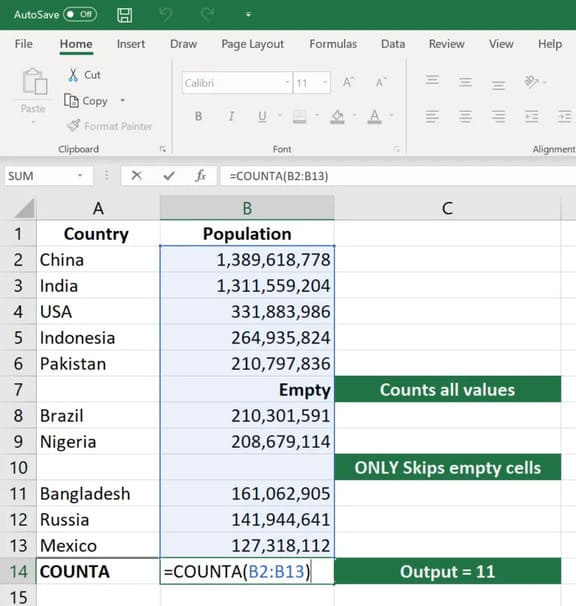
Like the COUNT function, COUNTA counts all the cells in the selection. However, it counts all cells regardless of value. That is, unlike COUNT which only counts numbers, which also count dates, times, strings, logical values, errors, or text, COUNTA only does not count empty drives.
=COUNTA(value1, [value2], …)
For example:
COUNTA(C2:C13) – Count values from cell C2 to cell C13, do not count empty cells.
COUNTA(C2:H2) – Count from column C2 to column H2.
5. IF
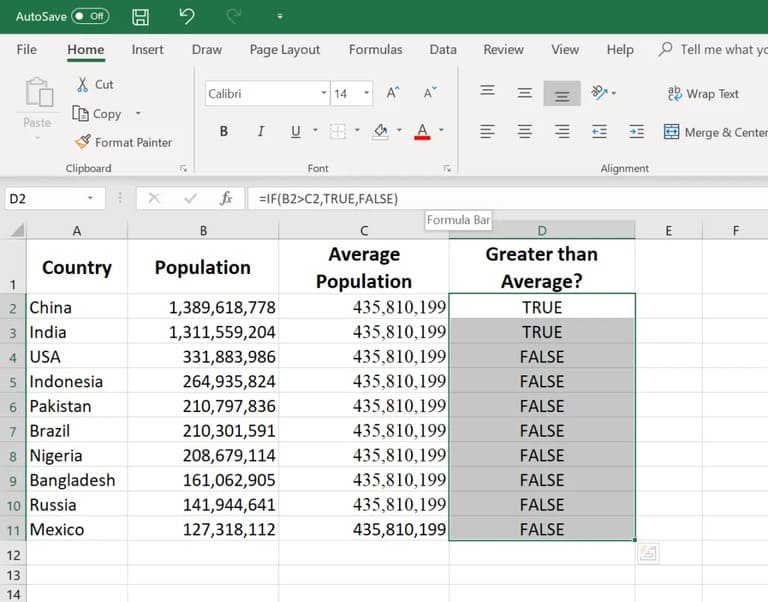
The IF function is often used when you want to arrange your data according to a certain logic.
=IF(logical_test, [value_if_true], [value_if_false])
For example:
=IF(C2
=IF(SUM(C1:C10) > SUM(D1:D10), SUM(C1:C10), SUM(D1:D10)) – The sum from cells C1 to cell C10 is greater than the sum from cells D1 to cell D10, then return the sum from cells C1 to C10 and vice versa, return the sum from cells D1 to D10.
6. TRIM
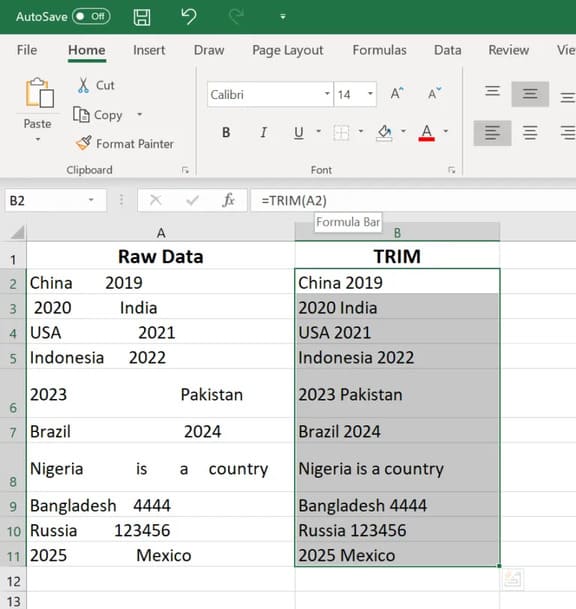
The Trim function is used to remove excess spaces in cells.
=TRIM(text)
For example:
TRIM(A2) – Remove blank spaces in cell A2.
7. MAX & MIN
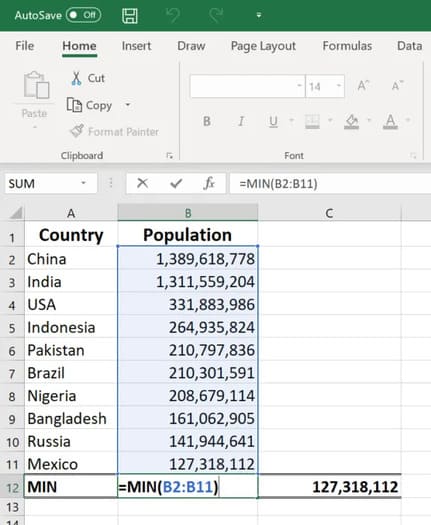
The MAX and MIN functions help find the largest and smallest number in a range.
=MIN(number1, [number2], …)
For example:
=MIN(B2:C11) – Find the smallest value from cell B2 to cell C11.
=MAX(number1, [number2], …)
For example:
=MAX(B2:C11) – In contrast to the MIN function, find the largest value from drive B2 to cell C11.

Above are basic tips for using Excel that you need to know to increase your productivity. Additionally, you can use Kutools to add more power to Excel with built-in tools that help save more time when entering functions.
Frequently asked questions
How to quickly sum a column of numbers in Excel?
You can use the SUM function or the AutoSum feature. The SUM function has syntax =SUM(A1:A10) (sum from cells A1 to A10). AutoSum is located on the Home tab, allowing you to automatically sum a selected range of data.
I want to calculate the average of a series of numbers, which function is suitable?
Use the AVERAGE function. For example: =AVERAGE(B1:B10) will calculate the average of the numbers in cells B1 to B10.
How to count the number of cells containing data (not empty cells) in a range?
Use the COUNTA function. For example: =COUNTA(C1:C10) will count the number of cells with data (including numbers, text, etc.) from C1 to C10.