• Home
  • News
  • Software
  • Knowledge
  • MMO
  • Tips
  • Security
  • Network
  • Office
AnonyViet - English Version
  • Home
  • News
  • Software
  • Knowledge
  • MMO
  • Tips
  • Security
  • Network
  • Office
No Result
View All Result
  • Home
  • News
  • Software
  • Knowledge
  • MMO
  • Tips
  • Security
  • Network
  • Office
No Result
View All Result
AnonyViet - English Version
No Result
View All Result

The Complete NextCloud User Guide

AnonyViet by AnonyViet
January 25, 2023
in Network
0

Through the last post, I have just instructed everyone on how to Install NextCloud on your computer. And today, I will guide you to use NextCloud to be able to manage users as well as install Extensions!

Join the channel Telegram of the AnonyViet 👉 Link 👈

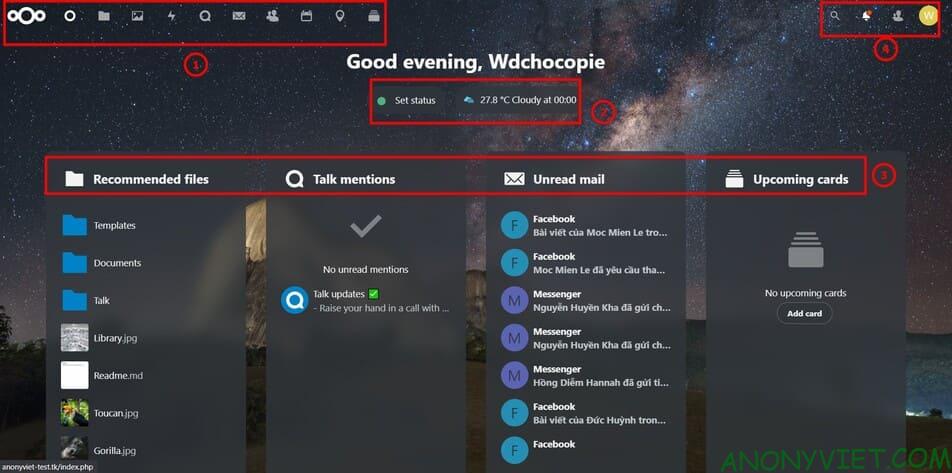
NextCloud basic interface

NextCloud interface

  1. Tab bar: This part is used to move through installed files and Extensions
  2. Extension: Set Status and Weather(by default will install these)
  3. Quick Access: This section is the quick access to File/Extension
  4. User bar: this section has user options (including settings, install more extensions, ..)

Instructions for uploading files

Step 1: Go to the file section above Tab bar

File on tab bar

Step 2: Select the plus sign and select Upload File
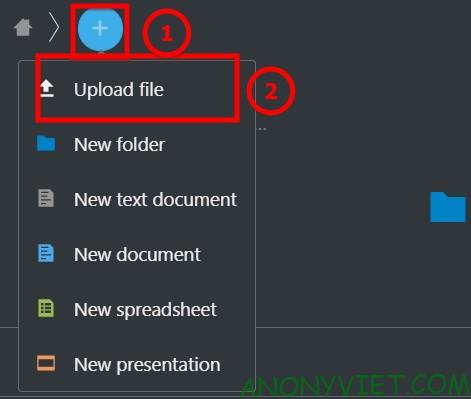
Upload Files

Step 3: Select the File to upload and select Open
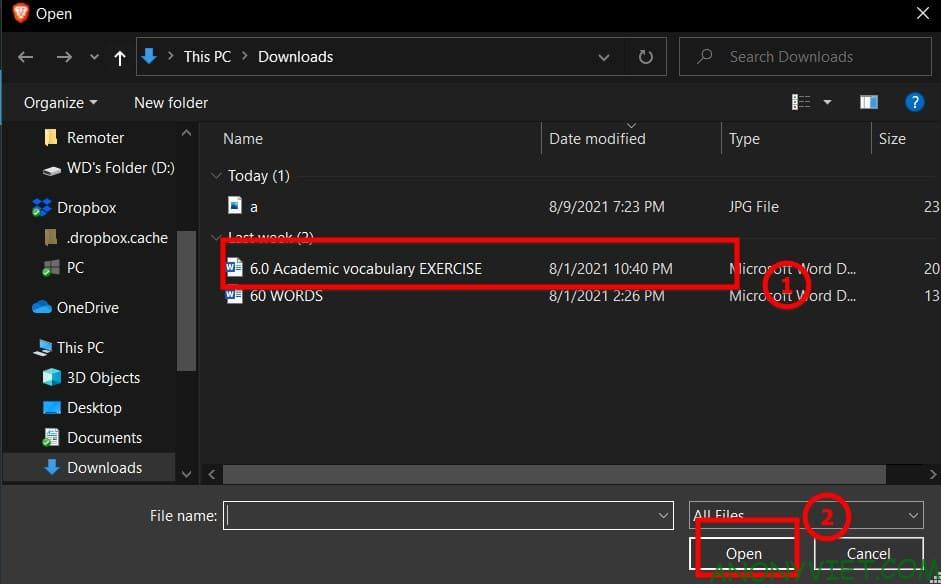
Select the file to upload

Result

Result Upload File to NextCloud

Add Extension for NextCloud

Step 1: You go to your NextCloud, select your avatar -> Apps
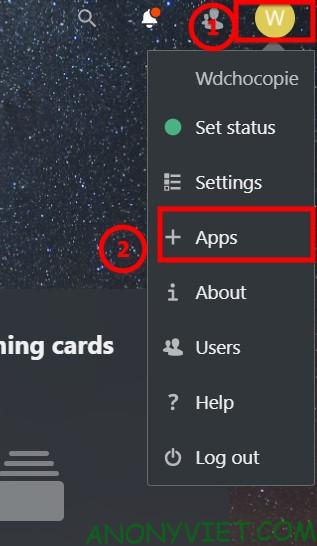
Select Apps

Step 2: Go to Feature App and find the Extension you need to install
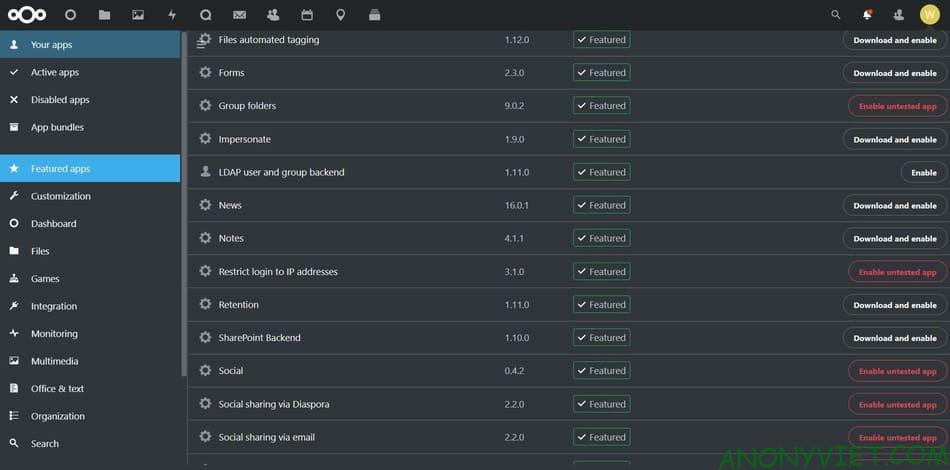
More Extensions

Instructions to add storage space for NextCloud

This will work mainly for those who have a Server with 2 databases or you run on a computer / Raspberry Pi and plug in a hard drive / USB, this is the way to add it.

Step 1: You go to MobaXterm (SSH of your server) and mount that drive (I use Raspberry Pi)

mount the drive over ssh

Step 2: You go to your NextCloud, select your avatar -> Apps

Select Apps

Step 3: Go to Feature App and find External Storage Support. By default it is disabled. Please enable if it is off!
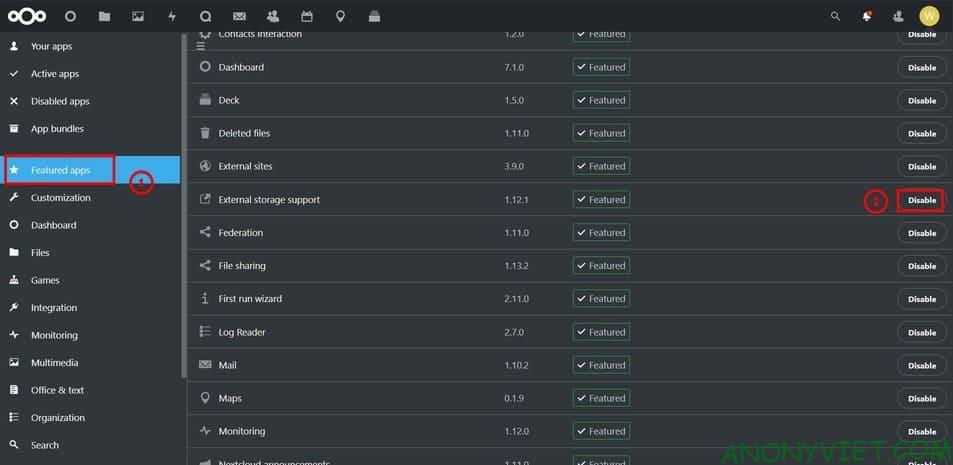
Enable External Storage Support

Step 4: Select your avatar -> Settings

Select Settings

Step 5: Drag down the right sidebar and find External Storage in the Administration section
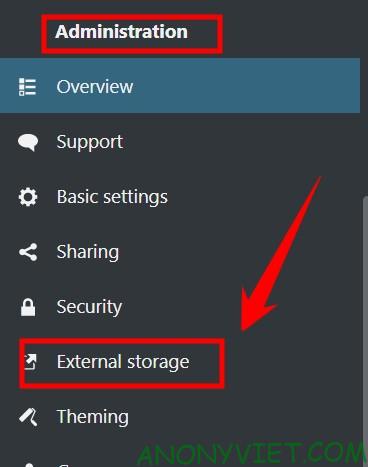
Select External Storage

Step 6: You choose Add storage and choose the one you want (mine is local storage)
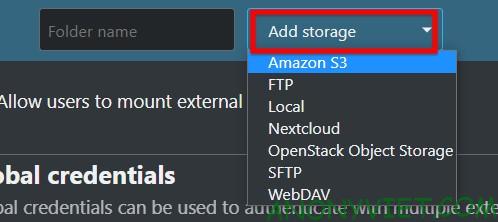
add storage for NextCloud

Step 7: You write the path of the hard drive that needs more space for NextCloud and then click the checkmark on the right

add External Storage Nextcloud

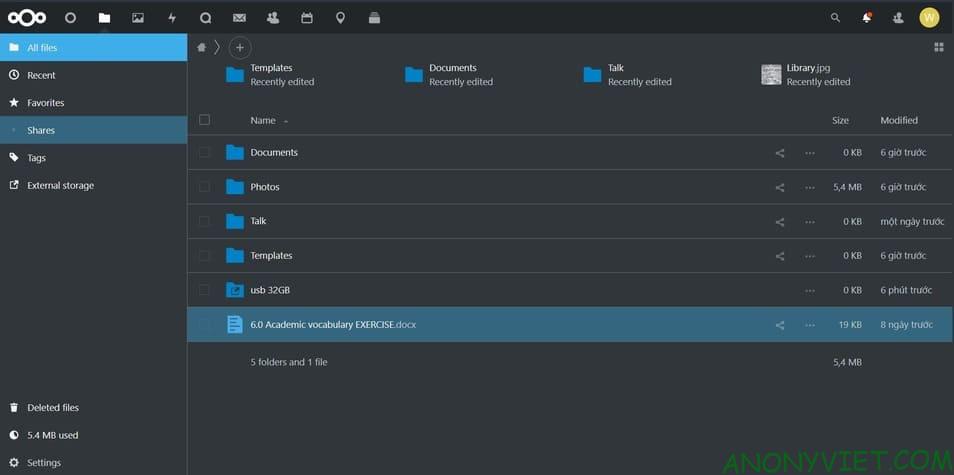
Now you just need to go to the folder and you will see

External Storage just added

Add User

Step 1: Select your avatar -> User
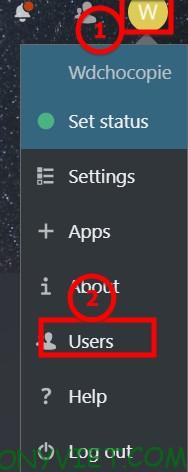
Select User in the menu

Step 2: Select New User in the top left corner
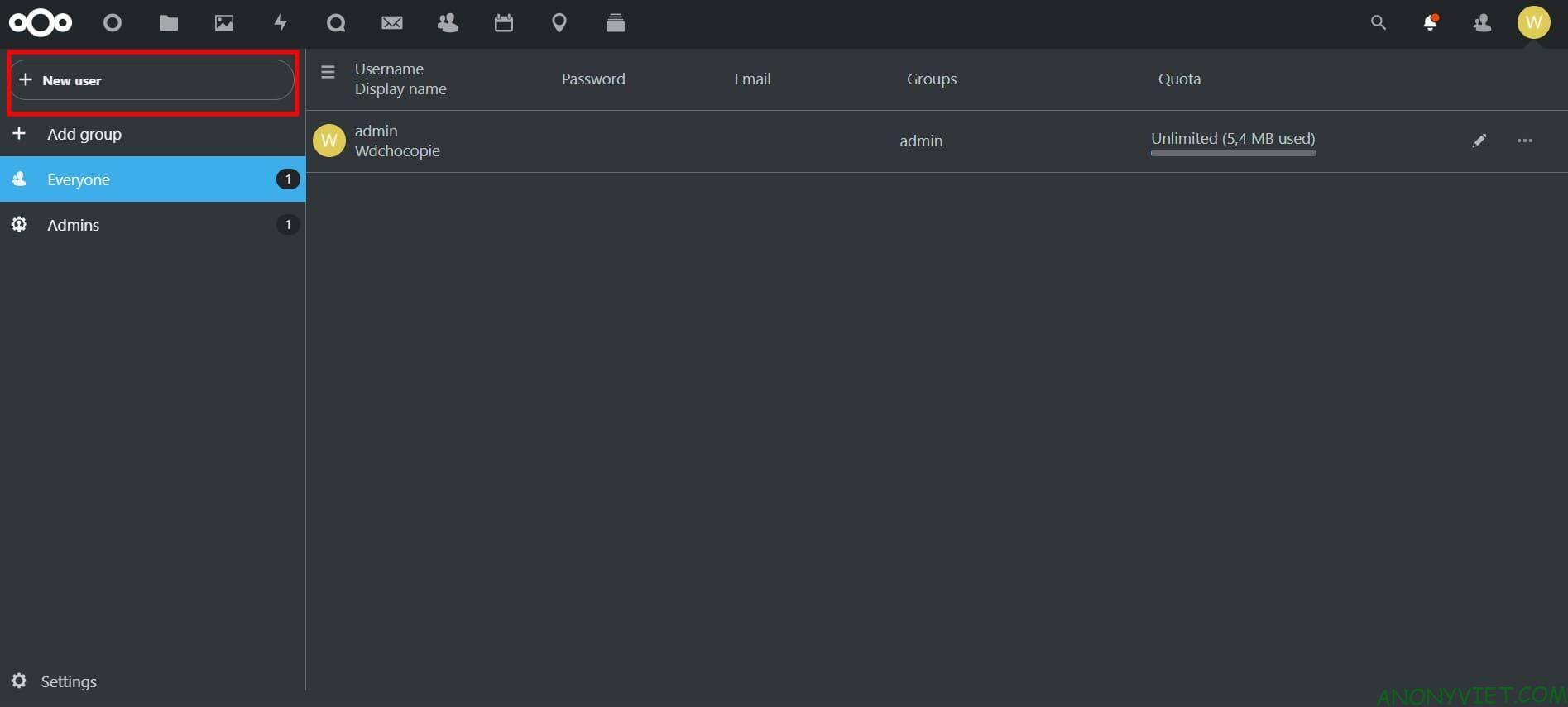
Select New User

Step 3: Fill in the information of New User and select Add New User.
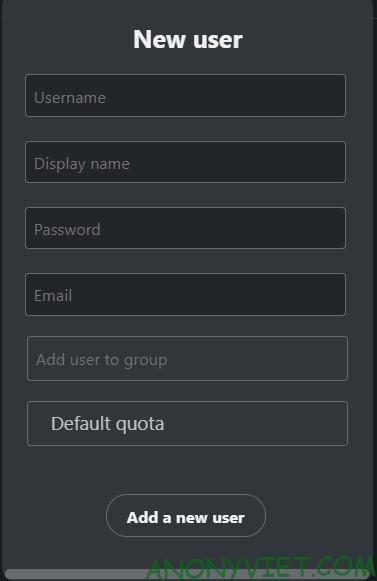
add new user

That’s it. Once done, you can give this user to the person you need to give so they can access your page.

Install NextCloud on your phone

If you want to use NextCloud on your phone, you can do the following

Step 1: Download NextCloud for Android and IOS

Step 2: Open the app, select login -> enter your NextCloud address -> Click login and enter your account
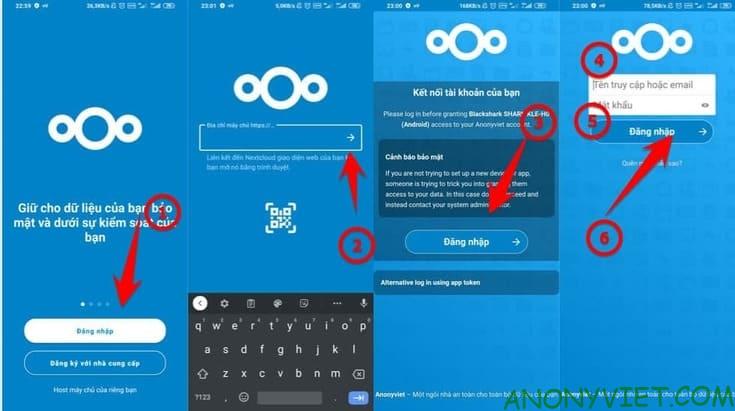
Sign in on Nextcloud Mobile

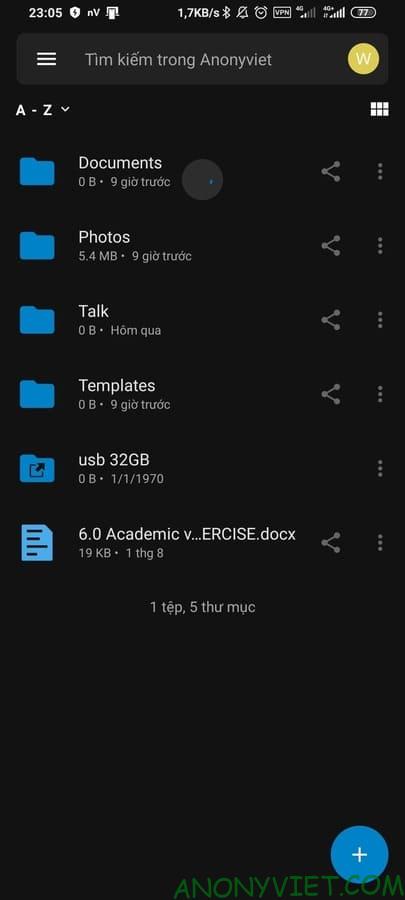
Result

Nextcloud results on the phone

So I just finished the tutorial on how to use NextCloud Basic for beginners. If you find it difficult or want me to do something specific in NextCloud, you can leave a comment below to let me know!


The article achieved: 5/5 – (100 votes)

Tags: CompleteGuideNextCloudUser
Previous Post

Lesson 263: Quadratic equations

Next Post

How to package Python code

AnonyViet

AnonyViet

Related Posts

Save image as Type contains malicious code: Remove immediately before losing money unfairly!
Network

Save image as Type contains malicious code: Remove immediately before losing money unfairly!

March 19, 2026
Instructions on how to register a .co.uk domain name for free for 1 year
Network

Instructions on how to register a .co.uk domain name for free for 1 year

March 12, 2026
How to Setup Paperclip AI: Create a Company for AI Agent
Network

How to Setup Paperclip AI: Create a Company for AI Agent

March 12, 2026
Compilation of free and cheap APIs to run OpenClaw stably
Network

Compilation of free and cheap APIs to run OpenClaw stably

March 10, 2026
3 Services to Determine IP Location for Website (IP Geolocation API)
Network

3 Services to Determine IP Location for Website (IP Geolocation API)

March 10, 2026
How to buy a .STORE domain name for 1 USD (2026): Detailed instructions from A–Z
Network

How to buy a .STORE domain name for 1 USD (2026): Detailed instructions from A–Z

March 3, 2026
Next Post
How to package Python code

How to package Python code

0 0 votes
Article Rating
Subscribe
Login
Notify of
guest

guest

0 Comments
Oldest
Newest Most Voted
Inline Feedbacks
View all comments

Recent News

How to turn off Gemini Nano on Chrome to free up 4GB of memory

How to turn off Gemini Nano on Chrome to free up 4GB of memory

May 30, 2026
Instructions for receiving Lovable Pro 12 months for free

Instructions for receiving Lovable Pro 12 months for free

May 29, 2026
How to extract text from photos using Zalo is super simple

How to extract text from photos using Zalo is super simple

May 29, 2026
HONOR 600 in hand – High-end design, 200MP camera, not cheap price

HONOR 600 in hand – High-end design, 200MP camera, not cheap price

May 28, 2026
How to turn off Gemini Nano on Chrome to free up 4GB of memory

How to turn off Gemini Nano on Chrome to free up 4GB of memory

May 30, 2026
Instructions for receiving Lovable Pro 12 months for free

Instructions for receiving Lovable Pro 12 months for free

May 29, 2026
How to extract text from photos using Zalo is super simple

How to extract text from photos using Zalo is super simple

May 29, 2026
AnonyViet - English Version

AnonyViet

AnonyViet is a website share knowledge that you have never learned in school!

We are ready to welcome your comments, as well as your articles sent to AnonyViet.

Follow Us

Contact:

Email: anonyviet.com[@]gmail.com

Main Website: https://anonyviet.com

Recent News

How to turn off Gemini Nano on Chrome to free up 4GB of memory

How to turn off Gemini Nano on Chrome to free up 4GB of memory

May 30, 2026
Instructions for receiving Lovable Pro 12 months for free

Instructions for receiving Lovable Pro 12 months for free

May 29, 2026
No Result
View All Result
  • Home
  • News
  • Software
  • Knowledge
  • MMO
  • Tips
  • Security
  • Network
  • Office

wpDiscuz
0
0
Would love your thoughts, please comment.x
()
x
| Reply