• Home
  • News
  • Software
  • Knowledge
  • MMO
  • Tips
  • Security
  • Network
  • Office
AnonyViet - English Version
  • Home
  • News
  • Software
  • Knowledge
  • MMO
  • Tips
  • Security
  • Network
  • Office
No Result
View All Result
  • Home
  • News
  • Software
  • Knowledge
  • MMO
  • Tips
  • Security
  • Network
  • Office
No Result
View All Result
AnonyViet - English Version
No Result
View All Result

Storage Migration in Windows Server 2012 R2

AnonyViet by AnonyViet
January 28, 2023
in Network
0

A) Introduction

Join the channel Telegram of the AnonyViet 👉 Link 👈

If in Windows Server 2008 R2 you can move virtual machines using Live Migration, you must first turn off the virtual machines (Turn off). For Hyper-V in Windows Server 2012/2012 R2, you can easily move the storage of virtual machines while they are running.

Hyper-V Storage Migration allows you to perform move storage of virtual machines (VHDs, Snapshots, Current Configuration, Smart Paging) with very little perceived downtime. Users still use the virtual machine normally and without interruption.

The purpose of this is to upgrade your Storage system. For example, you install some new physical disk storage (hard drive) to expand the storage space for your Hyper-V Physical machine. And now you just need to move the virtual machine’s hard drive to this new storage drive.

Storage Migration allows you to move storage of running virtual machines to: a new path in the machine or to a shared storage (SAN, SMB.30 Share Folder). Storage Migration between 2 physical Hyper-V machines is only possible in a Domain environment

B) Working principle

  1. First of all, virtual machines are still read / written normally (running) on ​​the physical Hyper-V machine when performing Storage Migration.
  2. VHDs, Snapshots, Current Configuration, Smart Paging files will be copied to the Destination Folder (either via the new hard drive of the physical machine or through a Share folder SMB 3.0 of another Hyper-V host in the Domain).
  3. After you have moved Storage to the Destination folder. The system will continue to perform the Write (what the user is using or saving from the time of copy until now) through the Destination Folder.
  4. The copy between the Source folder and the Destination folder has been synchronized, now the system will redirect to the storage folder of the virtual machine on the destination to perform normal read/write.
  5. Finally, after read/write inside destination folder . The Storage folder of the virtual machine inside the source folder will be deleted.

first

C) Lab Storage Migration with SMB3.0 Share Folder (Move the virtual machine’s storage from the Hyper-V1 host to the Hyper-V2 host’s SMB 3.0 directory)

Model first

  • First, let’s go to the Hyper-V2 host and create a folder and share the permissions Full control for Hyper-V1 machine (my folder here is “C:\Storage of Windows 8.1 VM”)

first

  • Getting Started move storage of virtual machine

2

  • Select “Move the virtual machine’s storage”

3

  • There are 3 mechanisms: move all to one place, move (VHD,Current config, smart paging, snapshot) in different places, move only (VHD,Snapshot) of the virtual machine.

4

5

  • Declare destination folder (note: by network path)

6

  • The system is in the process of moving

7

  • Once done, go to the Settings of the virtual machine and check the Hard Drive section, you will see the path is now Hyper-V2 host

8

The article achieved: 5/5 – (100 votes)

Tags: MigrationServerStorageWindows
Previous Post

How to use XSS-Freak to exploit XSS vulnerabilities automatically

Next Post

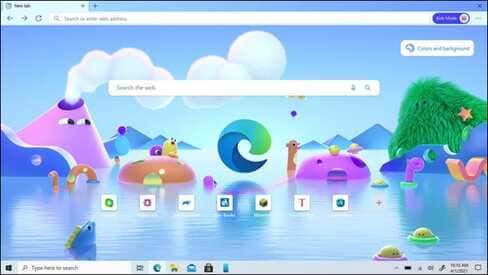
How to set up Kids Mode – Kids Mode in Microsoft Edge

AnonyViet

AnonyViet

Related Posts

Cách hạn chế Synology NAS bị Ransomware .L0CK3D: Cách khắc phục
Network

Cách hạn chế Synology NAS bị Ransomware .L0CK3D: Cách khắc phục

October 30, 2026
Instructions for updating PHP to avoid PHP2Shell
Network

Instructions for updating PHP to avoid PHP2Shell

October 22, 2026
Instructions for detecting network vulnerabilities: How to check the system for data leaks (IP/DNS)
Network

Instructions for detecting network vulnerabilities: How to check the system for data leaks (IP/DNS)

October 9, 2026
Is Renting a Cheap VPS to Run Docker Really Effective?
Network

Is Renting a Cheap VPS to Run Docker Really Effective?

July 2, 2026
How to get a free domain for 1 year from Gravatar
Network

How to get a free domain for 1 year from Gravatar

June 23, 2026
Cloud Infrastructure Resilience: Mitigating Advanced Layer 7 Vulnerabilities and Securing High-Throughput Database Handshakes
Network

Cloud Infrastructure Resilience: Mitigating Advanced Layer 7 Vulnerabilities and Securing High-Throughput Database Handshakes

June 20, 2026
Next Post
How to set up Kids Mode – Kids Mode in Microsoft Edge

How to set up Kids Mode - Kids Mode in Microsoft Edge

0 0 votes
Article Rating
Subscribe
Login
Notify of
guest

guest

0 Comments
Oldest
Newest Most Voted

Recent News

Instructions for receiving Avira Prime 3 months for free, no credit card

Instructions for receiving Avira Prime 3 months for free, no credit card

October 31, 2026
Instructions for cleaning LG TV with Antigravity to help it run faster

Instructions for cleaning LG TV with Antigravity to help it run faster

October 30, 2026
Cách hạn chế Synology NAS bị Ransomware .L0CK3D: Cách khắc phục

Cách hạn chế Synology NAS bị Ransomware .L0CK3D: Cách khắc phục

October 30, 2026
Instructions for installing CleanYourTv to remove Android TV ads

Instructions for installing CleanYourTv to remove Android TV ads

October 29, 2026
Instructions for receiving Avira Prime 3 months for free, no credit card

Instructions for receiving Avira Prime 3 months for free, no credit card

October 31, 2026
Instructions for cleaning LG TV with Antigravity to help it run faster

Instructions for cleaning LG TV with Antigravity to help it run faster

October 30, 2026
Cách hạn chế Synology NAS bị Ransomware .L0CK3D: Cách khắc phục

Cách hạn chế Synology NAS bị Ransomware .L0CK3D: Cách khắc phục

October 30, 2026
AnonyViet - English Version

AnonyViet

AnonyViet is a website share knowledge that you have never learned in school!

We are ready to welcome your comments, as well as your articles sent to AnonyViet.

Follow Us

Contact:

Email: anonyviet.com[@]gmail.com

Main Website: https://anonyviet.com

Recent News

Instructions for receiving Avira Prime 3 months for free, no credit card

Instructions for receiving Avira Prime 3 months for free, no credit card

October 31, 2026
Instructions for cleaning LG TV with Antigravity to help it run faster

Instructions for cleaning LG TV with Antigravity to help it run faster

October 30, 2026
  • Home
  • Home 2
  • Home 3
  • Home 4
  • Home 5
  • Home 6
  • Next Dest Page
  • Sample Page

say88 tỷ lệ kèo nhà cái kèo nhà cái 5 febet

No Result
View All Result
  • Home
  • News
  • Software
  • Knowledge
  • MMO
  • Tips
  • Security
  • Network
  • Office

say88 tỷ lệ kèo nhà cái kèo nhà cái 5 febet

wpDiscuz
0
0
Would love your thoughts, please comment.x
()
x
| Reply