

How to set video as live wallpaper is what many iPhone users desire to escape the boredom of still photos. However, Apple does not support this feature. But don’t worry! This article AnonyViet will guide you to do that for free, safely and without jailbreak.
| Join the channel Telegram belong to AnonyViet 👉 Link 👈 |
What is nugget?
To install a video as a live wallpaper, we need a special tool called Nugget. This is open source software, developed by the community with the goal of breaking the customization limits that Apple sets, but still keeping your device absolutely safe.
Nugget works based on a smart mechanism called “SparseRestore“, allowing it to safely tweak system files without the need for deep intervention such as Jailbreak.
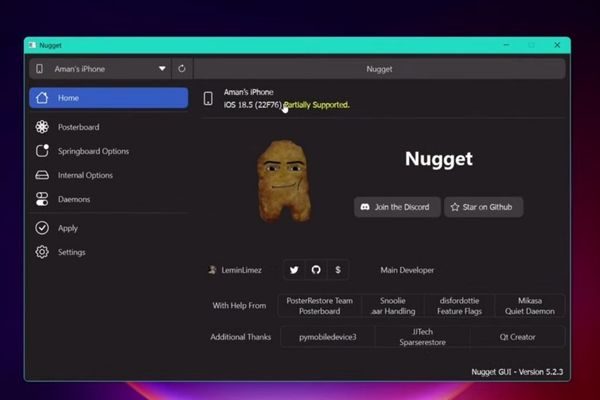
The core feature we will use is PosterBoard. It allows you to turn any video clip (.mov format) into a real live wallpaper. You are no longer limited by Live Photos, but instead have full creative control with vivid, sharp videos on both the lock screen and home screen.
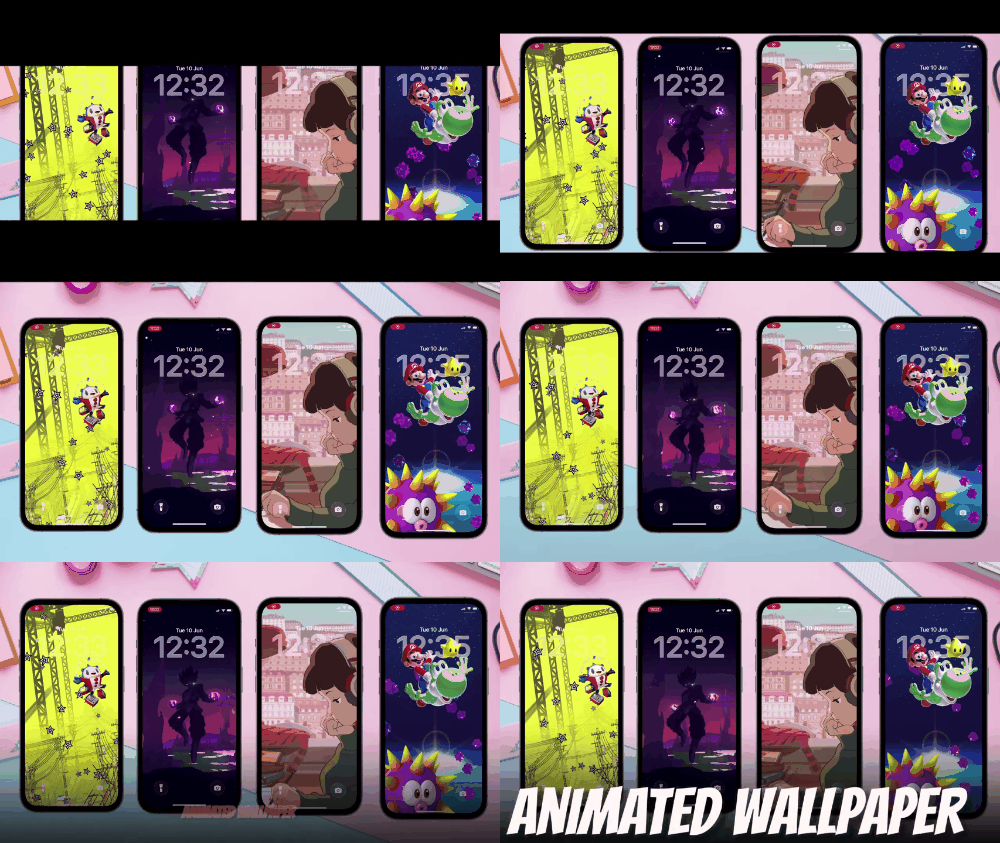
How to set video as live wallpaper on computer
To get started, you’ll need to use a computer for the first setup.
Step 1:
For Windows users: You need to install two things: iTunes and iCloud.
Extremely important note: Please download them directly from Apple’s official websiteabsolutely do not use the version from the Microsoft Store.
For macOS/Linux users: The necessary tools are often already integrated.
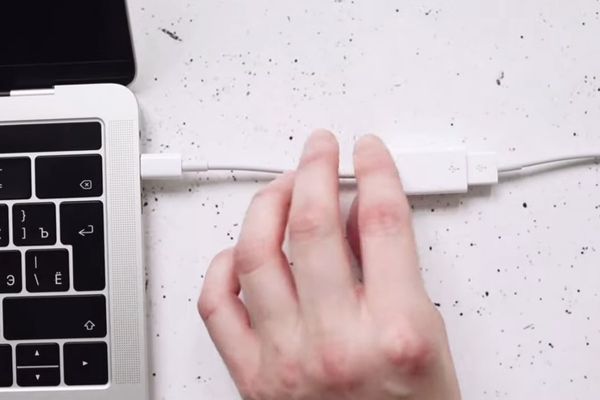
Once installed, open iTunes, connect your iPhone/iPad to your computer, and sign in with your Apple ID. This helps the computer “trust” and communicate with the iOS device.
Step 2:
Visit Nugget’s official GitHub page HERE.
On the home page, find the section Releases in the right column and select the latest version.
Scroll down to the section Assetsdownload the file .zip appropriate for your operating system (e.g. Nugget_Windows.zip).
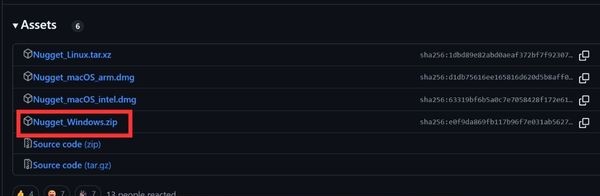
Extract this file > Run the Nugget.exe file > Select More info > Run anyway.
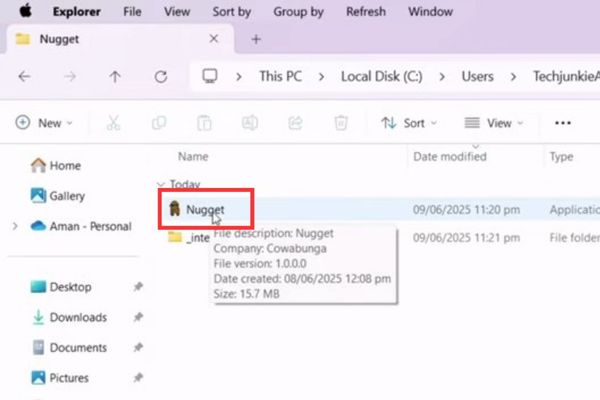
A black command line window will appear momentarily, followed by Nugget’s main interface. The tool will automatically detect the connected iPhone/iPad.
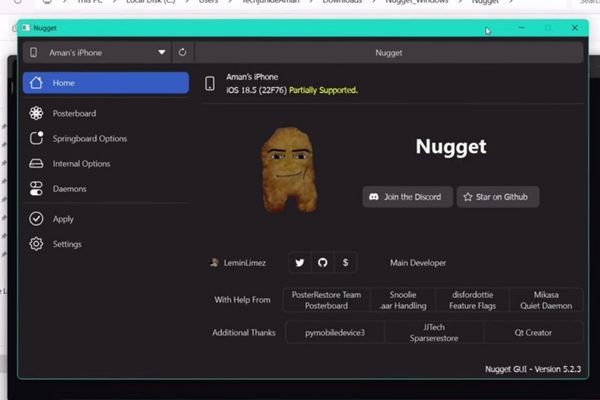
Step 3:
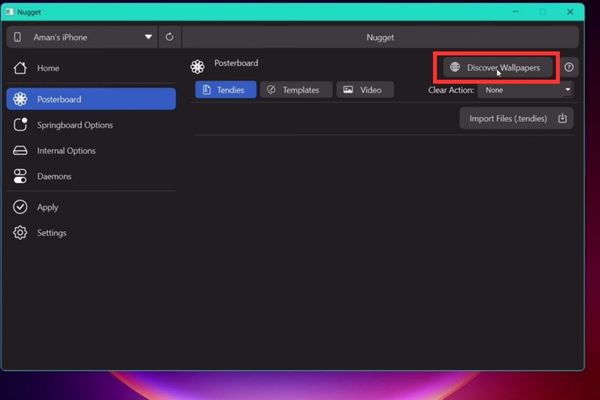
In the Nugget interface, select the item Posterboard.
Click the button Discover Wallpapers. You will be taken to the website https://cowabun.ga/wallpapers.
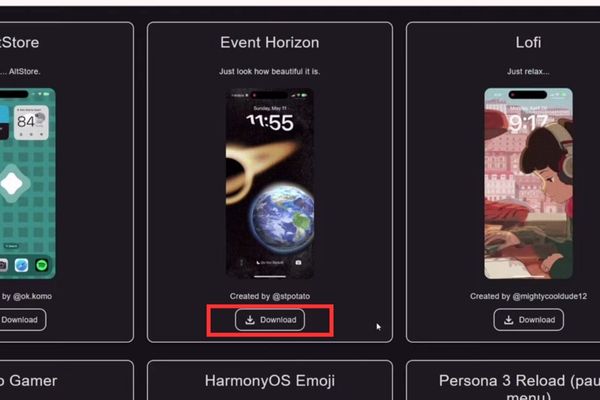
This is a live wallpaper “paradise”. Browse around and when you’ve chosen the video you like, press the button Download. The downloaded file will be in the format .tendies.
Step 4:
Go back to Nugget, still in the Posterboard section, click Import Files (.tendies).
Navigate to the folder containing the .tendies files you just downloaded and select them.
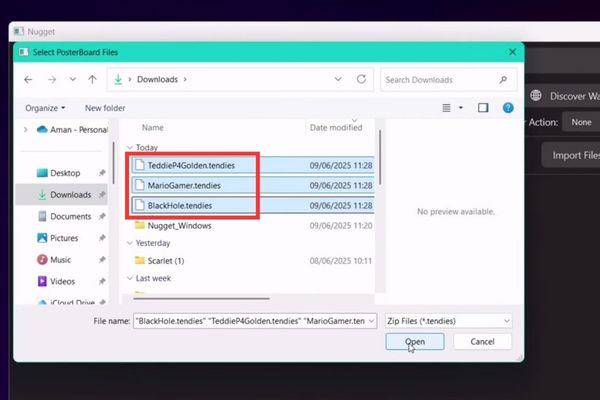
Once you’re done typing, switch to tabs Apply in the left toolbar > Click the button Apply Changes.
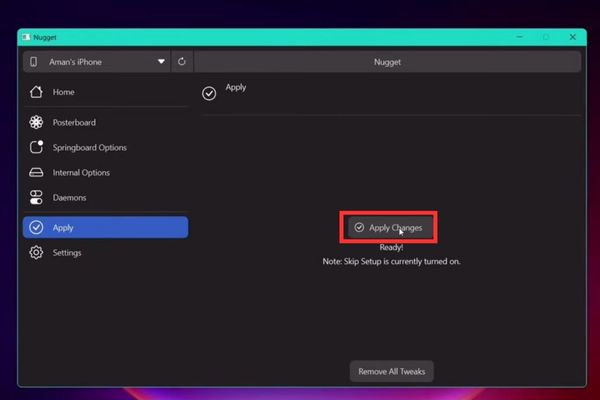
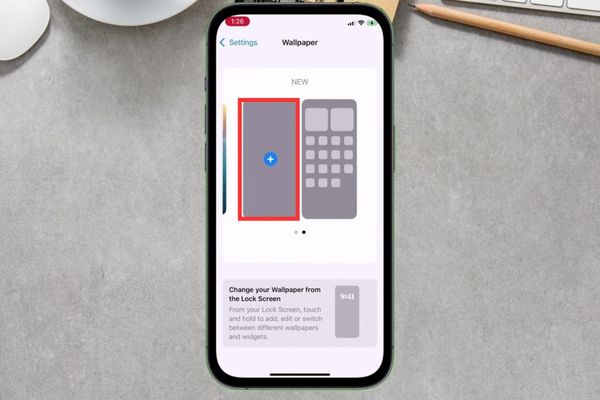
Your iPhone/iPad will restart automatically. After the machine has finished booting, enter Settings > Wallpaper > Add new wallpaper.
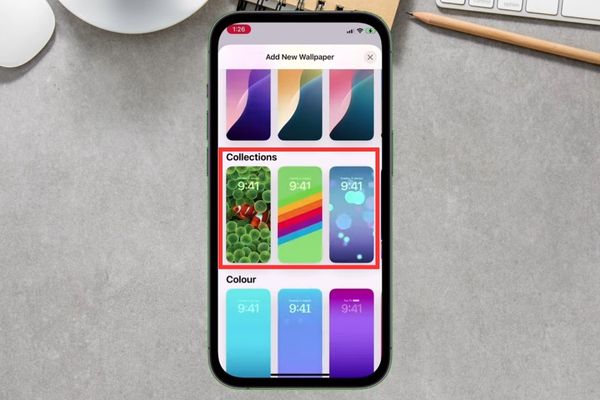
Scroll down to the bottom, you will see a brand new section called Collections. All your live wallpaper videos are here.
Now you just need to choose the wallpaper you like > Click Add > Set as Wallpaper Pair that’s it.
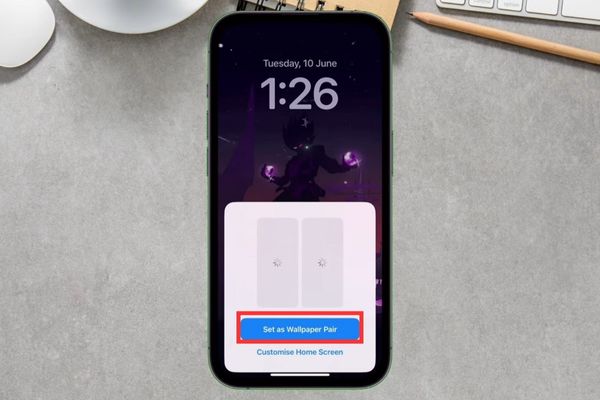 Click Add > Set as Wallpaper Pair
How to set videos as live wallpapers directly on iPhone, no PC required
This is “true love” for those who love convenience. Pocket Posters is an app that, once set up, will allow you to download and apply new live wallpapers without ever touching your computer. However, to get this convenience, we need to perform a few initial installation steps carefully.
Step 1: Pocket Poster is not available on the App Store. Therefore, you need to install it through a method called “sideloading”.
- Visit the GitHub page HERE and download the file Pocket.Poster.ipa.
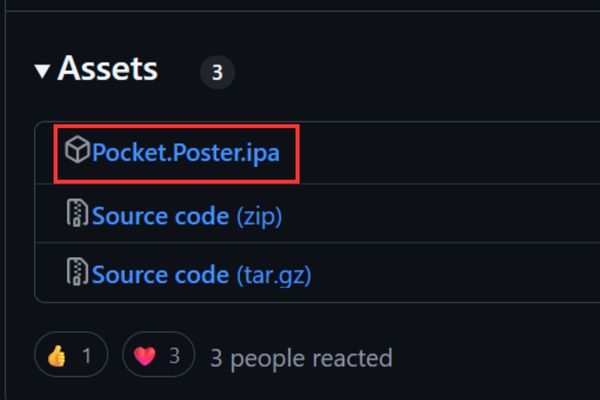
You will need a tool on your computer to install this IPA file on your iPhone. Popular options include:
- Sideloadly (Simple, popular)
- AltStore (Requires installation of AltServer on computer)
- SideStore (A variation of AltStore, can refresh applications without a PC)
- TrollStore (If your device is compatible, this is the best option because the app never expires)
Follow the instructions of your tool of choice to install the Pocket.Poster.ipa file on your iPhone.
Step 2: After installation, you need to do two important things for the application to work.
1. Trust Developer:
- Enter Settings > General > VPN & Device Management.
- You’ll see a developer profile (usually your Apple ID). Click on it and allow.
2. Turn on Developer Mode (for iOS 16 and above)
- Enter Settings > Privacy & Security.
- Scroll down to the bottom and select Developer Mode > Turn on the switch. The device will require a reboot to apply the changes.
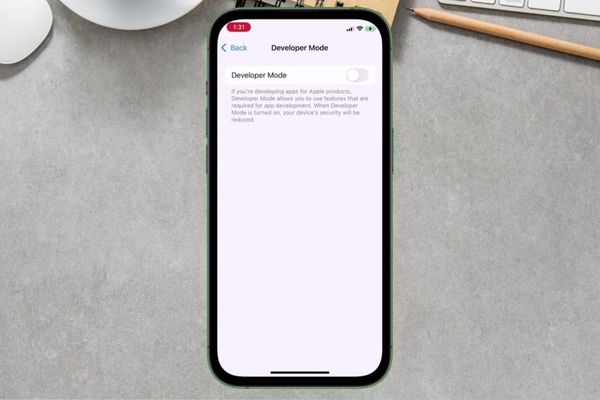
Step 3: This is the most important step and the last time you will need your computer. This step helps “pair” Pocket Poster on your phone with the wallpaper system:
Connect iPhone to the computer and make sure the computer recognizes the device.
Open the Nugget tool on your computer.
In the Nugget interface, go to section Settings (gear icon).
Find and tap the button Pocket Poster Helper.
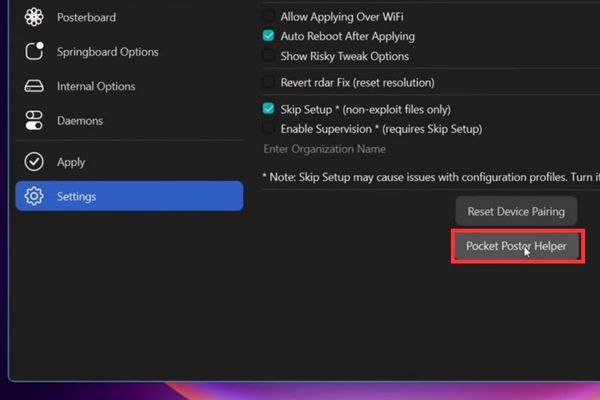
A pop-up window will appear informing you that the hash code has been transferred successfully.
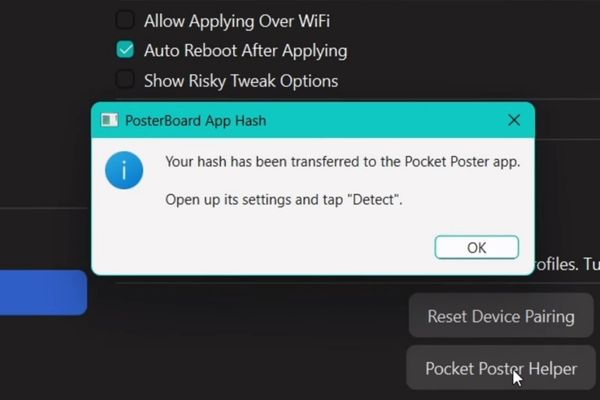
Keep the connection intact, now pick up your iPhone > Open the Pocket Poster app on iPhone.
Click on the icon installation gear in the upper right corner > You will see an empty box called “Enter App Hash”. Click the button Detect green next to it.
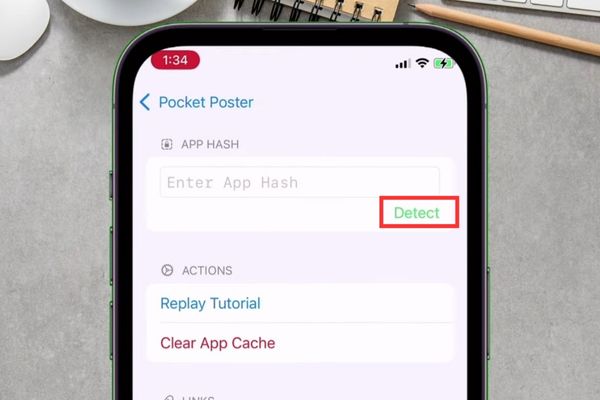
The application will automatically paste the hash code that Nugget just generated. When the code appears, setup is complete!
From now on, you can disconnect and put your computer away. All future operations will be performed 100% on the iPhone.
Step 4: Open the Pocket Poster app > Tap compass icon in the upper left corner to open a browser that leads to the cowabun.ga wallpaper gallery.
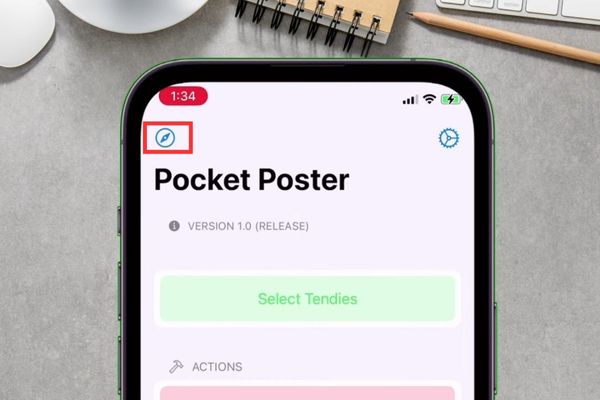
Surf and choose a wallpaper video you love > Click the button Open in PocketPoster.
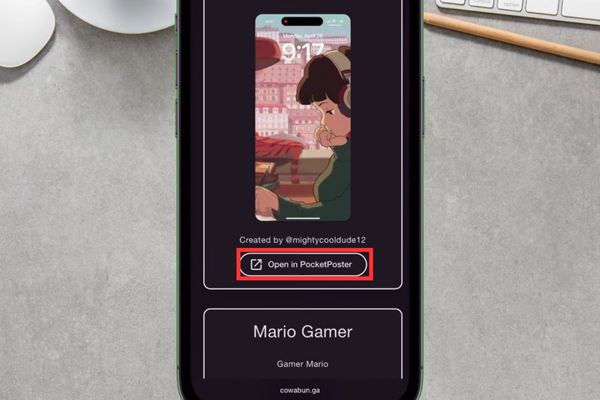
A pop-up will appear asking “Would you like to download the file…”. Press OK.
The application will download and display the wallpaper name in the “SELECTED TENDIES” section.
Click the button Apply.
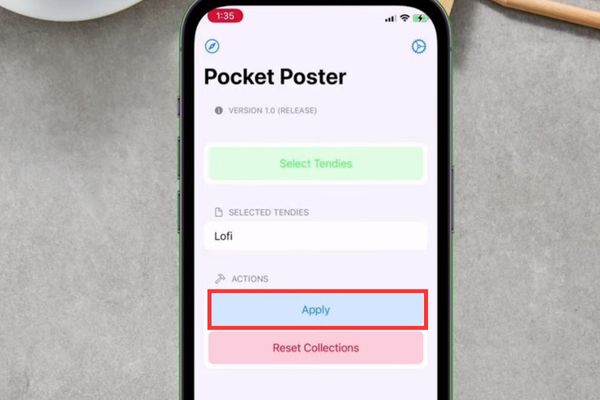
A pop-up “Success!” will appear. Your screen will change to an interface identical to your lock screen with a new wallpaper.
Now swipe up from the bottom edge of the screen > Find the window with the name PosterBoard and swipe up to close it completely.
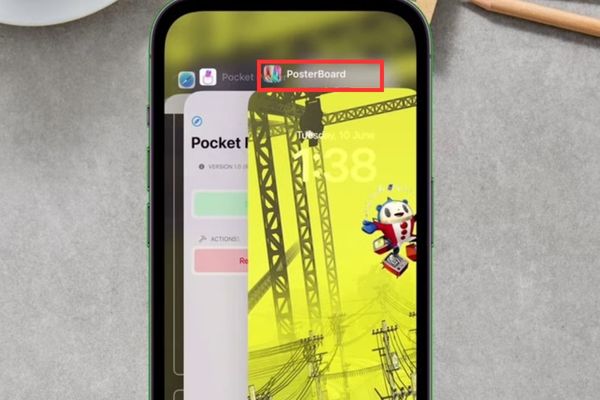
Now, let’s enter Settings > Wallpaper. You will see the new live wallpaper has been applied and is in the Collections section.
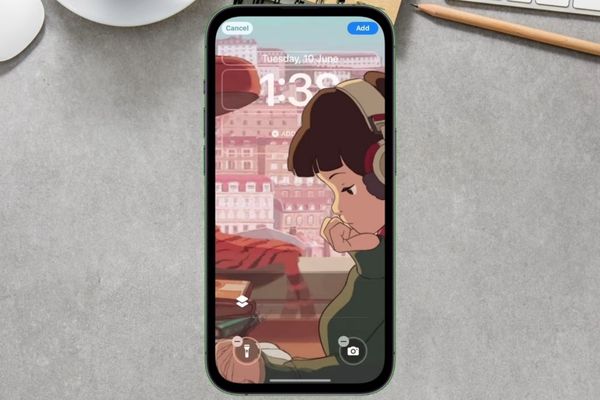 Go to Settings > Wallpaper
Now, every time you want to “change things up”, you just need to repeat Step 4 to immediately have a cool live wallpaper without needing a computer anymore!
How to set video as live wallpaper This method is completely safe and does not require jailbreak. Not only will you beautify your device, but you’ll also learn a useful customization skill. Wishing you a successful application!






![[CẬP NHẬT] 150+ Latest HOT TREND special character names 2026](https://anonyviet.com/wp-content/uploads/2025/10/word-image-95531-3.png "[CẬP NHẬT] 150+ Latest HOT TREND special character names 2026")


