• Home
  • News
  • Software
  • Knowledge
  • MMO
  • Tips
  • Security
  • Network
  • Office
AnonyViet - English Version
  • Home
  • News
  • Software
  • Knowledge
  • MMO
  • Tips
  • Security
  • Network
  • Office
No Result
View All Result
  • Home
  • News
  • Software
  • Knowledge
  • MMO
  • Tips
  • Security
  • Network
  • Office
No Result
View All Result
AnonyViet - English Version
No Result
View All Result

Lesson 47: How to use Wrap Text in Excel

AnonyViet by AnonyViet
January 26, 2023
in Office
0

Wrap Text in Excel will help you want to display text that fits in the cell without overflowing the text.

Join the channel Telegram of the AnonyViet 👉 Link 👈

How to use Wrap Text in Excel

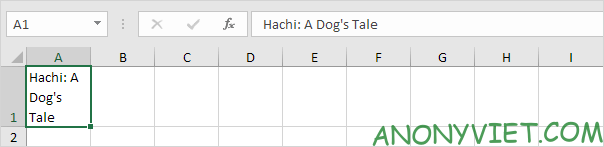
1. For example, you may find that the text below is too long to display outside cell A1. Cell B1 is empty.

Lesson 47: How to use Wrap Text in Excel

2. On the Home tab, in the Alignment group, click Wrap Text.

Lesson 47: How to use Wrap Text in Excel 14

Result.

Lesson 47: How to use Wrap Text in Excel 15

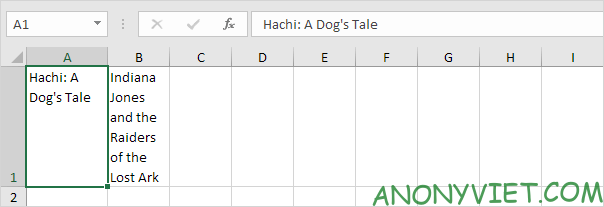
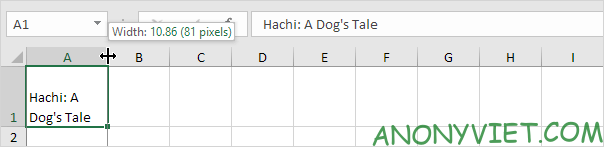
3. Click on the right border of column A and drag the divider to increase the column width.
Lesson 47: How to use Wrap Text in Excel 16

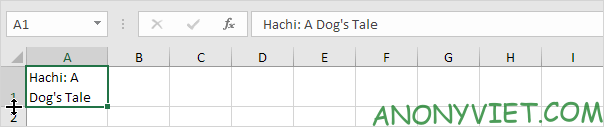
4. Double-click the bottom border of row 1 to automatically adjust the row height.
Lesson 47: How to use Wrap Text in Excel 17

Note: if you set the row height manually (by clicking the row border and dragging the separator), Excel will not change the row height when you click the Wrap Text button. You just need to double click on the bottom border of the row to fix this.

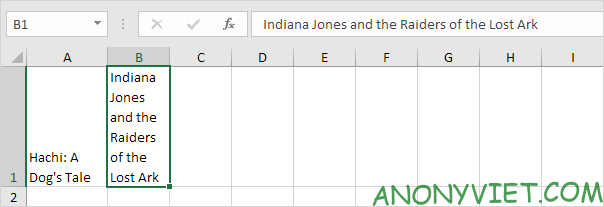
5. Enter a super long text string in cell B1.
Lesson 47: How to use Wrap Text in Excel 18

Note: by default, Excel aligns the text to the bottom (see cell A1).

6. Select cell A1.

7. On the Home tab, in the Alignment group, click Top Align.

Lesson 47: How to use Wrap Text in Excel 19

Result:

Lesson 47: How to use Wrap Text in Excel 20

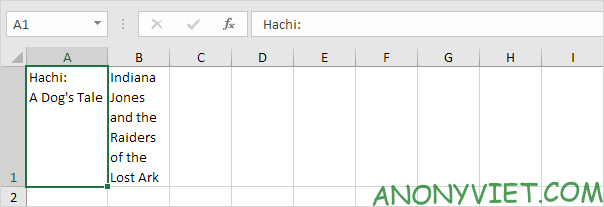
Manual line break

To manually break the line, perform the following steps.

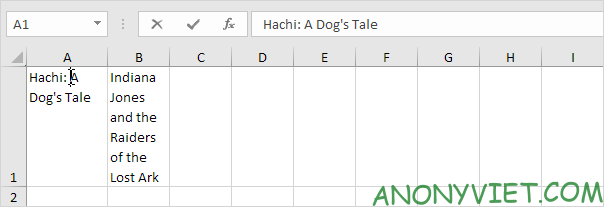
1. For example, double-click cell A1.

2. Place the cursor where you want the line break.
Lesson 47: How to use Wrap Text in Excel 21

3. Press Alt + Enter.

Result:

Lesson 47: How to use Wrap Text in Excel 22

Note: To remove a line break, double-click the cell, place your cursor at the beginning of the line, and press Backspace.

In addition, you can also view many other excel articles here.

The article achieved: 5/5 – (100 votes)

Tags: ExcelLessontextWrap
Previous Post

Differences between Linux and Unix and things you don’t know

Next Post

Zoomeye: Professional hacker’s search engine

AnonyViet

AnonyViet

Related Posts

How to add Watermark to Google Docs to protect copyright
Office

How to add Watermark to Google Docs to protect copyright

April 19, 2026
Instructions on how to hide formulas in Excel to secure data
Office

Instructions on how to hide formulas in Excel to secure data

February 6, 2026
Top who creates the most beautiful presentation slide today
Office

Top who creates the most beautiful presentation slide today

September 23, 2025
Automatically check and correct spelling errors on Google Docs
Office

Automatically check and correct spelling errors on Google Docs

February 23, 2025
Instructions for downloading Google Docs files easily on any device
Office

Instructions for downloading Google Docs files easily on any device

December 18, 2024
Launching AI image creation feature on Google Docs
Office

Launching AI image creation feature on Google Docs

November 20, 2024
Next Post
Zoomeye: Professional hacker’s search engine

Zoomeye: Professional hacker's search engine

0 0 votes
Article Rating
Subscribe
Login
Notify of
guest

guest

0 Comments
Oldest
Newest Most Voted
Inline Feedbacks
View all comments

Recent News

Instructions on how to get Google AI Pro 1 year for free for new accounts

Instructions on how to get Google AI Pro 1 year for free for new accounts

June 1, 2026
Top free AI tools to help write, test and optimize content

Top free AI tools to help write, test and optimize content

June 1, 2026
TruyenDrive: Turn Google Drive into a professional manga reader

TruyenDrive: Turn Google Drive into a professional manga reader

May 31, 2026
How to turn off Gemini Nano on Chrome to free up 4GB of memory

How to turn off Gemini Nano on Chrome to free up 4GB of memory

May 30, 2026
Instructions on how to get Google AI Pro 1 year for free for new accounts

Instructions on how to get Google AI Pro 1 year for free for new accounts

June 1, 2026
Top free AI tools to help write, test and optimize content

Top free AI tools to help write, test and optimize content

June 1, 2026
TruyenDrive: Turn Google Drive into a professional manga reader

TruyenDrive: Turn Google Drive into a professional manga reader

May 31, 2026
AnonyViet - English Version

AnonyViet

AnonyViet is a website share knowledge that you have never learned in school!

We are ready to welcome your comments, as well as your articles sent to AnonyViet.

Follow Us

Contact:

Email: anonyviet.com[@]gmail.com

Main Website: https://anonyviet.com

Recent News

Instructions on how to get Google AI Pro 1 year for free for new accounts

Instructions on how to get Google AI Pro 1 year for free for new accounts

June 1, 2026
Top free AI tools to help write, test and optimize content

Top free AI tools to help write, test and optimize content

June 1, 2026
No Result
View All Result
  • Home
  • News
  • Software
  • Knowledge
  • MMO
  • Tips
  • Security
  • Network
  • Office

wpDiscuz
0
0
Would love your thoughts, please comment.x
()
x
| Reply