• Home
  • News
  • Software
  • Knowledge
  • MMO
  • Tips
  • Security
  • Network
  • Office
AnonyViet - English Version
  • Home
  • News
  • Software
  • Knowledge
  • MMO
  • Tips
  • Security
  • Network
  • Office
No Result
View All Result
  • Home
  • News
  • Software
  • Knowledge
  • MMO
  • Tips
  • Security
  • Network
  • Office
No Result
View All Result
AnonyViet - English Version
No Result
View All Result

Lesson 29: How to use AutoRecover in Excel

AnonyViet by AnonyViet
January 26, 2023
in Office
0

Excel periodically save a copy of the Excel file. So, in this article, we will learn how to recover files that have never been saved and how to recover files that have been saved at least once.

Join the channel Telegram of the AnonyViet 👉 Link 👈

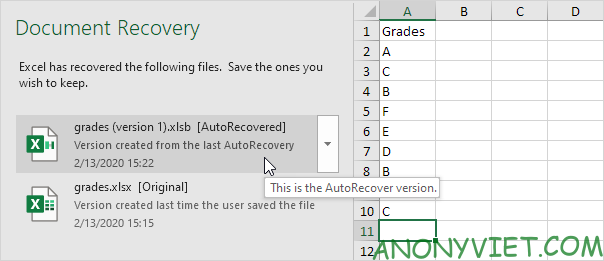
If Excel crashes, it will display the Document Recovery Pane when you reopen Excel. Here is a quick way to restore the last autosave file.
Lesson 29: How to use AutoRecover in Excel 12

How to use AutoRecover in Excel

File never saved

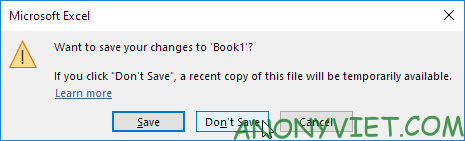
If you’ve never saved a file and you accidentally clicked Don’t Save below when you closed Excel (or Excel crashes), take the following steps to restore the last autosaved file.
Lesson 29: How to use AutoRecover in Excel 13

Note: Excel will tell you if a recent copy is still available.

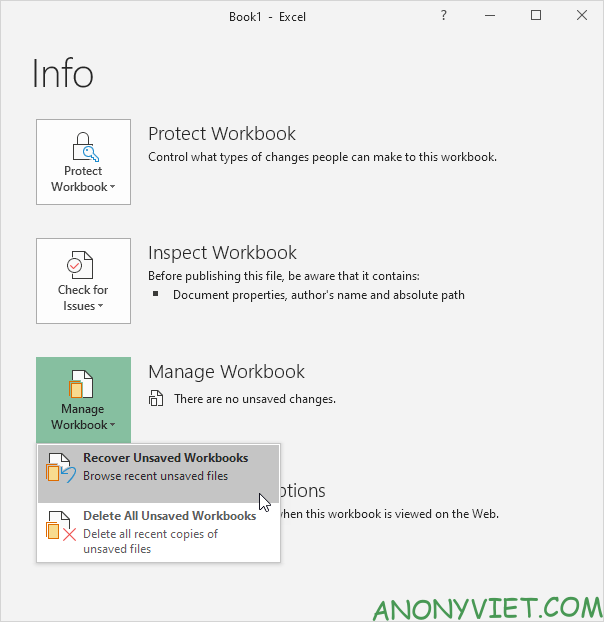
First, click on the File tab and select Info.

Next, select Manage Workbook -> Recover Unsaved Workbooks.
Lesson 29: How to use AutoRecover in Excel 14

Click the last auto-archived file.

Saved at least once

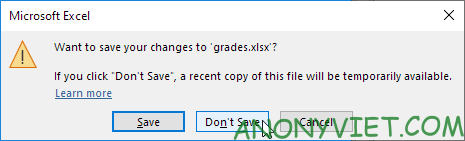
If you’ve never saved a file and you accidentally clicked Don’t Save below when you closed Excel (or Excel crashes), take the following steps to restore the last autosaved file.
Lesson 29: How to use AutoRecover in Excel 15

Note: Excel will tell you if a recent copy of the file is still available.

First, open the Excel file.

On the File tab, click Info.

In Manage Workbook, click on the last autosaved file.
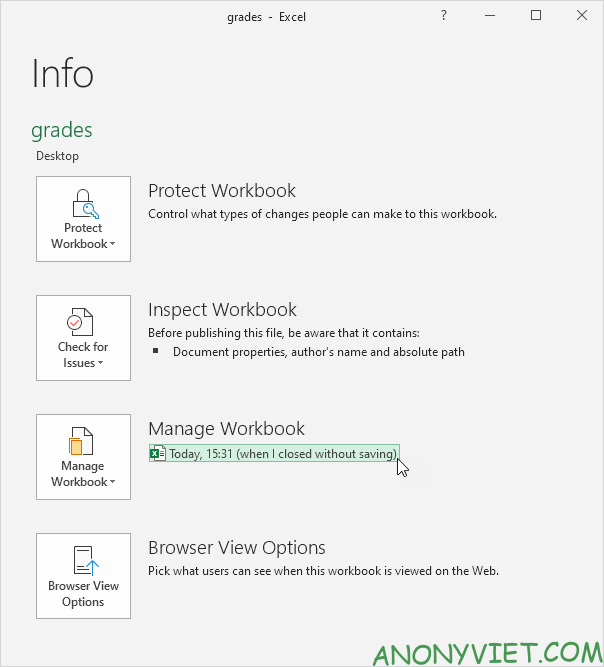
Lesson 29: How to use AutoRecover in Excel 16

Version of the file

When you are working on Excel, Excel saves all the files that were automatically saved in the Manage Workbook.

On the File tab, select Info.

At any time, you can revert to a previous version of the Excel file.
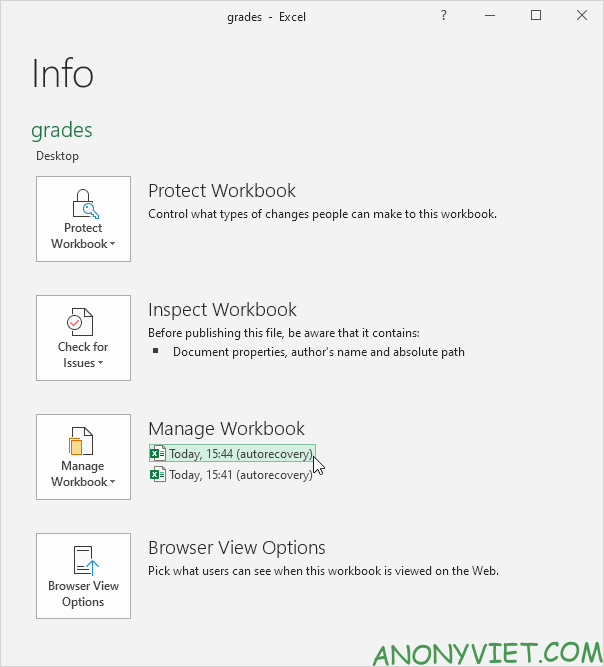
Lesson 29: How to use AutoRecover in Excel 17

Note: Excel will delete all previously autosaved files when you close the Excel file.

Other options

To change options in AutoRecoverperform the following steps.

On the File tab, click Options -> Save.
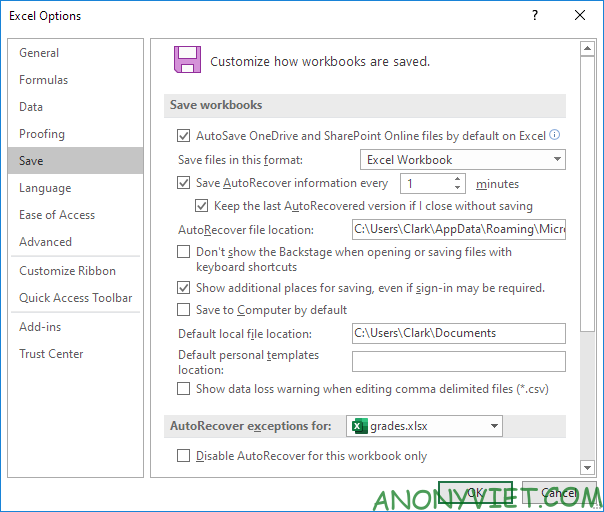
Lesson 29: How to use AutoRecover in Excel 18

Note: you can set to save AutoRecover information every x minutes, or change the location of the AutoRecover file, etc.

In addition, you can also view many other excel articles here.

The article achieved: 5/5 – (100 votes)

Tags: AutoRecoverExcelLesson
Previous Post

How to check if Android apps are safe to download?

Next Post

Instructions to receive $ 50 to create a VPS of Linode for 1 month use

AnonyViet

AnonyViet

Related Posts

Top who creates the most beautiful presentation slide today
Office

Top who creates the most beautiful presentation slide today

September 23, 2025
Automatically check and correct spelling errors on Google Docs
Office

Automatically check and correct spelling errors on Google Docs

February 23, 2025
Instructions for downloading Google Docs files easily on any device
Office

Instructions for downloading Google Docs files easily on any device

December 18, 2024
Launching AI image creation feature on Google Docs
Office

Launching AI image creation feature on Google Docs

November 20, 2024
Instructions for using Google Docs without internet
Office

Instructions for using Google Docs without internet

November 2, 2024
Share the link to the sample file to create QR codes in Google Sheets
Office

Share the link to the sample file to create QR codes in Google Sheets

September 30, 2024
Next Post
Instructions to receive $ 50 to create a VPS of Linode for 1 month use

Instructions to receive $ 50 to create a VPS of Linode for 1 month use

0 0 votes
Article Rating
Subscribe
Login
Notify of
guest

guest

0 Comments
Oldest
Newest Most Voted
Inline Feedbacks
View all comments

Recent News

How to create Mind Map and Flowchart using ChatGPT is super simple

How to create Mind Map and Flowchart using ChatGPT is super simple

December 7, 2025
Free Gemini Google certification exam guide and Answers

Free Gemini Google certification exam guide and Answers

December 6, 2025
How to write Shell Script in Linux/Unix

How to write Shell Script in Linux/Unix

December 6, 2025
How to completely uninstall WSL on Windows 11?

How to completely uninstall WSL on Windows 11?

December 6, 2025
How to create Mind Map and Flowchart using ChatGPT is super simple

How to create Mind Map and Flowchart using ChatGPT is super simple

December 7, 2025
Free Gemini Google certification exam guide and Answers

Free Gemini Google certification exam guide and Answers

December 6, 2025
How to write Shell Script in Linux/Unix

How to write Shell Script in Linux/Unix

December 6, 2025
AnonyViet - English Version

AnonyViet

AnonyViet is a website share knowledge that you have never learned in school!

We are ready to welcome your comments, as well as your articles sent to AnonyViet.

Follow Us

Contact:

Email: anonyviet.com[@]gmail.com

Main Website: https://anonyviet.com

Recent News

How to create Mind Map and Flowchart using ChatGPT is super simple

How to create Mind Map and Flowchart using ChatGPT is super simple

December 7, 2025
Free Gemini Google certification exam guide and Answers

Free Gemini Google certification exam guide and Answers

December 6, 2025
  • Home
  • Home 2
  • Home 3
  • Home 4
  • Home 5
  • Home 6
  • Next Dest Page
  • Sample Page

trang chủ f168 nhà cái 78win https://www.qq8827.com/

No Result
View All Result
  • Home
  • News
  • Software
  • Knowledge
  • MMO
  • Tips
  • Security
  • Network
  • Office

trang chủ f168 nhà cái 78win https://www.qq8827.com/

wpDiscuz
0
0
Would love your thoughts, please comment.x
()
x
| Reply