• Home
  • News
  • Software
  • Knowledge
  • MMO
  • Tips
  • Security
  • Network
  • Office
AnonyViet - English Version
  • Home
  • News
  • Software
  • Knowledge
  • MMO
  • Tips
  • Security
  • Network
  • Office
No Result
View All Result
  • Home
  • News
  • Software
  • Knowledge
  • MMO
  • Tips
  • Security
  • Network
  • Office
No Result
View All Result
AnonyViet - English Version
No Result
View All Result

Lesson 189: How to use the Frequency function in Excel

AnonyViet by AnonyViet
January 24, 2023
in Office
0

FREQUENCY function in Excel calculates the frequency of occurrence of values ​​in the range you specify. You can also use the COUNTIFS function to generate a frequency distribution.

Join the channel Telegram of the AnonyViet 👉 Link 👈

How to use the Frequency function in Excel

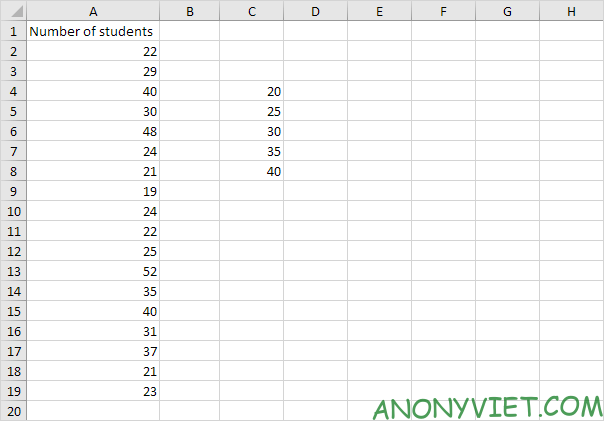
1. First, enter the number of values ​​into the range C4:C8.

Lesson 189: How to use the Frequency function in Excel

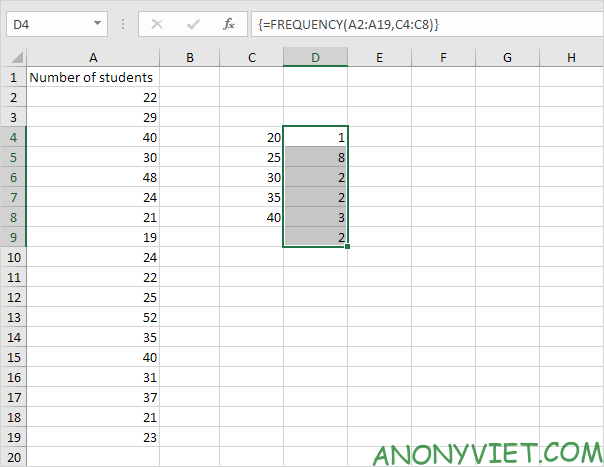
2. Select the range D4:D9, enter the FREQUENCY function shown below (without the curly braces) and finish by pressing CTRL + SHIFT + ENTER.
Lesson 189: How to use the Frequency function in Excel 10

Note: the formula bar indicates this is an array formula by enclosing it in curly braces {}. To delete this array formula, select the range D4:D9 and press Delete.

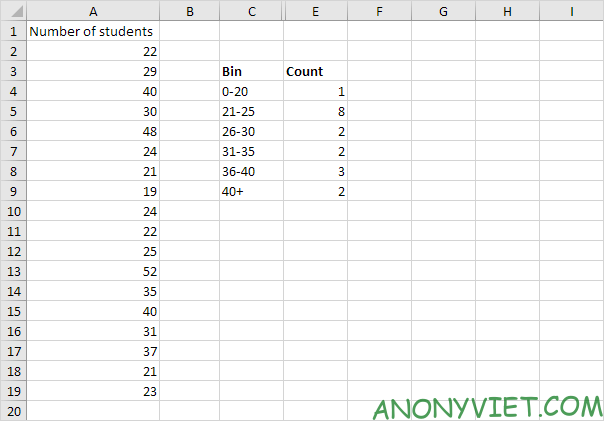
3. Hide column C and insert column with new content.
Lesson 189: How to use the Frequency function in Excel 11

Explanation: 1 value is less than or equal to 20, 8 values ​​are greater than or equal to 21 and less than or equal to 25,.. In step 2, we choose the range D4:D9 (instead of D4: D8 ). Therefore, the FREQUENCY function also counts numbers greater than 40.

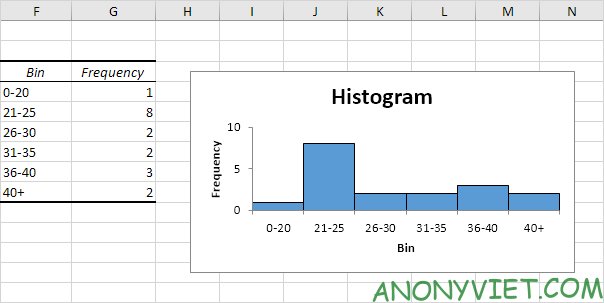
4. You can also use the Analysis Toolpak to create charts.
Lesson 189: How to use the Frequency function in Excel 12

5. Change bin. Select the range D4:D9 (no extra cells), enter the FREQUENCY function shown below (without the curly braces), and finish by pressing CTRL + SHIFT + ENTER.
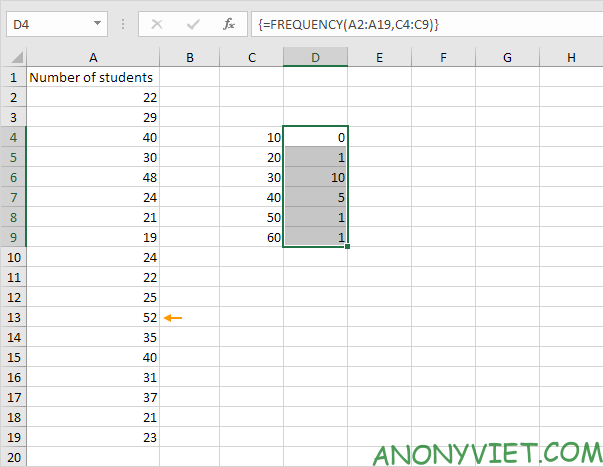
Lesson 189: How to use the Frequency function in Excel 13

Explanation: the final number of bins is greater than or equal to the maximum value (52). Therefore, we do not need an extra cell to count the number of values ​​greater than 60.

6. You can also use the COUNTIFS function to generate a frequency distribution.
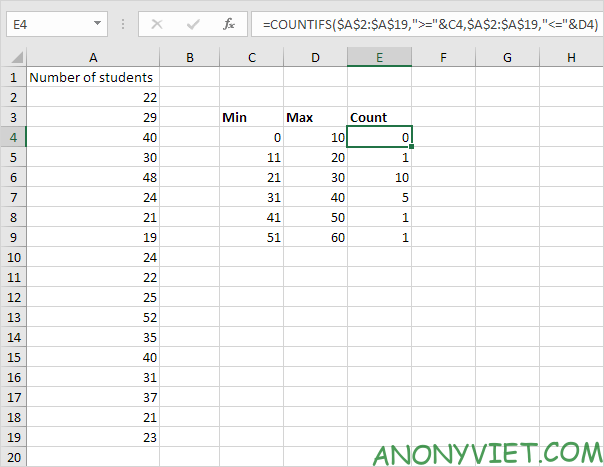
Lesson 189: How to use the Frequency function in Excel 14

Explanation: the COUNTIFS function in Excel counts cells based on two or more conditions. The COUNTIFS function shown above has 2 range/condition pairs. The & operator combines “>=” with the value in cell C4 and “<=” with the value in cell D4. You can easily copy this formula to other cells.


In addition, you can also view many other excel articles here.

The article achieved: 5/5 – (100 votes)

Tags: ExcelFrequencyfunctionLesson
Previous Post

Today’s best online Python compilers

Next Post

How to make Vim the default editor on Linux

AnonyViet

AnonyViet

Related Posts

Top who creates the most beautiful presentation slide today
Office

Top who creates the most beautiful presentation slide today

September 23, 2025
Automatically check and correct spelling errors on Google Docs
Office

Automatically check and correct spelling errors on Google Docs

February 23, 2025
Instructions for downloading Google Docs files easily on any device
Office

Instructions for downloading Google Docs files easily on any device

December 18, 2024
Launching AI image creation feature on Google Docs
Office

Launching AI image creation feature on Google Docs

November 20, 2024
Instructions for using Google Docs without internet
Office

Instructions for using Google Docs without internet

November 2, 2024
Share the link to the sample file to create QR codes in Google Sheets
Office

Share the link to the sample file to create QR codes in Google Sheets

September 30, 2024
Next Post
How to make Vim the default editor on Linux

How to make Vim the default editor on Linux

0 0 votes
Article Rating
Subscribe
Login
Notify of
guest

guest

0 Comments
Oldest
Newest Most Voted
Inline Feedbacks
View all comments

Recent News

How to create Mind Map and Flowchart using ChatGPT is super simple

How to create Mind Map and Flowchart using ChatGPT is super simple

December 7, 2025
Free Gemini Google certification exam guide and Answers

Free Gemini Google certification exam guide and Answers

December 6, 2025
How to write Shell Script in Linux/Unix

How to write Shell Script in Linux/Unix

December 6, 2025
How to completely uninstall WSL on Windows 11?

How to completely uninstall WSL on Windows 11?

December 6, 2025
How to create Mind Map and Flowchart using ChatGPT is super simple

How to create Mind Map and Flowchart using ChatGPT is super simple

December 7, 2025
Free Gemini Google certification exam guide and Answers

Free Gemini Google certification exam guide and Answers

December 6, 2025
How to write Shell Script in Linux/Unix

How to write Shell Script in Linux/Unix

December 6, 2025
AnonyViet - English Version

AnonyViet

AnonyViet is a website share knowledge that you have never learned in school!

We are ready to welcome your comments, as well as your articles sent to AnonyViet.

Follow Us

Contact:

Email: anonyviet.com[@]gmail.com

Main Website: https://anonyviet.com

Recent News

How to create Mind Map and Flowchart using ChatGPT is super simple

How to create Mind Map and Flowchart using ChatGPT is super simple

December 7, 2025
Free Gemini Google certification exam guide and Answers

Free Gemini Google certification exam guide and Answers

December 6, 2025
  • Home
  • Home 2
  • Home 3
  • Home 4
  • Home 5
  • Home 6
  • Next Dest Page
  • Sample Page

trang chủ f168 nhà cái 78win https://www.qq8827.com/

No Result
View All Result
  • Home
  • News
  • Software
  • Knowledge
  • MMO
  • Tips
  • Security
  • Network
  • Office

trang chủ f168 nhà cái 78win https://www.qq8827.com/

wpDiscuz
0
0
Would love your thoughts, please comment.x
()
x
| Reply