• Home
  • News
  • Software
  • Knowledge
  • MMO
  • Tips
  • Security
  • Network
  • Office
AnonyViet - English Version
  • Home
  • News
  • Software
  • Knowledge
  • MMO
  • Tips
  • Security
  • Network
  • Office
No Result
View All Result
  • Home
  • News
  • Software
  • Knowledge
  • MMO
  • Tips
  • Security
  • Network
  • Office
No Result
View All Result
AnonyViet - English Version
No Result
View All Result

Lesson 187: How to use the Mode function in Excel

AnonyViet by AnonyViet
January 24, 2023
in Office
0

Using the MODE function in Excel to find the number that appears most often in the list. Use MODE.MULT to find various modes.

Join the channel Telegram of the AnonyViet 👉 Link 👈

How to use the Mode function in Excel

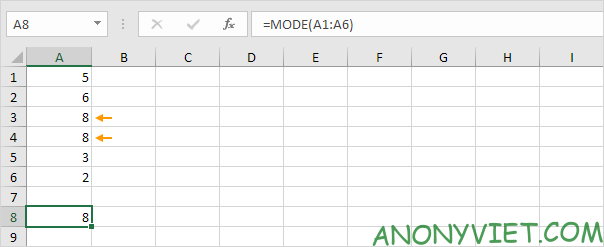
1. The MODE function below returns the number that occurs most often (8).
Lesson 187: How to use the Mode function in Excel

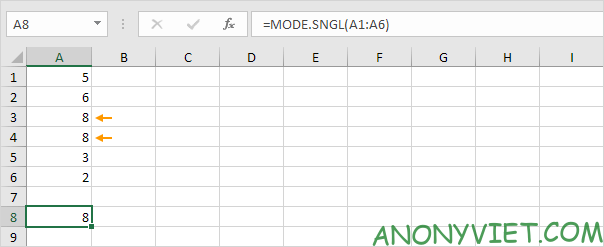
2. The new MODE.SNGL function has the same result.
Lesson 187: How to use the Mode function in Excel 13

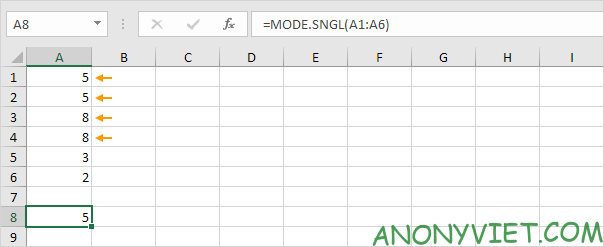
3. Change the value in cell A2 to 5. In this example, there are 2 values ​​that repeat most often (5 and 8). MODE and MODE.SNGL always return a single value.
Lesson 187: How to use the Mode function in Excel 14

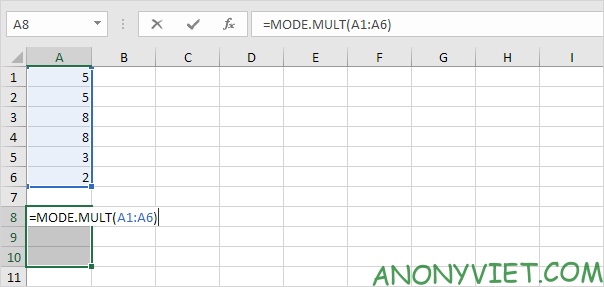
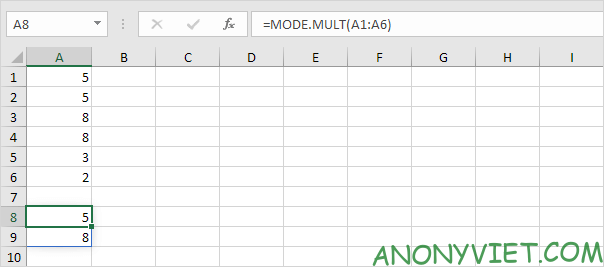
4. If you are using Excel 365, simply use the MODE.MULT function to find multiple values.
Lesson 187: How to use the Mode function in Excel 15

Note: the MODE.MULT function, entered in cell A8, will populate the next cell if there are equal repeat values.

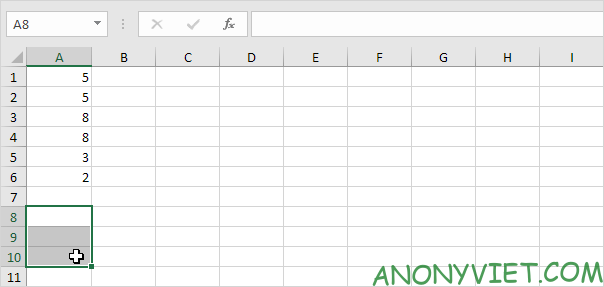
If you don’t have Excel 365, you can also perform the following steps to find multiple values.

5. Select multiple cells.
Lesson 187: How to use the Mode function in Excel 16

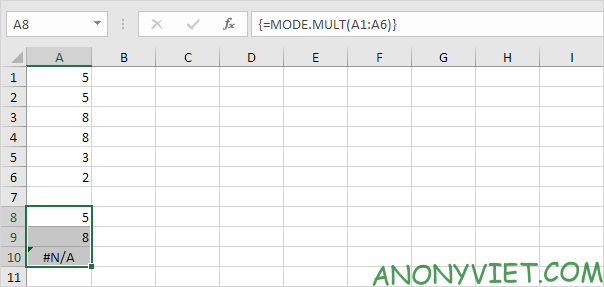
6. Enter the MODE.MULT function.

Lesson 187: How to use the Mode function in Excel 17

7. Finish by pressing CTRL + SHIFT + ENTER.
Lesson 187: How to use the Mode function in Excel 18

Note: this is an array formula because it’s in curly braces {}. To delete this array formula, select the range A8:A10 and press Delete. In this example, there are only two values ​​(5 and 8) so we can select two cells in step 5.

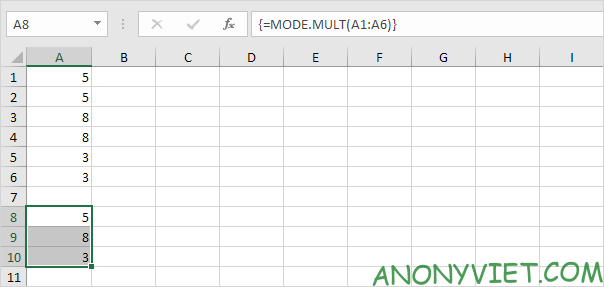
8. Change the value in cell A6 to 3.
Lesson 187: How to use the Mode function in Excel 19

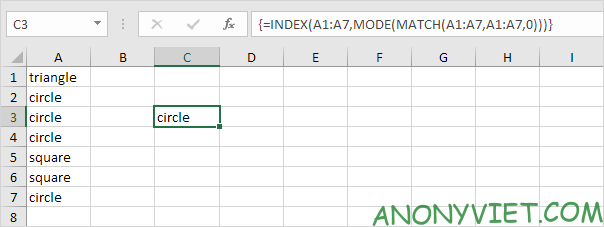
9. The MODE function only works with numbers. Use INDEX, MODE, and MATCH to find the most frequently occurring word in Excel.
Lesson 187: How to use the Mode function in Excel 20

In addition, you can also view many other excel articles here.

The article achieved: 5/5 – (100 votes)

Tags: ExcelfunctionLessonMode
Previous Post

Instructions to create a website to sell 4G Hack File via V2board

Next Post

Hướng dẫn dùng nmap để scan Port

AnonyViet

AnonyViet

Related Posts

Instructions on how to hide formulas in Excel to secure data
Office

Instructions on how to hide formulas in Excel to secure data

February 6, 2026
Top who creates the most beautiful presentation slide today
Office

Top who creates the most beautiful presentation slide today

September 23, 2025
Automatically check and correct spelling errors on Google Docs
Office

Automatically check and correct spelling errors on Google Docs

February 23, 2025
Instructions for downloading Google Docs files easily on any device
Office

Instructions for downloading Google Docs files easily on any device

December 18, 2024
Launching AI image creation feature on Google Docs
Office

Launching AI image creation feature on Google Docs

November 20, 2024
Instructions for using Google Docs without internet
Office

Instructions for using Google Docs without internet

November 2, 2024
Next Post
Hướng dẫn dùng nmap để scan Port

Hướng dẫn dùng nmap để scan Port

0 0 votes
Article Rating
Subscribe
Login
Notify of
guest

guest

0 Comments
Oldest
Newest Most Voted
Inline Feedbacks
View all comments

Recent News

How to avoid Adblock detection on Youtube with 4 good tips

How to avoid Adblock detection on Youtube with 4 good tips

April 17, 2026
How to transfer ChatGPT data to Claude is extremely simple

How to transfer ChatGPT data to Claude is extremely simple

April 16, 2026
How to authenticate the owner’s SIM on VNeID from April 15

How to authenticate the owner’s SIM on VNeID from April 15

April 15, 2026
Speak Cells: Excel tool to read spreadsheets by voice very well

Speak Cells: Excel tool to read spreadsheets by voice very well

April 15, 2026
How to avoid Adblock detection on Youtube with 4 good tips

How to avoid Adblock detection on Youtube with 4 good tips

April 17, 2026
How to transfer ChatGPT data to Claude is extremely simple

How to transfer ChatGPT data to Claude is extremely simple

April 16, 2026
How to authenticate the owner’s SIM on VNeID from April 15

How to authenticate the owner’s SIM on VNeID from April 15

April 15, 2026
AnonyViet - English Version

AnonyViet

AnonyViet is a website share knowledge that you have never learned in school!

We are ready to welcome your comments, as well as your articles sent to AnonyViet.

Follow Us

Contact:

Email: anonyviet.com[@]gmail.com

Main Website: https://anonyviet.com

Recent News

How to avoid Adblock detection on Youtube with 4 good tips

How to avoid Adblock detection on Youtube with 4 good tips

April 17, 2026
How to transfer ChatGPT data to Claude is extremely simple

How to transfer ChatGPT data to Claude is extremely simple

April 16, 2026
No Result
View All Result
  • Home
  • News
  • Software
  • Knowledge
  • MMO
  • Tips
  • Security
  • Network
  • Office

wpDiscuz
0
0
Would love your thoughts, please comment.x
()
x
| Reply