Hello friends! Welcome back to basic Excel for beginners. And in today’s lesson, I will teach you about the Flash Fill feature
| Join the channel Telegram of the AnonyViet 👉 Link 👈 |
Flash Fill for what?
Flash Fill has the function of separating or combining data together. For example: You have a table of data that you want to separate them, how do you do it? Flash Fill will help you with that.
Instructions for using Flash Fill
Example 1:
Step 1: Enter number 4645 in the box B1write that Excel will implicitly mean that you want to get the value after the / in the cell A1
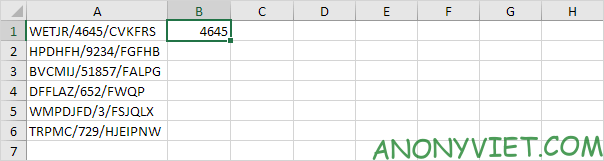
Step 2: On the Data section, select Flash Fill (can use CTRL + E)

As a result, Column B will separate the value of column A and fill in the corresponding rows.
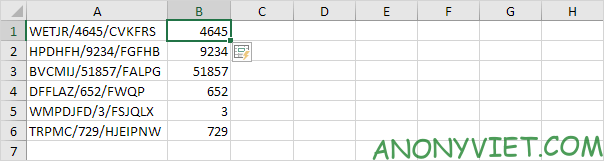
Example 2
Step 1: Enter the email name so that Excel knows what you are doing. Excel implicitly means that you want toFor string A1.B1 add @company.com
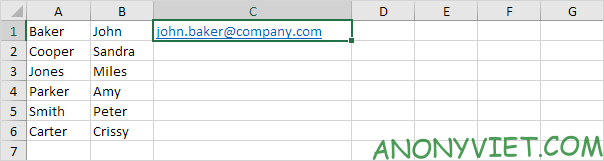
Step 2: On the Data section, select Flash Fill (can use CTRL + E)
Result: Row C will be the result of [email protected]
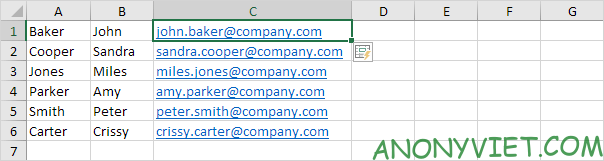
Example 3:
Step 1: Enter your security code correctly
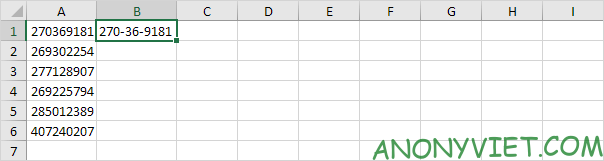
Step 2: On the Data section, select Flash Fill (can use CTRL + E)
Result
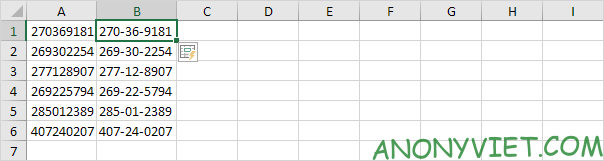
Limits of Flash Fill
Step 1: enter the number 130 in cell B1
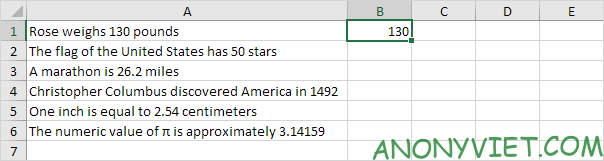
Step 2: On the Data section, select Flash Fill (can use CTRL + E)
Result
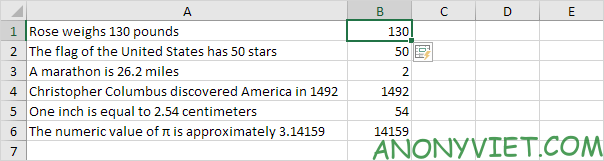
If you want Flash Fill to correct it, enter 26.2 in cell B3 and Flash Fill will correct it for you
Note: Flash fill will not automatically update values when changed
So I showed you how to use Flash Fill of Excel. If you have any questions, please leave a comment to let me know.