• Home
  • News
  • Software
  • Knowledge
  • MMO
  • Tips
  • Security
  • Network
  • Office
AnonyViet - English Version
  • Home
  • News
  • Software
  • Knowledge
  • MMO
  • Tips
  • Security
  • Network
  • Office
No Result
View All Result
  • Home
  • News
  • Software
  • Knowledge
  • MMO
  • Tips
  • Security
  • Network
  • Office
No Result
View All Result
AnonyViet - English Version
No Result
View All Result

Instructions to upgrade to Windows 10 Sun Valley (21H2)

AnonyViet by AnonyViet
January 29, 2023
in Tips
0

Microsoft revealed this week that it has completed Windows 10 Sun Valley version 21H1 and will soon begin releasing it to users. If you want to immediately upgrade Windows 10 version 21H1, without waiting, follow the instructions below.

Join the channel Telegram of the AnonyViet 👉 Link 👈

Instructions to upgrade to Windows 10 Sun Valley (21H2)

Windows 10’s May 2021 Update, also known as 21H1, began rolling out in the Preview channel on April 28, 2021. Like the 20H2 update, this is an update. Small update focused on security improvements and fixes. Major features originally planned for 21H1 have been delayed to 21H2 by the end of 2021.

You can see this paragraph for the latest changes to Windows 10 Insider build 19043,928 which Microsoft announced as the final build on April 28, 2021.

Upgrading some versions of Windows 10 early may encounter many new errors, but I do not believe that version 21H1 will have such a case. Like versions 1909, 2004 and 20H2 before it, Windows 10 version 21H1 is not a “real” feature update. Instead, it is built on the same code base of 20H2 and is just a minor version with a few new features. Plus, if you’re already using 2004, it will be distributed as a cumulative update, so the whole process should take less than 30 minutes.

Summary of new features in Windows 10 21H1

To recap, here are the new features in 21H1 in addition to general bug fixes, security, remote access, and quality updates:

  • Support Windows Hello multicamera to set up external and internal cameras in Laptop using Windows Hello.
  • Windows Defender Application Guard performance improvements include optimizing document opening times.
  • Windows Management Instrumentation (WMI) Group Policy Service (GPSVC) updates improve performance to support remote work scenarios.

How to upgrade Windows 10 Sun Valley Version 21H1

First, you need to open the Settings app by pressing Windows + I and go to section Update & Security > Windows Insider Program.
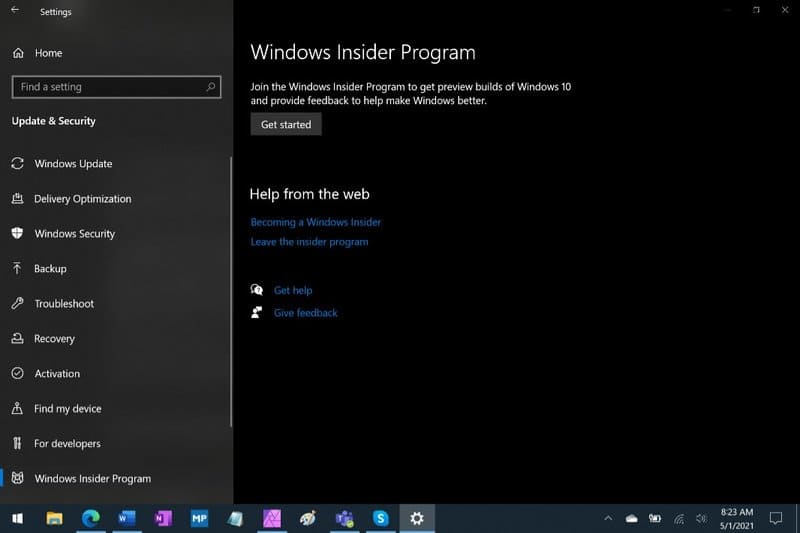
How to upgrade Windows 10 version 21H1

Next, click on the “Get started” button. Select your Microsoft account.
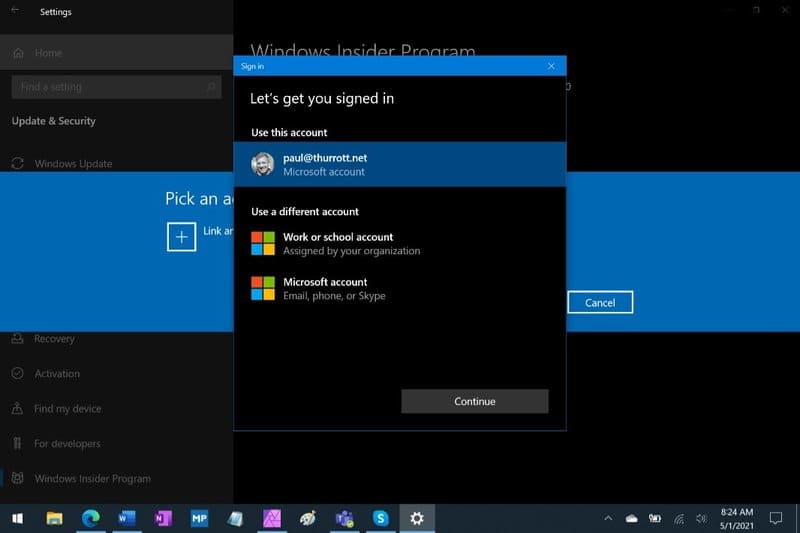
Get started

Select “Release Preview Channel” and then click the Confirm button. Then, click Confirm and restart the PC when prompted.

When the PC restarts, go to Update & Security > Windows Update and click the Check for updates button. You will see the update “Feature update to Windows 10, version 21H1” offered as an optional installation. Install any previously pending updates. Then, click “Download and install”.
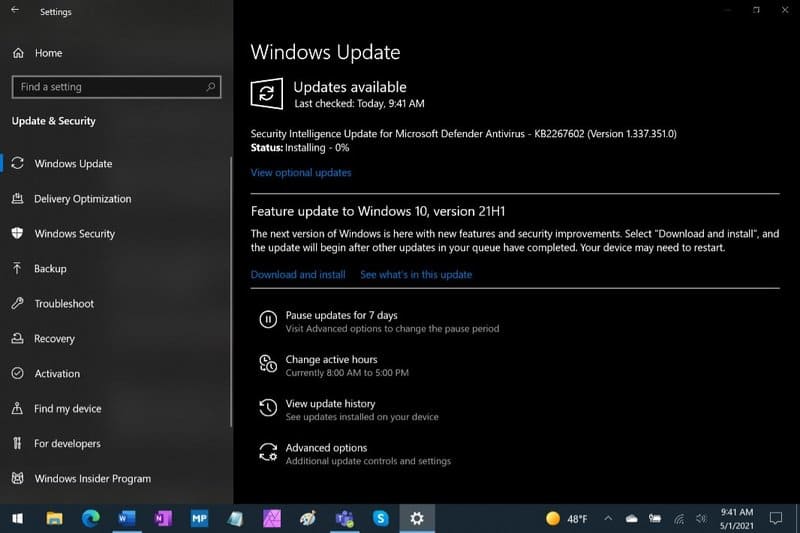
Feature update to Windows 10, version 21H1

The feature update will be downloaded and installed. If you’re already using Windows 10 version 2004, this should only take a few minutes as it’s not a real feature update. Click Restart now when prompted.

When your PC restarts, you’ll see that you’re now using Windows 10 version 21H1. Look in Settings > System > About or press Windows + CHEAP and enter winver.
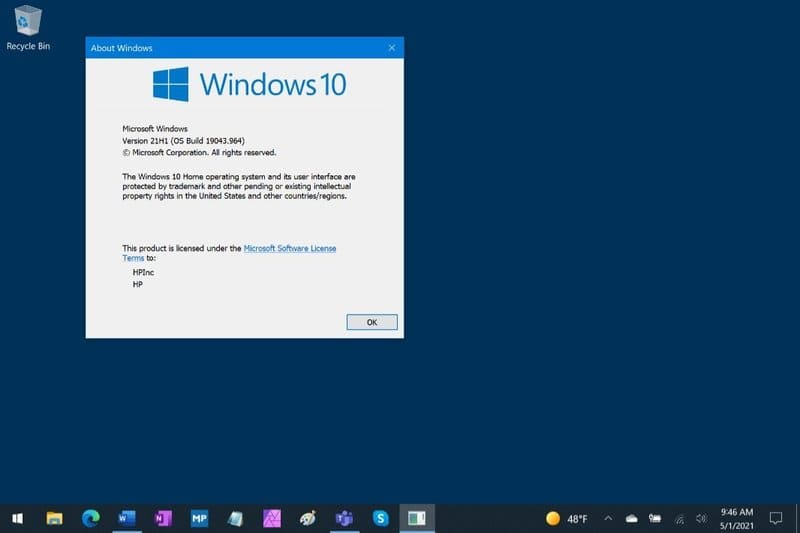
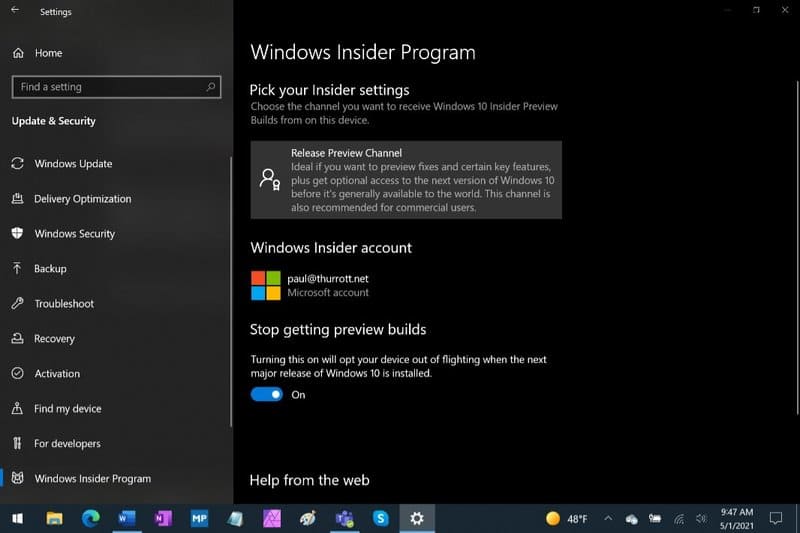
install Windows 10 version 21H1

Now you need to exit the program Windows Insider Program from Microsoft: Open Settings and go to Update & Security > Windows Insider Program. Enable the “Stop getting preview builds” option. You will continue to receive your regular updates going forward.
Instructions to upgrade to Windows 10 Sun Valley (21H2) 3

That’s it, you have finished updating to Windows 10 21H2, waiting for Windows Update to download the file and automatically upgrade.
The article achieved: 5/5 – (100 votes)

Tags: 21H2InstructionsSunupgradeValleyWindows
Previous Post

Share Ebook Cracker version 1.0 full Vietnamese

Next Post

Share File Mod Spotify Premium Final on Android/IOS

AnonyViet

AnonyViet

Related Posts

How to use CMD environment variables in Windows
Tips

How to use CMD environment variables in Windows

January 18, 2026
How to add or remove columns in File Explorer Windows 11
Tips

How to add or remove columns in File Explorer Windows 11

January 17, 2026
Sign up for Pluralsight One for 1 year of free access to Online courses
Tips

Sign up for Pluralsight One for 1 year of free access to Online courses

January 16, 2026
How to schedule a Batch file (CMD) to run on Windows
Tips

How to schedule a Batch file (CMD) to run on Windows

January 15, 2026
Instructions for downloading Facebook Videos with new interface 2021
Tips

Instructions for downloading Facebook Videos with new interface 2021

January 14, 2026
How to get ChatGPT K-12 Teacher for free
Tips

How to get ChatGPT K-12 Teacher for free

January 13, 2026
Next Post
Share File Mod Spotify Premium Final on Android/IOS

Share File Mod Spotify Premium Final on Android/IOS

0 0 votes
Article Rating
Subscribe
Login
Notify of
guest

guest

0 Comments
Oldest
Newest Most Voted
Inline Feedbacks
View all comments

Recent News

How to use automatic verification bot to register for ChatGPT K12, Spotify Student,…

How to use automatic verification bot to register for ChatGPT K12, Spotify Student,…

January 18, 2026
Instructions on how to create head-grabbing photos – New trend causing TikTok storm

Instructions on how to create head-grabbing photos – New trend causing TikTok storm

January 18, 2026
How to use CMD environment variables in Windows

How to use CMD environment variables in Windows

January 18, 2026
Instructions for installing the application “Are you dead yet” – Demumu

Instructions for installing the application “Are you dead yet” – Demumu

January 17, 2026
How to use automatic verification bot to register for ChatGPT K12, Spotify Student,…

How to use automatic verification bot to register for ChatGPT K12, Spotify Student,…

January 18, 2026
Instructions on how to create head-grabbing photos – New trend causing TikTok storm

Instructions on how to create head-grabbing photos – New trend causing TikTok storm

January 18, 2026
How to use CMD environment variables in Windows

How to use CMD environment variables in Windows

January 18, 2026
AnonyViet - English Version

AnonyViet

AnonyViet is a website share knowledge that you have never learned in school!

We are ready to welcome your comments, as well as your articles sent to AnonyViet.

Follow Us

Contact:

Email: anonyviet.com[@]gmail.com

Main Website: https://anonyviet.com

Recent News

How to use automatic verification bot to register for ChatGPT K12, Spotify Student,…

How to use automatic verification bot to register for ChatGPT K12, Spotify Student,…

January 18, 2026
Instructions on how to create head-grabbing photos – New trend causing TikTok storm

Instructions on how to create head-grabbing photos – New trend causing TikTok storm

January 18, 2026
  • Home
  • Home 2
  • Home 3
  • Home 4
  • Home 5
  • Home 6
  • Next Dest Page
  • Sample Page

https://sun52.network

No Result
View All Result
  • Home
  • News
  • Software
  • Knowledge
  • MMO
  • Tips
  • Security
  • Network
  • Office

https://sun52.network

wpDiscuz
0
0
Would love your thoughts, please comment.x
()
x
| Reply