• Home
  • News
  • Software
  • Knowledge
  • MMO
  • Tips
  • Security
  • Network
  • Office
AnonyViet - English Version
  • Home
  • News
  • Software
  • Knowledge
  • MMO
  • Tips
  • Security
  • Network
  • Office
No Result
View All Result
  • Home
  • News
  • Software
  • Knowledge
  • MMO
  • Tips
  • Security
  • Network
  • Office
No Result
View All Result
AnonyViet - English Version
No Result
View All Result

Instructions to delete the background in Canva free super simple

AnonyViet by AnonyViet
March 23, 2025
in Tips
0

You want to create a professional image with a transparent background without wasting? Delete the background in Canva Free Now is the perfect solution for all your design needs. No need to register Prowith just a few simple steps, you can remove the background and retain the subject quickly. Let's explore how to do it in this article!


Join the channel Telegram belong to Anonyviet 👉 Link 👈

Guide to gradually erase the background in Canva Free

Here are the detailed steps for you to delete the background in Canva Free quickly. Follow and you will be surprised with the results!

Step 1: First, open Canva on the browser or application and log in to your account. At the main interface, looking at the toolbar on the left, you will see the item Apps. Click it to start.

This is where Canva integrates a lot of useful features, including the tool to delete the background we are looking for.
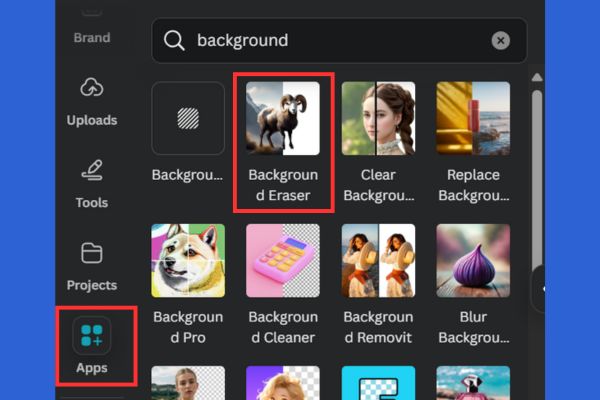
Guide to gradually erase the background in Canva Free

Step 2: After clicking the Apps, a list of tools will appear. At the search bar, type the keyword “Background“To filter the results. You will see Background Eraser Appears in the list. Click this tool to continue.

At this time, Canva will display a small interface that introduces how to use. You can choose to apply this tool for a new design or use right on the existing design.

Step 3: Once you have activated the background eraser, you will be transferred to the working interface. Click the button Choose File (Select the file) To download the image you want to delete the background from your computer or device.
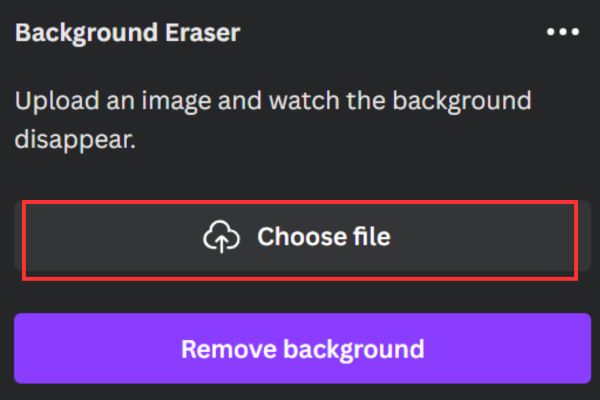
Click the choose file button

After the image is uploaded, click Remove Background (Delete background). Canva's smart AI tool will automatically analyze and remove the background of the image in just a few seconds. As a result, you will have an image with a transparent background, ready to edit or use.
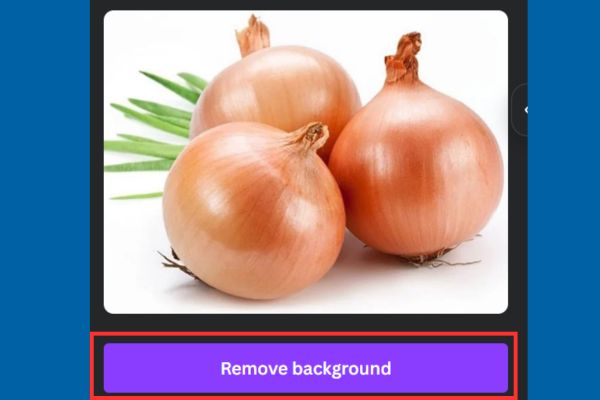
Click Remove Background

Step 4: After deleting the background, you can continue to edit photos in Canva As added text, effects or combined with other design elements. If you are satisfied, just press Download (Download) and select the desired format.

That's it! You have succeeded in deleting the background in Canva free without spending a penny.

Delete the background in Canva Free

Tips to erase the background more effectively in Canva Free

Although the Background Eraser tool is very smart, sometimes the results may not be perfect. Here are a few tips to optimize the process:

  • Choose high contrast images: Photos with clear subjects and simple background will give better results.
  • Detailed test: After deleting the background, zooming in to check if it is somewhat missing.
  • Use additional editing tools: If necessary, you can use the tool to “delete” manually in Canva to tweak.

Conclusion

With this new update, Canva Free has proven that you do not need to spend money to own beautiful photos with transparent background. Just follow the simple steps above, you can Delete the background in Canva Free A quick and professional way!


Tags: backgroundCanvadeletefreeInstructionssimplesuper
Previous Post

Instructions on how to download 7 -color rabbit stickers on Facebook

Next Post

3+ SECRETS The feedback limit in Google Forms is not everyone knows

AnonyViet

AnonyViet

Related Posts

Get free Cambridge courses to prepare for IELTS, Starters, Movers
Tips

Get free Cambridge courses to prepare for IELTS, Starters, Movers

June 4, 2026
How to record reaction videos with Android phones, no app needed
Tips

How to record reaction videos with Android phones, no app needed

June 1, 2026
Instructions on how to get Google AI Pro 1 year for free for new accounts
Tips

Instructions on how to get Google AI Pro 1 year for free for new accounts

June 1, 2026
Top free AI tools to help write, test and optimize content
Tips

Top free AI tools to help write, test and optimize content

June 1, 2026
Instructions for receiving Lovable Pro 12 months for free
Tips

Instructions for receiving Lovable Pro 12 months for free

May 29, 2026
Instructions for receiving 1 month of ElevenLabs Creator for free worth
Tips

Instructions for receiving 1 month of ElevenLabs Creator for free worth $22

May 25, 2026
Next Post
3+ SECRETS The feedback limit in Google Forms is not everyone knows

3+ SECRETS The feedback limit in Google Forms is not everyone knows

0 0 votes
Article Rating
Subscribe
Login
Notify of
guest

guest

0 Comments
Oldest
Newest Most Voted
Inline Feedbacks
View all comments

Recent News

Get free Cambridge courses to prepare for IELTS, Starters, Movers

Get free Cambridge courses to prepare for IELTS, Starters, Movers

June 4, 2026
How to check network speed on Apple TV when the image is jerky or lagging

How to check network speed on Apple TV when the image is jerky or lagging

June 3, 2026
Instructions on how to prevent acquaintances from seeing your Tiktok

Instructions on how to prevent acquaintances from seeing your Tiktok

June 2, 2026
How to record reaction videos with Android phones, no app needed

How to record reaction videos with Android phones, no app needed

June 1, 2026
Get free Cambridge courses to prepare for IELTS, Starters, Movers

Get free Cambridge courses to prepare for IELTS, Starters, Movers

June 4, 2026
How to check network speed on Apple TV when the image is jerky or lagging

How to check network speed on Apple TV when the image is jerky or lagging

June 3, 2026
Instructions on how to prevent acquaintances from seeing your Tiktok

Instructions on how to prevent acquaintances from seeing your Tiktok

June 2, 2026
AnonyViet - English Version

AnonyViet

AnonyViet is a website share knowledge that you have never learned in school!

We are ready to welcome your comments, as well as your articles sent to AnonyViet.

Follow Us

Contact:

Email: anonyviet.com[@]gmail.com

Main Website: https://anonyviet.com

Recent News

Get free Cambridge courses to prepare for IELTS, Starters, Movers

Get free Cambridge courses to prepare for IELTS, Starters, Movers

June 4, 2026
How to check network speed on Apple TV when the image is jerky or lagging

How to check network speed on Apple TV when the image is jerky or lagging

June 3, 2026
No Result
View All Result
  • Home
  • News
  • Software
  • Knowledge
  • MMO
  • Tips
  • Security
  • Network
  • Office

wpDiscuz
0
0
Would love your thoughts, please comment.x
()
x
| Reply