Job Feedback limit in Google Forms Not only helps you control the number of people participating in the survey, but also ensures the quality of data collected. This article Anonyviet will go into the most effective methods for you to master this easily and professionally.
|
Join the channel Telegram belong to Anonyviet 👉 Link 👈 |
Why limit feedback in Google Forms?
Before going into details of the feedback limit, let's find out why this is important:
Ensure the accuracy of data
The unlimited response can lead to a participant sending many duplicated feedback, false survey results. Reference limit helps you collect data from different participants, ensuring diversity and accuracy.
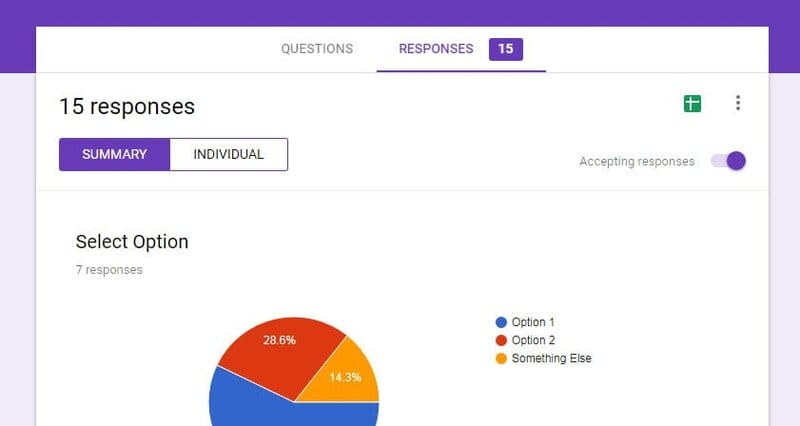
Survey time control
In many cases, you just want to collect ideas for a certain period of time. The time limit will help you close the survey at the right time and start the data analysis.
Manage the number of participants
For some events or programs, you may want to limit the number of registered people. Google Forms can help you achieve this by limiting the total response received.
Increase interaction and concentration
When participants know that the time or the number of response is limited, they will tend to respond faster and more carefully, thereby improving the quality of information collected.
See also: Instructions to download Google Docs files easily on all devices
Reference limits in Google Forms
Google Forms offers a variety of methods so you can easily control your feedback, suitable for each specific purpose and situation. Here are the most popular and effective ways:
1. Reference limit by Google account
This is one of the simplest ways to prevent a participant from sending many feedback. When you activate this mode, participants will need to log in with their Google account before being able to complete the form. This ensures that each Google account can only send a single feedback.
How to do it:
- Access to the Google Forms forms that you want to limit feedback.
- Click the icon Setting (sawing gear) in the upper right corner of the screen.
- Find the item Answer.
- Mark on the box Limit at 1 reply.
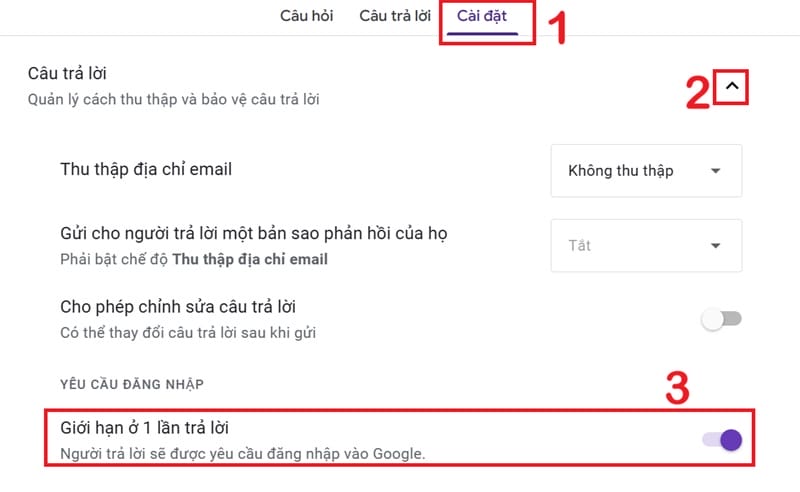
With this settings, anyone who tries to access the form after sending a response will receive a notice that they have responded and cannot be sent. This method is especially useful when you want to make sure each participant only contributes a single idea.
2. Refer limit over time
In many situations, limiting the time to receive feedback is extremely necessary. For example, you may want to survey your opinion before and after a specific event, or limit the time to register for a seminar. Google Forms allows you to proactively close the form when reaching the desired time.
How to do it:
- Open your Google Forms forms.
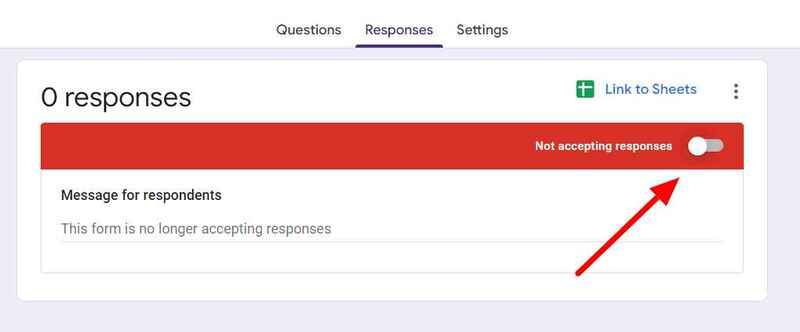
- Move to the tab Answer.
- When you want to stop receiving feedback, just need Slide to left To turn off the response mode.
When you turn off this mode, anyone who tries to access the form will see a custom message (you can edit this notice right below the slider). This helps notify the participants that the response time has ended. You can use this feature to set up open time and close the form flexibly.
3. The feedback limit with Fortmimiter supplementary utility
If you need more advanced feedback options, Google Forms additional utilities may be a great solution. One of the most popular and useful utilities for this purpose is Fortmimiter. It allows you to set feedback limits based on many different criteria, including:
- Date and time: Set a specific time to automatically close the form.
- Number of feedback: Set the maximum number of feedback you want to receive. When this number is reached, the form will automatically close.
- The value in a column of the form: Ask users to answer a specific question and limit based on that answer – Advanced feature.
How to use Fortmimiter utility:
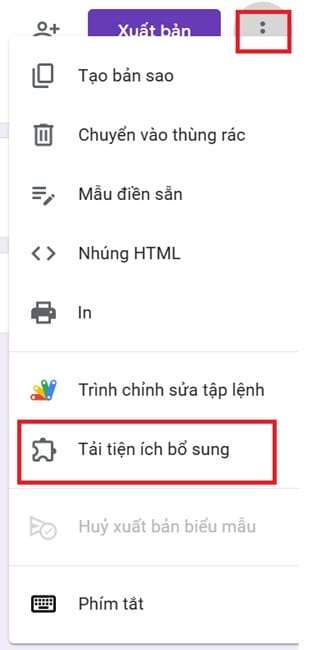
Step 1: In your Google Forms interface, click the icon More (Three vertical dots) in the upper right corner of the screen.
Step 2: Select Download additional utilities.
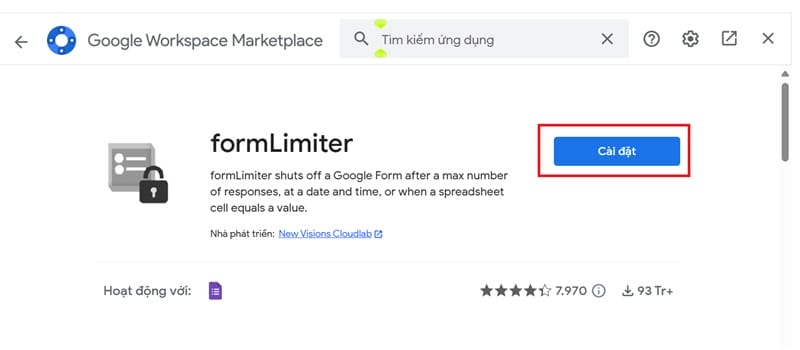
Step 3: In the Google Workspace Marketplace window, search Fortmimiter.
Step 4: Click Fortmimiter utility and select Setting > Follow the instructions to grant the right for utilities to access your Google Forms.
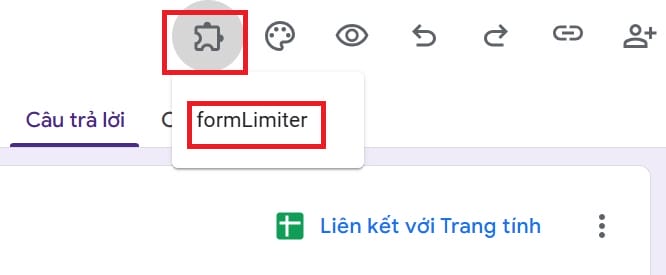
Step 5: After installation, click the icon Additional utilities (pieces) in the toolbar above your form> Select Fortmimiter.
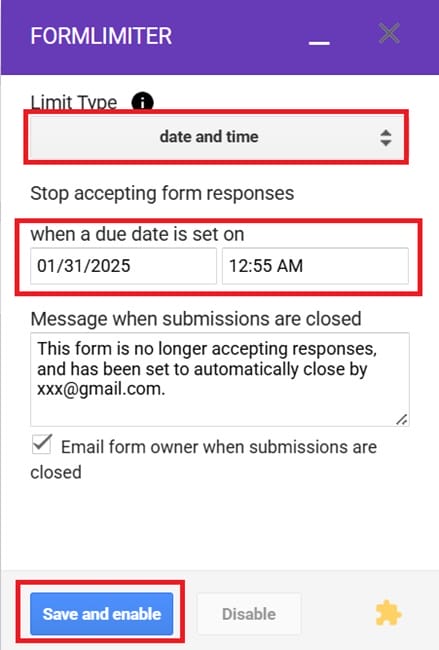
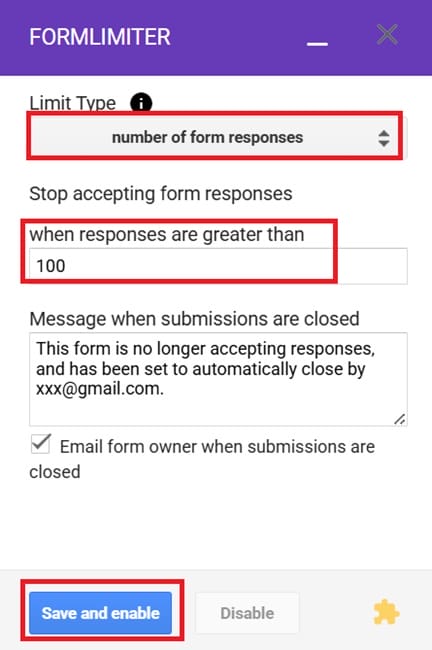
A configuration window will display on the right side of the screen. In the limit type section, you can choose the desired limit type such as:
- Date and Time: To limit over time, select the date and time to end the feedback.
- Number of Form Responses: To limit the number, you enter the maximum number of response.
- Customize the message will display when the form is closed in the Message When Form is Closed.
Step 6: Click Save and Enable To activate the limit.
Step 7: If you want to cancel the set limit, take the following steps:
- Click the icon Additional utilities > Fortmimiter.
- In the configuration window, click on Disable.
Fortmimiter utility brings high flexibility in the management of feedback, especially useful in situations that need strict control of time or number of participants.
See also: How to copy files from Google Drive to Google Drive super fast
Conclusion
Job Feedback limit in Google Forms Not only helps you better control data collected but also brings professionalism and efficiency during the survey. Depending on the specific needs, you can choose one of the above methods to apply.