UEFI is low-level software that starts running when you start your computer before the operating system is loaded. UEFI is a more modern version of BIOS for today’s newer computer systems, supporting larger hard drives, faster boot time, better security, and graphical interface, mouse control. . And that’s the theory when you want to create a UEFI-standard Windows installation USB.
| Join the channel Telegram belong to AnonyViet 👉 Link 👈 |
Normally when installing Windows 10, you will need a USB or CD/DVD to start your PC and the Windows installer. However, if you are using a computer that has an Unified Extensible Firmware Interface called UEFI for it to be fast, instead of a basic BIOS system, you must ensure that your storage device will work well with the motherboard’s firmware. .
If you are using new firmware, you can also install Windows 10 from USB. You can use Microsoft’s Media Creation Tool or Rufus to create a usb that supports both UEFI and legacy BIOS.
In this article, I will guide you to create UEFI-formatted Win USB using Media Creation Tool and Rufus.
Meida Creation Tool is a tool to download and create genuine Windows installation usb from Microsoft. All you need is a USB stick of at least 8gb. If you don’t have it, get up and run to buy it right away, then come back here and perform the following steps:
- Open page Download Windows 10.
- Under “Create Windows 10 installation media”, select Download tools now.
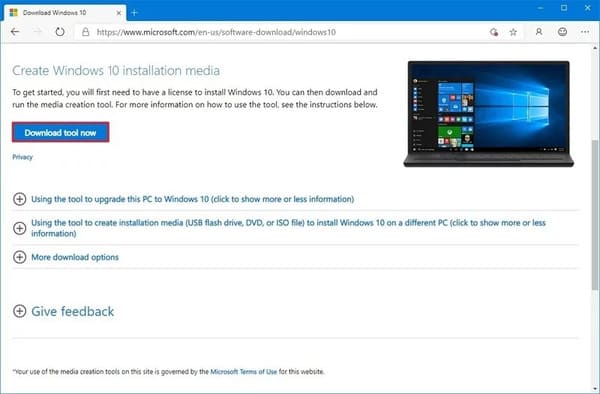
- Double click on the file MediaCreationToolxxx.exe.
- Press Accept means that you agree to the terms of Microsoft.
- Select Create instaallation media (USB flash drive, DVD, or ISO file) for another PC.
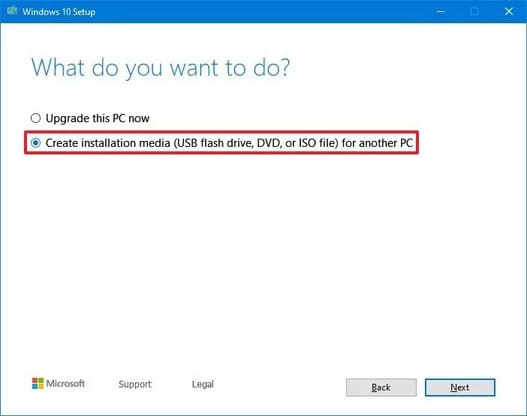
- Choose next Next.
- Unchecked Use the recommended options for this PC (if any).
- Change the language, architecture (32 or 64 bit), version of Windows 10 you want.
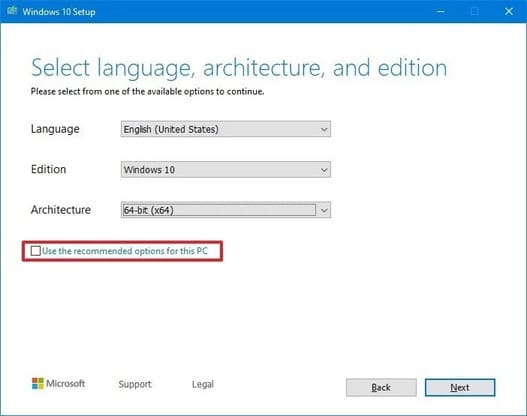 Small note: If you install Windows 10 both 64bit and 32bit, in the Architecture select Both.
 - Press Next.
- Select USB flash drive.
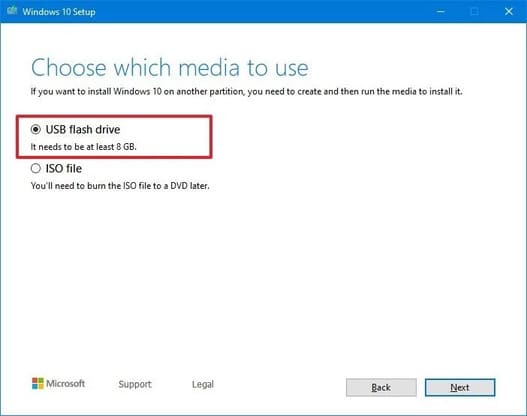
- Choose next Next.
- Select your USB. (If you don’t see it, press Refresh drive list).
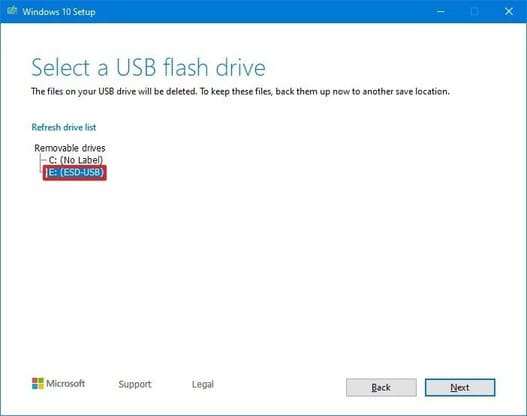
- Press Next.
- Press Finish.
Once you complete these steps, the software will download the necessary files and create a Windows 10 installation USB flash drive that supports UEFI and BIOS standards.
Use Rufus software to create UEFI standard USB
If the Media Creation Tool does not work, you can use Rufus to create a Windows installation USB that supports UEFI. The only difference is that you can still create ISO files with or without Windows. But I will show you both ways.
Windows 10 ISO
To create media using a Windows 10 ISO file, you need a USB with at least 8gb of space and follow these steps:
- Open Rufus’s homepage.
- In the “Download” section, select the latest version to download.
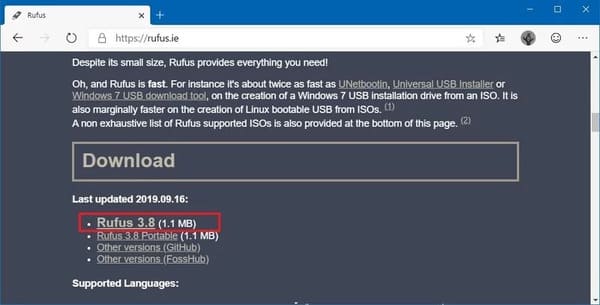
- Double click on the file Rufus-xxexe just downloaded.
- In the “Device” section, select the USB you have prepared.
- In the “Boot selection” section, select Select.
- Select the Windows 10 ISO file that you have prepared.
- Choose next Open.
- Where “Image option” chooses Standard Windows installation.
- In the “Partition scheme” section select GPT.
- In the “Target system” section select UEFI (non CSM).
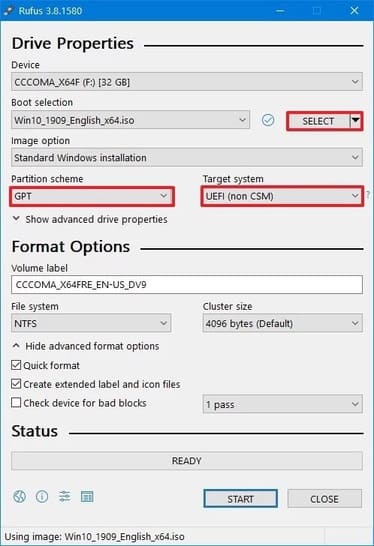
- Select “Show Advanced drive properties” to customize advanced settings.
- In the “Volume label” section, enter the USB name after creation.
- The “File system” and “Cluster size” places are the same as in the picture.
- Select Show advanced format options.
- Select “Quick format” and “Create extended label and icon files”.
- Select Start.
- Choose next OK To confirm.
- Once done press Close
After completing the steps, Rufus will create for you a Windows 10 installation USB with the ISO file you provided.
There is no Windows 10 ISO file
If you don’t have the Windows 10 ISO file, don’t worry. Rufus will automatically download the official Windows 10 ISO file from Microsoft to create a USB for you. What you need to do is perform the following steps:
- Open Rufus home page.
- Download the latest version of Rufus.
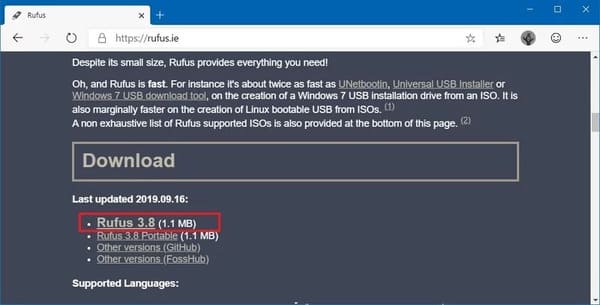
- Double click on the downloaded Rufus file.
- In the “Device” section, select your USB (minimum 8gb).
- In the “Boot selection” section, click the right arrow Selectselect Download.
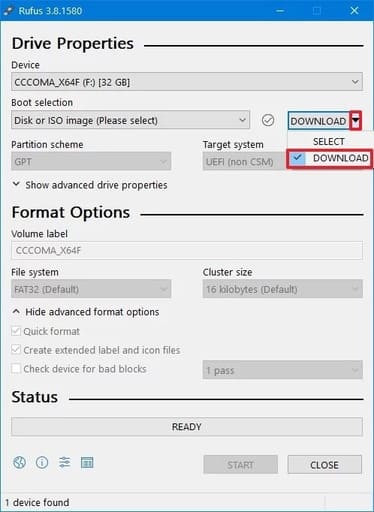
- Press Download.
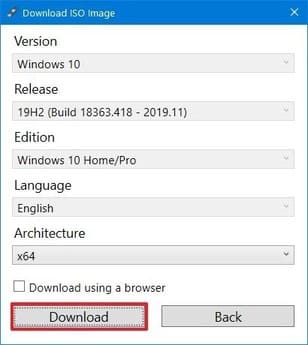
- Select “Version” to select Windows 10.
- Press Tiếp tục.
- Select 19H2 (Build 18363.418 – 2019.11) or higher version if desired.
- Press Tiếp tục.
- Select “Edition” to choose between 2 versions Windows 10 Home/Pro.
- Press Tiếp tục.
- Select “Language” and select the language for Windows 10.
- Press Tiếp tục.
- In the “Architecture” section select 32bit or 64bit.
- Press Download.
- Choose where to save the temporary ISO file from Microsoft.
- Press Save.
- In the “Image options” section select Standard Windows installation.
- In the “Partition scheme” section select GPT.
- In the “Target system” section select UEFI (non CSM).
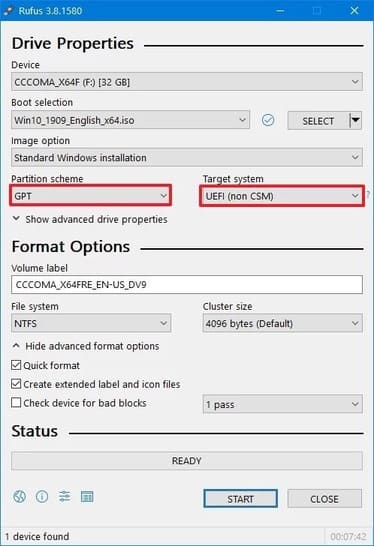
- Do the same as above from step 11 to the end.
After performing the above steps, the software will automatically download the Windows 10 ISO file from the Microsoft homepage. Then it will create you a UEFI standard Windows 10 installation USB.
Now that you have a UEFI standard USB, you can reinstall your Windows 10 or update it.
And if you want to install Ubuntu in parallel with Windows, read this paragraph.